
1. పరిచయం
This manual provides essential information for setting up, operating, maintaining, and troubleshooting your HP Pavilion 16-inch 2K Laptop. Please read this guide thoroughly to ensure optimal performance and longevity of your device.
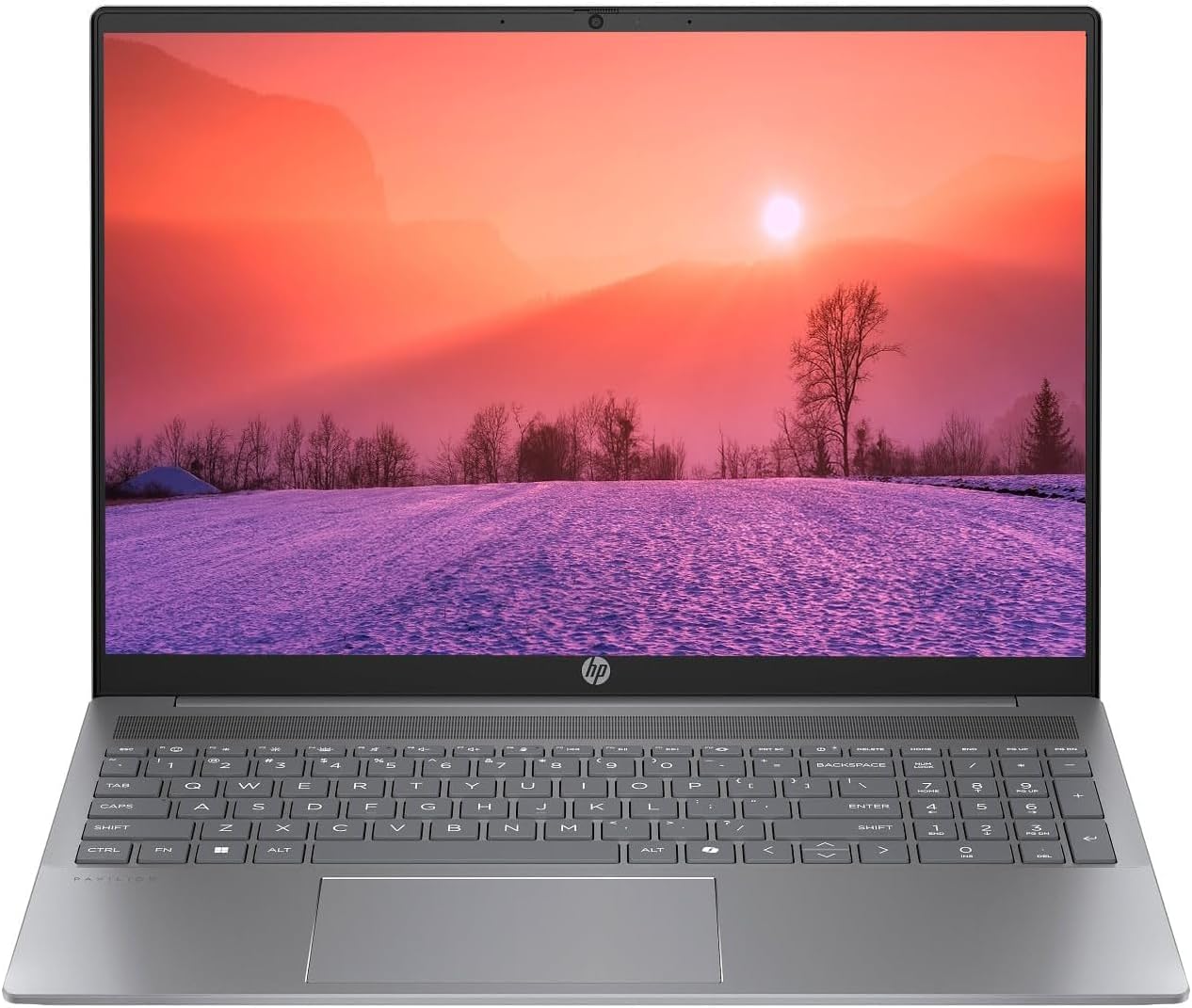
Figure 1.1: HP Pavilion 16-inch Laptop (Angled View)
This image displays the HP Pavilion 16-inch laptop in an open, angled position, highlighting its display and keyboard layout.
2. సెటప్
2.1 అన్ప్యాకింగ్ మరియు ప్రారంభ తనిఖీ
Carefully remove the laptop and all accessories from the packaging. Inspect for any signs of damage. If any components are missing or damaged, contact your retailer or HP support immediately.
2.2 కనెక్ట్ పవర్
- మీ ల్యాప్టాప్ వైపు ఉన్న పవర్ కనెక్టర్కు AC అడాప్టర్ను కనెక్ట్ చేయండి.
- పవర్ కార్డ్ను ఎలక్ట్రికల్ అవుట్లెట్లోకి ప్లగ్ చేయండి.
- Allow the laptop to charge for at least 30 minutes before initial use, especially if the battery is completely drained.
2.3 ప్రారంభ బూట్ మరియు Windows 11 సెటప్
Press the power button to turn on your laptop. Follow the on-screen instructions to complete the Windows 11 Home OS setup, including language selection, network connection, and user account creation.
2.4 కనెక్ట్ పెరిఫెరల్స్
మీ ల్యాప్టాప్ బాహ్య పరికరాలను కనెక్ట్ చేయడానికి వివిధ పోర్ట్లను కలిగి ఉంది:
- USB Type-C Ports (2): For data transfer, charging compatible devices, and video output.
- USB Type-A Ports (2): మౌస్, కీబోర్డ్లు లేదా బాహ్య డ్రైవ్ల వంటి ప్రామాణిక USB పరికరాలను కనెక్ట్ చేయడానికి.
- HDMI Port (1): బాహ్య డిస్ప్లేలు లేదా ప్రొజెక్టర్లకు కనెక్ట్ చేయడానికి.
- Headphone/Microphone Combo Jack (1): హెడ్ఫోన్లు, బాహ్య స్పీకర్లు లేదా మైక్రోఫోన్తో హెడ్సెట్ను కనెక్ట్ చేయడానికి.
3. ఆపరేటింగ్ సూచనలు
3.1 పవర్ ఆన్/ఆఫ్ మరియు స్లీప్ మోడ్
- పవర్ ఆన్: కీబోర్డ్ డెక్పై ఉన్న పవర్ బటన్ను నొక్కండి.
- షట్ డౌన్: విండోస్లో స్టార్ట్ బటన్ను క్లిక్ చేసి, ఆపై పవర్ > షట్ డౌన్ ఎంచుకోండి.
- స్లీప్ మోడ్: ల్యాప్టాప్ మూతను మూసివేయండి లేదా స్టార్ట్ బటన్ను క్లిక్ చేయండి, ఆపై పవర్ > స్లీప్ ఎంచుకోండి.
3.2 కీబోర్డ్ మరియు టచ్ప్యాడ్ని ఉపయోగించడం
The laptop features a full-size keyboard and a precision touchpad.
- బ్యాక్లిట్ కీబోర్డ్: To activate or adjust the keyboard backlight, use the dedicated function key (usually F5 or F4, look for a keyboard icon).
- టచ్ప్యాడ్ సంజ్ఞలు: Refer to Windows 11 settings for customizable touchpad gestures (e.g., two-finger scroll, pinch-to-zoom).
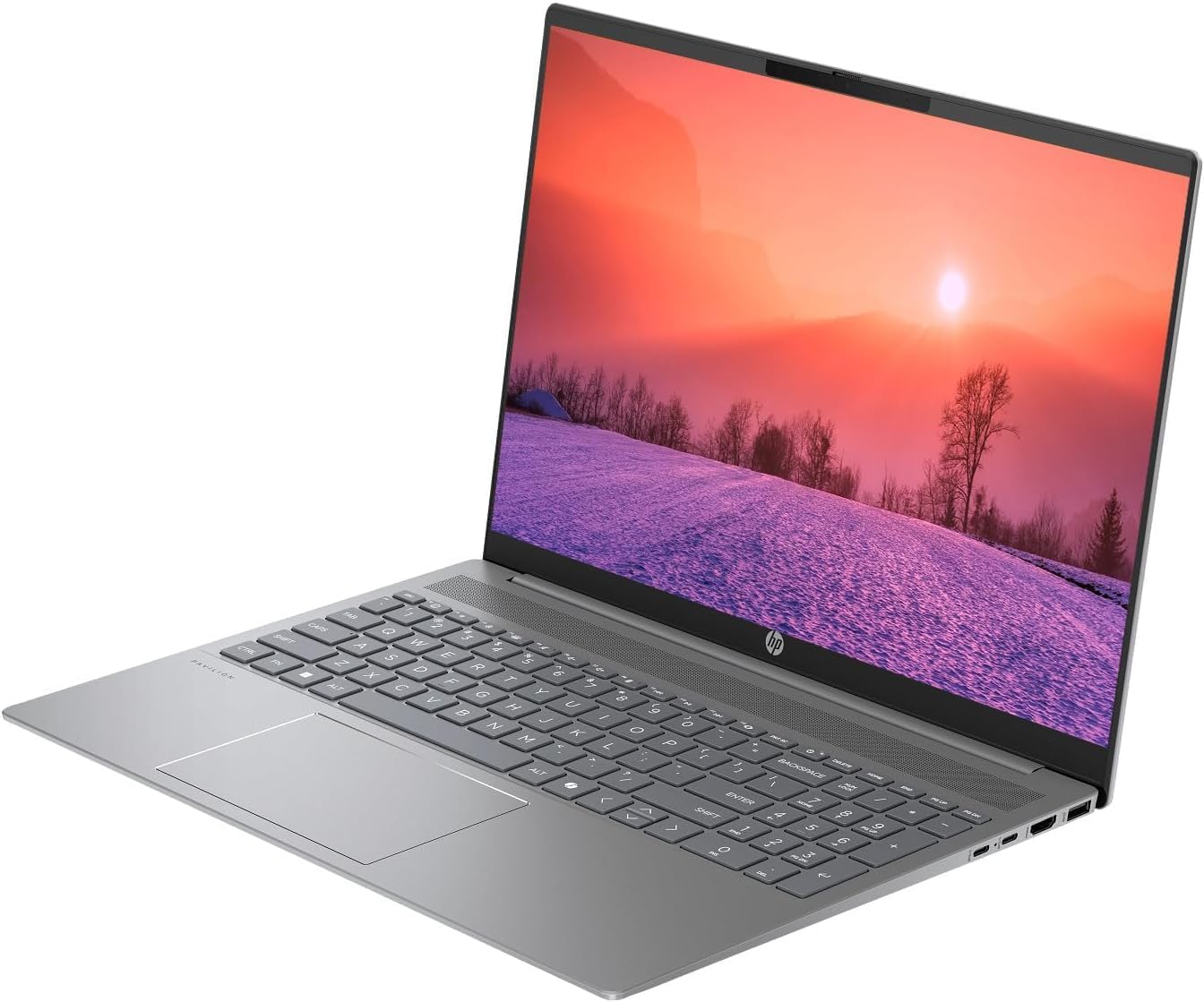
Figure 3.1: HP Pavilion 16-inch Laptop (Front View)
This image shows the HP Pavilion 16-inch laptop from a direct front view, highlighting the screen and keyboard.
3.3 వైర్లెస్ కనెక్టివిటీ
- Wi-Fi 6: To connect to a wireless network, click the Wi-Fi icon in the taskbar, select your network, and enter the password.
- బ్లూటూత్: To pair Bluetooth devices, go to Windows Settings > Bluetooth & devices, and turn on Bluetooth.
3.4 ఉపయోగించి Webకెమెరా
ఇంటిగ్రేటెడ్ HD webcam can be used for video calls and conferences. Access it through applications like Camera, Microsoft Teams, or Zoom.
4. నిర్వహణ
4.1 ల్యాప్టాప్ను శుభ్రపరచడం
- కొద్దిగా మెత్తని, మెత్తని బట్టను ఉపయోగించండి dampడిస్ప్లే కోసం నీరు లేదా స్క్రీన్ క్లీనర్తో నింపబడి ఉంటుంది.
- కీబోర్డ్ మరియు ఛాసిస్ కోసం, మృదువైన వస్త్రాన్ని ఉపయోగించండి. కఠినమైన రసాయనాలను నివారించండి.
- వెంటిలేషన్ రంధ్రాల నుండి దుమ్మును తొలగించడానికి క్రమానుగతంగా సంపీడన గాలిని ఉపయోగించండి.
4.2 బ్యాటరీ సంరక్షణ
- బ్యాటరీని తరచుగా పూర్తిగా ఖాళీ చేయడాన్ని నివారించండి.
- ల్యాప్టాప్ను ఎక్కువ సేపు ఉపయోగించకపోతే చల్లని, పొడి ప్రదేశంలో నిల్వ చేయండి.
- For optimal battery health, avoid continuous charging at 100% for prolonged durations.
4.3 సాఫ్ట్వేర్ నవీకరణలు
Regularly check for and install Windows updates to ensure system stability, security, and performance. Go to Windows Settings > Windows Update.
4.4 నిల్వ నిర్వహణ
అనవసరమైన వాటిని ఎప్పటికప్పుడు శుభ్రం చేయండి files and applications to maintain optimal performance of the 512GB SSD. Use Windows built-in tools like Disk Cleanup or Storage Sense.
5. ట్రబుల్షూటింగ్
This section addresses common issues you might encounter with your HP Pavilion laptop.
5.1 ల్యాప్టాప్ ఆన్ కావడం లేదు
- AC అడాప్టర్ ల్యాప్టాప్ మరియు పనిచేసే పవర్ అవుట్లెట్ రెండింటికీ సురక్షితంగా కనెక్ట్ చేయబడిందని నిర్ధారించుకోండి.
- మరొక పరికరాన్ని ప్లగ్ చేయడం ద్వారా పవర్ అవుట్లెట్ పనిచేస్తుందో లేదో ధృవీకరించండి.
- బ్యాటరీ పూర్తిగా ఖాళీ అయిపోతే, పవర్ ఆన్ చేయడానికి ప్రయత్నించే ముందు కనీసం 30 నిమిషాలు ఛార్జ్ అవ్వనివ్వండి.
5.2 Wi-Fi కనెక్షన్ సమస్యలు
- విండోస్ సెట్టింగ్లలో Wi-Fi ప్రారంభించబడిందో లేదో తనిఖీ చేయండి.
- మీ రౌటర్ మరియు మోడెమ్ను పునఃప్రారంభించండి.
- మీరు Wi-Fi నెట్వర్క్ పరిధిలో ఉన్నారని నిర్ధారించుకోండి.
- నెట్వర్క్ను మర్చిపోయి తిరిగి కనెక్ట్ చేయడానికి ప్రయత్నించండి.
5.3 కీబోర్డ్ బ్యాక్లైట్ పనిచేయడం లేదు
- Press the dedicated keyboard backlight function key (e.g., F5 or F4) to toggle or adjust the brightness.
- Check Windows Mobility Center settings (search for it in the Start menu) for backlight options.
5.4 నెమ్మది పనితీరు
- నేపథ్యంలో నడుస్తున్న అనవసరమైన అప్లికేషన్లను మూసివేయండి.
- విండోస్ తాజాగా ఉందని నిర్ధారించుకోండి.
- డిస్క్ క్లీనప్ను అమలు చేసి, మాల్వేర్ కోసం తనిఖీ చేయండి.
- Verify that the laptop is not overheating.
6. స్పెసిఫికేషన్లు
| ఫీచర్ | స్పెసిఫికేషన్ |
|---|---|
| మోడల్ పేరు | HP 16" Laptop |
| ప్రాసెసర్ | AMD Ryzen 5 8540U (Up to 4.89GHz) |
| RAM | 8GB LPDDR5 |
| నిల్వ | 512GB SSD |
| ప్రదర్శించు | 16-inch WUXGA 2K (1920 x 1200 pixels) LED |
| గ్రాఫిక్స్ | AMD రేడియన్ గ్రాఫిక్స్ (అంకితమైనది) |
| ఆపరేటింగ్ సిస్టమ్ | Windows 11 Home OS |
| ఓడరేవులు | 2x USB Type-C, 2x USB Type-A, 1x HDMI, 1x Headphone/Microphone Combo Jack |
| వైర్లెస్ కనెక్టివిటీ | వై-ఫై 6 (802.11ax), బ్లూటూత్ |
| కీబోర్డ్ | బ్యాక్లిట్ |
| Webకెమెరా | అవును |
| కొలతలు (L x W x Th) | 14.17" x 9.2" x 0.7" |
| బ్యాటరీ | Lithium Ion, 4 Watt Hours |
| UPC | 197961359091 |
7. వారంటీ మరియు మద్దతు
7.1 వారంటీ సమాచారం
This HP Pavilion laptop comes with a 30-రోజుల వారంటీ. Please retain your proof of purchase for any warranty claims. The warranty covers manufacturing defects under normal use conditions.
7.2 కస్టమర్ మద్దతు
For further assistance, technical support, or warranty inquiries, please visit the official HP support website or contact their customer service. You can typically find contact information and support resources by searching for "HP Support" online.