
పరిచయం
Thank you for choosing the cocopar Portable Monitor. This 15.6-inch 1080P Full HD monitor is designed to enhance your productivity and entertainment experience on the go. Its lightweight and slim profile make it an ideal companion for laptops, gaming consoles, and smartphones. This manual provides essential information for setting up, operating, and maintaining your new portable monitor.
ఉత్పత్తి ముగిసిందిview
కీ ఫీచర్లు
- 15.6-inch 1080P FHD IPS Display: Enjoy crisp, vibrant visuals with a 1920x1080 resolution, 178° viewing angle, wide color gamut, FreeSync, HDR, and Low Blue Light features.
- అల్ట్రా-పోర్టబుల్ డిజైన్: Weighing just 2.4 pounds (with cover) and featuring an ultra-thin profile (0.2 inches at its thinnest point), it's easy to carry in any laptop bag.
- బహుముఖ కనెక్టివిటీ: Equipped with dual full-featured USB Type-C ports and an HDMI port for broad compatibility with laptops, PCs, PS4/PS5, Xbox, and Raspberry Pi.
- ప్లగ్ మరియు ప్లే: Single USB Type-C cable connection for both power and display signal transmission (requires Thunderbolt 3.0 or DP ALT-MODE support on your device).
- Smart Cover Stand: The magnetic leather cover provides protection and doubles as a multi-angle adjustable stand.
- వెసా మౌంటబుల్: Two VESA holes (75x75mm) allow for mounting on a stand in landscape or portrait mode.
- అంతర్నిర్మిత డ్యూయల్ స్పీకర్లు: ఆడియో అవుట్పుట్ కోసం ఇంటిగ్రేటెడ్ స్టీరియో స్పీకర్లు.
పెట్టెలో ఏముంది
- 1 × cocopar Portable Monitor
- 1 × USB-C to USB-C cable (full-featured)
- 1 × USB to USB-C cable (for power only)
- 1 × HDMI to HDMI cable
- 1 × వినియోగదారు మాన్యువల్
- 1 × 5V3A Wall Charger

Image: All items included in the cocopar Portable Monitor package, neatly arranged.
సెటప్ సూచనలు
మీ పరికరానికి కనెక్ట్ చేస్తోంది
The cocopar portable monitor offers flexible connection options. Ensure your device supports the necessary output for optimal performance.

Image: Diagram illustrating various connection methods for the monitor, including USB-C and HDMI ports.
- USB Type-C Connection (Full-featured): For devices supporting Thunderbolt 3.0 or DisplayPort Alt Mode, a single USB-C to USB-C cable can provide both power and video signal. Connect one end to your device's compatible USB-C port and the other to either of the monitor's full-featured USB-C ports.
- HDMI కనెక్షన్: Connect one end of the HDMI cable to your device's HDMI output and the other end to the monitor's HDMI port. When using HDMI, the monitor requires external power. Connect the provided USB to USB-C cable to the monitor's power-only USB-C port and the wall charger.
- విద్యుత్ సరఫరా: If your device cannot provide sufficient power via USB-C, or if you are using HDMI, connect the monitor to the wall charger using the USB to USB-C cable.
ప్రారంభ కాన్ఫిగరేషన్
After connecting the monitor, your operating system should detect it automatically. You may need to adjust display settings:
- విండోస్: Right-click on the desktop, select 'Display settings'. Here you can arrange your displays, choose between 'Extend' or 'Duplicate' mode, and adjust resolution.
- MacOS: Go to 'System Preferences' > 'Displays'. You can arrange displays, set resolution, and choose between 'Mirror Displays' or 'Use as separate display'.
Video: Demonstration of connecting the cocopar portable monitor to a Samsung phone using Samsung Dex, showcasing the plug-and-play functionality.
ఆపరేటింగ్ సూచనలు
ప్రదర్శన మోడ్లు
The monitor supports various display modes to suit your needs:
- పొడిగింపు మోడ్: Expands your desktop across multiple screens, ideal for multitasking.
- మిర్రర్ మోడ్: Duplicates your primary screen's content onto the portable monitor, useful for presentations.
- పోర్ట్రెయిట్ మోడ్: Allows you to rotate the monitor for a vertical display, beneficial for coding or reading long documents.
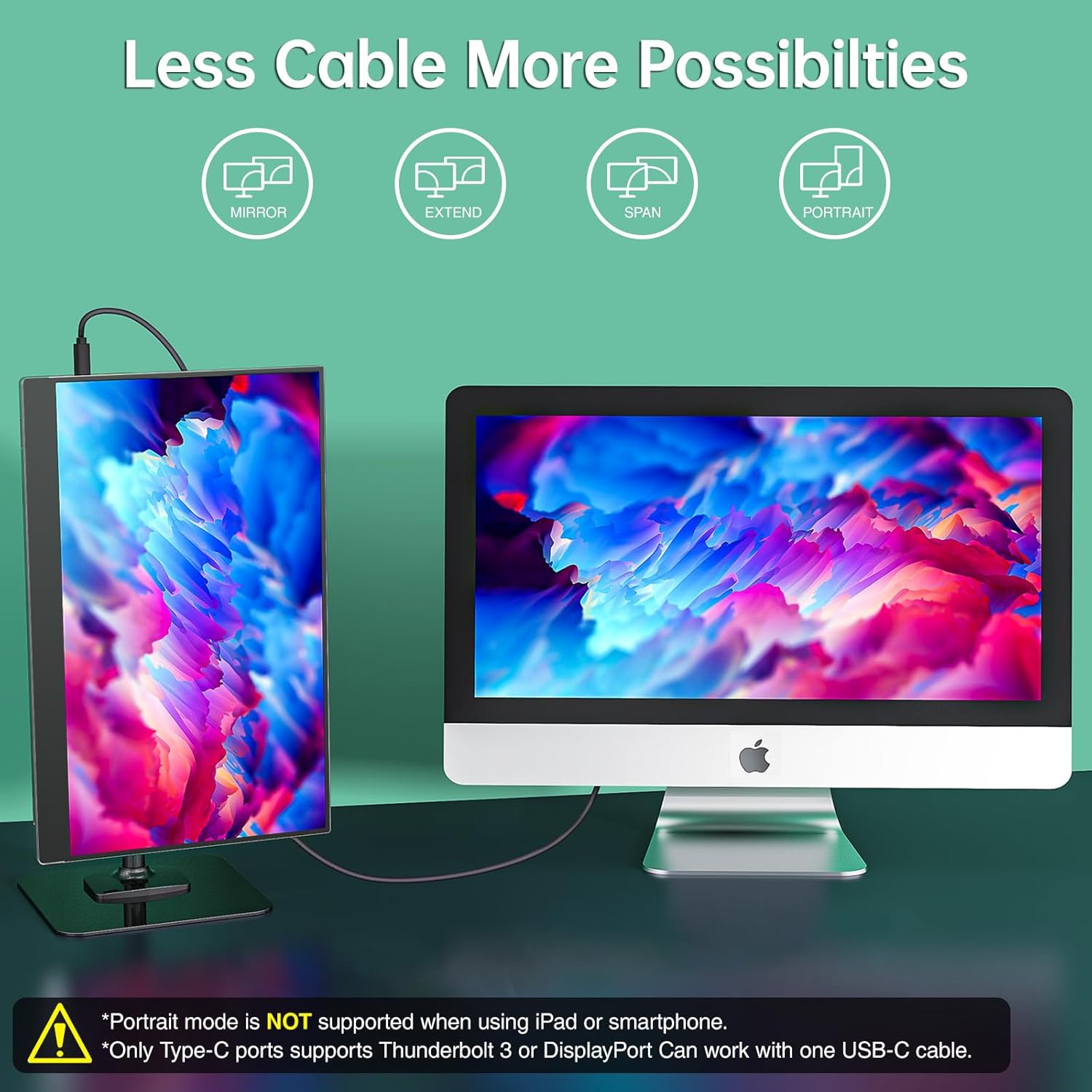
Image: Visual representation of the monitor supporting Mirror, Extend, Span, and Portrait display modes.

Image: A setup showing a laptop connected to multiple cocopar monitors in various orientations (landscape, stacked, portrait) for enhanced productivity.
మెనూ నావిగేషన్
Use the toggle switch on the side of the monitor to navigate the On-Screen Display (OSD) menu. This allows you to adjust settings such as brightness, contrast, color temperature, and input source.
Using the Smart Cover as a Stand
The included magnetic leather cover can be folded into various positions to prop up the monitor at different viewing angles. Refer to the diagram on the cover or in the user manual for optimal folding techniques.

Image: Step-by-step guide on how to fold the magnetic cover to create a stable stand for the monitor.
వెసా మౌంటు
For a more permanent setup, the monitor features two VESA 75x75mm mounting holes on the back. This allows you to attach it to compatible monitor arms or wall mounts for flexible positioning.

Image: A diagram showing the VESA mounting holes on the back of the monitor and an example of it mounted on a stand.
నిర్వహణ
- స్క్రీన్ క్లీనింగ్: కొద్దిగా మెత్తని, మెత్తని బట్టను ఉపయోగించండి dampనీరు లేదా స్క్రీన్-క్లీనింగ్ ద్రావణంతో కలిపి ఉంచండి. కఠినమైన రసాయనాలు లేదా రాపిడి పదార్థాలను నివారించండి.
- సాధారణ సంరక్షణ: Keep the monitor away from extreme temperatures, direct sunlight, and high humidity. Avoid placing heavy objects on the monitor or applying excessive pressure to the screen.
- నిల్వ: When not in use, store the monitor in its protective cover to prevent scratches and damage.
ట్రబుల్షూటింగ్
No Signal / Black Screen
- Ensure all cables are securely connected to both the monitor and your device.
- Verify that your device's USB-C port supports video output (DisplayPort Alt Mode or Thunderbolt 3.0/4.0).
- If using HDMI, ensure the monitor is connected to an external power source.
- Try a different cable or port on your device.
- Check your device's display settings to ensure the external monitor is detected and configured correctly (e.g., 'Extend' or 'Duplicate' mode).
Flickering or Unstable Display
- Ensure the monitor is receiving adequate power. Use the provided wall charger if the display is unstable.
- వేరే కేబుల్ ప్రయత్నించండి.
- Adjust the refresh rate or resolution in your device's display settings.
స్పీకర్ల నుండి ఆడియో లేదు
- Check the monitor's volume settings via the OSD menu.
- Ensure your device's audio output is directed to the cocopar monitor.
- If using HDMI, ensure your device is sending audio through the HDMI cable.
Video: A user demonstrating the setup and functionality of the cocopar portable monitor, including connecting to a laptop and using it as an extended display.
స్పెసిఫికేషన్లు
| ఫీచర్ | స్పెసిఫికేషన్ |
|---|---|
| స్క్రీన్ పరిమాణం | 15.6 అంగుళాలు |
| రిజల్యూషన్ | 1920 x 1080 పిక్సెల్స్ (FHD 1080p) |
| ప్యానెల్ రకం | IPS |
| కారక నిష్పత్తి | 16:9 |
| చిత్రం ప్రకాశం | 300 కాండెలా |
| కనెక్టివిటీ | 2x USB Type-C, 1x HDMI |
| ఆడియో | Built-in Dual Speakers, 3.5mm Audio Jack |
| వెసా మౌంట్ | 75x75mm |
| ఉత్పత్తి కొలతలు | 0.2 x 14.12 x 8.8 అంగుళాలు |
| వస్తువు బరువు | 2.4 పౌండ్లు |
| మోడల్ సంఖ్య | Y156FH7XD |
వారంటీ మరియు మద్దతు
Your cocopar Portable Monitor comes with a 2 సంవత్సరాల వారంటీ. To register your warranty and receive a 10% off code for your next order, please send your Amazon Order # to service@cocopar.net.
For any issues or technical support, you can contact cocopar's 24/7 Toll-Free support at +1-888-666-0082.
Video: A user demonstrating the slim profile and various ports of the cocopar portable monitor, highlighting its ease of use and portability.