
1. Utangulizi
Thank you for choosing the AVMATRIX Shark S6, a professional 6-channel HDMI/SDI multi-camera video mixer switcher designed for live streaming, recording, and video production. This manual provides detailed instructions on how to set up, operate, and maintain your device to ensure optimal performance and longevity. Please read this manual thoroughly before using the product.
2. Bidhaa Imeishaview
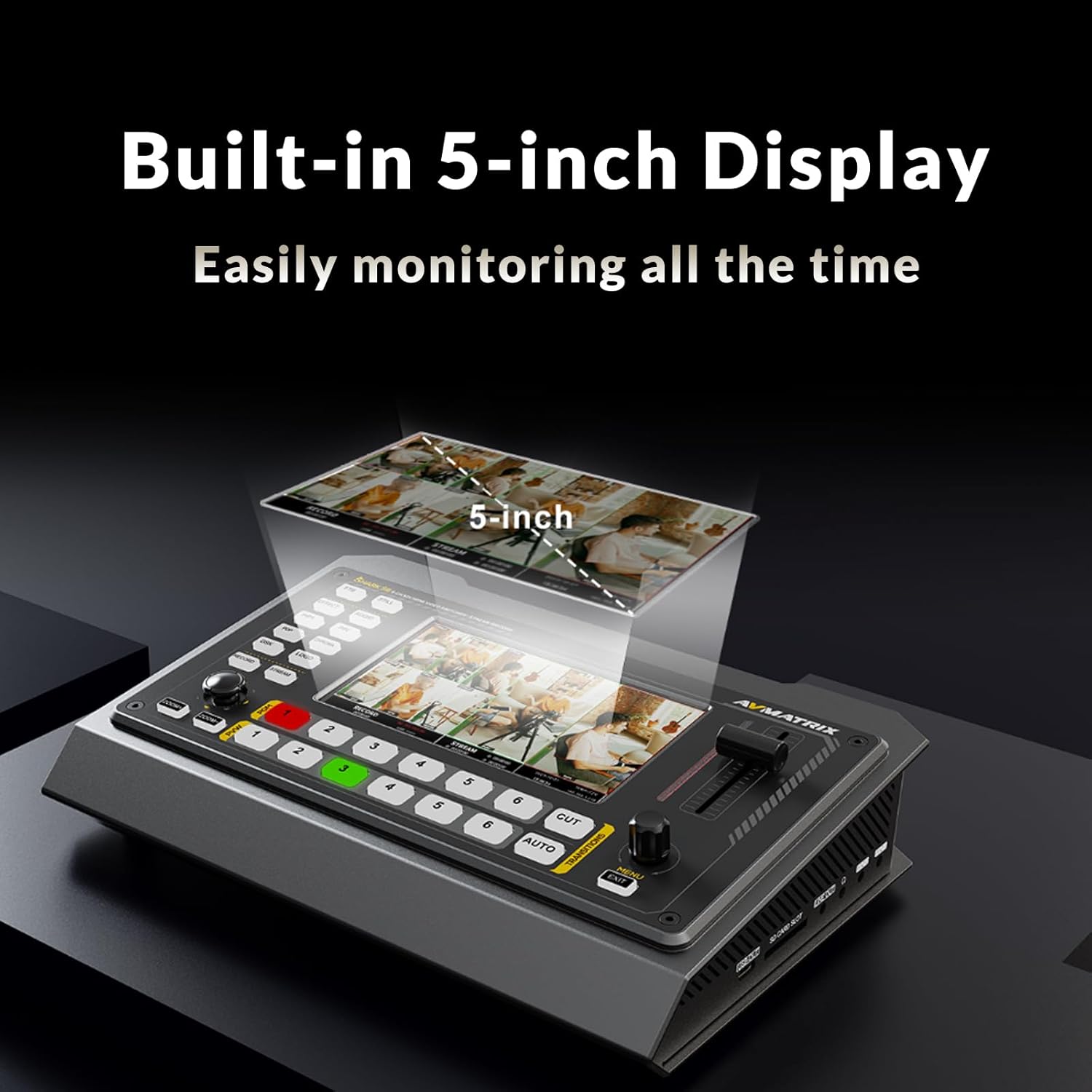
The AVMATRIX Shark S6 is a compact yet powerful video switcher featuring a 5-inch FHD display, multiple input/output options, and advanced control capabilities for seamless live production workflows.

Kielelezo cha 2.1: Mbele na juu view of the AVMATRIX Shark S6, showcasing the integrated 5-inch display, control buttons, and T-bar for smooth transitions.
Kielelezo cha 2.2: Rear panel of the AVMATRIX Shark S6, displaying various input and output ports including SDI, HDMI, LAN, USB, and audio connections.

Kielelezo cha 2.3: Karibu-up view of the built-in 5-inch Full HD display on the AVMATRIX Shark S6, providing real-time monitoring of all video inputs and program output.
3. Mwongozo wa Kuweka
3.1 Kufungua na Kukagua
Carefully unpack the AVMATRIX Shark S6 and all accessories. Inspect the unit for any signs of damage during transit. If any damage is found, contact your dealer immediately.
3.2 Nguvu ya Kuunganisha
Connect the provided DC 12V power adapter to the 'DC 12V' input port on the rear panel of the Shark S6. Plug the adapter into a suitable power outlet. The device will power on automatically or can be turned on using the power switch.
3.3 Video Input Connections
The Shark S6 features 4 SDI inputs and 2 HDMI inputs. Connect your cameras or other video sources to the corresponding input ports (SDI IN 1-4, HDMI IN 5-6) on the rear panel.
3.4 Video Output Connections
Connect your display monitors or recording devices to the following output ports:
- PGM Outputs: 2 SDI and 1 HDMI PGM outputs for your main program feed.
- Nyingiview Pato: 1 HDMI Multiview output for monitoring all inputs simultaneously.
- Matokeo ya AUX: 2 SDI AUX outputs, configurable to display IN 1-6, PGM, PVW, Multiview, nk.
3.5 Uunganisho wa Sauti
The unit supports 6 embedded audio inputs (via SDI/HDMI) and 2 external MIC inputs. Connect external microphones to the 3.5mm MIC input jacks. An earphone slot is also available for audio monitoring.
3.6 Miunganisho ya Mtandao na USB
For live streaming via Ethernet, connect an Ethernet cable to the LAN port. For USB capture, connect a USB Type-C cable to the 'USB Type-C' port. For recording to external storage, insert a USB disk into the 'USB REC' port or an SD card into the 'SD Card' slot.
4. Maagizo ya Uendeshaji
4.1 Basic Switching Operations
Use the numbered buttons (1-6) on the control panel to select your input sources. The 'CUT' button performs an instant cut transition, while the 'AUTO' button executes an automatic transition with a preset duration. The T-bar can be used for manual transitions.

Kielelezo cha 4.1: The convenient panel button design of the Shark S6, allowing direct access to functions like PIP/POP, DSK, Chroma Key, Audio, and Logo insertion.
4.2 Live Streaming via Ethernet
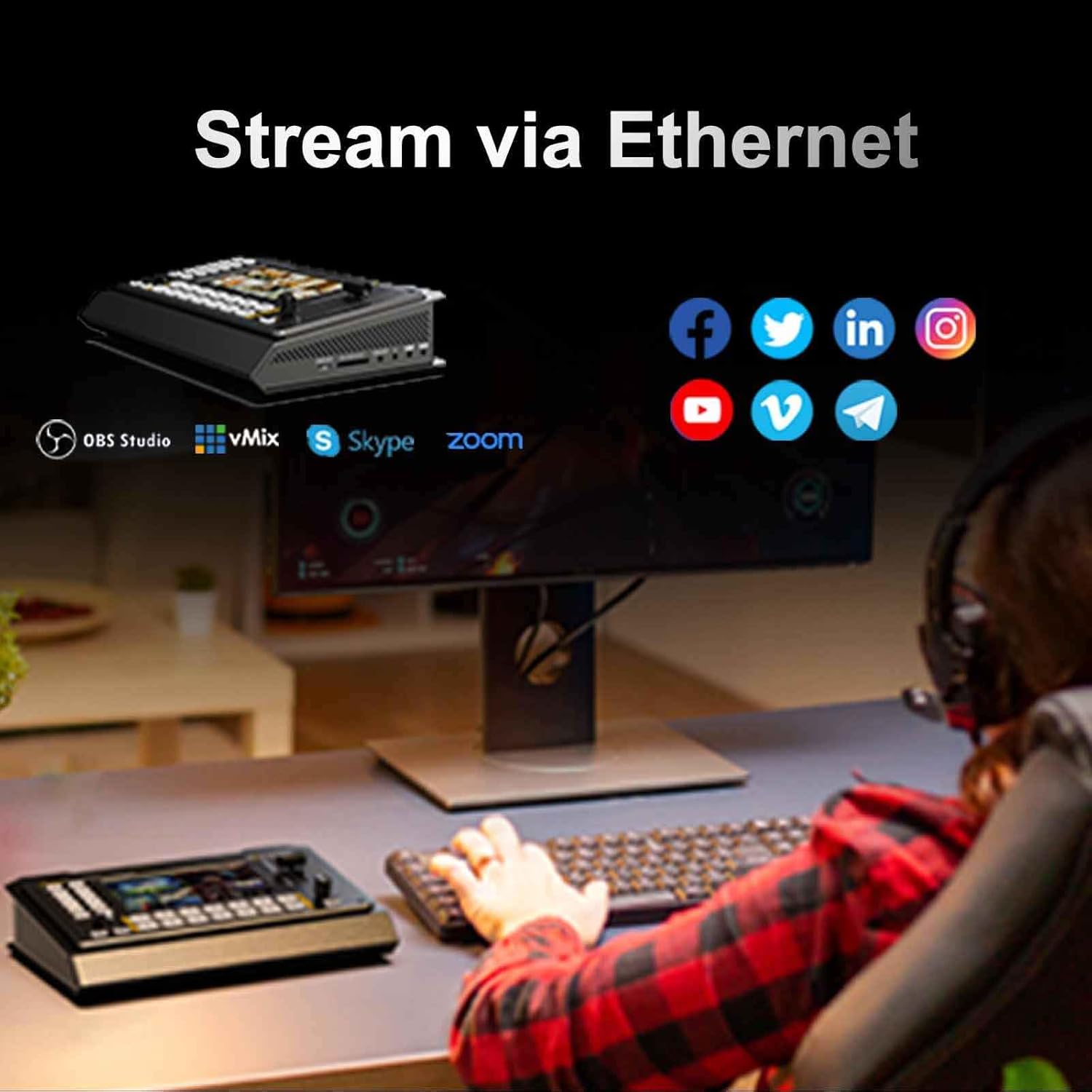
The LAN port supports IP streaming via RTMP(S), RTSP, and SRT protocols. Configure your streaming settings through the device's menu system to connect to platforms like YouTube, Facebook, Twitch, and Skype. Ensure a stable internet connection for optimal streaming quality.
Kielelezo cha 4.2: Illustration of the Shark S6 connected for live streaming via Ethernet, compatible with various social media and streaming platforms.
4.3 USB Disk & SD Card Recording
Record your PGM signal directly to an SD card or USB disk. The device supports MP4/TS file formats with an encode bitrate up to 32Mbps. Insert your storage device and press the 'RECORD' button to start/stop recording. Ensure sufficient storage space and a compatible file system (FAT32/exFAT/NTFS).
4.4 USB Capture for Streaming Software
The USB Type-C port allows the Shark S6 to function as a webcam, capturing video and audio for use with various software and platforms such as OBS, vMIX, ZOOM, Teams, Skype, and VLC. It is compatible with Windows, Linux, and Mac operating systems.
4.5 Professional Audio Mixer
Utilize the integrated audio mixer to manage 6 embedded audio inputs and 2 external MIC inputs. Adjust individual audio levels and apply audio delay settings for each channel to ensure perfect audio-video synchronization.
4.6 PTZ Camera Control
Control PTZ (Pan-Tilt-Zoom) cameras directly from the Shark S6 via LAN and RS-232/RS-422/RS-485 connections. Supported protocols include VISCA, VISCA over IP, Pelco D/P, and ON-VIF. This feature allows for precise camera adjustments during live productions.

Kielelezo cha 4.3: The Shark S6's capability to control up to 6 PTZ cameras simultaneously, offering precise pan, tilt, and zoom adjustments.
4.7 FTB (Fade to Black) Function
Press the 'FTB' button to instantly fade the PGM output to a black screen. This function is useful for emergency situations or intentional blackouts during a live production.
5. Matengenezo
To ensure the longevity and optimal performance of your AVMATRIX Shark S6, follow these maintenance guidelines:
- Kusafisha: Use a soft, dry cloth to clean the exterior of the unit. Do not use liquid cleaners or aerosols, as they may damage the device.
- Uingizaji hewa: Ensure that the ventilation openings are not blocked. Proper airflow is crucial to prevent overheating.
- Hifadhi: Wakati haitumiki kwa muda mrefu, hifadhi kifaa mahali pa baridi, kavu mbali na jua moja kwa moja na joto kali.
- Sasisho za Firmware: Periodically check the AVMATRIX official website for firmware updates. Keeping your device's firmware up-to-date can improve performance and add new features.
6. Utatuzi wa shida
This section addresses common issues you might encounter with your AVMATRIX Shark S6. If you experience a problem not listed here, please contact AVMATRIX support.
| Tatizo | Sababu inayowezekana | Suluhisho |
|---|---|---|
| Hakuna pato la video | Incorrect input/output selection; Loose cable connections; Incompatible video format. | Verify PGM output is selected; Check all HDMI/SDI cable connections; Ensure input video formats are supported (refer to specifications). |
| Hakuna pato la sauti | Audio levels too low; Incorrect audio input selected; Muted audio. | Adjust audio levels in the mixer; Confirm correct audio input source; Check if audio is muted. |
| Streaming issues (buffering, disconnection) | Unstable internet connection; Incorrect streaming settings; Network congestion. | Check network cable and internet speed; Verify RTMP/RTSP/SRT settings; Reduce streaming bitrate if necessary. |
| Kurekodi kumeshindwa | Insufficient storage space; Incompatible USB disk/SD card format; Slow write speed of storage device. | Ensure enough free space; Format USB disk/SD card to FAT32/exFAT/NTFS; Use a high-speed storage device. |
| PTZ camera not responding | Incorrect control protocol; Wrong IP address/serial settings; Loose control cable. | Verify PTZ protocol (VISCA, Pelco D/P, ON-VIF); Check IP/serial settings; Ensure control cables are securely connected. |
7. Vipimo
Detailed technical specifications for the AVMATRIX Shark S6.
| Kipengele | Maelezo |
|---|---|
| Vipimo vya Bidhaa | Inchi 9.4 x 6.2 x 1.8 |
| Uzito wa Kipengee | Pauni 5.39 |
| Nambari ya Mfano | PAPA S6 |
| Rangi | Nyeusi |
| Ingizo za Video | 4 x SD/HD/3G-SDI (75Ω), 2 x HDMI type-A (100Ω) |
| Matokeo ya Video | 2 x HD/3G-SDI PGM, 1 x HDMI type-A PGM, 1 x HDMI Multiview, 2 x 3G-SDI AUX |
| Uingizaji wa Sauti | 6CH Embedded Audio, 2 x MIC (3.5mm Jack) |
| Matokeo ya Sauti | 1 x Line Out, 1 x Earphone Slot |
| Tiririsha Pato | LAN (RTMP(S), RTSP, SRT) |
| Capture Output | USB Type-C (UVC/UAC compatible) |
| Bandari ya Vyombo vya habari | USB Type-A, SD Card Slot |
| Inarekodi Bitrate | 2M-32Mbps |
| Kurekodi File Miundo | MP4/TS |
| Udhibiti wa Kamera ya PTZ | LAN, RS-232/RS-422/RS-485 (VISCA, VISCA over IP, Pelco D/P, ON-VIF) |
| Ingizo la Nguvu | DC 12V |
| Vifaa Sambamba | Kamera |
| Aina ya Cable | USB |
8. Udhamini na Msaada
The AVMATRIX Shark S6 comes with a standard manufacturer's warranty. For specific warranty terms and conditions, please refer to the warranty card included with your product or visit the official AVMATRIX website. For technical support, troubleshooting assistance, or service inquiries, please contact AVMATRIX customer support directly. You may also refer to the seller, AVMATRIX COMPANY, for purchase-related support.
Mipango ya Ulinzi: Mipango ya ulinzi iliyopanuliwa inaweza kupatikana kwa ununuzi. Tafadhali wasiliana na muuzaji wako kwa chaguzi kama vile Mipango ya Ulinzi ya Miaka 2 au 3.