
1. Introduktion
Welcome to the user manual for your new DigiLand 10.1 Inch HD Octa-Core Android Tablet. This device is designed to provide a versatile and powerful experience for both productivity and entertainment. Featuring an Octa-Core processor, ample RAM and storage, and a vibrant HD display, your tablet is equipped for a wide range of tasks, from browsing and streaming to gaming and office work.
This manual will guide you through the initial setup, operation, maintenance, and troubleshooting of your tablet to ensure you get the most out of its capabilities.
2. Vad finns i lådan
Kontrollera att alla artiklar finns i ditt produktpaket:
- DigiLand 10.1 Inch Android Tablet
- Skyddsfodral
- USB Type-C laddningskabel
- Strömadapter (5V/2A)
- Snabbstartguide

Figur 2.1: Paketets innehåll
3. Produkt överview
The DigiLand R10 Pro+ tablet combines powerful hardware with a user-friendly Android 14 operating system. Below are the key features and components of your device.
3.1 Nyckelfunktioner
- Processor: MediaTek Helio G80 Octa-Core CPU (2x A75 2.0GHz + 6x A55 1.8GHz) for robust performance.
- Visa: 10.1-inch HD (800x1280) In-cell touchscreen with IPS clarity and 350cd/m² brightness.
- Minne och lagring: 12 GB RAM och 128 GB ROM, utökningsbart upp till 256 GB via TF-kort.
- Batteri: 6000mAh battery providing over 12 hours of runtime, with 10W fast-charging support.
- Kameror: 13MP rear camera and 8MP front camera for photography and video calls.
- Audio: Dual 8Ω/1W speakers for clear sound.
- Anslutning: Bluetooth 5.0, 802.11n Wi-Fi, Type-C port, and headphone jack.
- Operativsystem: Android 14.
- Widevine L1-stöd: Enables high-definition streaming from platforms like Netflix, Hulu, and Amazon Prime Video.
3.2 Visuell översiktview
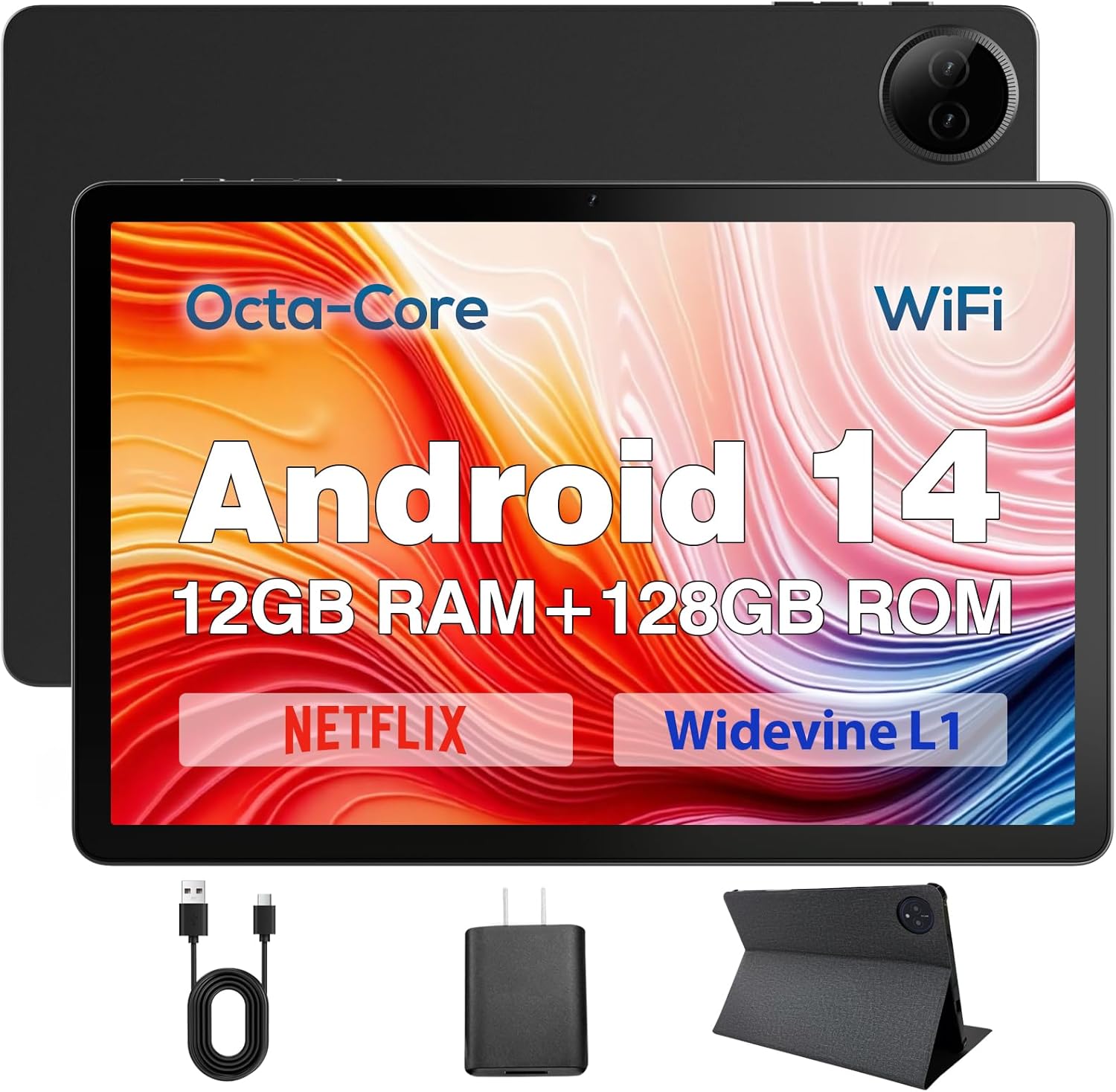
Figure 3.1: DigiLand Tablet Front and Rear View
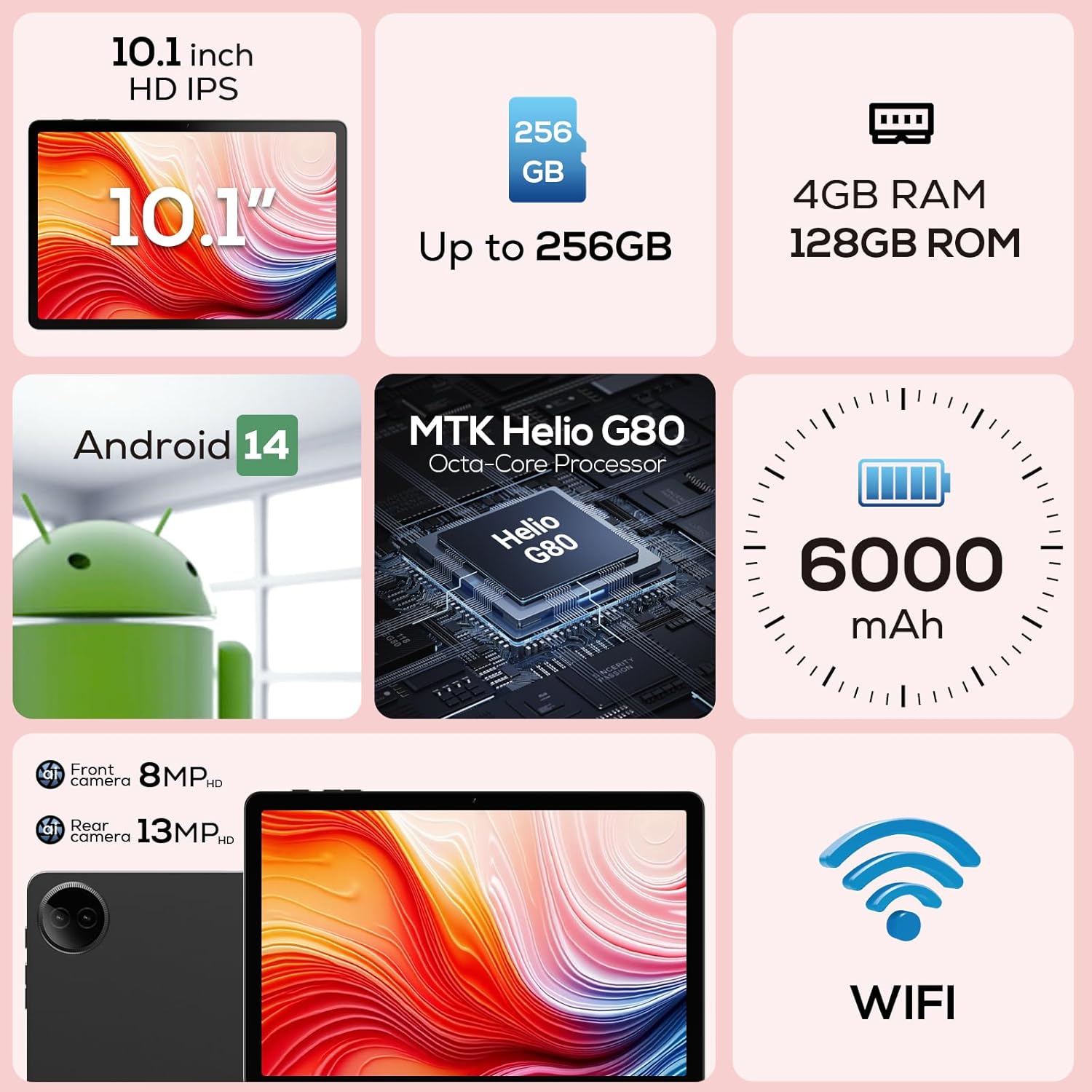
Figur 3.2: Diagram över viktiga funktioner

Figure 3.3: Widevine L1 Support for HD Streaming

Figure 3.4: Ultra-thin and Lightweight Design
4. Inställning
4.1 Initial laddning
Before first use, fully charge your tablet. Connect the USB Type-C cable to the tablet's charging port and the power adapter to a wall outlet. The charging indicator will show the charging status. A full charge typically takes several hours.
4.2 Slå på/av
- För att slå på: Press and hold the Power button located on the side of the tablet until the DigiLand logo appears on the screen.
- För att stänga av: Håll strömknappen intryckt tills menyn för energialternativ visas. Välj "Stäng av" och bekräfta.
- Att starta om: Från menyn för energialternativ väljer du "Starta om".
4.3 Guiden för första installationen
Upon first power-on, the tablet will guide you through a setup wizard. Follow the on-screen prompts to:
- Välj ditt språk.
- Anslut till ett Wi-Fi-nätverk.
- Logga in med ditt Google-konto eller skapa ett nytt.
- Konfigurera skärmlås (PIN, mönster, lösenord).
- Review och acceptera villkoren.
5. Bruksanvisning
5.1 Pekskärmsnavigering
Your tablet features a responsive multi-touch display. Common gestures include:
- Knacka: För att välja ett objekt, öppna en app eller tryck på en knapp.
- Peka och håll: To open contextual menus or drag items.
- Hårt slag: To scroll through lists, move between home screens, or dismiss notifications.
- Nyp-för-att-zooma: För att zooma in eller ut på bilder, kartor eller web sidor.
5.2 Wi-Fi-anslutning
Så här ansluter du till ett Wi-Fi-nätverk:
- Gå till Inställningar > Nätverk & internet > Wi-Fi.
- Växla Wi-Fi On.
- Välj önskat nätverk från listan.
- Ange lösenordet om du blir ombedd och tryck på Ansluta.

Figure 5.1: High-Speed Wi-Fi Connectivity
5.3 Bluetooth-parning
To pair with Bluetooth devices (e.g., headphones, speakers):
- Gå till Inställningar > Anslutna enheter > Anslutningspreferenser > Bluetooth.
- Växla Bluetooth On.
- Se till att din Bluetooth-enhet är i parningsläge.
- Select your device from the 'Available devices' list and follow any on-screen prompts to complete pairing.
5.4 Använda kamerorna
Your tablet is equipped with a 13MP rear camera and an 8MP front camera.
- Öppna Kamera appen från startskärmen eller applådan.
- Tryck på kameraväxlingsikonen för att växla mellan främre och bakre kameror.
- Tap the shutter button to take a photo or the video icon to record a video.
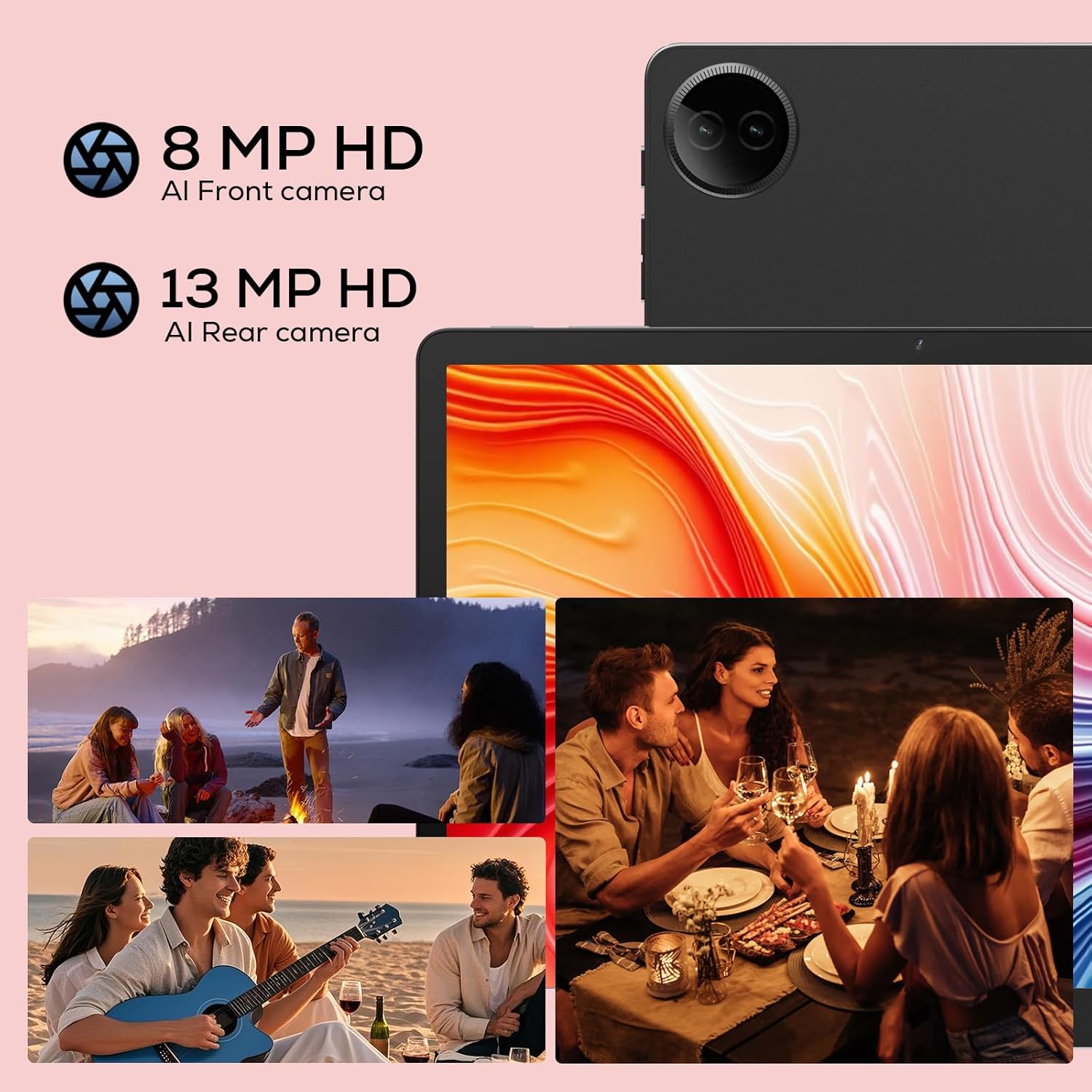
Figure 5.2: Tablet Cameras and Sample Foton
5.5 Apphantering
Installera appar: Download and install apps from the Google Play Store. Open the Play Store app, search for your desired app, and tap 'Install'.
Avinstallera appar: Touch and hold the app icon on the home screen or app drawer, then drag it to 'Uninstall' or select 'App info' and tap 'Uninstall'. Alternatively, go to Inställningar > Appar > Se alla appar, välj appen och tryck på "Avinstallera".
6. Underhåll
6.1 Rengöring av surfplattan
Använd en mjuk, luddfri trasa för att rengöra skärmen och höljet på din surfplatta. För envisa fläckar, torka lättampRengör trasan med vatten eller ett skärmrengöringsmedel avsett för elektronik. Undvik att använda starka kemikalier eller slipande material.
6.2 Batterivård
Så här förlänger du batteriets livslängd:
- Undvik extrema temperaturer.
- Låt inte batteriet tömmas helt för ofta.
- Använd den medföljande laddaren och kabeln.
- Adjust screen brightness and disable unused features (Wi-Fi, Bluetooth) to conserve power.

Figur 6.1: Funktioner för förlängd batteritid
6.3 Programuppdateringar
Kontrollera och installera regelbundet programuppdateringar för att säkerställa optimal prestanda, säkerhet och åtkomst till nya funktioner. Gå till Inställningar > System > Systemuppdatering.
6.4 Lagringshantering
To manage your tablet's storage:
- Gå till Inställningar > Lagring till view lagringsanvändning.
- Avinstallera appar som inte används.
- Rensa cachedata för appar.
- Överför stor files (photos, videos) to cloud storage or an external TF card.
7. Felsökning
Om du stöter på problem med din surfplatta kan du läsa följande vanliga problem och lösningar:
| Problem | Möjlig lösning |
|---|---|
| Surfplattan slås inte på | Se till att batteriet är laddat. Anslut till laddaren i minst 30 minuter. Om den fortfarande inte svarar, utför en forcerad omstart genom att hålla strömknappen intryckt i 10–15 sekunder. |
| Problem med Wi-Fi-anslutningen | Starta om din Wi-Fi-router. Glöm nätverket på din surfplatta och återanslut. Se till att du är inom räckhåll för Wi-Fi-signalen. |
| Appar är långsamma eller kraschar | Close background apps. Clear app cache (Settings > Apps > [App Name] > Storage & cache > Clear cache). Ensure sufficient storage space. Restart the tablet. |
| Batteriet töms snabbt | Reduce screen brightness. Disable Wi-Fi/Bluetooth when not in use. Close unused apps. Check battery usage in Settings to identify power-hungry apps. |
| Skärmen svarar inte | Restart the tablet. Ensure the screen is clean and dry. Remove any screen protectors that might be interfering. |
Om problemet kvarstår efter att du har provat dessa lösningar, vänligen kontakta kundsupporten.
8. Specifikationer
Detailed technical specifications for your DigiLand R10 Pro+ Tablet:
| Särdrag | Specifikation |
|---|---|
| Stämpla | DigiLand |
| Modellnamn | R10 Pro+ |
| Operativsystem | Android 14 |
| Stående skärmstorlek | 10.1 tum |
| Skärmupplösning | 1280 x 800 pixlar |
| Processormärke | MediaTek |
| Processor modell | Helio G80 Octa-Core CPU |
| RAM | 12 GB |
| Flashminnesstorlek (ROM) | 128 GB |
| Expanderbar lagring | Up to 256GB (TF card slot) |
| Trådlös typ | 802.11n |
| Bluetooth | 5.0 |
| Genomsnittlig batteritid | 12 XNUMX timmar |
| Objektets vikt | 1.32 pund (ca 600 g) |
| Produktens mått | 10.17 x 6.41 x 0.31 tum |
| Färg | Grå |
9. Garanti och support
9.1 Garantipolicy
Your DigiLand Tablet comes with a 1-års garanti från inköpsdatum. Denna garanti täcker tillverkningsfel och problem som uppstår vid normal användning. Vänligen spara ditt inköpsbevis för garantianspråk.
9.2 Kundsupport
For any questions regarding the use, setup, or troubleshooting of your DigiLand Tablet, our customer service team is available to assist you.
- Online support: We offer 24/7 online call support.
- Reparationssupport: 1-Year Repair Support is provided.
You can contact us directly through the channels provided on our official website or through your purchase platform. We are committed to providing prompt and helpful service.

Figur 9.1: Dedikerad kundsupport
For more information and product updates, visit the official DigiLand Store: DigiLand Store on Amazon