1. Selelekela
This manual provides detailed instructions for the Generic External Module designed for the Flipper Zero. This module expands the capabilities of your Flipper Zero by integrating WiFi (ESP32S2), 433MHz RF, and GPS functionalities, along with a dedicated screen for enhanced interaction. Please read this manual thoroughly before use to ensure proper installation and operation.
2. Sehlahisoa Overview
The Generic External Module is a versatile development board that attaches to your Flipper Zero. It includes the following components:
- 433 MHz RF Module: For radio frequency communication.
- ESP32S2 WiFi Module: Enables WiFi connectivity and network testing.
- GPS Module: Provides global positioning system capabilities.
- Integrated Screen: For displaying information and interacting with the module's functions.
- 800mAh Betri: Powers the external module.
The module also functions as a circuit test board, facilitating circuit design and experimentation.

Figure 2.1: Generic Flipper Zero External Module with screen and antennas attached to a Flipper Zero device.

Figure 2.2: Close-up of the external module attached to a Flipper Zero, showing the screen interface and GPIO pins.
3. Seta & Tlhophiso
3.1 Attaching the Module to Flipper Zero
Align the GPIO pins of the external module with the corresponding pins on your Flipper Zero. Gently press the module into place until it is securely connected. Ensure a firm connection to prevent accidental dislodgement during operation.
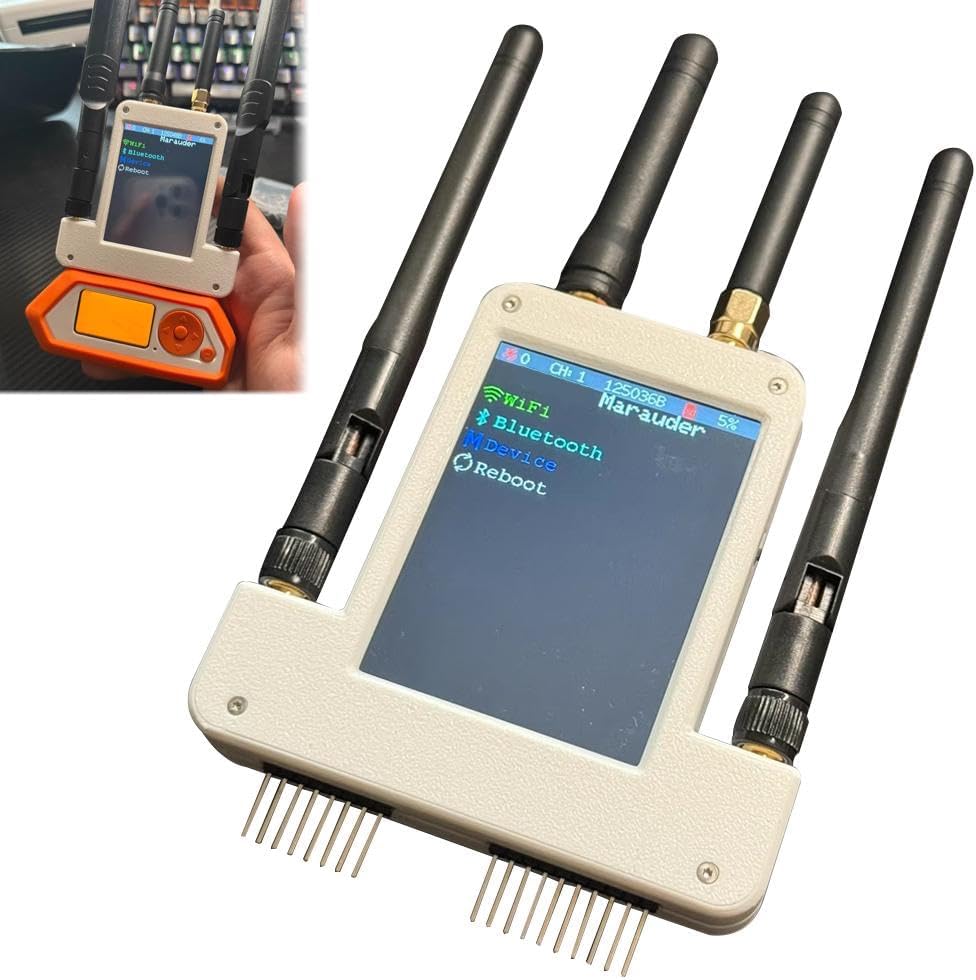
Figure 3.1: The external module being attached to the Flipper Zero device.
3.2 Firmware Flashing for WiFi Module (Marauder)
To utilize the full capabilities of the WiFi module, it is recommended to flash the Marauder firmware. This can be done via a web browser or directly using the Flipper Zero.
Method 1: Flash via Web Sebatli
- Bula ea hau web sebatli ebe u ea ho fzeeflasher.com.
- Connect the WiFi Devboard to your PC via a USB-C cable.
- While holding the BOOT button on the Devboard, plug in the USB cable.
- Holima website, click 'Connect' and select 'ESP32-S2'.
- Select 'Flipper Dev Board' as the model, choose the 'Latest Version', and then select 'Marauder' for the firmware.
- Click 'Program' and wait for the flashing process to complete.
- Once 'FLASHING PROCESS COMPLETED' is displayed, disconnect the board.
Video 3.2.1: This video demonstrates how to flash the Marauder firmware to the WiFi Dev Board using a web flasher tool and then run it on the Flipper Zero.
Video 3.2.2: This video provides a step-by-step guide on how to flash the Marauder firmware onto the WiFi board for the Flipper Zero.
Method 2: Flash Using Flipper Zero
- Install the qFlipper APP on your PC.
- Connect your Flipper Zero to your PC via USB-C.
- Download the 5G WiFi deauth software package and extract it.
- In qFlipper, navigate to 'SD Card' → 'apps'.
- Drag the downloaded '5G WiFi deauth.fap' file into the 'Apps' folder.
- On your Flipper Zero, go to 'Apps' → 'GPIO' → 'ESP32 Flasher' → 'Quick Flash'.
- Select 'Flipper WiFi Devboard' and then 'Marauder'.
- The LED on the module will blink, indicating successful firmware flashing.
Video 3.2.3: This video demonstrates how to install and use the 5G WiFi module with the Flipper Zero, including firmware installation via qFlipper.
3.3 CC1101 RF Module Setup
The CC1101 RF module requires specific settings on your Flipper Zero to function correctly.
- Connect the CC1101 module to your Flipper Zero.
- On your Flipper Zero, navigate to 'Sub-GHz' → 'Radio Settings' → 'Modules'.
- Switch the module setting to 'External'.
- You can now try to receive or send radio signals.
Video 3.3.1: This video shows the unboxing and initial setup of the CC1101 module, including connecting it to the Flipper Zero and configuring radio settings.
Video 3.3.2: This short preview video demonstrates the physical connection of an external CC1101 antenna to the Flipper Zero module.
3.4 GPS Module Setup
The GPS module provides location tracking capabilities. Ensure the external GPS antenna is connected to the module for optimal performance.
Video 3.4.1: This video showcases the NewHail GNSS Module Receiver with its antenna, demonstrating its connection and basic functionality with the Flipper Zero.
4. Litaelo tsa Ts'ebetso
4.1 WiFi Module Operation (Marauder Firmware)
After flashing the Marauder firmware, you can use the WiFi module for network scanning and testing.
- On your Flipper Zero, navigate to 'Apps' → '5G WiFi Death' → 'Scan WiFi'.
- Use the Up and Down buttons to view scanned WiFi networks.
- Select a target WiFi network and press OK. The LED on the module will blink, indicating activity.
- Observe the connected devices on the target WiFi network.
4.2 GPS Module Operation
The GPS module can be activated simultaneously with other functions without interference. It automatically switches between the Flipper Zero's power supply and its own internal power supply.
- On your Flipper Zero, navigate to 'Apps' → 'GPIO' → 'GPS'.
- The module will display GPS data such as Latitude, Longitude, Course, Speed, Altitude, and Satellite count.
5. Litlhaloso
| Brand | Kakaretso |
| Nomoro ea Mohlala | Generic698953 |
| External Modules Included | 433 M RF module, ESP32S2 WiFi module, GPS module |
| Bokhoni ba Battery | 800mAh |
| Ho lumellana | For Flipper Zero |
6. Ho rarolla mathata
- Module not detected: Ensure the module is firmly seated on the Flipper Zero's GPIO pins. Try unplugging and re-plugging the module.
- Firmware flashing issues: Verify that the correct drivers are installed on your PC and that the USB-C cable is functioning properly. Ensure the BOOT button is held down during connection if flashing via PC.
- WiFi scanning not working: Check that the WiFi module firmware (e.g., Marauder) is correctly installed and selected in the Flipper Zero's applications.
- GPS ha e fumane lets'oao: Ensure the external GPS antenna is properly connected and that the device has a clear view ea leholimo.
7. Tlhokomelo
To ensure the longevity and optimal performance of your external module:
- Keep the module clean and free from dust and debris. Use a soft, dry cloth for cleaning.
- Qoba ho pepesa module mochesong o feteletseng kapa mongobo.
- Handle the module and its components with care to prevent physical damage.
- Regularly check for firmware updates for both the Flipper Zero and the external module to benefit from new features and bug fixes.
8. Warranty & Ts'ehetso
For warranty information and technical support, please refer to the documentation provided with your purchase or contact the manufacturer directly. Keep your proof of purchase for any warranty claims.