
Xbox EP2-29563
Xbox Wireless Controller Storm Breaker Special Edition
Model: EP2-29563
Lebitso: Xbox
Selelekela
The Xbox Wireless Controller Storm Breaker Special Edition is designed to provide an enhanced gaming experience across multiple platforms. This controller features a unique aesthetic with classic grays and blacks, offset with whites, along with textured grips for improved handling. It offers seamless connectivity and customizable controls to optimize your gameplay.
Likarolo tsa Bohlokoa
- Storm Breaker Special Edition Design: Features a distinctive gray, black, and white pattern.
- Textured Triggers: Provides enhanced grip and control during gameplay.
- Rubberized Grips: Located on the back cases for secure handling.
- Wireless & Bluetooth Connectivity: Easily pairs with Xbox consoles, PCs, and mobile devices.
- Konopo ea Arolelano: Seamlessly capture and share screenshots and game recordings.
- 'Mapa oa Likonopo tseo u ka li khethang: Personalize controls using the Xbox Accessories app.
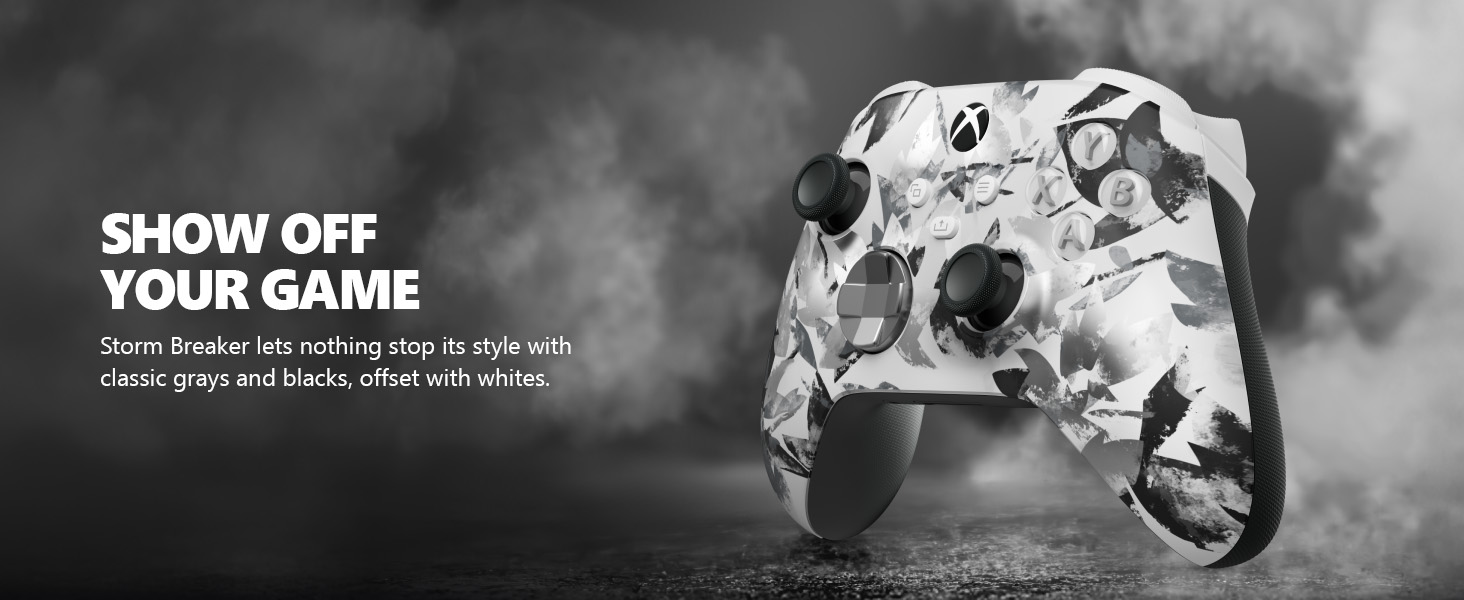
Image: The Xbox Wireless Controller Storm Breaker Special Edition showcasing its distinctive color scheme.
Tlhophiso
1. Ho kenya Battery
The controller requires two AA batteries (included). To install:
- Fumana karolo ea betri ka morao ho molaoli.
- Press the small tab and lift the battery cover.
- Insert the two AA batteries, ensuring correct polarity (+ and -).
- Tlosa sekoaelo sa betri ho fihlela se tobetsa.
2. Ho kopanya le Lisebelisoa
The controller supports both Xbox Wireless and Bluetooth for versatile connectivity.
- For Xbox Console:
- Bulela Xbox console ea hau.
- Press the Xbox button on your controller to turn it on.
- Tobetsa 'me u hatelle konopo ea Pair (⏚) on the top of the controller until the Xbox button flashes rapidly.
- Press the Pair button on your Xbox console (usually near the USB port or on the front).
- The Xbox button on the controller will become solid when connected.
- For PC (Windows 10/11) via Bluetooth:
- Ensure your PC has Bluetooth enabled.
- Press the Xbox button on your controller to turn it on.
- Tobetsa 'me u hatelle konopo ea Pair (⏚) on the top of the controller until the Xbox button flashes rapidly.
- Ho PC ea hau, ea ho Litlhophiso > Lisebelisoa > Bluetooth & lisebelisoa tse ling.
- Select "Add Bluetooth or other device" and then "Bluetooth".
- Choose "Xbox Wireless Controller" from the list and follow on-screen prompts.
- For Mobile Devices (Android/iOS):
- Lumella Bluetooth sesebelisoa sa hau sa mohala.
- Press the Xbox button on your controller to turn it on.
- Tobetsa 'me u hatelle konopo ea Pair (⏚) on the top of the controller until the Xbox button flashes rapidly.
- On your mobile device, search for Bluetooth devices and select "Xbox Wireless Controller" to pair.
Video: Ho fetaview of the Xbox Wireless Controller, demonstrating its physical features and ports, useful for understanding setup.
Ho sebetsa Molaoli
1. Litaolo tsa Motheo
- Lithupa tsa matsoho: Use for movement and camera control.
- D-Pad: Ideal for precise directional input in games and menu navigation.
- Likonopo tsa A, B, X, Y: Primary action buttons for in-game commands.
- Triggers (LT/RT) & Bumpers (LB/RB): Used for various actions like shooting, accelerating, or menu selection.
2. Share Button
The dedicated Share button (⤓) allows you to quickly capture and share your gaming moments:
- Press once to take a screenshot.
- Press and hold to record the last 30 seconds of gameplay.
3. Headset Jack
A 3.5mm audio jack is located at the bottom of the controller, allowing you to connect compatible headsets for in-game audio and chat.
4. Customization with Xbox Accessories App
Download the Xbox Accessories app on your Xbox console or Windows PC to customize button mapping and create personalized controller profiles.
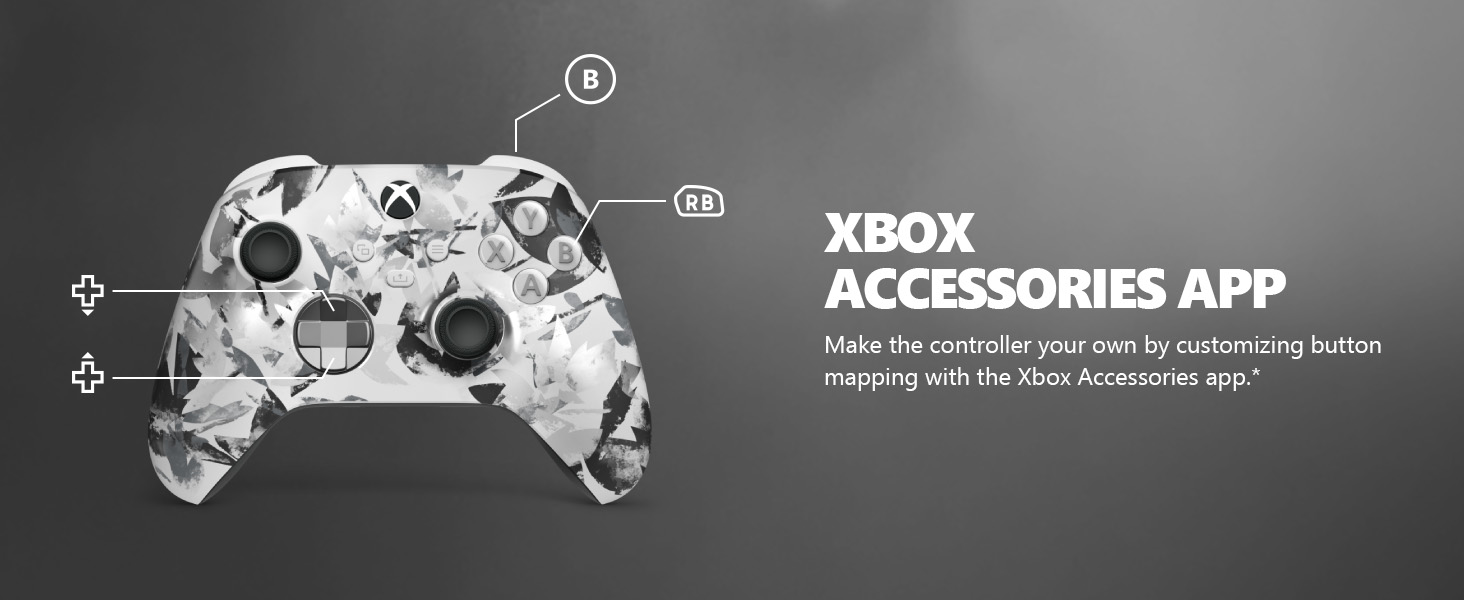
Image: The Share button and an illustration of button mapping customization via the Xbox Accessories app.
Tlhokomelo
- Ho hloekisa: Use a soft, dry cloth to clean the controller. Avoid abrasive cleaners or solvents.
- Tlhokomelo ea Betri: Tlosa libeteri haeba molaoli a ke ke a sebelisoa nako e telele ho thibela ho dutla.
- Polokelo: Boloka selaoli sebakeng se phodileng, se omeletseng hole le khanya ea letsatsi le mocheso o feteletseng.
Ho batle phoso
- Selaoli ha se Kopane:
- Netefatsa hore libeteri li kentsoe le ho tjhajiloe ka nepo.
- Re-attempt the pairing process as described in the Setup section.
- Sheba hore na ho na le tšitiso efe kapa efe e tsoang lisebelisoa tse ling tse se nang mohala.
- Update controller firmware via the Xbox Accessories app.
- Likonopo ha li arabele:
- Hloekisa ho potoloha likonopo ho tlosa litšila leha e le life.
- Test the controller with another device or game to isolate the issue.
- Bophelo ba Betri bo Bokhutšoane:
- Sebelisa libeteri tse ncha, tsa boleng bo holimo tsa AA.
- Consider using a rechargeable battery pack (sold separately) for extended play.
Litlhaloso
| Sebopeho | Lintlha |
|---|---|
| Nomoro ea Mohlala | EP2-29563 |
| Khokahano | Xbox Wireless, Bluetooth |
| Ho lumellana | Xbox Series X|S, Xbox One, Windows 10/11, Android, iOS |
| Mohloli oa Matla | 2 AA libeteri (tse kenyelelitsoe) |
| Port Port | jackphone ea li-headset ea 3.5mm |
| Litekanyo | 6.91 x 5.61 x 2.76 lisenthimithara |
| Boima ba 'mele | 14.1 lik'hilograma |
| Moetsi | Microsoft |
Warranty le Tšehetso
For warranty information and technical support, please refer to the documentation included with your product or visit the official Xbox support websebaka. Boloka bopaki ba hau ba theko bakeng sa likopo tsa waranti.
Ts'ehetso ea Marang-rang: support.xbox.com
Ask a question about this manual
Ask about setup, troubleshooting, compatibility, parts, safety, or missing instructions. Manuals+ will review the question and use this page’s manual context to help answer it.