
1. Увод
This manual provides essential information for setting up, operating, maintaining, and troubleshooting your HP 14-em 14-inch HD Laptop. Please read this guide thoroughly to ensure optimal performance and longevity of your device.
The HP 14-em laptop features an AMD Athlon Silver 7120U processor, 4GB RAM, 512GB eMMC storage, and runs on Windows 11 Pro. It is designed for everyday tasks, offering a balance of performance and portability.
2. Подешавање
2.1 Распакивање и почетни преглед
Пажљиво извадите лаптоп и сву додатну опрему из паковања. Проверите да ли су све компоненте присутне:
- HP 14-inch Laptop
- Повер Адаптер
- Mytrix 2.4GHz Wireless Gaming Headset
- Документација
Прегледајте лаптоп да ли има физичких оштећења. Ако пронађете било каква оштећења, одмах контактирајте продавца.
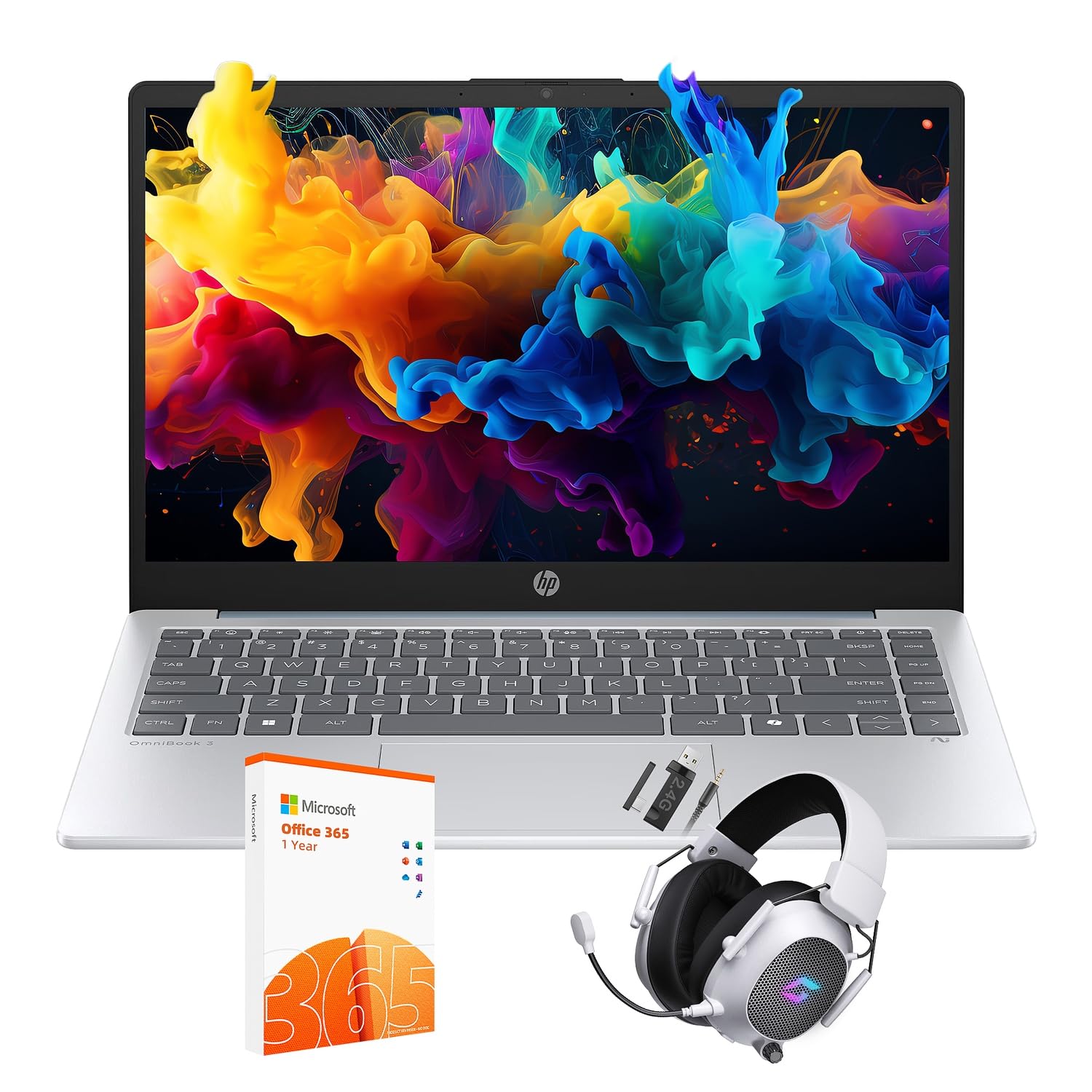
Figure 2.1: The HP 14-inch HD Laptop in Moonlight Blue, showcasinг његов елегантан дизајн.
2.2 Повезивање адаптера за напајање
Прикључите адаптер за напајање на порт за напајање лаптопа, а затим га укључите у зидну утичницу. Препоручује се да потпуно напуните батерију пре прве употребе.
2.3 Initial Power On and Windows 11 Pro Setup
Press the power button located on the keyboard deck. The laptop will boot up and guide you through the Windows 11 Pro setup process. Follow the on-screen instructions to:
- Изаберите свој регион и језик.
- Повежите се на Ви-Фи мрежу.
- Прихватите услове лиценце.
- Направите кориснички налог или се пријавите помоћу Microsoft налога.
- Конфигуришите подешавања приватности.
2.4 Setting up the Mytrix Wireless Gaming Headset
Refer to the separate instructions provided with the Mytrix 2.4GHz Wireless Gaming Headset for detailed setup. Generally, this involves:
- Пуњење слушалица.
- Connecting the wireless dongle to an available USB port on the laptop.
- Powering on the headset and ensuring it pairs with the dongle.
- Configuring audio input/output settings in Windows 11 Pro.
3. Управљање лаптопом
3.1 Управљање напајањем
- Укључено: Притисните дугме за напајање.
- Режим спавања: Затворите поклопац или изаберите „Спавање“ из менија „Старт“.
- Искључи: Изаберите „Искључи“ из менија „Старт“.
- Поново покрени: Изаберите „Поново покрени“ из менија „Старт“.
3.2 Коришћење тачпеда
The touchpad supports multi-touch gestures for navigation. Common gestures include:
- Додирните: Single finger tap for left-click.
- Додир са два прста: Десни клик.
- Померање са два прста: Pomerite se nagore ili nadole.
- Зумирање штипкањем прстију: Увећајте или умањите приказ.
3.3 Connecting to Networks (Wi-Fi 6 and Bluetooth 5.4)
Да бисте се повезали на Ви-Фи мрежу:
- Кликните на икону Wi-Fi мреже у траци задатака.
- Изаберите жељену мрежу са листе.
- Унесите мрежну лозинку ако се то од вас затражи.
Да бисте повезали Блуетоотх уређај:
- Иди на Подешавања > Bluetooth и уређаји.
- Уверите се да је Блуетоотх укључен.
- Select "Add device" and follow the pairing instructions for your device.
3.4 External Port Usage
Ваш лаптоп је опремљен разним портовима за повезивање екстерних уређаја:

Figure 3.1: Available ports on the HP 14-inch HD Laptop.
- УСБ тип-А: For connecting standard USB devices like mice, keyboards, and external storage.
- УСБ типа Ц: За пренос података.
- ДВИ: За повезивање са екстерним екранима или пројекторима.
- Комбинација за слушалице/микрофон: За повезивање слушалица или екстерних звучника/микрофона.
3.5 Карактеристике система Windows 11 Pro
Windows 11 Pro offers advanced security, management tools, and productivity features. Explore the Start Menu, Taskbar, and Settings app to customize your experience. The laptop also supports a 180-degree hinge for flexible viewинг углова.
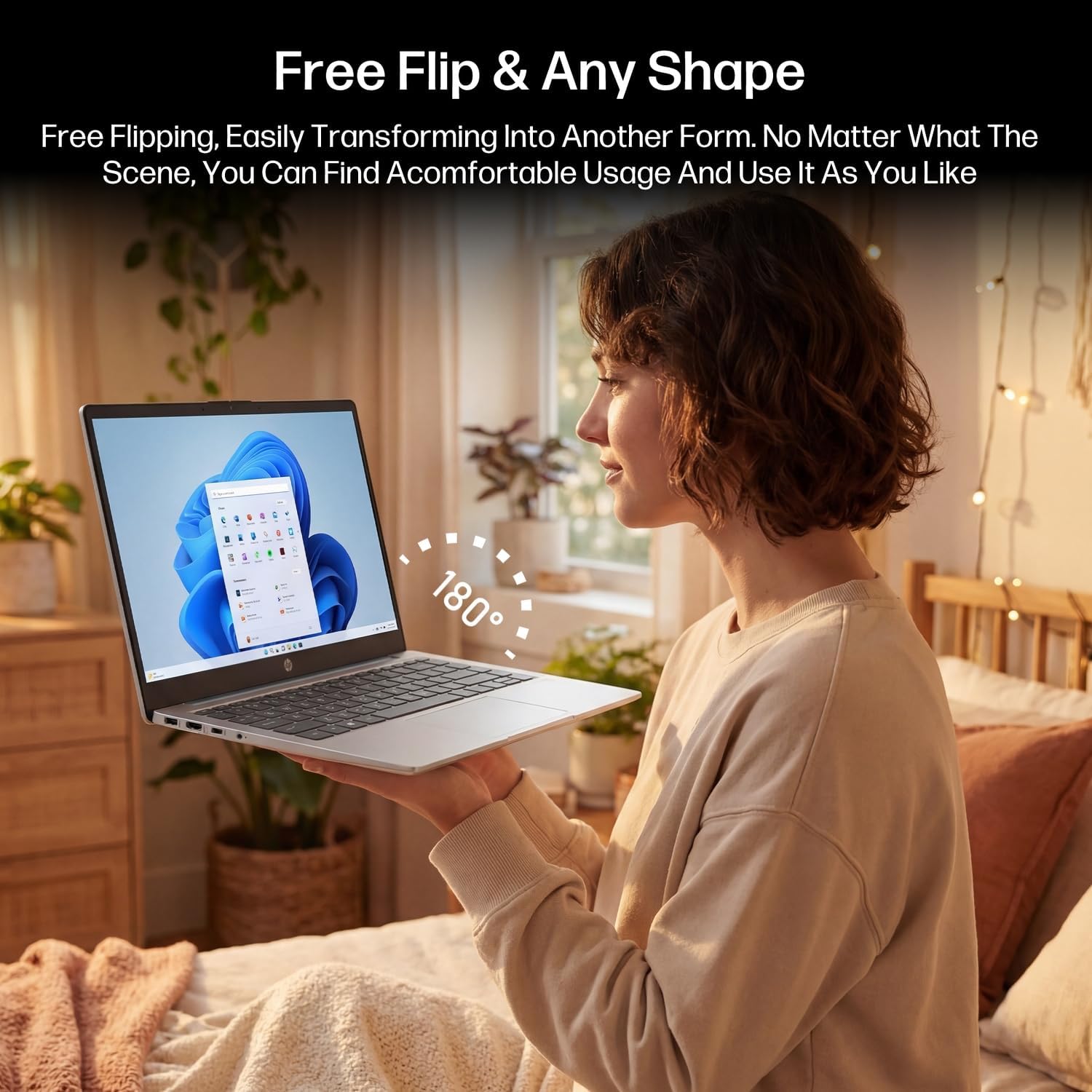
Figure 3.2: The laptop's 180-degree hinge for versatile use.

Figure 3.3: The HP laptop efficiently handles daily tasks.
4. Одржавање
4.1 Чишћење лаптопа
- Екран: Лагано користите меку крпу која не оставља длачице дampводом или средством за чишћење екрана. Не прскајте средство за чишћење директно на екран.
- Кућиште и тастатура: Користите меку, суву крпу. За тврдокорну прљавштину, благоamp cloth can be used. Avoid excessive moisture.
- Портови: Користите компримовани ваздух да нежно очистите прашину из отвора.
4.2 Одржавање батерије
Да бисте максимално продужили век трајања батерије:
- Избегавајте екстремне температуре.
- Не дозволите да се батерија често потпуно празни.
- Utilize HP Fast Charge technology for quick recharging when needed.
4.3 Ажурирања софтвера
Редовно проверавајте и инсталирајте ажурирања за Windows како бисте били сигурни да ваш систем има најновије безбедносне закрпе и побољшања перформанси. Идите на Подешавања > Windows Update.
4.4 Управљање складиштем
The 512GB eMMC storage provides fast boot-ups and file access. To maintain performance, periodically:
- Обришите непотребно files.
- Деинсталирајте неискоришћене апликације.
- Use Windows' built-in Disk Cleanup tool.
КСНУМКС. Решавање проблема
This section addresses common issues you might encounter. For more complex problems, refer to HP's official support resources.
5.1 Лаптоп се не укључује
- Уверите се да је адаптер за напајање безбедно повезан и са лаптопом и са исправном утичницом.
- Проверите да ли је утичница функционална тако што ћете укључити други уређај.
- Ако је батерија потпуно испражњена, оставите је да се пуни најмање 30 минута пре него што је поново покушате да је укључите.
5.2 Проблеми са Wi-Fi повезивањем
- Проверите да ли је Wi-Fi омогућен у подешавањима система Windows.
- Рестартујте рутер и модем.
- Заборавите мрежу и поново се повежите, поново уносећи лозинку.
- Уверите се да је ваш лаптоп у домету Wi-Fi сигнала.
5.3 External Display Not Detected
- Ensure the HDMI cable is securely connected to both the laptop and the external display.
- Check the input source on your external display (e.g., HDMI 1, HDMI 2).
- Притисните Windows тастер + P and select a display option (Duplicate, Extend, Second screen only).
5.4 Проблеми са звуком
- Check volume levels in Windows and on any connected external audio devices.
- Ensure the correct audio output device is selected in Windows sound settings.
- If using the Mytrix headset, ensure it is powered on and properly paired.
6. Спецификације
Detailed technical specifications for your HP 14-em 14-inch HD Laptop:
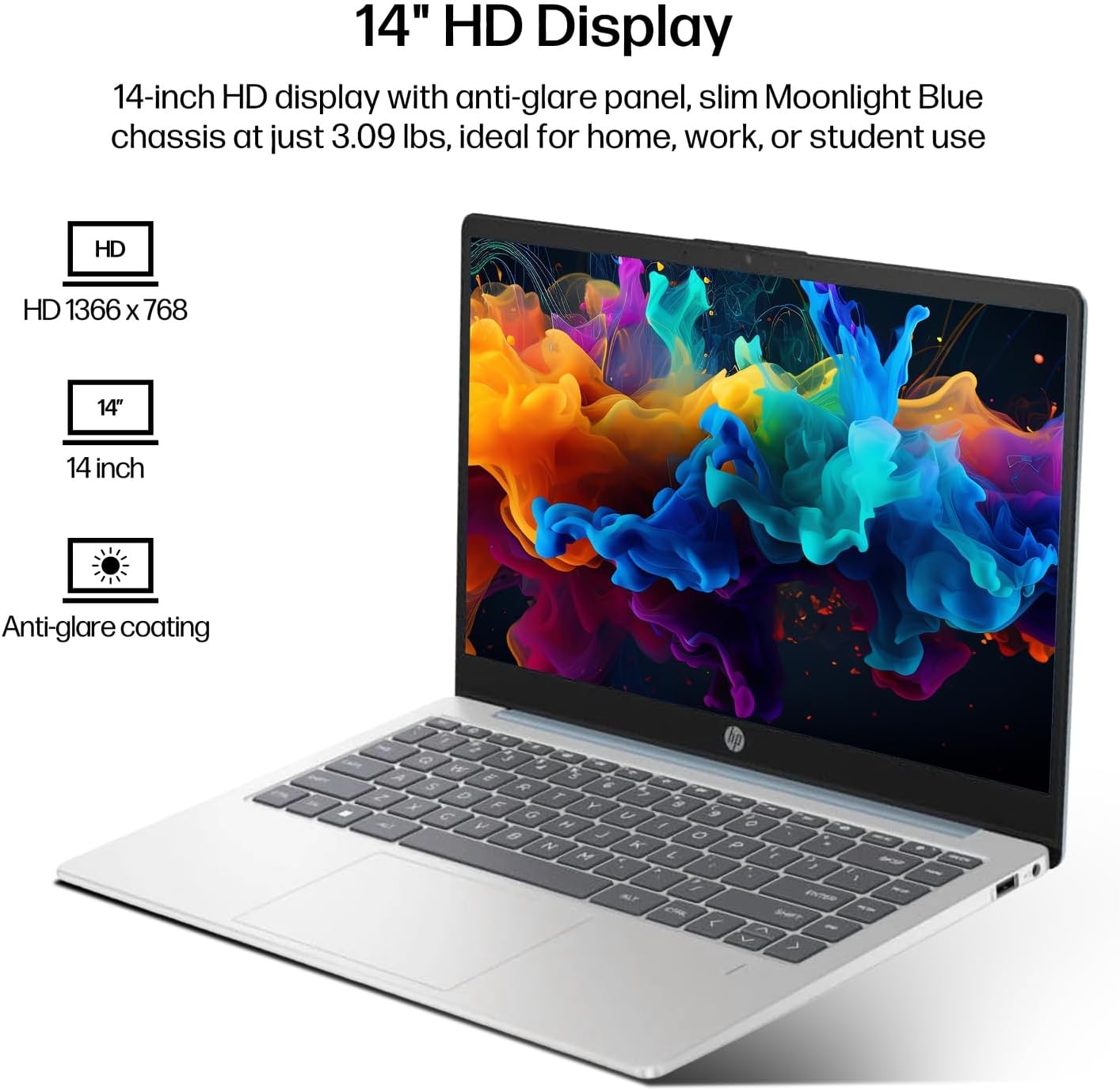
Figure 6.1: The 14-inch HD display features a resolution of 1366 x 768 pixels and an anti-glare coating.

Figure 6.2: The laptop is powered by an AMD Athlon Silver 7120U Processor with integrated AMD Radeon Graphics.
| Феатуре | Спецификација |
|---|---|
| Бранд | HP |
| Назив модела | 14-em |
| Процесор | AMD Athlon Silver 7120U (2 Cores, 2 Threads, up to 3.5 GHz Boost Clock) |
| Графика | AMD Radeon графика (интегрисана) |
| РАМ | 4 GB DDR4 SODIMM |
| Складиштење | 512 GB eMMC (Solid State) |
| Дисплаи | 14-inch HD (1366 x 768) LED, Anti-Glare |
| Оперативни систем | Виндовс 11 Про |
| Бежично повезивање | Wi-Fi 6 (802.11ax), Bluetooth 5.4 |
| Портс | 2x USB Type-A, 1x USB Type-C (Data Transfer), 1x HDMI, 1x Headphone/Microphone Combo |
| Камера | Предње стране |
| Аудио | ХД Аудио |
| Димензије (Д к Ш к В) | 12.74 cm x 8.46 cm x 0.7 cm |
| Тежина | Приближно 3.09 лбс |
| Укључена додатна опрема | Mytrix 2.4GHz Wireless Gaming Headset |

Figure 6.3: Physical dimensions of the HP 14-inch HD Laptop.
7. Гаранција и подршка
7.1 Гаранција на производ
Your HP 14-em laptop comes with a 12-month manufacturer's warranty. This warranty covers defects in materials and workmanship under normal use. For specific terms and conditions, please refer to the warranty documentation included with your product or visit the official HP support webсајту.
7.2 Техничка подршка
For technical assistance, troubleshooting beyond this manual, or warranty claims, please contact HP Customer Support. You can find contact information on the official HP website or through the support application pre-installed on your laptop.
Additional protection plans are available for purchase, including 2-Year and 4-Year Protection Plans, and a monthly Complete Protect plan. Details can be found where you purchased the product.