
Увод
Welcome to the HP OmniDesk M03 AI Desktop PC. This manual provides essential information for setting up, operating, maintaining, and troubleshooting your new computer. The HP OmniDesk M03 is designed for performance and efficiency, featuring an Intel Core Ultra 7 265 processor with dedicated AI cores, 16GB DDR5 RAM, and a 2TB NVMe SSD, running on Windows 11 Home.
Шта је у кутији
Проверите да ли су све компоненте присутне у паковању:
- HP OmniDesk Desktop PC
- Бежична тастатура
- Миш
- Водич за брзо подешавање
- Повер Цабле

Image: The HP OmniDesk M03 desktop PC, wireless keyboard, mouse, and power cable, illustrating the contents of the product box.
Сетуп
1. Повезивање периферних уређаја
Before powering on your PC, connect your monitor, keyboard, and mouse.
- Монитор: Connect your monitor to the PC using an HDMI or DisplayPort cable. The ports are located on the rear of the PC.
- Тастатура и миш: The included keyboard and mouse are wireless. Insert batteries (if not pre-installed) and connect their USB receiver to an available USB port on the PC.
- Снага: Connect the power cable to the PC's power input on the rear and then to a wall outlet.
- Мрежа (опционо): For a wired internet connection, connect an Ethernet cable from your router to the RJ45 port on the rear of the PC.

Image: Rear panel of the HP OmniDesk M03, highlighting the DisplayPort, HDMI, USB, and Ethernet ports for connecting external devices.

Слика: Са стране view of the HP OmniDesk M03 AI Desktop PC, showing its compact tower design.
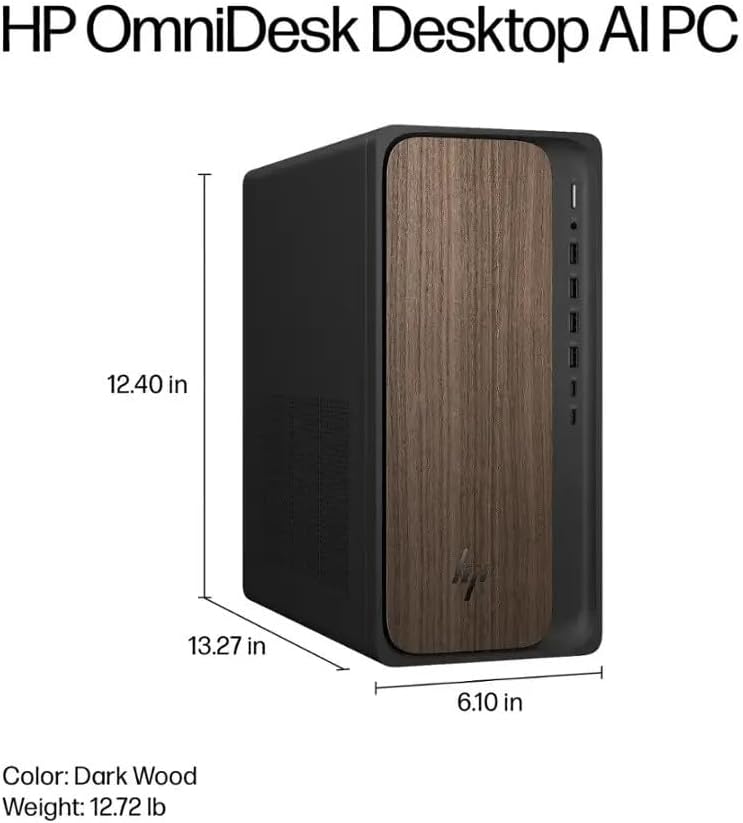
Image: Diagram illustrating the location and type of front and rear ports on the HP OmniDesk M03, including USB-A, USB-C, HDMI, DisplayPort, and audio jacks.
2. Укључивање и почетно подешавање
Once all peripherals are connected:
- Притисните дугме за напајање које се налази на предњој страни рачунара.
- Follow the on-screen instructions to complete the Windows 11 Home initial setup, including language selection, network connection (if not wired), account creation, and privacy settings.

Слика: Фронт view of the HP OmniDesk M03, showing the power button at the top right and various USB ports below it.
Управљање рачунаром
Виндовс 11 Хоме
Your HP OmniDesk M03 comes pre-installed with Windows 11 Home. Familiarize yourself with the operating system's interface, Start menu, and settings. Microsoft provides extensive online resources for Windows 11 usage.
АИ карактеристике
The Intel Core Ultra 7 265 processor includes dedicated AI cores and Intel AI Boost, enhancing performance for AI-driven applications and features within Windows 11, such as AI Copilot. These features can assist with tasks, content creation, and system optimization.
Повезивање
- Wi-Fi 6 (802.11ax): Connect to wireless networks for internet access. Manage Wi-Fi settings through the Windows 11 network settings.
- Блуетоотх КСНУМКС: Pair wireless devices such as headphones, speakers, or additional input devices. Access Bluetooth settings via the Windows 11 settings menu.
- Етхернет: For a stable, high-speed wired connection, ensure an Ethernet cable is connected to the RJ45 port.
Одржавање
Cleaning Your PC
- Екстеријер: Користите меку крпу која не оставља длачицеampened with water or a mild cleaning solution to wipe down the exterior. Avoid harsh chemicals.
- Вентс: Периодично чистите прашину са вентилационих решетки компримованим ваздухом како бисте осигурали правилан проток ваздуха и спречили прегревање.
- Портови: Држите портове без прашине и остатака.
Ажурирања софтвера
Regularly update Windows 11 and device drivers to ensure optimal performance, security, and compatibility. Access Windows Update through the Settings menu.
Резервна копија података
Препоручује се да редовно правите резервне копије важних података на екстерни диск или у облаку како бисте спречили губитак података.
Решавање проблема
Овај одељак се бави уобичајеним проблемима на које можете наићи.
- Нема напајања:
- Уверите се да је кабл за напајање безбедно повезан и са рачунаром и са зидном утичницом.
- Проверите да ли зидна утичница функционише тако што ћете укључити други уређај.
- Без приказа:
- Check that the monitor is powered on and correctly connected to the PC via HDMI or DisplayPort.
- Уверите се да је на вашем монитору изабран исправан улазни извор.
- Нема интернет везе:
- For Wi-Fi, check if the Wi-Fi adapter is enabled and if you are connected to the correct network with the right password.
- За жичну везу, уверите се да је Етернет кабл правилно повезан и да ваш рутер ради.
- Тастатура/миш не реагује:
- Проверите нивое напуњености батерија за бежичне уређаје.
- Ensure the USB receiver is plugged into a functional USB port.
- Try restarting the PC.
За сложеније проблеме, обратите се HP подршци webсајту или контактирајте корисничку подршку.
Спецификације
Detailed technical specifications for the HP OmniDesk M03 AI Desktop PC:
| Компонента | Спецификација |
| Процесор | Intel Core Ultra 7 265 (20-Core, up to 5.3 GHz, Intel AI Boost) |
| Оперативни систем | Виндовс 11 Хоме (64-бит) |
| Меморија (РАМ) | 16GB DDR5 5600 MHz |
| Складиштење | 2TB PCIe NVMe M.2 SSD |
| Графика | Интегрисана Интел Грапхицс |
| Видео Оутпут | 1x HDMI 2.1, 1x DisplayPort 1.4a |
| USB портови (предњи) | 2x USB-A 5Gbps, 2x USB-A 10Gbps, 1x USB-C 5Gbps, 1x USB-C 10Gbps |
| USB портови (задњи) | 4к УСБ 2.0 Типе-А |
| Аудио портови | 1x Headphone/Microphone Combo, 1x Line Input, 1x Line Output |
| Мрежа | Wi-Fi 6 (802.11ax), Bluetooth 5.4, Gigabit Ethernet (RJ45) |
| Димензије (В к Ш к Д) | 13.3" x 6.1" x 12.4" (33.8 цм x 15.5 цм x 31.5 цм) |
| Тежина | 11.77 лб (5.34 кг) |

Image: Diagram showing the height (13.27 inches), width (6.10 inches), and depth (12.40 inches) of the HP OmniDesk M03 desktop PC.
Гаранција и подршка
Информације о гаранцији
Your HP OmniDesk M03 AI Desktop PC comes with a 90-дневна ограничена гаранција. This warranty covers defects in materials and workmanship under normal use. For detailed terms and conditions, please refer to the warranty documentation included with your product or visit the official HP support webсајту.
Корисничка подршка
For technical assistance, troubleshooting, or warranty claims, please contact HP Customer Support:
- Подршка на мрежи: Посетите званичника ХП подршка Webсајту за драјвере, упутства и водиче за решавање проблема.
- Телефонска подршка: Refer to the Quick Setup Guide or HP's webсајт за регионалне контакт бројеве.
When contacting support, please have your product model (M03) and serial number ready.