1. Safety Information
Read all instructions carefully before using the device. Keep this manual for future reference. Follow all warnings and instructions marked on the product.
- Do not place the monitor on an unstable cart, stand, or table.
- Do not block ventilation openings.
- Do not use near water.
- Do not place heavy objects on the power cord.
- Use only the power adapter provided by the manufacturer.
- Unplug the monitor during lightning storms or when unused for long periods.
- Refer all servicing to qualified service personnel.
2. What's in the Box
Verify that all components are present before proceeding with the setup.
- Monitor
- Power Cable
- HDMI 2.1 Cable
- DisplayPort Cable
3. Setup
3.1 Assembling the Stand
The monitor stand is designed for tool-free assembly. Follow these steps:
- Attach the stand base to the stand neck.
- Secure the monitor panel to the assembled stand.

3.2 Connecting Cables
Connect the necessary cables to the monitor and your computer/console.
- Power: Connect the power cable to the monitor and a power outlet.
- Video Input: Use the provided HDMI 2.1 cable or DisplayPort cable to connect the monitor to your graphics card or console.
- USB Hub: Connect a USB upstream cable from your PC to the monitor to enable the integrated USB hub.
- Audio: Connect headphones to the 4-pole headphone jack for audio output.

4. Operation
4.1 Power On/Off
Press the joystick button located on the bottom of the monitor to power it on or off.
4.2 On-Screen Display (OSD) Menu Navigation
Use the joystick button to navigate the OSD menu. Push the joystick in to select, and move it up/down/left/right to browse options.
- Game Adjust: Configure game-specific settings like Game Mode, Adaptive-Sync, Black Stabilizer, Response Time, and Crosshair.
- Picture Adjust: Adjust brightness, contrast, sharpness, gamma, and color temperature.
- Sound: Control audio settings.
- Input: Select the input source (HDMI 1, HDMI 2, DisplayPort).
- General: Access general monitor settings.

4.3 Dual Mode Functionality
The monitor supports a unique Dual Mode, allowing you to switch between high-resolution and high-refresh-rate settings:
- 4K UHD (3840 x 2160) at 180Hz: Ideal for graphically intensive games and detailed content.
- Full HD (1920 x 1080) at 360Hz: Optimized for competitive gaming where ultra-responsive gameplay is critical.
Switch between modes using the dedicated hotkey or through the OSD menu.
5. Key Features
- 27-inch 4K UHD IPS Display: Delivers crisp 3840 x 2160 resolution with wide viewing angles and accurate colors.
- Dual Mode: Seamlessly switch between 4K UHD at 180Hz and Full HD at 360Hz for optimized gaming experiences.
- 1ms (GtG) Response Time: Minimizes motion blur and ghosting for sharp, clear visuals during fast-paced action.
- NVIDIA G-SYNC Compatible & AMD FreeSync Premium: Ensures tear-free and stutter-free gameplay by synchronizing the monitor's refresh rate with your GPU's frame rate.
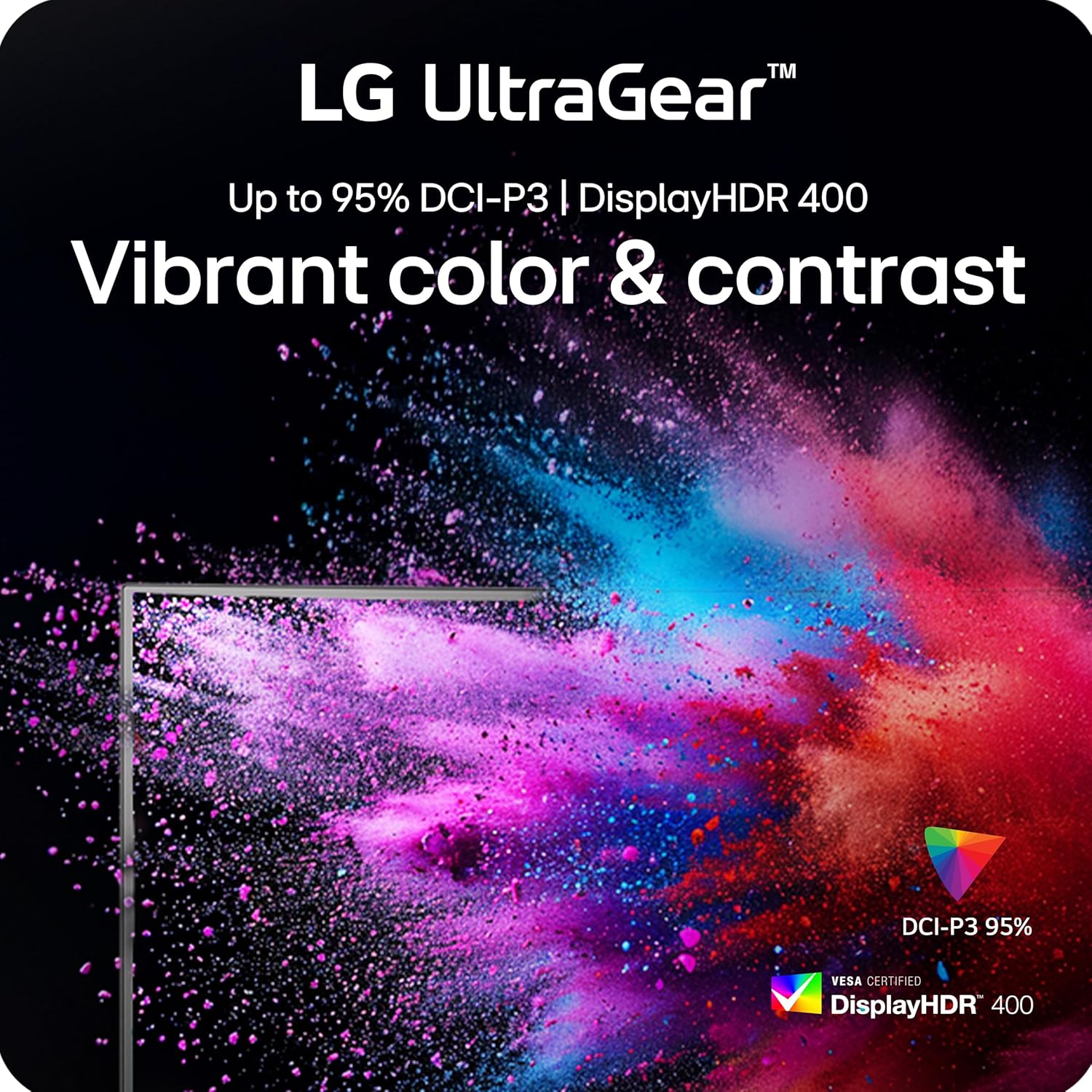
- VESA DisplayHDR 400: Provides enhanced contrast and vibrant colors for a more immersive visual experience.
- Dynamic Action Sync (DAS): Reduces input lag for real-time action and quick responses.
- Black Stabilizer: Enhances visibility in dark scenes, allowing you to spot enemies more easily.
- Crosshair Feature: Provides an on-screen crosshair for improved aiming precision in first-person shooter games.
- 4-Pole Headphone Jack & DTS HP:X: Offers immersive 3D audio and combines stereo audio with mic input for clear communication.
- Ergonomic Stand: Features adjustable height, tilt, swivel, and pivot for personalized viewing comfort.




5.1 Official Product Videos
LG UltraGear Gaming Monitors Feature - FreeSync Premium
Video: This video from LG Electronics explains the benefits of AMD FreeSync Premium technology in LG UltraGear gaming monitors, demonstrating how it eliminates screen tearing and stuttering for smoother gameplay.
LG UltraGear Gaming Monitors Feature - DisplayHDR 400
Video: This video from LG Electronics highlights the VESA DisplayHDR 400 feature in LG UltraGear gaming monitors, showcasing how it enhances contrast and color vibrancy for a more dynamic visual experience.
LG UltraGear - Gaming UI
Video: This video from LG Electronics demonstrates the Gaming UI features of LG UltraGear monitors, including Crosshair, Black Stabilizer, and Dynamic Action Sync, designed to enhance gameplay.
6. Maintenance
6.1 Cleaning the Monitor
- Always unplug the monitor before cleaning.
- Use a soft, lint-free cloth lightly dampened with water or a mild, non-abrasive cleaner.
- Do not spray cleaner directly onto the screen.
- Avoid using alcohol, ammonia, or abrasive cleaners, as they may damage the screen surface.
6.2 Storage
- Store the monitor in a cool, dry place away from direct sunlight and extreme temperatures.
- If storing for an extended period, use the original packaging to protect the monitor from dust and physical damage.
7. Troubleshooting
| Problem | Possible Cause | Solution |
|---|---|---|
| No power | Power cable not connected or power outlet issue. | Ensure the power cable is securely connected to the monitor and a working power outlet. Check the power adapter. |
| No image on screen | Incorrect input source selected or video cable not connected. | Select the correct input source via the OSD menu. Verify the HDMI or DisplayPort cable is securely connected to both the monitor and the source device. |
| Screen flickering or tearing | Adaptive Sync (G-Sync/FreeSync) is not enabled or incompatible settings. | Ensure NVIDIA G-SYNC or AMD FreeSync Premium is enabled in both the monitor's OSD settings and your graphics card control panel. Update graphics drivers. |
| Blurry text or image | Incorrect resolution or sharpness settings. | Set the display resolution to its native 3840 x 2160. Adjust the sharpness setting in the OSD menu (recommended between 50-75). |
| No audio | Headphones not connected or audio settings incorrect. | Ensure headphones are properly connected to the 4-pole jack. Check audio output settings on your computer/console and the monitor's OSD. |
8. Specifications
| Feature | Detail |
|---|---|
| Screen Size | 27 Inches |
| Panel Type | IPS |
| Native Resolution | 3840 x 2160 (4K UHD) |
| Max Refresh Rate (UHD) | 180Hz |
| Max Refresh Rate (FHD) | 360Hz |
| Response Time | 1ms (GtG) |
| Adaptive Sync | NVIDIA G-SYNC Compatible, AMD FreeSync Premium |
| HDR Support | VESA DisplayHDR 400 |
| Color Gamut | Up to 95% DCI-P3 |
| Connectivity | 2x HDMI 2.1, 1x DisplayPort 1.4, USB Upstream, 2x USB Downstream, 4-pole Headphone Jack |
| Ergonomics | Height, Tilt, Swivel, Pivot Adjustable |
| Dimensions (LxWxH) | 8.7 x 24.2 x 21 inches |
| Weight | 16.3 pounds |
9. Warranty & Support
For detailed warranty information and technical support, please refer to the official LG website or contact LG customer service.
- Online Support: Visit the LG Official Website for product registration, manuals, software downloads, and FAQs.
- Customer Service: Contact LG customer support for assistance with product issues or inquiries.
Additional protection plans may be available for purchase. Please check with your retailer for options.