
1. Увод
This manual provides essential information for setting up, operating, and maintaining your ASUS AiO V470 Series All-in-One PC. Please read this guide thoroughly before using your device to ensure proper function and longevity.

Image: ASUS V470 AiO PC showcasing its minimalist design and thoughtful functionality.
2. Шта је у кутији
Проверите да ли су сви предмети присутни у паковању:
- ASUS AiO V470 All-in-One PC
- Бежична тастатура
- Бежични миш
- Повер Адаптер
- Документација (Упутство за брзи почетак, Гарантни лист)
3. Подешавање
3.1 Распакивање и постављање
- Carefully remove the All-in-One PC and accessories from the packaging.
- Place the PC on a stable, flat surface with adequate ventilation around the unit.
- Ensure the area is free from direct sunlight, heat sources, and excessive dust.
3.2 Повезивање периферних уређаја
- Прикључак за напајање: Connect the power adapter to the DC-in port on the back of the PC, then plug the power cord into a wall outlet.
- Бежична тастатура и миш: Insert batteries into the wireless keyboard and mouse. The devices are pre-paired; if not, follow the instructions provided with the peripherals for pairing.
- Спољни уређаји: Connect any external devices such as printers, external hard drives, or additional monitors to the appropriate ports.
4. Компоненте и портови
Familiarize yourself with the various ports and components of your ASUS AiO V470 PC.

Слика: Детаљна view of the I/O ports for connectivity.
4.1 Side I/O Ports
- Utor za Kensington Lock: For securing your device with a compatible lock.
- Комбиновани аудио прикључак од 3.5 мм: За повезивање слушалица или слушалица са микрофоном.
- УСБ 2.0 порт типа А: For connecting USB 2.0 compatible devices.
4.2 Back I/O Ports
- Улаз за једносмерну напајање: За повезивање адаптера за напајање.
- RJ45 гигабитни етернет порт: За жичану мрежну везу.
- HDMI In 1.4 Port: For connecting external video sources to use the AiO as a monitor.
- HDMI Out 1.4 Port: За повезивање екстерног дисплеја.
- USB 3.2 Gen 1 Type-C Port: За брзи пренос података и повезивање компатибилних уређаја са Type-C конектором.
- 3x USB 3.2 Gen 1 Type-A порта: For connecting high-speed USB 3.2 compatible devices.
5. Упутство за употребу
5.1 Укључивање/искључивање
- Укључено: Press the power button located on the bottom right side of the display.
- Искључивање: In Windows, click Start > Power > Shut down. Alternatively, press and hold the power button for 4 seconds to force a shutdown (use only when necessary).
5.2 Карактеристике екрана
Your ASUS AiO V470 features a high-quality display designed for clarity and comfort.
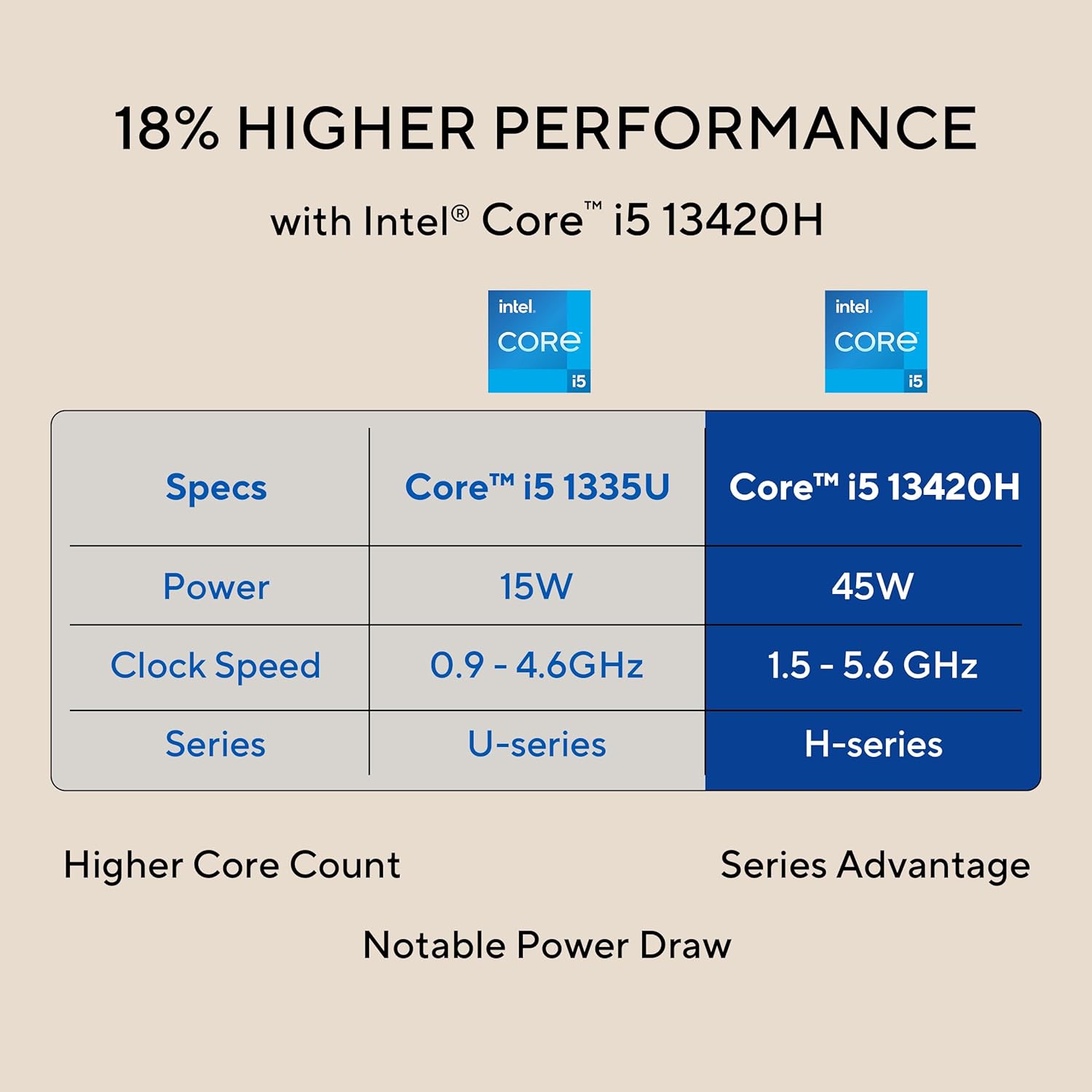
Image: The 27-inch FHD NanoEdge display with TÜV Rheinland-certified eye care.
- 27.0-inch FHD (1920 x 1080) Display: Provides clear and vibrant visuals.
- Anti-glare: Смањује рефлексије за удобност viewинг.
- Брзина освежавања од 100Хз: Offers smoother motion for an enhanced visual experience.
- TÜV Rheinland-certified Eye Care: Designed to reduce blue light emissions and flicker for eye comfort during extended use.
5.3 Функције камере и звука
The integrated camera and audio system enhance your communication and multimedia experience.

Image: Retractable camera for privacy and security features.
- Retractable 1080p HD Camera: Push to hide the camera for instant privacy.
- АИ поништавање буке: Reduces background noise during video calls and recordings for clearer audio.
- 5W x 2 Speakers with Dolby Atmos: Delivers immersive and high-quality sound.

Image: Advanced and immersive sound experience with integrated speakers.
5.4 Повезивање
Your AiO PC offers robust connectivity options.
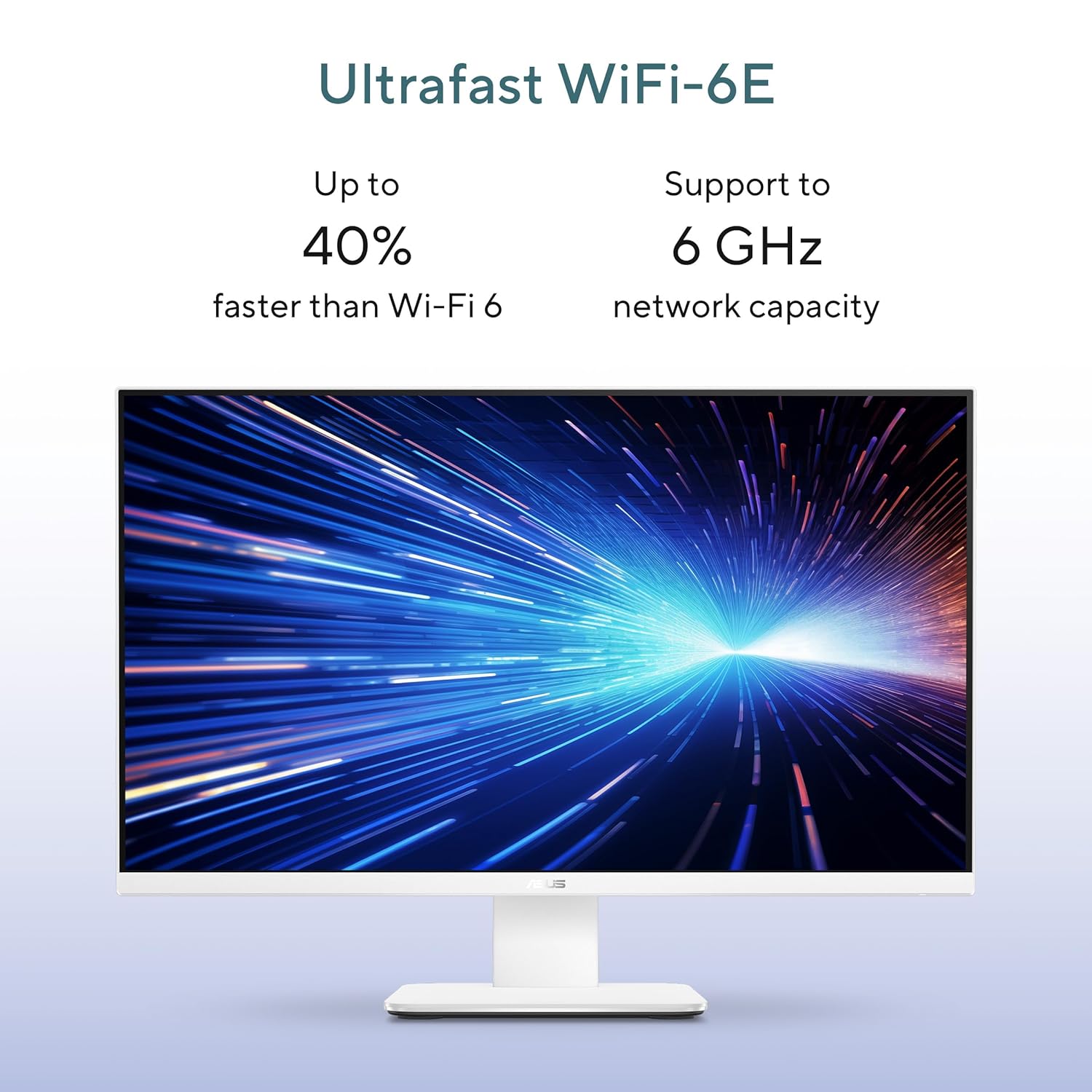
Image: Ultrafast Wi-Fi 6E for high-speed wireless connectivity.
- Ви-Фи 7: За приступ бежичном интернету велике брзине.
- Гигабит Етхернет: За стабилне и брзе жичане мрежне везе.
- Блуетоотх: For connecting wireless peripherals like headphones and speakers.
6. Одржавање
Proper maintenance ensures the longevity and optimal performance of your ASUS AiO V470 PC.
- Чишћење екрана: Користите меку крпу без влакана, посебно дизајнирану за електронику. DampНавлажите крпу благо водом или средством за чишћење екрана, а затим нежно обришите екран. Избегавајте јаке хемикалије.
- Чишћење шасије: Use a soft, dry cloth to wipe down the exterior. For stubborn marks, a slightly damp Може се користити крпа, а затим сува.
- вентилација: Ensure that the ventilation openings are not blocked to prevent overheating. Regularly check for dust accumulation and gently clean with compressed air if necessary.
- Ажурирања софтвера: Keep your operating system and drivers updated to ensure security and performance.
- Резервна копија података: Редовно правите резервне копије важних података на екстерни диск или складиште у облаку.
КСНУМКС. Решавање проблема
Овај одељак се бави уобичајеним проблемима на које можете наићи.
7.1 Нема напајања
- Ensure the power adapter is securely connected to the PC and the wall outlet.
- Проверите да ли зидна утичница функционише тако што ћете укључити други уређај.
- Проверите адаптер за напајање да ли има видљивих оштећења.
7.2 Проблеми са приказом
- Ако је екран празан, уверите се да је рачунар укључен и да није у режиму спавања.
- If using an external video source via HDMI In, ensure the correct input is selected (refer to your PC's on-screen display settings).
- Adjust brightness settings in Windows.
7.3 Периферни уређај не реагује
- For wireless keyboard/mouse, check battery levels and ensure they are within range.
- For wired devices, ensure they are properly connected to the correct USB ports.
- Покушајте да повежете периферни уређај са другим УСБ портом.
8. Спецификације
Detailed technical specifications for your ASUS AiO V470 PC.

Image: Key performance specifications including processor, memory, and storage.
| Феатуре | Спецификација |
|---|---|
| Процесор | Intel Core i5-13420H (2.1 GHz, up to 4.6 GHz, 8 cores, 12 threads, 12MB Cache) |
| Оперативни систем | Виндовс 11 Хоме |
| Дисплаи | 27.0-inch FHD (1920 x 1080), 16:9, 300nits, 100Hz, Anti-glare, TÜV Rheinland-certified Eye Care |
| Графика | Интегрисана Интел УХД графика |
| Меморија | 16ГБ ДДР5 РАМ |
| Складиштење | 1TB M.2 NVMe PCIe 4.0 SSD |
| Камера | Retractable 1080p HD Camera |
| Аудио | 5W x 2 Speakers, AI Noise Cancellation, Dolby Atmos |
| Бежично повезивање | Ви-Фи 7, Блуетоотх |
| Жичано повезивање | РЈКСНУМКС Гигабит Етхернет |
| И/О портови | 1x USB 2.0 Type-A, 3x USB 3.2 Gen 1 Type-A, 1x USB 3.2 Gen 1 Type-C, 1x HDMI In 1.4, 1x HDMI Out 1.4, 1x 3.5mm Combo Audio Jack, 1x DC-in, 1x Kensington Lock Slot |
| Димензије (Ш к Д к В) | 61.3 к 1.7 к 44.7 цм |
| Тежина | 9 килограма |
| Укључени периферни уређаји | Wireless Keyboard, Wireless Mouse |
9. Гаранција и подршка
Your ASUS AiO V470 PC comes with comprehensive warranty and support services.

Image: ASUS 4A Guarantee and support contact details.
9.1 Информације о гаранцији
This genuine ASUS AiO PC includes a 1-year Global Warranty и ан Onsite Domestic Warranty from ASUS. The warranty covers manufacturing defects and does not cover physical damage. To activate your warranty, please register your product on the official ASUS webсајту.
9.2 Корисничка подршка
For product-related queries or immediate assistance, please contact ASUS support:
- Бесплатан број: 1800-2090365 (Monday - Saturday, 09:00 AM - 06:00 PM)
- Емаил: rc_india@asus.com
- Service Center Information: Посетите ASUS подршку website for an extensive network of over 180 service centers across India: https://www.asus.com/in/support/Service-Center/India