
1. Introduction
Welcome to the user manual for your new ASUS ROG Strix SCAR 16 G635LX-RW158WS gaming laptop. This document provides essential information for setting up, operating, maintaining, and troubleshooting your device. The ROG Strix SCAR 16 is engineered for high-performance gaming, featuring an Intel Core Ultra 9 processor, NVIDIA GeForce RTX 5090 graphics, and a high-refresh-rate display.

Figure 1.1: The ASUS ROG Strix SCAR 16 Gaming Laptop.
2. What's in the Box
Upon unboxing your ASUS ROG Strix SCAR 16, please verify that all the following items are included:
- ASUS ROG Strix SCAR 16 Gaming Laptop
- Power Adaptor
- User Guide (this document)
- Warranty Documents
3. Product Overview
The ASUS ROG Strix SCAR 16 is designed for peak gaming performance and productivity. Key features include:
- Processor: Intel Core Ultra 9 275HX with Intel AI Boost NPU
- Graphics: NVIDIA GeForce RTX 5090 Laptop GPU with 24GB GDDR7 RAM
- Display: 16-inch, 2.5K (2560 x 1600) WQXGA, 240Hz Refresh Rate, 1200nits Brightness ROG Nebula HDR Display
- Memory: 32GB DDR5 RAM
- Storage: 2TB PCIe 4.0 NVMe M.2 Performance SSD
- Cooling: ROG Intelligent Cooling with Vapor Chamber, Sandwiched Heatsink, Tri-Fan Technology, and Conductonaut Extreme Liquid Metal
- Keyboard: Backlit Chiclet Keyboard Per-Key RGB with Copilot key and Touchpad-based NumberPad
- Connectivity: Wi-Fi 7, 2.5G LAN, Thunderbolt 5, HDMI 2.1, USB 3.2 Gen2 Type-A
- Audio: Smart Amp Technology, 5.1.2 Channel Virtual Surround Sound, Two-Way AI Noise Cancelation
3.1 Core Components

Figure 3.1: Overview of the laptop's core specifications.
3.2 Cooling System
The ROG Intelligent Cooling system ensures optimal thermal performance, even during intense gaming sessions. It features an end-to-end Vapor Chamber, a sandwiched heatsink design, Tri-Fan Technology, and Conductonaut Extreme Liquid Metal for efficient heat dissipation.

Figure 3.2: ROG Intelligent Cooling system components.
3.3 Display Technology
Experience stunning visuals with the ROG Nebula HDR display. This 16-inch Mini LED panel offers over 2000 dimming zones, 1200 nits peak brightness, a 240Hz refresh rate with 3ms response time, and 100% DCI-P3 color gamut coverage. It supports Dolby Vision, NVIDIA G-SYNC, and is VESA Certified DisplayHDR 1000.

Figure 3.3: ROG Nebula HDR Display specifications.
3.4 Connectivity and Ports
The laptop offers comprehensive connectivity options for all your peripherals and networking needs, including Wi-Fi 7, 2.5G Ethernet, Thunderbolt 5, HDMI 2.1, and multiple USB ports.

Figure 3.4: Port layout and connectivity options.
3.5 Audio System
Enjoy immersive audio with Smart Amp Technology, 5.1.2 Channel Virtual Surround Sound, and Two-Way AI Noise Cancelation for clear communication.

Figure 3.5: Studio-quality sound features.
3.6 Keyboard and Touchpad
The full-size Chiclet keyboard features Per-Key RGB backlighting, dedicated gaming hotkeys, and a touchpad with an integrated NumberPad for enhanced functionality.

Figure 3.6: Keyboard and touchpad with NumberPad.
3.7 Upgradability
The laptop features a tool-less access design, allowing for easy upgrades. It supports up to 64GB 5600MHz DDR5 memory and up to 4TB PCIe 4.0 storage in RAID 0 configuration.
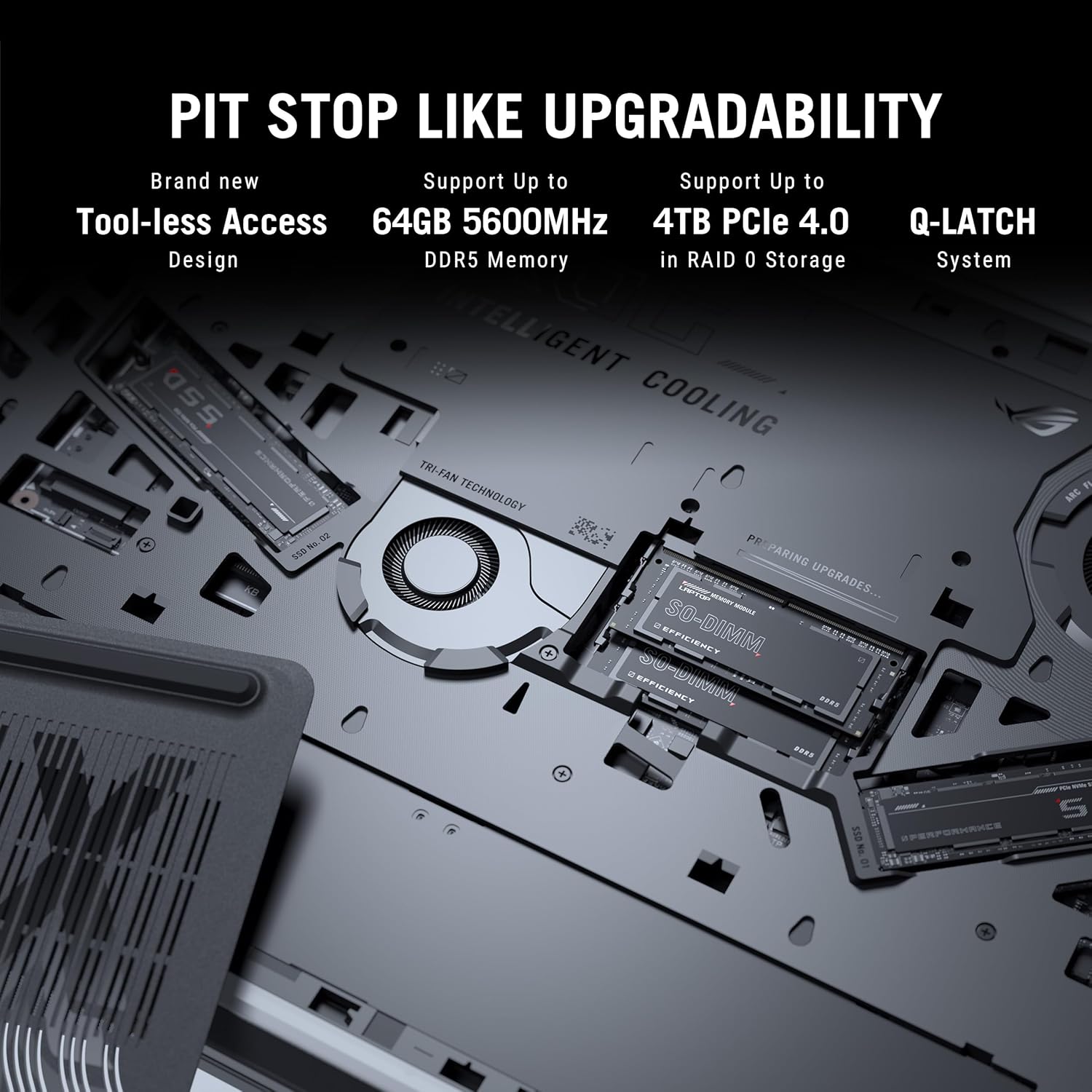
Figure 3.7: Internal components for upgradability.
4. Setup
4.1 Initial Power On
- Connect Power: Plug the power adaptor into the laptop's power port and then into a wall outlet. Ensure the power indicator light illuminates.
- Open Display: Carefully open the laptop display to a comfortable viewing angle.
- Power On: Press the power button, typically located on the top right of the keyboard deck.
- Initial Setup: Follow the on-screen instructions to complete the Windows 11 Home setup, including language selection, network connection, and user account creation.
4.2 Connecting Peripherals
Connect external devices such as a mouse, keyboard, external display, or storage devices to the available USB, HDMI, or Thunderbolt ports as needed.
5. Operating Instructions
5.1 Power Management
- Sleep Mode: Close the lid or press the power button briefly to enter sleep mode.
- Shut Down: Click the Start button, then Power > Shut down.
- Restart: Click the Start button, then Power > Restart.
5.2 Keyboard Functions
Utilize the function keys (F1-F12) in combination with the Fn key for quick access to system controls such as volume, brightness, and wireless settings. The dedicated gaming hotkeys provide quick access to performance modes and other ROG-specific features.
5.3 Display Settings
Adjust display settings through Windows Settings or the NVIDIA Control Panel for optimal gaming and visual experience. You can configure refresh rate, resolution, and color profiles.
6. Maintenance
6.1 Cleaning
- Screen: Use a soft, lint-free cloth lightly dampened with water or a screen cleaner. Avoid harsh chemicals.
- Keyboard and Chassis: Use a soft brush or compressed air to remove dust. Wipe surfaces with a slightly damp cloth.
- Vents: Regularly clean the cooling vents with compressed air to prevent dust buildup and maintain airflow.
6.2 Battery Care
- Avoid fully discharging the battery frequently.
- Store the laptop in a cool, dry place if not used for extended periods.
- For optimal battery longevity, consider using battery health management features available in ASUS software.
6.3 Software Updates
Regularly update your operating system, drivers (especially graphics drivers), and ASUS utilities to ensure optimal performance, security, and compatibility.
7. Troubleshooting
This section addresses common issues you might encounter. For more complex problems, refer to the ASUS support website or contact customer service.
7.1 Power Issues
- Laptop does not turn on: Ensure the power adaptor is securely connected to both the laptop and a working power outlet. Check if the power adaptor's LED is lit. Try a different outlet.
- Battery not charging: Verify the power adaptor connection. Check for any physical damage to the adaptor or charging port.
7.2 Display Issues
- No display on screen: Connect an external monitor to check if the issue is with the laptop's internal display. Ensure the display cable (if external) is properly connected. Try pressing Fn + F8 (or the corresponding display toggle key) to switch display output.
- Flickering or distorted display: Update your graphics drivers. Check display cable connections if using an external monitor.
7.3 Performance Issues
- Slow performance: Close unnecessary applications. Check for background processes consuming high CPU/RAM. Ensure adequate ventilation and clean cooling vents. Update drivers.
- Overheating: Ensure the laptop is on a hard, flat surface to allow proper airflow. Clean the cooling vents. Consider using a laptop cooling pad.
8. Specifications
Detailed technical specifications for the ASUS ROG Strix SCAR 16 G635LX-RW158WS.
| Feature | Specification |
|---|---|
| Brand | ASUS |
| Model Name | ROG Strix SCAR 16 |
| Model Number | G635LX-RW158WS |
| Processor | Intel Core Ultra 9 275HX (2.7 GHz, up to 5.4 GHz, 24 cores, 24 Threads) |
| Graphics | NVIDIA GeForce RTX 5090 Laptop GPU, 24GB GDDR7 RAM |
| Display | 16-inch, 2.5K (2560 x 1600) WQXGA, 16:10, 240Hz, 1200nits, ROG Nebula HDR |
| Memory | 32GB DDR5 RAM (Max 64GB) |
| Storage | 2TB PCIe 4.0 NVMe M.2 Performance SSD |
| Operating System | Windows 11 Home |
| Keyboard | Backlit Chiclet Keyboard Per-Key RGB, Copilot key |
| Webcam | 1080P FHD IR Camera for Windows Hello |
| Wireless Connectivity | Wi-Fi 7 (802.11.be), Bluetooth |
| Ports | Thunderbolt 5 (USB Type-C), HDMI 2.1, USB 3.2 Gen2 Type-A, 2.5G Ethernet, Audio Jack |
| Battery | 90 Watt Hours Lithium Ion |
| Dimensions (L x W x Thickness) | 35.4L x 26.8W x 2.3Th Centimeters |
| Item Weight | 2.8 Kilograms |
9. Warranty and Support
9.1 Warranty Information
This genuine ASUS laptop comes with a 1-year Global Warranty and Onsite Domestic Warranty from ASUS, covering manufacturing defects. Physical damage is not covered. To activate your warranty, please register on the ASUS brand website.
9.2 Customer Support
For product-related queries or immediate assistance, you can contact ASUS customer support:
- Toll-Free Number: 18002090365 (Monday - Saturday, 09:00 AM - 06:00 PM)
- Email: rc_india@asus.com
- Online Support: Visit the official ASUS support website for service centers and further assistance: www.asus.com/in/support

Figure 9.1: ASUS 4A Guarantee and support contact details.
10. Important Notes
No official product videos were available in the provided data for embedding in this manual.