
1. Introduction
The Dark Project SONO Wireless Gaming Headset is engineered to deliver high-quality audio for gaming, entertainment, and communication. Featuring 53mm neodymium drivers and versatile connectivity options, this headset provides a comfortable and immersive audio experience across multiple platforms.
2. Package Contents
Please verify that all items are present in your package:
- Dark Project SONO Wireless Gaming Headset
- Detachable Omnidirectional Microphone
- USB-A Charging/Data Cable (1.5m)
- 2.4 GHz Wireless USB Dongle
- User Manual (this document)
3. Product Overview
Familiarize yourself with the components of your Dark Project SONO Wireless Gaming Headset.

Figure 3.1: Front-left view of the Dark Project SONO Wireless Gaming Headset with the detachable microphone connected.

Figure 3.2: Side view of the headset, highlighting the control buttons located on the ear cup, including volume and mode selection.
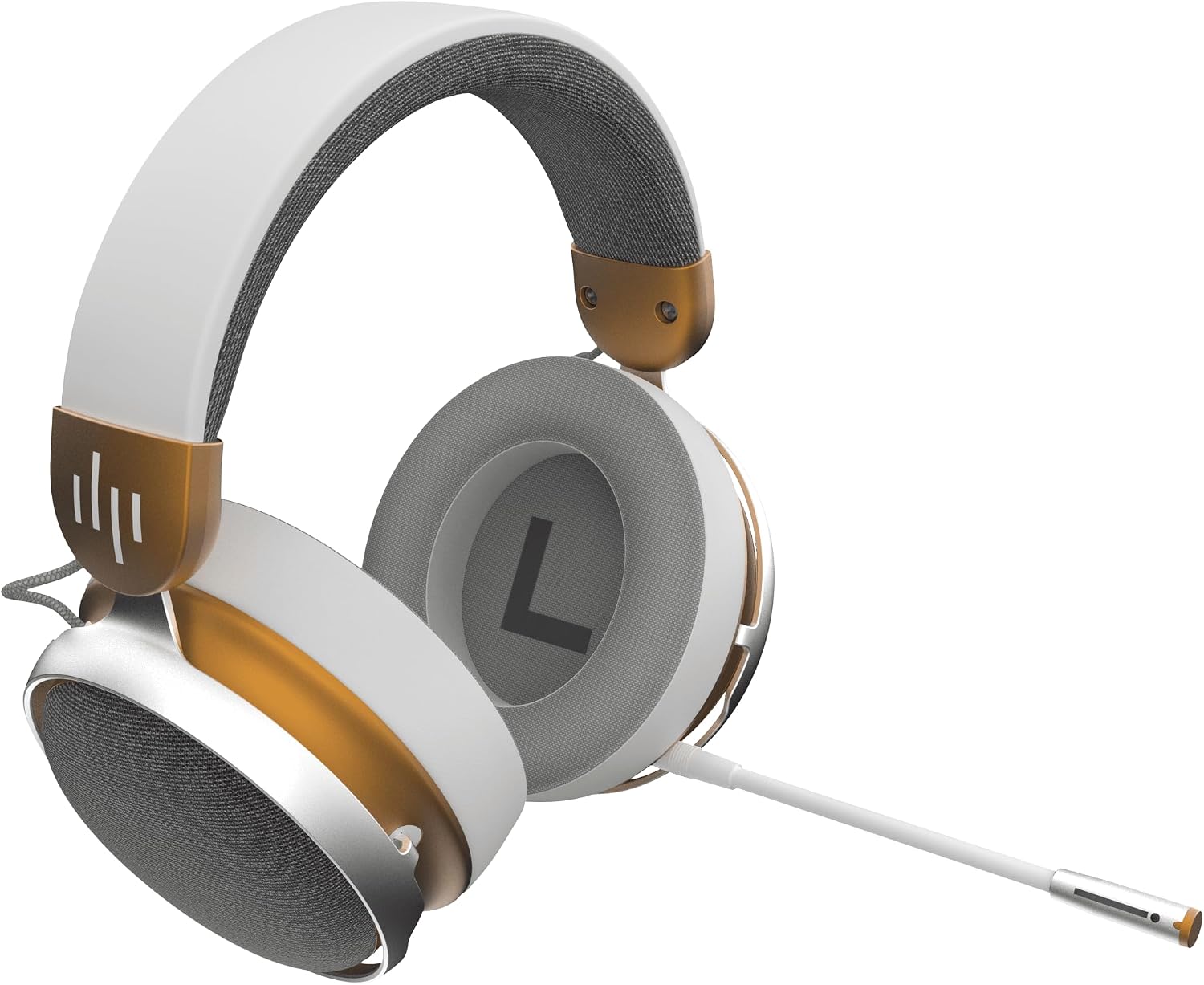
Figure 3.3: Interior view of the earcups, showing the soft padding and the 'L' indicator for the left ear.
4. Setup
4.1. Charging the Headset
Before initial use, fully charge the headset. Connect the supplied USB-A cable to the headset's charging port and to a powered USB port (e.g., computer, wall adapter). The charging indicator light will show the charging status and turn off or change color when fully charged. A full charge provides up to 25 hours of usage.
4.2. Attaching the Microphone
Insert the detachable omnidirectional microphone into the designated port on the left earcup until it clicks securely into place. Ensure the microphone is oriented correctly for optimal voice pickup.
4.3. Connectivity Options
The SONO headset supports three connectivity modes:
- 2.4 GHz Wireless (USB Dongle): For low-latency wireless connection to PCs, PlayStation (PS4/PS5), Xbox, and Nintendo Switch.
- Bluetooth 5.3: For wireless connection to smartphones, tablets, and other Bluetooth-enabled devices.
- USB-A Wired: For direct wired connection to compatible devices, also used for charging.
5. Operating Instructions
5.1. Power On/Off
To power on the headset, press and hold the Power button for approximately 3 seconds. An indicator light will illuminate. To power off, press and hold the Power button again for 3 seconds until the indicator light turns off.
5.2. 2.4 GHz Wireless Connection
- Plug the 2.4 GHz USB dongle into an available USB port on your PC, console, or compatible device.
- Power on the headset.
- The headset should automatically connect to the dongle. The indicator light will show a stable connection.
- Ensure the headset is selected as the audio input/output device in your device's sound settings.
5.3. Bluetooth Connection
- Power on the headset.
- Press and hold the Mode button (or a dedicated Bluetooth button, refer to product diagram) for 5 seconds to enter Bluetooth pairing mode. The indicator light will flash rapidly.
- On your smartphone, tablet, or Bluetooth-enabled device, go to Bluetooth settings and search for new devices.
- Select "Dark Project SONO" from the list of available devices.
- Once paired, the indicator light on the headset will become stable.
5.4. Wired USB-A Connection
Connect the USB-A cable directly from the headset to a USB-A port on your computer or compatible device. The headset will function as a wired audio device and charge simultaneously.
5.5. Volume Control
Use the volume control wheel or buttons on the headset's earcup to adjust the audio output level.
5.6. Microphone Mute
A dedicated mute button for the microphone is located on the headset. Press it to toggle the microphone on or off. An indicator light on the microphone or headset may show its mute status.
6. Maintenance
6.1. Cleaning
- Wipe the headset surfaces with a soft, dry, lint-free cloth.
- For stubborn dirt, lightly dampen the cloth with water. Avoid using harsh chemicals or abrasive cleaners.
- Do not immerse the headset in water or any liquids.
- Clean the earcup cushions gently.
6.2. Storage
When not in use, store the headset in a cool, dry place away from direct sunlight and extreme temperatures. Avoid placing heavy objects on the headset.
7. Troubleshooting
If you encounter issues with your headset, refer to the following common solutions:
- No Sound:
- Ensure the headset is powered on and charged.
- Check volume levels on both the headset and the connected device.
- Verify the correct audio output device is selected in your computer/console settings.
- For wireless connections, ensure the headset is properly paired/connected to the dongle or via Bluetooth.
- Microphone Not Working:
- Ensure the microphone is securely attached and not muted.
- Check microphone input settings on your connected device.
- Test the microphone in a different application or device.
- Connection Issues (2.4 GHz/Bluetooth):
- Ensure the headset is within range of the dongle or Bluetooth device.
- Re-pair the headset (for Bluetooth) or re-insert the dongle (for 2.4 GHz).
- Avoid interference from other wireless devices.
- Headset Not Charging:
- Verify the charging cable is securely connected to both the headset and a powered USB port.
- Try a different USB port or charging cable.
8. Specifications
| Feature | Specification |
|---|---|
| Model Name | SONO Wireless |
| Connectivity Technology | Wireless (2.4 GHz RF, Bluetooth 5.3), Wired (USB-A) |
| Driver Size | 53 mm Neodymium |
| Headphone Frequency Response | 20 Hz - 20,000 Hz |
| Impedance | 22 Ohms |
| Sensitivity | 98 dB |
| Microphone Type | Detachable Omnidirectional |
| Microphone Frequency Response | 100 Hz - 10 kHz |
| Cable Length | 1.5 m (braided USB-A) |
| Battery Life | Up to 25 hours |
| Weight | 370 g |
| Materials | Acrylonitrile Butadiene Styrene (ABS), Aluminum, Polyurethane (PU) |
| Compatible Devices | PC, Game Console (Xbox, PS4/PS5, Nintendo Switch), Laptop, Tablet, Mobile Phone |
9. Warranty Information
Specific warranty details are not available in the provided product information. Please refer to the official Dark Project website or contact your retailer for comprehensive warranty terms and conditions.
10. Support
For further assistance, technical support, or inquiries not covered in this manual, please visit the official Dark Project support website or contact their customer service department. Contact information can typically be found on the manufacturer's website or product packaging.
