
Introduction
This manual provides detailed instructions for the Dark Project HS4 Wireless Gaming Headset. The HS4 Wireless is designed for versatile use across multiple platforms, offering three connection modes: 2.4 GHz wireless, Bluetooth, and wired 3.5mm audio. It features a detachable microphone, interchangeable ear pads, and a durable metal-reinforced headband for comfort and longevity. This guide will help you set up, operate, and maintain your headset for optimal performance.
What's in the Box
Verify that all components are present in the package:
- 1x Dark Project HS4 Wireless Headset
- 1x Detachable Microphone
- 1x 3.5mm Audio Cable (2 meters)
- 1x USB Charging Cable (Type-A, 1 meter)
- 1x USB Wireless Dongle (for 2.4GHz connection)
- 1x Extra Pair of Earpads (Velour)
- 1x Carrying Case
- 1x User Manual (this document)

Image: The Dark Project HS4 Wireless Headset shown with its detachable microphone, cables, USB dongle, and extra earpads.
Setup
1. Charging the Headset
Before initial use, fully charge the headset. Connect the supplied USB charging cable to the headset's charging port and to a USB power source (e.g., computer USB port, wall adapter). A full charge takes approximately 3 hours and provides up to 100 hours of playback at 50% volume.
2. Attaching the Microphone
The HS4 Wireless features a detachable microphone. Align the microphone's connector with the port on the left earcup and gently push until it clicks into place. Ensure it is securely connected for clear communication. The microphone can be removed when not in use.
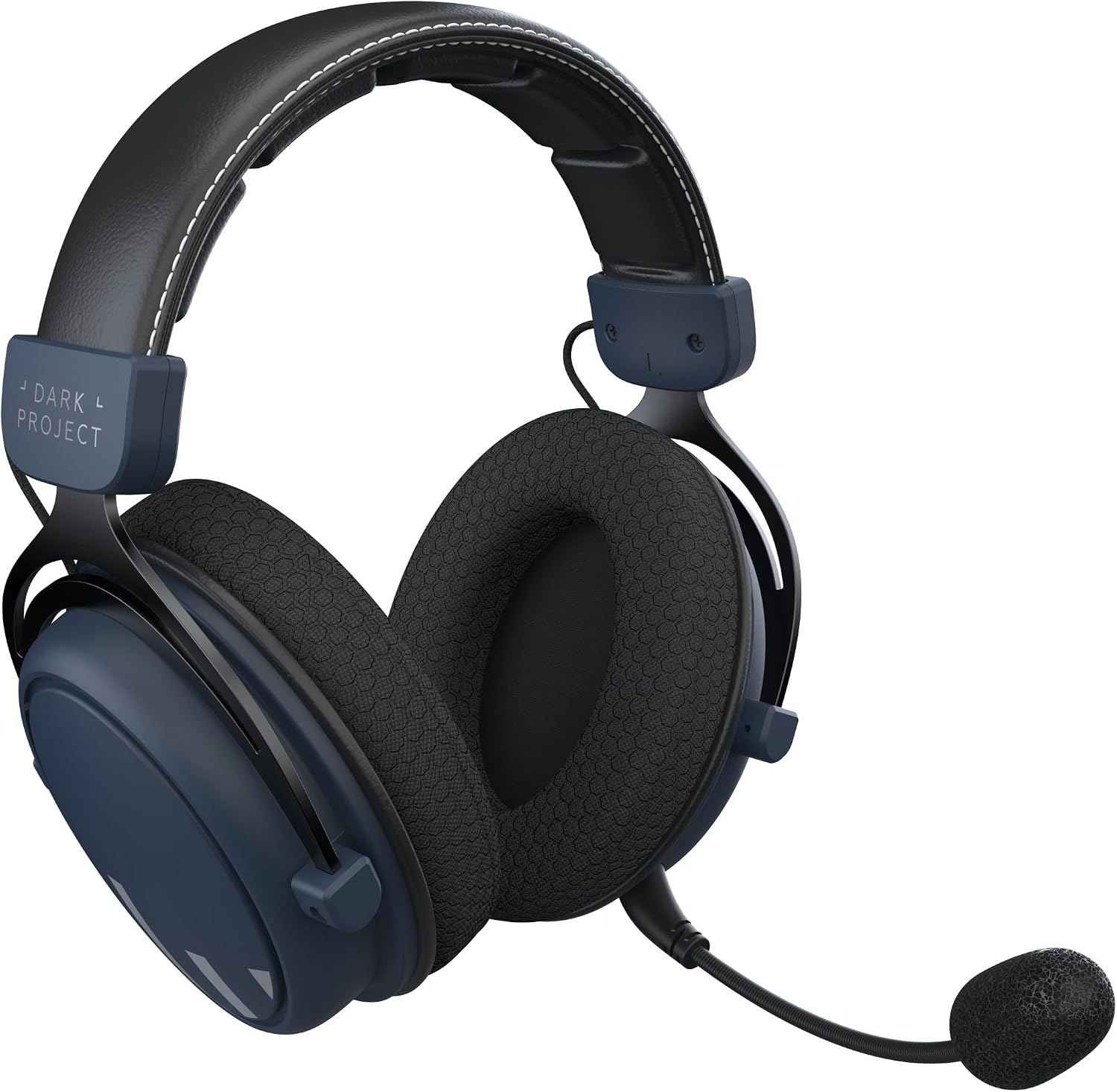
Image: The Dark Project HS4 headset with its flexible, detachable microphone connected to the left earcup.
3. Changing Earpads
The headset comes with two pairs of earpads: one made of simulated leather (pre-installed) for enhanced bass, and an extra pair of velour earpads for maximum detail in mids and highs, and increased breathability. To change earpads, gently pull the existing earpad off the earcup. Align the new earpad with the earcup and carefully stretch it around the rim until it is securely fitted.
Operating Instructions
Connection Modes
The Dark Project HS4 Wireless Headset supports three distinct connection methods:
1. 2.4 GHz Wireless Connection (Low Latency)
This mode provides a stable, low-latency connection ideal for gaming. It is compatible with PC, Mac, PlayStation 4 (PS4), PlayStation 5 (PS5), and Nintendo Switch (when docked).
- Insert the USB Wireless Dongle into an available USB port on your device.
- Power on the headset. The headset should automatically connect to the dongle.
- On your device's audio settings, select "Dark Project HS4 Wireless" as the output and input device.

Image: A side view of the Dark Project HS4 headset, highlighting the USB wireless dongle for 2.4 GHz connectivity.
2. Bluetooth Connection (Bluetooth 5.0)
Use Bluetooth for connecting to smartphones, tablets, and other Bluetooth-enabled devices.
- Ensure the headset is powered on.
- Activate Bluetooth pairing mode on the headset (refer to the headset's power button or dedicated Bluetooth button for specific instructions, usually a long press). An indicator light will typically flash to show pairing mode.
- On your device, go to Bluetooth settings and select "Dark Project HS4 Wireless" from the list of available devices to pair.
3. Wired Connection (3.5mm Audio Cable)
For universal compatibility, connect the headset using the 3.5mm audio cable. This mode is suitable for Xbox consoles, PC, Mac, PS4, PS5, Nintendo Switch (handheld mode), and any device with a standard 3.5mm audio jack.
- Connect one end of the 3.5mm audio cable to the headset's audio jack.
- Connect the other end to the 3.5mm audio port on your device.
- The headset will operate in passive wired mode. Ensure your device's audio output is set correctly.
Headset Controls
The headset features integrated controls on the earcups for convenient adjustments:
- Volume Wheel: Located on one of the earcups, rotate to adjust the audio volume.
- Power Button: Press and hold to power the headset on or off. Short press may control playback or calls depending on the connection mode.
- Microphone Mute Button: A dedicated button or switch to quickly mute/unmute the microphone.

Image: A close-up view of the Dark Project HS4 headset's earcup, illustrating the location of the volume wheel and other controls.
Maintenance
Proper maintenance ensures the longevity and performance of your headset:
- Cleaning: Use a soft, dry cloth to wipe down the earcups and headband. For deeper cleaning, slightly dampen the cloth with water. Avoid harsh chemicals or abrasive materials.
- Earpads: The earpads can be removed for cleaning or replacement. Hand wash velour earpads with mild soap and water, then air dry completely before reattaching.
- Storage: When not in use, store the headset in the provided carrying case to protect it from dust, scratches, and impacts. Avoid exposing the headset to extreme temperatures or humidity.
- Cables: Handle cables gently. Avoid sharp bends or excessive pulling to prevent damage.
Troubleshooting
If you encounter issues with your Dark Project HS4 Wireless Headset, refer to the following common problems and solutions:
No Sound or Low Volume
- Check Volume: Ensure the headset's volume wheel and your device's volume are turned up.
- Connection: Verify the headset is properly connected via 2.4 GHz dongle, Bluetooth, or 3.5mm cable. For wireless connections, ensure the headset is powered on and paired.
- Audio Output Settings: On your device, confirm that "Dark Project HS4 Wireless" (or similar) is selected as the audio output device.
- Battery Level: If using wirelessly, ensure the headset has sufficient battery charge.
Microphone Not Working
- Microphone Attachment: Ensure the detachable microphone is securely plugged into the headset.
- Mute Function: Check if the microphone mute button on the headset is activated.
- Input Settings: On your device, confirm that "Dark Project HS4 Wireless" (or similar) is selected as the audio input device.
- Application Settings: Some applications (e.g., Discord, Zoom) have their own microphone settings. Check these as well.
Wireless Connection Issues
- Range: Ensure the headset is within range of the 2.4 GHz dongle or Bluetooth device.
- Interference: Move away from other wireless devices (Wi-Fi routers, cordless phones) that might cause interference.
- Re-pairing: For Bluetooth, try unpairing and re-pairing the headset with your device. For 2.4 GHz, try unplugging and re-plugging the USB dongle.
Specifications
| Model Name | HS4 Wireless Headset |
| Connectivity Technology | Wired (3.5mm Jack), Wireless (2.4GHz, Bluetooth 5.0) |
| Wireless Technology | 2.4GHz, Bluetooth 5.0 |
| Driver Size | 53 mm Dynamic Drivers |
| Impedance | 32 Ohms |
| Frequency Range | 20 Hz - 20,000 Hz |
| Battery Life | Up to 100 hours (at 50% volume) |
| Charging Time | Approximately 3 hours |
| Microphone | Detachable, 6mm sensitive capsule |
| Earpad Material | Simulated Leather (pre-installed), Velour (extra pair) |
| Compatible Devices | PC, Mac, PS4, PS5, Xbox, Nintendo Switch, Smartphones |
| Form Factor | Circum-Aural (Over-Ear) |
| Special Features | Detachable Cable, Noise Isolation, Lightweight, Metal-reinforced headband |
Warranty and Support
For warranty information and technical support, please refer to the warranty card included in your product packaging or visit the official Dark Project website. Contact details for customer service can typically be found on the manufacturer's support page.
Manufacturer: Dark Project
Model Number: HS4 Wireless
