
1. Introduction
This manual provides essential information for the installation, operation, and maintenance of your SAMSUNG SSD 870 EVO 250 GB Solid State Drive. Please read this manual thoroughly before using the product to ensure proper functionality and longevity.
The SAMSUNG SSD 870 EVO is a high-performance 2.5-inch SATA III internal solid state drive designed for desktop and laptop computers, offering enhanced speed and reliability for your computing needs.
2. Package Contents
Verify that all items are present in the product package:
- SAMSUNG SSD 870 EVO Solid State Drive
- User Manual (this document)
- Warranty Terms Document
3. Technical Specifications
| Feature | Specification |
|---|---|
| Brand | SAMSUNG |
| Series | 870 EVO |
| Model Number | MZ-77E250B/EU |
| Digital Storage Capacity | 250 GB |
| Hard Disk Interface | Serial ATA (SATA III) |
| Connectivity Technology | SATA |
| Hard Disk Form Factor | 2.5 Inches |
| Compatible Devices | Desktop, Laptop |
| Installation Type | Internal Hard Drive |
| Color | Black |
| Item Weight | 3.03 ounces |
| Product Dimensions (LxWxH) | 3.94 x 2.75 x 0.27 inches |
| Hardware Platform | Linux, Mac, PC |
4. Installation Guide
4.1. Physical Installation
The SAMSUNG SSD 870 EVO is a 2.5-inch drive, compatible with standard 2.5-inch drive bays found in most desktop and laptop computers. For desktop computers, a 3.5-inch adapter bracket (not included) may be required if only 3.5-inch bays are available.
- Prepare your system: Power off your computer and disconnect all cables. Open the computer case or access the laptop's drive bay.
- Locate an available drive bay: Identify an empty 2.5-inch drive bay. If using a 3.5-inch bay, install the SSD into an adapter bracket first.
- Connect the SSD: Carefully slide the SSD into the drive bay. Connect a SATA data cable from the SSD to an available SATA port on your motherboard. Connect a SATA power cable from your power supply unit to the SSD.
- Secure the SSD: Secure the SSD with screws if your drive bay requires them.
- Close your system: Reassemble your computer and reconnect all cables.
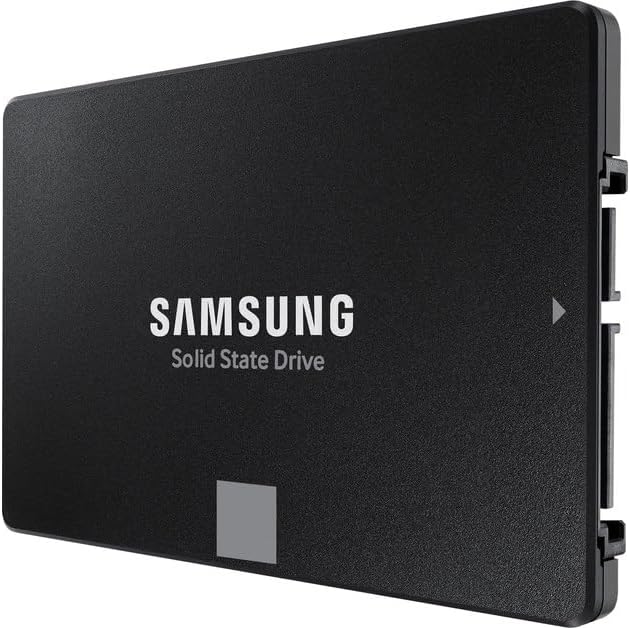
Image: Angled view of the SAMSUNG SSD 870 EVO 250 GB, showcasing its compact 2.5-inch form factor.
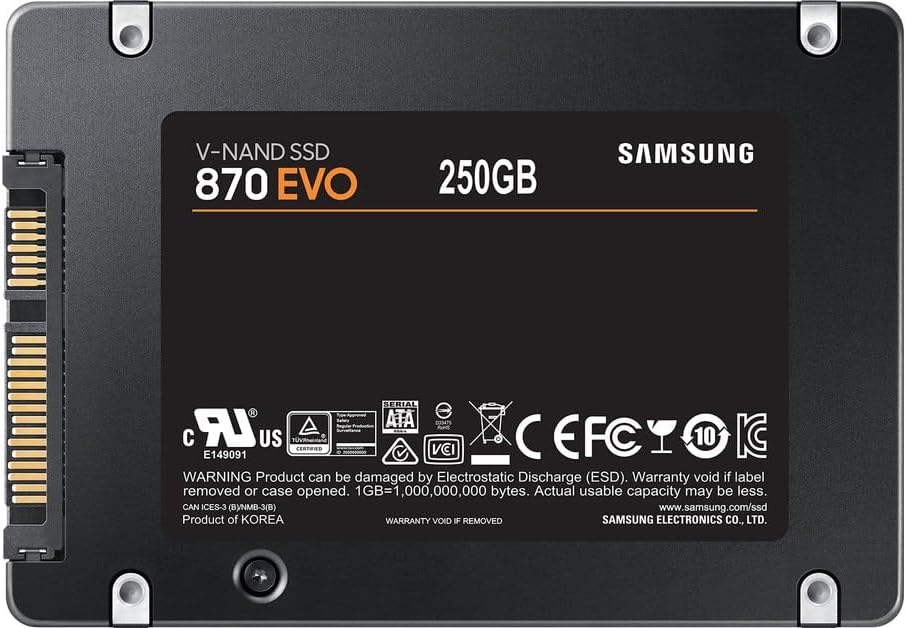
Image: Rear view of the SAMSUNG SSD 870 EVO 250 GB, showing the SATA data and power connectors.
4.2. Software Setup
After physical installation, the SSD needs to be initialized and formatted by your operating system.
- Boot your computer: Power on your computer.
- Initialize the SSD:
- Windows: Open Disk Management (right-click 'This PC' or 'My Computer' > 'Manage' > 'Disk Management'). Locate the new SSD, right-click it, and select 'Initialize Disk'. Choose MBR (Master Boot Record) or GPT (GUID Partition Table) based on your system requirements (GPT is recommended for modern systems).
- macOS: Open Disk Utility (Applications > Utilities > Disk Utility). Select the new SSD, click 'Erase', choose a format (e.g., APFS or Mac OS Extended), and a scheme (e.g., GUID Partition Map).
- Linux: Use tools like GParted or `fdisk`/`parted` to partition and format the drive.
- Create a new volume/partition: After initialization, right-click the unallocated space on the SSD and select 'New Simple Volume' (Windows) or create a new partition (macOS/Linux) to format it and assign a drive letter/mount point.
- Operating System Migration (Optional): If you are replacing an existing drive, you can use Samsung Data Migration software (available for download from the Samsung website) to clone your existing operating system and data to the new SSD.
5. Operation
5.1. Initial Use
Once installed and formatted, your SAMSUNG SSD 870 EVO is ready for use. You can install applications, store files, or use it as your primary operating system drive for faster boot times and application loading.
5.2. Samsung Magician Software
Samsung Magician software is a utility designed to help users manage and optimize the performance of their Samsung SSDs. It is available for download from the official Samsung website.
Key features of Samsung Magician include:
- Drive Health Check: Monitor the health and temperature of your SSD.
- Performance Benchmark: Measure the sequential and random read/write speeds.
- Firmware Update: Easily update the SSD's firmware to the latest version.
- TRIM Status Check: Verify if TRIM is enabled for optimal performance.
- Over Provisioning: Allocate additional space for background operations to improve endurance and performance.
- Secure Erase: Permanently delete data from the SSD.
It is recommended to install and regularly use Samsung Magician to ensure your SSD operates at peak performance and health.
6. Maintenance and Optimization
To maintain the performance and lifespan of your SSD, consider the following:
- Enable TRIM: Ensure TRIM is enabled in your operating system. TRIM helps the SSD manage deleted data blocks, preventing performance degradation over time. Most modern operating systems enable TRIM by default for SSDs.
- Avoid Defragmentation: Unlike traditional HDDs, SSDs do not benefit from defragmentation. Defragmenting an SSD can reduce its lifespan by causing unnecessary write cycles. Ensure your operating system's defragmentation utility is set to skip SSDs.
- Keep Firmware Updated: Regularly check for and install the latest firmware updates using Samsung Magician software. Firmware updates can improve performance, stability, and compatibility.
- Maintain Sufficient Free Space: While not strictly necessary, keeping some free space (e.g., 10-20%) on your SSD can help maintain optimal performance, especially for drives without dedicated over-provisioning.
- Use AHCI Mode: Ensure your motherboard's SATA controller is set to AHCI (Advanced Host Controller Interface) mode in the BIOS/UEFI settings for optimal SSD performance.
7. Troubleshooting
This section addresses common issues you might encounter with your SSD.
| Problem | Possible Cause | Solution |
|---|---|---|
| SSD not detected by OS or BIOS | Incorrect cabling, disabled SATA port, uninitialized drive. | Check SATA data and power cable connections. Ensure SATA port is enabled in BIOS/UEFI. Initialize the drive in Disk Management (Windows) or Disk Utility (macOS). |
| Slow performance | TRIM not enabled, outdated firmware, SATA port not in AHCI mode, drive nearly full. | Verify TRIM is enabled. Update SSD firmware using Samsung Magician. Ensure AHCI mode is set in BIOS/UEFI. Free up some disk space. |
| Operating system fails to boot from SSD | Incorrect boot order, corrupted OS installation/migration. | Check BIOS/UEFI boot order to ensure SSD is the first boot device. Re-attempt OS migration or perform a clean OS installation. |
| SSD capacity appears smaller than advertised | Difference in binary vs. decimal calculation, unallocated space. | Operating systems calculate capacity in binary (1GB = 1,073,741,824 bytes), while manufacturers use decimal (1GB = 1,000,000,000 bytes). Ensure all space is partitioned and formatted. |
If you encounter issues not covered here, please refer to the Samsung support website or contact customer service.
8. Warranty and Support
Your SAMSUNG SSD 870 EVO 250 GB comes with a limited warranty. The specific terms and conditions of the warranty are detailed in the separate Warranty Terms Document included in your product package.
For technical support, warranty claims, or additional product information, please visit the official Samsung website or contact Samsung customer service in your region. Ensure you have your product model number (MZ-77E250B/EU) and proof of purchase available when seeking support.
Online Resources:
- Samsung Official Website: www.samsung.com/us/support/
- Samsung Magician Software Download: Refer to the official Samsung website for the latest version.