
Uvod
This manual provides essential information for setting up, operating, maintaining, and troubleshooting your Lenovo ThinkCentre M720q Tiny Desktop Computer. Please read these instructions carefully before using your device.

Figure 1: Lenovo ThinkCentre M720q Tiny Desktop Computer - Front View
Navodila za namestitev
1. Razpakiranje
Carefully remove the computer and all accessories from the packaging. Ensure the following items are present:
- Lenovo ThinkCentre M720q Tiny Desktop Computer
- Napajalni adapter
- Dokumentacija (ta priročnik, garancijske informacije)
2. Povezovanje zunanjih naprav
Connect your monitor, keyboard, and mouse to the appropriate ports on the computer.
- Zaslon: Connect your monitor using a DisplayPort or HDMI cable. The system supports resolutions up to 3840x2160.
- Tipkovnica in miška: Connect USB keyboard and mouse to any available USB ports. The device features multiple USB 3.0 ports.
- Omrežje: For wired network access, connect an Ethernet cable to the RJ-45 port. For wireless, ensure your Wi-Fi network is available.
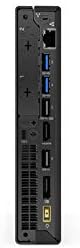
Figure 2: Rear ports of the ThinkCentre M720q, including display outputs and USB ports.

Figure 3: Front ports of the ThinkCentre M720q, including USB and audio jacks.
3. Napajalni priključek
Connect the power adapter to the computer's power input, then plug the power cord into a wall outlet.
4. Začetni zagon in namestitev operacijskega sistema
Press the power button located on the front of the computer. The system will boot into Windows 10 Pro. Follow the on-screen instructions to complete the initial setup, including language selection, network connection, and user account creation.
Navodila za uporabo
Vklop/izklop
- Za vklop: Pritisnite gumb za vklop na sprednji plošči.
- Za izklop: V sistemu Windows kliknite gumb Start in nato izberite Napajanje > Zaustavitev sistema.
- Za ponovni zagon: V sistemu Windows kliknite gumb Start in nato izberite Napajanje > Ponovni zagon.
Omrežna povezljivost
- Žično omrežje: If an Ethernet cable is connected, the system should automatically detect the network.
- Brezžično omrežje (Wi-Fi): The ThinkCentre M720q supports 802.11ac wireless. To connect, click the Wi-Fi icon in the system tray, select your network, and enter the password if prompted.
Uporaba USB naprav
The computer is equipped with multiple USB 3.0 ports. Simply plug your USB devices (e.g., external hard drives, flash drives, printers) into any available USB port. Windows will typically install necessary drivers automatically.
Konfiguracija zaslona
The ThinkCentre M720q supports multiple displays. You can configure display settings (resolution, orientation, extended/duplicated desktop) through the Windows Display Settings. Right-click on the desktop and select "Display settings".
Vzdrževanje
Cleaning the Computer
- Always power off the computer and disconnect it from the power outlet before cleaning.
- Uporabite mehko krpo, ki ne pušča vlaken, dampz vodo ali blago čistilno raztopino za brisanje zunanjih površin.
- Ne uporabljajte agresivnih kemikalij, abrazivnih čistil ali topil.
- Use compressed air to gently clear dust from vents and ports.
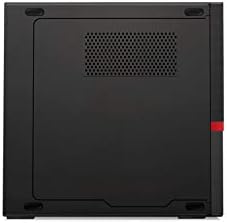
Slika 4: Zgornji del view of the ThinkCentre M720q, highlighting ventilation areas.
Posodobitve programske opreme
Regularly update your Windows operating system and drivers to ensure optimal performance and security. Windows Update can be accessed via Settings > Update & Security > Windows Update.
Odpravljanje težav
If you encounter issues with your ThinkCentre M720q, refer to the following common solutions:
- Brez napajanja: Prepričajte se, da je napajalnik varno priključen tako na računalnik kot na delujočo električno vtičnico. Poskusite z drugo vtičnico.
- Brez zaslona: Verify that the monitor is powered on and correctly connected to the computer. Check the input source on your monitor.
- Upočasnitev sistema: Close unnecessary applications. Check for background processes using Task Manager. Ensure sufficient free space on the SSD.
- Periferna naprava ni zaznana: Try connecting the peripheral to a different USB port. Ensure drivers are installed (if required).
- Težave z omrežno povezljivostjo: For wired connections, check the Ethernet cable. For Wi-Fi, ensure the network is available and you have the correct password. Restart your router if necessary.
Za bolj zapletene težave se obrnite na podporo Lenovo webspletno mesto ali se obrnite na njihovo službo za stranke.
Specifikacije
| Funkcija | Podrobnost |
|---|---|
| Znamka | Lenovo |
| serija | ThinkCentre M720q |
| Številka modela artikla | ThinkCentre M720q |
| Operacijski sistem | Windows 10 Pro |
| Procesor | Intel Core i5 (1.7 GHz) |
| RAM | 8 GB DDR3 (2666 MHz Memory Speed) |
| Trdi disk | 256 GB SSD (Serial ATA-300 Interface) |
| Grafični koprocesor | Intel Turbo Boost Technology 2 |
| Opis grafične kartice | Integrirano |
| Največja ločljivost zaslona | 3840x2160 |
| Brezžična vrsta | 802.11ac |
| Število vrat USB 3.0 | 3 |
| Teža predmeta | 3 funtov |
| Dimenzije izdelka (DxŠxV) | 7 x 1.4 x 7.2 palcev |
| barva | Črna |
Informacije o garanciji
For detailed warranty terms and conditions, please refer to the official Lenovo warranty documentation included with your product or visit the official Lenovo support webGarancijsko kritje običajno vključuje napake v materialu in izdelavi za določeno obdobje od datuma nakupa.
Podpora uporabnikom
If you require technical assistance, have questions about your product, or need to report an issue, please contact Lenovo customer support through their official channels. You can find contact information and online resources on the official Lenovo webmesto.
Lenovo Official Webspletno mesto: www.lenovo.com