
Cricut 2004193
Návod na použitie inteligentného rezacieho stroja Cricut Maker
Brand: Cricut | Model: 2004193
Úvod
The Cricut Maker is a powerful and versatile smart cutting machine designed to elevate your decorative art and craft projects. With its advanced suite of tools, it delivers a professional-level cutting experience, capable of cutting over 300 different materials. From delicate paper and fabric to matboard and leather, the Cricut Maker offers endless possibilities for creating 3D art, home decor, jewelry, paper projects, and more.
Medzi kľúčové vlastnosti patrí:
- 10X Cutting Force: Provides superior cutting power compared to Cricut Explore series machines.
- Všestranná kompatibilita materiálov: Cuts over 300 materials, including fabric, paper, matboard, and leather.
- Adaptive Tool System: Supports 13 different tools (sold separately) for cutting, writing, embellishing, foiling, engraving, and debossing.
- Bezdrôtové pripojenie Bluetooth: Seamlessly connect to the cloud-based Design Space app on iOS, Android, Windows, and Mac devices.
- Vstavané úložisko: Conveniently store tools and accessories directly on the device.
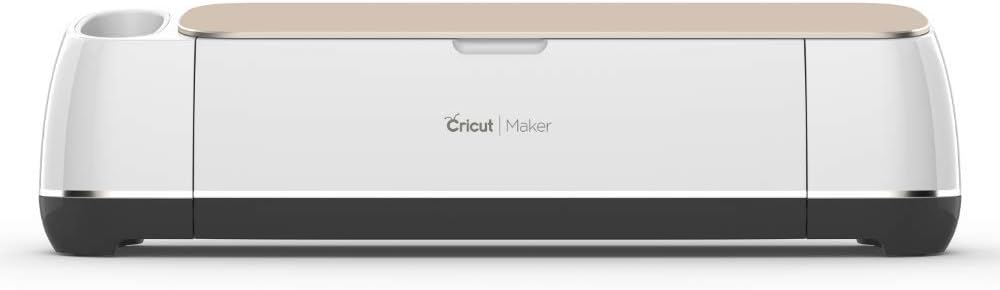
Figure 1: Cricut Maker Smart Cutting Machine (Champagne)
Nastavenie
Before using your Cricut Maker, ensure it is properly set up. This involves connecting the machine to power, installing the necessary software, and understanding its components.
Rozbalenie a prvé pripojenie
- Carefully remove the Cricut Maker from its packaging.
- Umiestnite stroj na stabilný rovný povrch.
- Pripojte napájací adaptér k zariadeniu a zapojte ho do sieťovej zásuvky.
- Stlačením tlačidla napájania zapnite stroj.
- For initial setup and software installation, connect the machine to your computer via the provided USB cable or pair it via Bluetooth.
Understanding Machine Components

Figure 2: Key Components of the Cricut Maker
Familiarize yourself with the following key components:
- Tlačidlo napájania: Zapína/vypína stroj.
- Load/Unload Mat Button: Controls the loading and unloading of the cutting mat.
- Tlačidlo Prejsť: Initiates the cutting process after the design is sent from Design Space.
- Tlačidlo pozastavenia: Temporarily stops the cutting process.
- Double Tool Holder (Clamps A & B): Holds various tools like blades and pens.
- Storage Cup: Conveniently holds small tools.
- Storage in Door: Additional storage compartments for accessories.
- Mat Guides: Ensure proper alignment of the cutting mat.
- Port USB na nabíjanie: Na nabíjanie mobilných zariadení.
Operating the Cricut Maker
The Cricut Maker utilizes the cloud-based Design Space software to create and execute your projects. Follow these steps for typical operation:
Design Space Software
The Cricut Design Space application is your primary interface for creating and managing projects. It allows you to:
- Access thousands of pre-designed projects.
- Upload your own images and designs.
- Customize designs with various fonts, shapes, and tools.
- Select material settings and tool types for your project.
Adaptive Tool System and Blades
The Adaptive Tool System allows the Cricut Maker to use a variety of specialized tools for different materials and effects. The machine comes with a Premium Fine-Point Blade and a Rotary Blade.

Figure 3: Adaptive Tool System with Clamps A a B
Additional tools (sold separately) include the Knife Blade for thicker materials, Scoring Wheels for crisp folds, and the Foil Transfer Tool for embellishments.
Material Preparation and Cutting
The Cricut Maker can cut over 300 materials. Always ensure your material is properly secured to the appropriate cutting mat (LightGrip for paper, FabricGrip for fabrics, etc.).

Figure 4: Cricut Maker with a variety of compatible materials

Figure 5: Cricut Maker in a creative workspace
Cutting Process Overview
- Create or select your design in Cricut Design Space.
- Select your material type and ensure the correct tool is loaded into the machine.
- Place your material onto the appropriate cutting mat.
- Load the mat into the Cricut Maker by pressing the Load/Unload Mat button.
- In Design Space, click 'Make It' and follow the on-screen prompts.
- Once the Go button on the machine starts flashing, press it to begin cutting.
- After cutting is complete, unload the mat and carefully remove your cut design.
Prevádzkové videá
Cricut Maker Features and Usage
Toto video poskytuje koniecview of the Cricut Maker's features, including the automatic lid, blade system, storage compartments, and control buttons. It demonstrates loading a mat and initiating a cut.
Cricut Maker After Years of Use
This video showcases the durability and continued functionality of the Cricut Maker after several years of use. It highlights the ease of opening, internal components, and storage options.
Cutting Vinyl and Fabric with Cricut Maker
This video demonstrates the Cricut Maker's ability to cut both vinyl and fabric materials. It shows the process of setting up the design in Design Space, loading the mat, and the machine performing the cuts.
Koniecview of Cricut Maker Capabilities
Toto video poskytuje úprimný pohľadview of the Cricut Maker after over a year of use, highlighting its features, ease of use, and versatility for various crafting projects.
Cricut Maker in Action: Cutting and Design Space
This video shows the Cricut Maker in operation, demonstrating the loading of a mat, the cutting process, and the seamless interaction with the Design Space software.
Cricut Maker: Easy to Use and Reliable
This video highlights the user-friendliness and consistent performance of the Cricut Maker, emphasizing its reliability for various crafting tasks.
Cricut Maker: Versatility for Diverse Projects
This video demonstrates the impressive capabilities of the Cricut Maker, showcasing its versatility in handling different materials and creating intricate designs.
Údržba
Proper maintenance ensures the longevity and optimal performance of your Cricut Maker.
Upratovanie
- Pravidelne utierajte vonkajší povrch zariadenia mäkkou, suchou handričkou.
- Clean the cutting mat by gently scraping off small material pieces with a scraper tool. For deeper cleaning, use warm water and mild soap, then air dry.
- Inspect the blade housing and remove any debris or material fragments.
Starostlivosť o čepeľ
- Replace blades when they become dull or damaged to ensure clean and precise cuts.
- Store blades in their protective caps or designated storage compartments to prevent damage.
Riešenie problémov
If you encounter issues with your Cricut Maker, try the following troubleshooting steps:
Problémy s pripojením
- Ensure Bluetooth is enabled on your device and the Cricut Maker is within range.
- If using a USB connection, try a different USB port or cable.
- Restart both your computer/mobile device and the Cricut Maker.
Cutting Problems
- Verify that the correct material setting is selected in Design Space for your material.
- Check if the blade is clean, properly inserted, and not dull. Replace if necessary.
- Ensure the material is firmly adhered to the cutting mat and the mat is loaded correctly.
- Perform a test cut on a scrap piece of material to adjust settings if needed.
Kalibrácia
If your cuts are not precise, especially with Print Then Cut projects, you may need to calibrate your machine.
Cricut Maker Calibration Demonstration
This video demonstrates the calibration process for the Cricut Maker, which is crucial for ensuring accurate cuts, particularly for Print Then Cut projects where precise alignment is needed.
For more detailed troubleshooting, refer to the official Cricut User Guide (PDF) available at https://manuals.plus/m/71cbd14881d84cd1cbbd11c228d4515fae4934de2db9037ab5eea8c664e3aa5d.
Špecifikácie
| Funkcia | Detail |
|---|---|
| Značka | Cricut |
| Číslo modelu | 2004193 |
| Farba | Champagne |
| Rozmery produktu | 3"H x 12"Š x 12"V |
| Hmotnosť položky | 18.02 libier |
| Prevádzkový režim | Automaticky |
| Materiálová kompatibilita | Paper (plain), Leather, Fabric, Matboard, etc. (300+ materials) |
| Konektivita | Bluetooth, USB |
| Výrobca | Provo Craft & Novelty |
Záruka a podpora
Cricut offers various support options and protection plans for your machine.
Plány ochrany
Protection plans are available for purchase to cover your Cricut Maker:
- 3-ročný ochranný plán: K dispozícii za 33.99 USD (jednorazová platba).
- 4-ročný ochranný plán: K dispozícii za 44.99 USD (jednorazová platba).
- Kompletná ochrana: A monthly plan at $16.99/month covering all eligible past and future purchases.
For detailed terms and conditions of these protection plans, please refer to the respective product pages or contact Cricut customer service.
User Guides and Support
For comprehensive information and assistance, please consult the official user guides:
- Používateľská príručka (PDF): https://manuals.plus/m/71cbd14881d84cd1cbbd11c228d4515fae4934de2db9037ab5eea8c664e3aa5d
- Používateľská príručka (PDF): https://manuals.plus/m/247ca8b9dea07d80d4d72289e443ce62426ae263bc2d9ab10e5d3221276aa5e8
You can also visit the official Cricut Store for more products and support resources: Cricut Store.
Ask a question about this manual
Ask about setup, troubleshooting, compatibility, parts, safety, or missing instructions. Manuals+ will review the question and use this page’s manual context to help answer it.