
1. හැඳින්වීම
This manual provides detailed instructions for the installation, operation, and troubleshooting of your OBDMONSTER ELM327 OBD2 USB Adapter. This device is designed to interface with your vehicle's On-Board Diagnostics II (OBD2) system via a USB connection to a Windows computer, enabling diagnostic functions and vehicle configuration.
පැකේජයේ අන්තර්ගතය
- 1 x OBDMONSTER ELM327 OBD2 USB Adapter (MS-327)
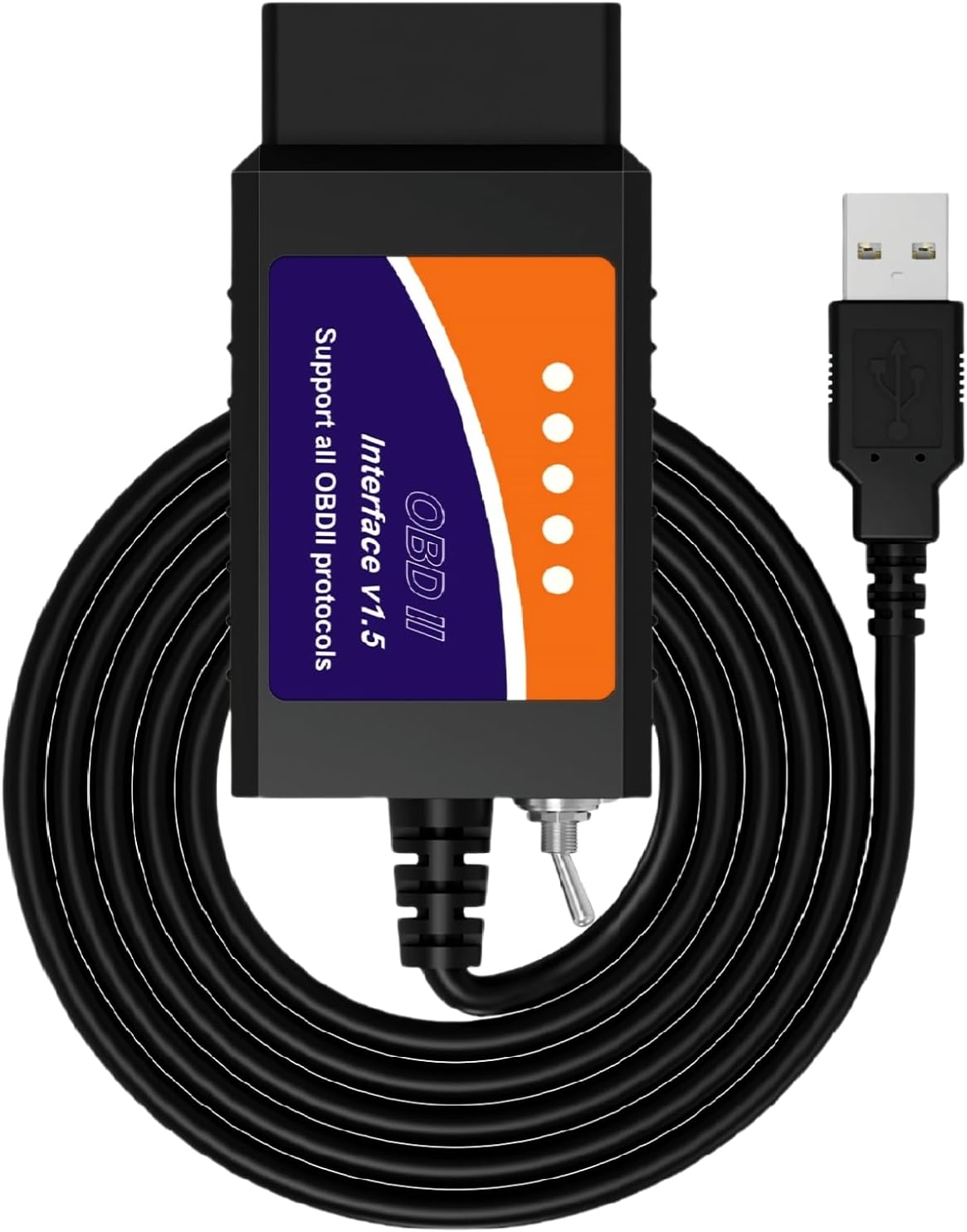
Image 1.1: The OBDMONSTER ELM327 OBD2 USB Adapter with its USB cable and OBD2 connector.
2. Vehicle and System Compatibility
වාහන අනුකූලතාව
The OBDMONSTER ELM327 OBD2 USB Adapter is compatible with a wide range of vehicles, primarily those from Ford, Mazda, Lincoln, and Mercury. It supports:
- All F150, F250, and other F-series trucks (12V).
- Mazda, Lincoln, Mercury vehicles, including Ranger, S-Max, C-Max, Transit, Mondeo, Fusion, Kuga, Mustang, Explorer, and Edge.
- Approximately 99% of models after 2000 and 92% of models after 1996 (when OBD2 became standard in the USA).
සටහන: New 2019+ Mazda 3 and CX-30 models are currently not supported. This device does not work on trailers or semi-trucks.

Image 2.1: Visual representation of vehicle compatibility, highlighting Ford, Mazda, Lincoln, and Mercury brands.
මෙහෙයුම් පද්ධති අනුකූලතාව
The adapter is compatible with all Windows versions: Windows XP, Vista, 7, 8, and 10 (32-bit and 64-bit).
සහාය දක්වන ප්රොටෝකෝල
This scanner supports all OBD2 protocols, including J1850PWM, HS-CAN, MS-CAN, HS-CAN2, and HS-CAN3.
3. සැකසුම් උපදෙස්
Follow these steps to set up your OBDMONSTER ELM327 OBD2 USB Adapter:
- Download Software and Driver: නිලධාරියා වෙත පිවිසෙන්න website (SW.FSCAN.NET) to download the necessary diagnostic software (e.g., ELMconfig, FoCCCus, FF2) and the CH340T USB driver. Ensure you replace "/" with "." when typing the address.
- Install CH340T USB Driver: Before connecting the adapter to your computer, install the CH340T USB driver. This driver enables your computer to recognize the adapter.
- සම්බන්ධක ඇඩැප්ටරය: Plug the OBD2 connector of the adapter into your vehicle's OBD2 port, typically located under the dashboard on the driver's side. Then, connect the USB end of the adapter to your Windows laptop.
- ජ්වලනය සක්රිය කරන්න: Turn your vehicle's ignition to the "ON" position (do not start the engine).
- Launch Diagnostic Software: Open your chosen diagnostic software (e.g., ELMconfig) on your computer.

Image 3.1: A visual guide illustrating the four steps: website access, driver/software download, adapter connection, and ignition turn-on.
Driver Installation Verification (Windows)
After installing the CH340T USB driver, verify its installation in your laptop's Device Manager. If not installed, reinstall it. Ensure diagnostic software is installed as an administrator.
4. මෙහෙයුම් උපදෙස්
Basic Diagnostic Functions
Once connected and the software is running, the adapter functions as a standard OBD-II/EOBD/CAN car code reader, allowing you to:
- Read and erase trouble codes.
- View සජීවී දත්ත ප්රවාහ.
- Perform I/M Readiness tests.
- Conduct O2 sensor tests.
- Access On-Board Monitor Test results.
- Retrieve Vehicle Identification Number (VIN).
- Perform Evap Tests.
- Conduct Component Tests and view Freeze Frame data.

Image 4.1: An illustration detailing the comprehensive OBD2 functions supported by the adapter, including reading codes, live data, and component tests.
MS CAN / HS CAN Toggle Switch
The adapter features a toggle switch to select between MS CAN and HS CAN modes, allowing access to different vehicle modules. Ensure the switch is in the correct position for the desired module communication.
- HS CAN: Used for modules such as PCM, TCM, APIM, DCDC, PAM, HCM.
- MS CAN: Used for modules such as BCMII, SODR, SODL, FCIM, TRM, RGTM, RTM, PDM, DDM, HSWM, GPSM, DSM.
- HS CAN2: Used for modules such as FDSM, ABS, RCM, PSCM, SCCM, GWM, IPMA.

Image 4.2: Close-up of the adapter showing the physical toggle switch for High-Speed CAN (HS CAN) and Medium-Speed CAN (MS CAN) selection.
Special Functions and Vehicle Configuration
With compatible software, this adapter can enable various special functions and configurations on supported vehicles. These include:
- Global Window feature activation.
- Bambi Mod activation.
- Reverse tilt mirrors configuration.
- Tire size correction.
- Perpendicular Park activation.
- Secure Idle configuration.
- Heated steering wheel activation.
- Disabling double horn honk.
- Disabling door ajar chime.
- Other advanced vehicle data and module configurations.
සටහන: Some advanced functions may require an extended license for the diagnostic software. Refer to the specific software's documentation for details.
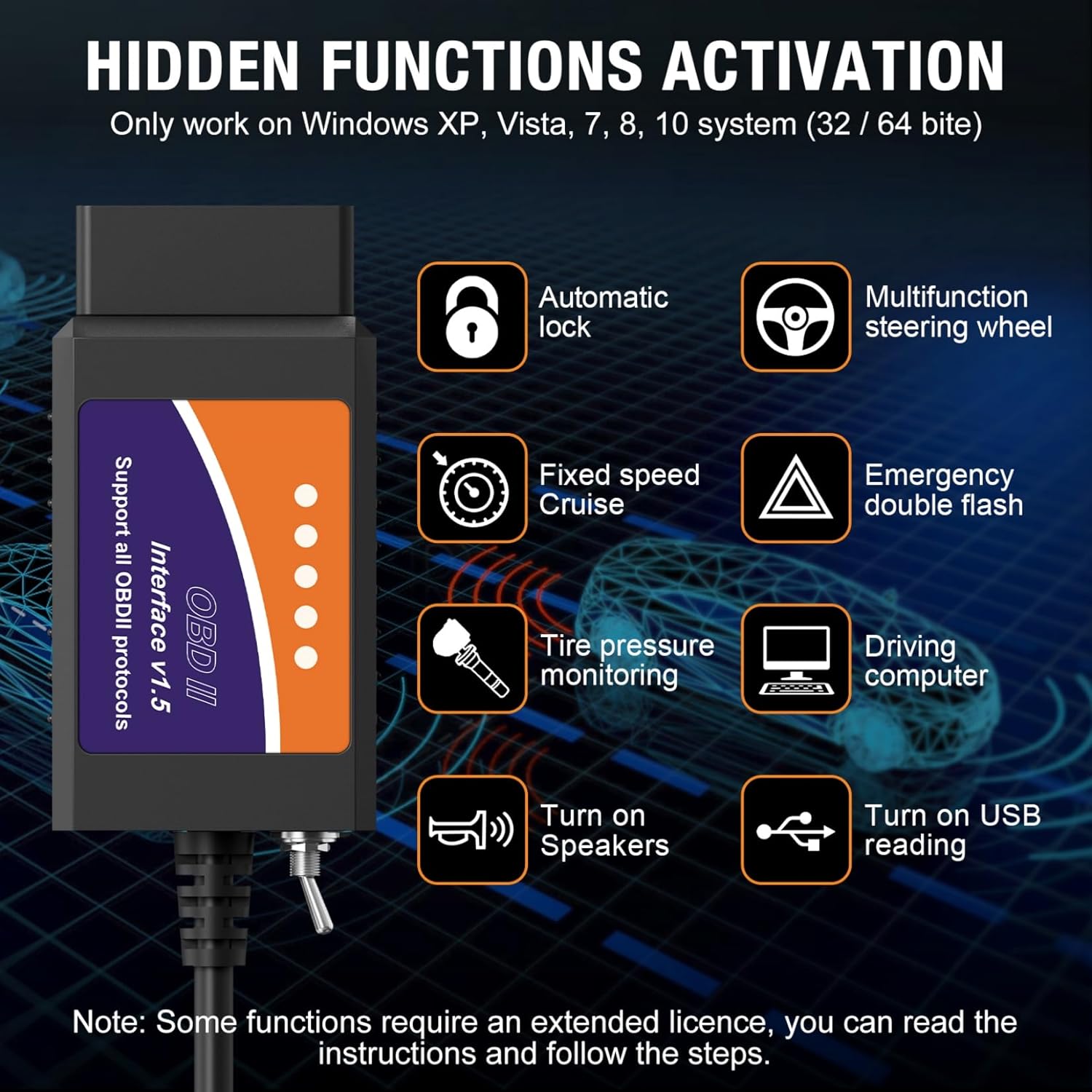
Image 4.3: A diagram illustrating various hidden functions that can be activated, such as automatic lock, fixed speed cruise, and tire pressure monitoring.
සහාය දක්වන මෘදුකාංග
The adapter is designed to work with various ELM327-based diagnostic software, including:
- ELMconfig
- FoCCCus
- FF2
These software applications can typically be downloaded from their official webඅඩවි.
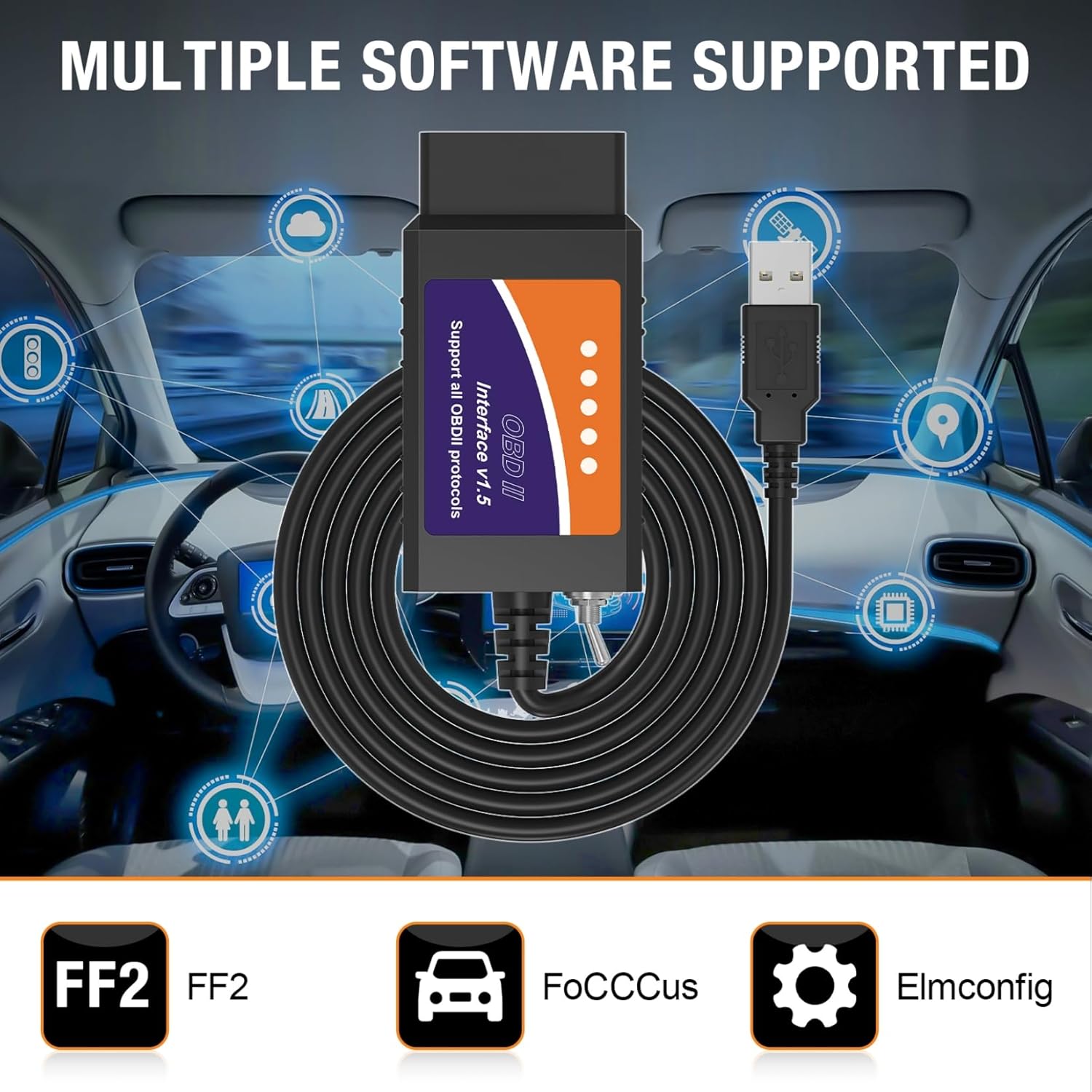
Image 4.4: A visual representation of the diagnostic software applications compatible with the adapter, including FF2, FoCCCus, and ELMconfig.
5. දෝශ නිරාකරණය
සන්නිවේදන ගැටළු
If the OBD2 tool does not communicate with the vehicle, perform the following troubleshooting steps:
- වාහන ගැළපුම තහවුරු කරන්න: Confirm that your vehicle is a supported Ford series vehicle.
- Check USB Driver Installation: Open your laptop's Device Manager to ensure the CH340 USB driver is correctly installed. If not, install it from SW.FSCAN.NET.
- මෘදුකාංගය නැවත ස්ථාපනය කරන්න: Reinstall the diagnostic software as an administrator.
- Toggle MS/HS CAN Switch: If a connection error occurs, try switching the MS/HS CAN toggle on the adapter to the alternate position and attempt connection again.
Windows 10/11 Compatibility Issues
If you are using Windows 10 or Windows 11 and the adapter is not working, follow these steps:
- Adjust Software Compatibility Settings:
- Right-click the software icon on your desktop.
- Select "Properties".
- Go to the "Compatibility" tab.
- Check "Run this program in compatibility mode for" and select "Windows 7".
- Check "Run this program as an administrator".
- Click "OK".
- සම්බන්ධ කර බලය සක්රිය කරන්න: Connect the adapter to your laptop and vehicle, then turn the ignition on.
If issues persist after these steps, contact the seller for further assistance or exchange.
6. පිරිවිතර
| වෙළඳ නාමය | ඕබ්ඩමොන්ස්ටර් |
| ආකෘතිය | MS-327 |
| බලශක්ති ප්රභවය | රැහැන්ගත විදුලි (USB) |
| මෙහෙයුම් පද්ධති අනුකූලතාව | Windows XP, Vista, 7, 8, 10 |
| ඔටෝමෝටිව් ෆිට් වර්ගය | Universal Fit (for specified Ford/Mazda/Lincoln/Mercury models) |
| අයිතමයේ බර | අවුන්ස 3.2 කි |
| නිෂ්පාදන මානයන් | අඟල් 4.56 x 1.49 x 3.3 |
| UPC | 761882487470 |
7. වගකීම් සහ සහාය
For any product-related issues, technical support, or warranty claims, please contact the seller directly through the Amazon platform. The product is typically covered by a standard return policy, allowing for refunds or replacements within 30 days of purchase.
Ensure to provide your purchase details when contacting support to facilitate a quicker resolution.