
1. اهم حفاظتي ڄاڻ
مھرباني ڪري انسٽاليشن ۽ استعمال کان اڳ سڀ ھدايتون احتياط سان پڙھو. مستقبل جي حوالي لاءِ ھي دستوري رکو.
- ٻه-شخصي تنصيب: Always use at least two people to lift and install the TV to prevent injury or damage.
- ڀت لڳائڻ: Follow all wall mounting instructions precisely. Ensure the wall structure can support the TV's weight. If unsure, consult a professional.
- رڪاوٽن کان بچڻ: Do not drill into walls where electrical wiring or piping may be present.
- مستحڪم جڳھ: If not wall-mounted, ensure the TV is placed on a stable, level surface to prevent tipping.
- وينٽيليشن: وينٽيليشن جي سوراخن کي نه روڪيو. صحيح هوا جي وهڪري لاءِ ٽي وي جي چوڌاري مناسب جاءِ کي يقيني بڻايو.
- نمي: Keep the TV away from water, moisture, and high humidity environments.
- پاور ڪنڊ: Protect the power cord from being walked on or pinched. Do not use a damaged power cord.
- صفائي: صفائي ڪرڻ کان اڳ ٽي وي کي ان پلگ ڪريو. نرم، سڪل ڪپڙو استعمال ڪريو. مائع ڪلينر يا ايروسول ڪلينر استعمال نه ڪريو.
2. ڇا شامل آهي
پڪ ڪريو ته سڀئي جزا دٻي ۾ موجود آهن:
- Amazon Ember Artline TV (55-inch)
- Alexa وائيس ريموٽ بهتر ڪيل
- وال مائونٽ کٽ
- پاور ڪنڊ
- 2 AAA بيٽريون
- تڪڙو شروع ھدايت
- Amazon Ember Artline 55” Frame (four pieces) - Note: Frames ship separately and may arrive at a different time.

Image: Amazon Ember Artline 55-inch Fire TV with Ash frame.
3. سيٽ اپ ۽ تنصيب
3.1. Preparing the TV for Wall Mount
Before mounting, ensure the TV is prepared correctly. You will need a number two Phillips screwdriver. Do not use an electric drill to prevent stripping the bolt holes.
- Lay the TV screen side down on a soft, clean surface to access the recessed cover on the back.
- Remove the recessed cover.
- Install the two mount bolts into the designated holes using a number two Phillips screwdriver.
Video: Instructions for wall mounting the Amazon Ember Artline TV. This video demonstrates the steps for preparing the TV and installing the wall mount hardware.
3.2. وال جبل جي انسٽاليشن
You will need at least two people to complete this process. Ensure you have the included wall mounting template, bolts, screws, and anchors. Additionally, you will need an electric drill with a 3/16 inch drill bit, a #2 Phillips driver bit, a hammer, a pencil, and a level or level app. If mounting on wood studs, you'll need a 1/8 inch drill bit. If mounting on brick, you'll need a 5/16 inch drill bit and a stud finder for drywall.
- جڳھ جي منصوبه بندي:
- Consider the height of everyone using the TV. Place it at eye level for comfortable viewing.
- Find a mount location away from water or moisture.
- Avoid drilling holes over electrical wiring or piping.
- If installing on a brick wall, locate an area free of cracks.
- If your wall doesn't have proper stud spacing, contact a professional for installation.
- بریکٹ لڳائڻ:
- Plan the location of the wall mount using the wall mounting template.
- Locate two studs using a stud finder (for drywall). Mark the center of each stud with a pencil.
- Place the mount against the wall and mark at least four screw holes. Use a level or level app to ensure the mount is straight.
- Drill pilot holes on each mark using an electric drill with the appropriate bit (1/8" for drywall, 5/16" for brick).
- If on drywall, anchors are not needed. If on brick, use a hammer to install the mount anchors in the holes.
- Attach the mount to the wall using the mount screws, an electric drill, and a #2 Phillips bit.
- Installing Magnet Plates:
- Attach the template to the wall using double-sided tape.
- Mark the locations for the four magnet plates on the wall, then remove the template.
- Drill pilot holes on each mark using an electric drill with a 3/16 inch bit.
- Install the magnet plate anchors using a hammer.
- Install the magnet plates into the anchors using the magnet plate screws and an electric drill with a #2 Phillips bit.
- Attaching the TV to the Mount:
- While attaching the TV, avoid pressing against the screen.
- Fully extend the TV bracket away from the wall and gently release the bolt latches.
- Place the four alignment stickers above the mount bolts on the back of the TV and the bolt latches on the mount. Fold the stickers up to see them more clearly.
- Hang the mount bolts on the mount hooks. Use the alignment stickers to guide you.
- Close the bolt latches, then push the TV flush with the wall to connect the magnets and magnet plates.
4. Operating Your Amazon Ember Artline Fire TV
4.1. Fire TV Interface
The Amazon Ember Artline features the new Fire TV experience (2026 release) with a modern design for fast access to entertainment. You can pin frequently used apps and browse dedicated content categories. Access hundreds of thousands of movies and TV episodes, including free, ad-supported content. Subscription fees may apply for certain services.

Image: The Fire TV interface displaying various streaming applications and content.
4.2. Alexa Voice Remote Enhanced
The included Alexa Voice Remote Enhanced allows for easy navigation and voice control. Talk naturally to find content, manage your smart home, or explore topics.
- وائس ڪنٽرول: Press and hold the voice button to use your voice commands.
- نيويگيشن: Use the directional pad to navigate menus and content.
- تڪڙي رسائي جا بٽڻ: Dedicated buttons for popular streaming services (e.g., Prime Video, Netflix) provide instant access.
4.3. Ambient Experience and Art Mode
The Ember Artline functions as both an entertainment hub and a curated art gallery. It can display art, stream content, and manage your smart home. The matte screen reduces glare for an optimal viewتجربو.
- آرٽ گئلري: Access a gallery of over 2,000 free works of art.
- Personal Photos: Upload and display your own photos from the Amazon Photos App. Use Alexa to create slideshows or collages (e.g., "Play a slideshow of us biking in the mountains.").
- Match the Room: Upload photos of your space, and the TV will recommend art pieces that complement your decor.
- ڪسٽم فريم: Choose from ten available frame colors. Frames are easy to install and change.

Image: The Amazon Ember Artline TV seamlessly integrated into a living room, displaying a vibrant piece of art.
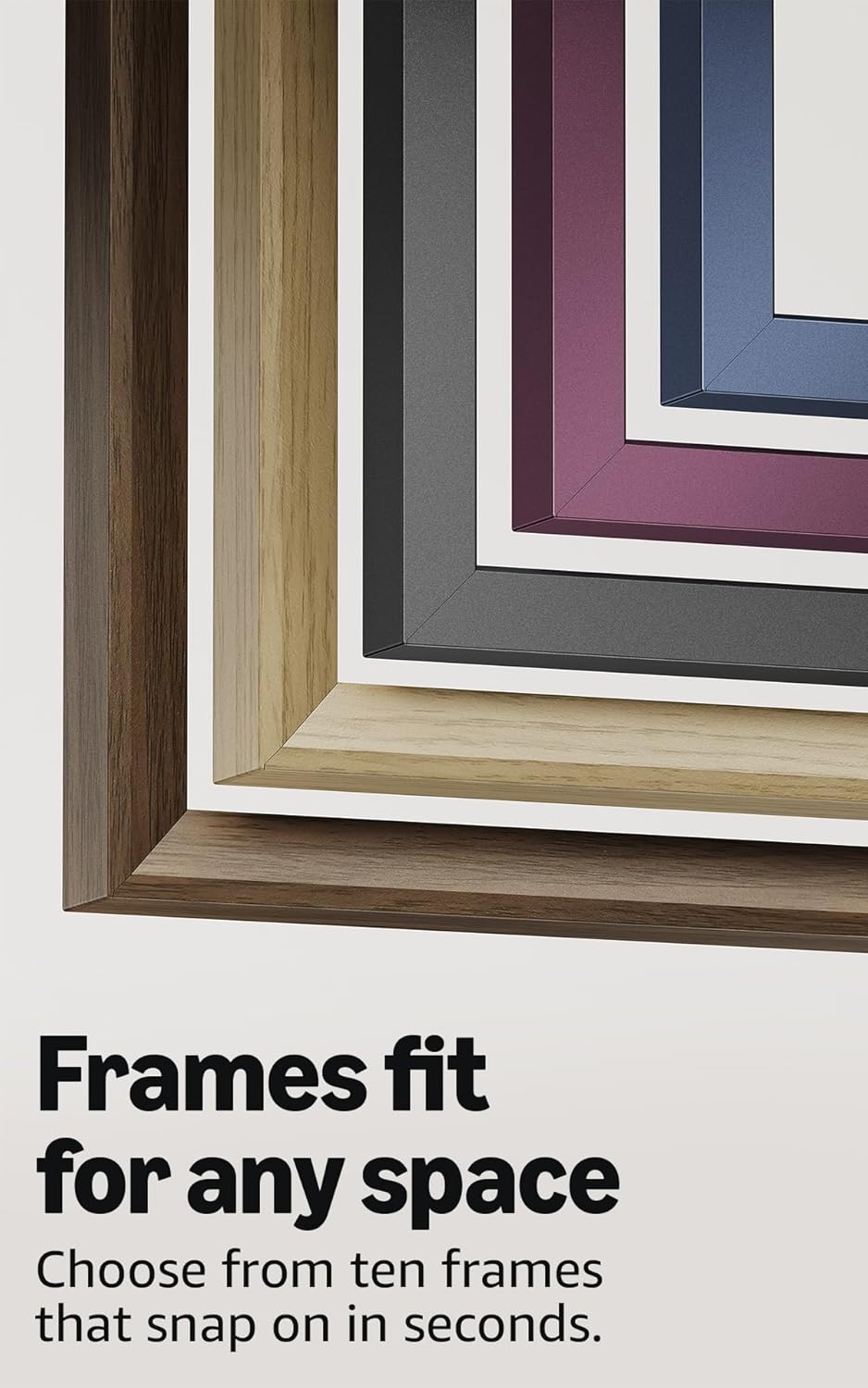
Image: A selection of different colored frames available for the Amazon Ember Artline TV, highlighting customization options.
4.4. Omnisense Technology (Motion Detection)
The custom Omnisense technology uses built-in sensors to detect your presence. The display will wake to show your favorite artwork or allow you to start watching content quickly. When you leave the area, the TV automatically turns off to save energy.

تصوير: هڪ تفصيلي view of the Omnisense sensor, which enables motion detection for automatic display activation and power saving.
وڊيو: ختمview of the Amazon Fire TV 4K TV with Alexa Voice Remote, demonstrating initial setup, interface navigation, and motion detection features.
5. وضاحتون
| خاصيت | تفصيل |
|---|---|
| قرارداد | 3840 x 2160 (4K UHD) |
| هاءِ ڊائنامڪ رينج (HDR) فارميٽ | HDR10, HLG, HDR10+ Adaptive, Dolby Vision |
| پٺتي جي قسم | ايل اي ڊي |
| ريفريش جي شرح | 60Hz |
| Screen finish | Matte, anti-glare |
| اسڪرين جي ماپ | 55“ (Viewable display size: 54.6“) |
| HDMI بندرگاهن | 3 HDMI 2.0 + 1 HDMI 2.1 eARC سان |
| Wifi & Ethernet connectivity | وائي فائي 6 + 1 ايٿرنيٽ پورٽ |
| USB | 1 يو ايس بي 3.0 |
| ڊجيٽل آپٽيڪل آڊيو آئوٽ | 1 ڊجيٽل آپٽيڪل آڊيو پورٽ |
| آواز جي حمايت | Yes, hands-free with Alexa, press and ask Alexa with the Fire TV Alexa Voice Remote Enhanced or the free Fire TV app. |
| آڊيو سپورٽ | ڊولبي ڊجيٽل پلس ڊولبي-انڪوڊ ٿيل آڊيو جي پاسٿرو سان |
| آڊيو پاور | 10W + 10 ڊبليو |
| OS | فائر او ايس |
| Product size (without frame) | 48.3 "x 28.3" x 1.54" |
| وزن (فريم کان سواءِ) | 39.9 پائونڊ |
| SKU نمبر | QL55M800A |
| ويسا وال ماؤنٽ معياري | 300mm x 400mm (Note: Included wall mount is non-VESA; TV is VESA compatible for separately purchased mounts.) |
| TV size with frame | 49.1 "x 28.7" x 1.8" |
| TV weight with frame | 42.5 پائونڊ |
6. رسائي جون خاصيتون
The Amazon Ember Artline Fire TV includes several accessibility features:
- آوازView اسڪرين ريڊر: انڌا يا بصارت کان محروم استعمال ڪندڙن لاءِ گھڻن فائر ٽي وي خاصيتن تائين رسائي کي فعال بڻائي ٿو.
- اسڪرين ميگنيفائر: صارفين کي زوم ان ۽ آئوٽ ڪرڻ، ۽ اسڪرين جي چوڌاري گھمڻ جي اجازت ڏئي ٿو.
- متن بينر: Consolidates onscreen text into a compact, customizable banner.
- بند ٿيل ڪيپشننگ: Available for videos and TV shows where supported.
- آڊيو وضاحت: Provides verbal descriptions of on-screen actions, facial expressions, and scene changes (not available for all content).
- بلوٽوٿ ٻڌڻ واري امداد جي مدد: Supports audio streaming for select compatible Bluetooth hearing aids and devices for private listening. Compatible Bluetooth headphones are also supported.
7. Software Updates and Security
هي ڊيوائس گارنٽي ٿيل سافٽ ويئر سيڪيورٽي اپڊيٽ حاصل ڪري ٿي جيستائين ڊوائيس آخري ڀيرو خريد ڪرڻ لاءِ دستياب ٿيڻ کان گهٽ ۾ گهٽ چار سال اسان جي webسائيٽون. توهان جي ڊوائس جي مخصوص معلومات لاءِ، پنهنجي مواد ۽ ڊوائيسز کي منظم ڪريو تي وڃو.
8. وارنٽي ۽ سروس
A 1-Year limited warranty and service are included with the Amazon Ember Artline TV. Optional 3-Year and 4-Year Extended Warranties are available for U.S. customers and are sold separately. Extended warranty excludes frame accessories. Use of Fire TV is subject to the terms found on the Amazon webسائيٽ.
The Amazon Ember Artline 55” Frame includes a 90-day limited warranty and service.
9. مسئلا حل ڪرڻ
If you encounter issues with your Amazon Ember Artline Fire TV, consider the following common troubleshooting steps:
- طاقت ناهي: Ensure the power cord is securely connected to both the TV and a working power outlet.
- ڪابه تصوير/آواز ناهي:
- Check all cable connections (HDMI, optical audio).
- تصديق ڪريو ته ٽي وي تي صحيح ان پٽ ذريعو چونڊيو ويو آهي.
- ٽي وي کي 60 سيڪنڊن لاءِ پاور آئوٽليٽ مان ان پلگ ان ڪري ٻيهر شروع ڪريو، پوءِ ان کي واپس پلگ ان ڪريو.
- ريموٽ جواب نه ڏيڻ:
- Replace the AAA batteries in the Alexa Voice Remote.
- 10 سيڪنڊن لاءِ هوم بٽڻ کي دٻائي ريموٽ کي ٻيهر جوڙيو.
- نيٽ ورڪ ڪنيڪٽيويٽي جا مسئلا:
- پنهنجي وائي فائي روٽر ۽ موڊيم کي چيڪ ڪريو ته اهي صحيح طريقي سان ڪم ڪري رهيا آهن.
- پنهنجو روٽر ۽ موڊيم ٻيهر شروع ڪريو.
- Go to the TV's Network settings to re-connect to your Wi-Fi network or try a wired Ethernet connection.
- Ambient Experience Not Activating:
- Ensure Omnisense technology is enabled in the TV settings.
- Check for any physical obstructions blocking the motion sensors.
- سافٽ ويئر ڪارڪردگي: If the TV is slow or unresponsive, try restarting it. Ensure the TV's software is up to date.
For further assistance, refer to the online support resources or contact Amazon customer service.