
1. تعارف
This manual provides essential information for the safe and efficient use of your HP 17.3 Inch FHD Business Laptop. Please read this guide thoroughly before operating your device to ensure optimal performance and longevity. This laptop is designed for business and everyday computing tasks, offering a large display, robust performance, and portability.
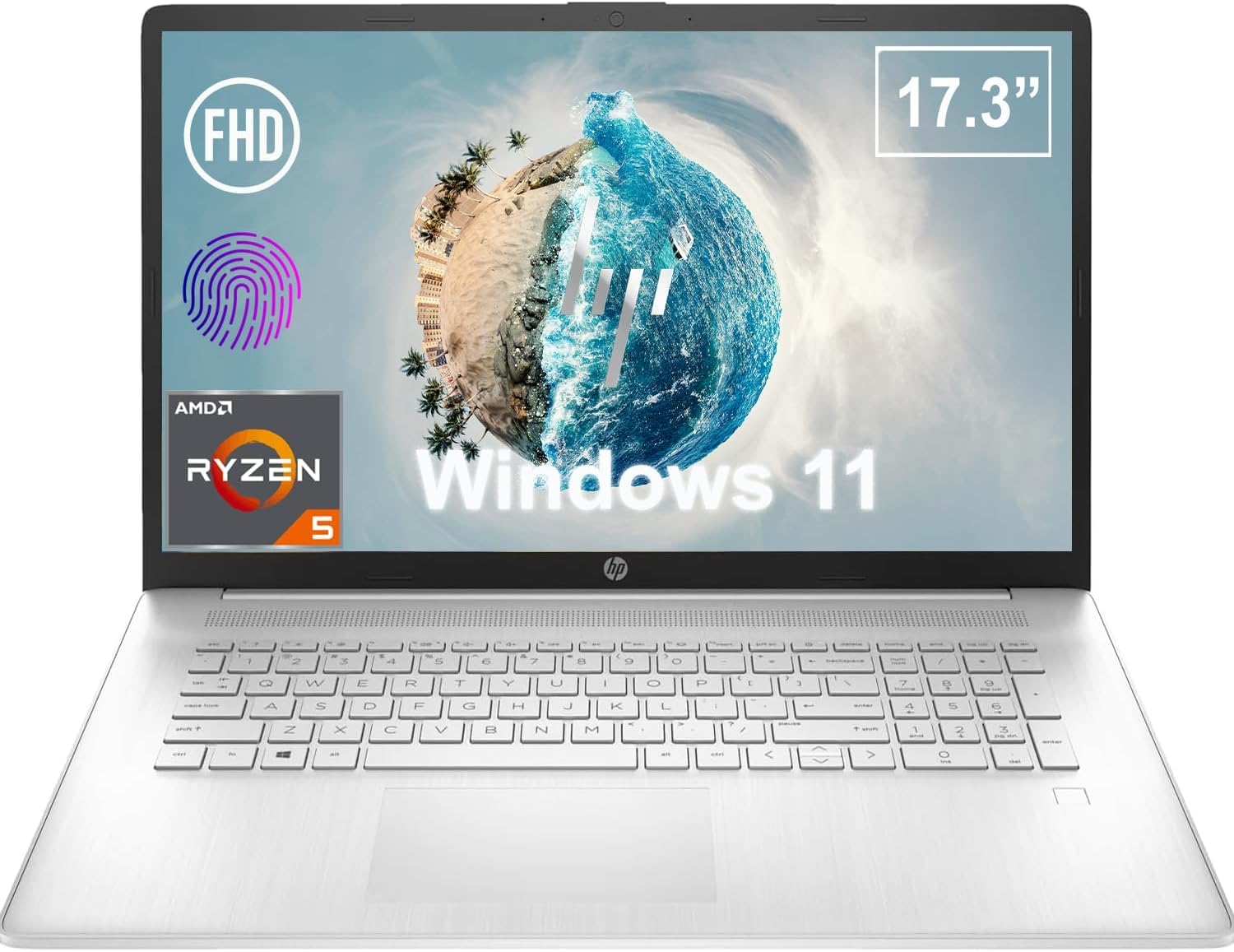
شڪل 1.1: سامهون view of the HP 17.3 Inch FHD Business Laptop, showcasing the large display and keyboard.
2. سيٽ اپ
2.1 انباڪسنگ ۽ شروعاتي معائنو
پيڪنگ مان سڀني حصن کي احتياط سان هٽايو. تصديق ڪريو ته هيٺيون شيون موجود آهن:
- HP 17.3 Inch FHD Business Laptop
- Power Adapter (45 W Smart AC Power Adapter)
- دستاويز (هي دستور، وارنٽي جي معلومات)
Inspect the laptop and accessories for any signs of damage. If any items are missing or damaged, contact your retailer or HP support immediately.
2.2 پاور اڊاپٽر کي ڳنڍڻ
Before first use, ensure the laptop is fully charged. Connect the power adapter to the AC smart pin port on the side of the laptop and then plug the adapter into a power outlet.
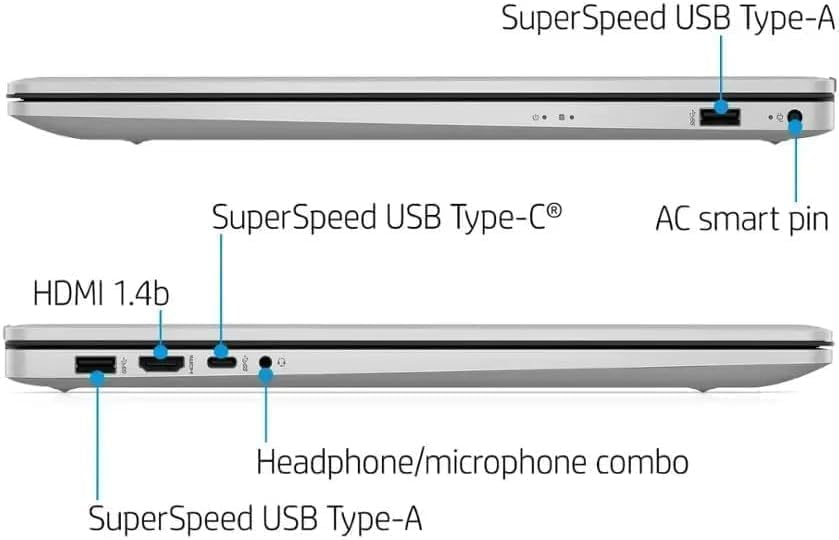
شڪل 2.1: پاسي view illustrating the location of the AC smart pin and other ports.
2.3 شروعاتي پاور آن ۽ ونڊوز سيٽ اپ
Press the power button to turn on the laptop. Follow the on-screen instructions to complete the Windows 11 Home setup process. This includes setting up your user account, network connection, and initial preferences.
3. ليپ ٽاپ هلائڻ
3.1 ڪي بورڊ ۽ ٽچ پيڊ
The laptop features a full-size QWERTY keyboard with a 10-key number pad for efficient data entry. The integrated touchpad provides precise cursor control. Refer to the operating system's settings for customizing touchpad gestures and keyboard shortcuts.
3.2 فنگر پرنٽ ريڊر
For enhanced security and convenient login, utilize the integrated fingerprint reader. Set up your fingerprints through Windows Hello in the Windows 11 settings.
3.3 Webڪيمرا ۽ مائڪروفون
The HP True Vision 720p HD Camera and integrated dual array digital microphones are located at the top of the display. These are suitable for video conferencing and online communication.
3.4 ڪنيڪشن
- وائي فائي: The laptop supports 802.11a/b/g/n/ac Wi-Fi for wireless internet access. Connect to available networks via the Windows network settings.
- بلوٽوٿ: Bluetooth 5 allows for wireless connection to compatible devices such as headphones, mice, and keyboards. Enable and manage Bluetooth devices through Windows settings.
3.5 Ports and External Devices
ليپ ٽاپ ٻاهرين ڊوائيسز کي ڳنڍڻ لاءِ مختلف بندرگاهن سان ليس آهي:
- 1 x USB Type-C (5Gbps, Data Only): For connecting USB-C compatible devices and data transfer.
- 2 x USB Type-A (5Gbps): For connecting standard USB devices like external drives, mice, or keyboards.
- 1 x HDMI 1.4b: For connecting to external displays or projectors.
- 1 x Headphone/Microphone Combo: For connecting a headset with a single 3.5mm jack.
- 1 x AC Smart Pin: For connecting the power adapter.

شڪل 3.1: کوليو view of the laptop, highlighting the keyboard and touchpad area.
3.6 بيٽري جو انتظام
The laptop is powered by a 3-Cell, 41 Wh Li-ion battery, offering up to 8 hours and 30 minutes of video playback. Use the provided 45 W Smart AC Power Adapter for charging. HP Fast Charge technology allows for quicker charging times.
4. سار سنڀال
4.1 ليپ ٽاپ کي صاف ڪرڻ
ليپ ٽاپ جي ظاهر ۽ ڪارڪردگي کي برقرار رکڻ لاءِ:
- نرم، لِنٽ کان خالي ڪپڙو استعمال ڪريو ڊيampڊسپلي لاءِ پاڻي يا خاص اسڪرين ڪلينر سان صاف ڪيو وڃي.
- ڪيبورڊ ۽ چيسس لاءِ، نرم، سڪل ڪپڙو استعمال ڪريو. سخت ڪيميڪلز يا رگڙيندڙ مواد کان پاسو ڪريو.
- صفائي ڪرڻ کان اڳ پڪ ڪريو ته ليپ ٽاپ بند آهي ۽ ان پلگ ٿيل آهي.
4.2 سافٽ ويئر اپڊيٽ
Regularly update your Windows operating system and drivers to ensure optimal performance, security, and compatibility. Windows Update can be accessed through the Settings menu.
4.3 Security Software
The laptop comes preloaded with McAfee LiveSafe for security. Ensure this software is active and updated to protect against viruses and other threats.
5. مسئلا حل ڪرڻ
هي سيڪشن توهان جي HP ليپ ٽاپ سان لاڳاپيل عام مسئلن کي حل ڪري ٿو.
5.1 بجلي جا مسئلا
- ليپ ٽاپ آن نٿو ٿئي: Ensure the power adapter is securely connected to both the laptop and a working power outlet. Verify the battery is charged.
- بيٽري نه ڀريندي: نقصان لاءِ پاور اڊاپٽر ۽ ڪيبل چيڪ ڪريو. ٻيو پاور آئوٽليٽ آزمايو.
5.2 ڊسپلي مسئلا
- اسڪرين تي ڪا به تصوير ناهي: هڪ ٻاهرين مانيٽر سان ڳنڍيو ته ڏسو ته ڇا مسئلو ليپ ٽاپ جي ڊسپلي سان آهي. ليپ ٽاپ کي ٻيهر شروع ڪريو.
- چمڪندڙ يا بگڙيل تصوير: گرافڪس ڊرائيورز کي اپڊيٽ ڪريو. ونڊوز سيٽنگز ۾ ڊسپلي ريزوليوشن ۽ ريفريش ريٽ کي ترتيب ڏيو.
5.3 ڪنيڪٽيويٽي جا مسئلا
- وائي فائي ڳنڍجي نه رهيو آهي: Ensure Wi-Fi is enabled. Restart your router and the laptop. Check network settings for correct password and configuration.
- بلوٽوٿ ڊيوائس جوڙو نه پيو ٺاهي: پڪ ڪريو ته ٻنهي ڊوائيسز تي بلوٽوٿ فعال آهي. پڪ ڪريو ته ڊوائيس پيئرنگ موڊ ۾ ۽ رينج اندر آهي.
وڌيڪ پيچيده مسئلن لاءِ، HP سپورٽ جو حوالو ڏيو webسائيٽ يا ڪسٽمر سروس سان رابطو ڪريو.
6. وضاحتون
| خاصيت | تفصيل |
|---|---|
| برانڊ | HP |
| ماڊل نالو | ايڇ پي 17 |
| ماڊل نمبر | i5-1135G7 |
| اسڪرين جي ماپ | 17.3 انچ |
| ڊسپلي جو قسم | IPS, Anti-Glare, LED |
| قرارداد | 1920 x 1080 (FHD) |
| ريفريش جي شرح | 60 هز |
| پروسيسر | AMD Ryzen 5 5500U (6 Cores, 12 Threads, up to 4.0 GHz Max Boost Clock) |
| گرافڪس | انٽيگريٽيڊ AMD Radeon گرافڪس |
| رام ياداشت | 32 GB DDR4-3200 MHz (Max 64 GB) |
| ذخيرو | 1 ٽي بي PCIe NVMe M.2 SSD |
| آپريٽنگ سسٽم | Windows 11 Home, 64-bit, English |
| وائرليس ڪنيڪشن | 802.11a/b/g/n/ac وائي فائي، بلوٽوٿ 5 |
| بندرگاهن | 1x USB Type-C (5Gbps), 2x USB Type-A (5Gbps), 1x HDMI 1.4b, 1x Headphone/Microphone Combo, 1x AC Smart Pin |
| Webڪئميرا | ايڇ پي ٽرو ويزن 720p ايڇ ڊي ڪئميرا |
| آڊيو | Dual Speakers, Integrated Dual Array Digital Microphones |
| بيٽري | 3-Cell, 41 Wh Li-ion (Up to 8.5 hours video playback) |
| پاور اڊاپٽر | 45 واٽ سمارٽ اي سي پاور اڊاپٽر |
| طول و عرض (W x D x H) | 40.07 x 25.78 x 2.06 cm (14.14"L x 9.31"W x 0.78"Th) |
| وزن | 2.07 ڪلو تي شروع |
| خاص خاصيتون | Fingerprint Reader, Lightweight Design, HP Fast Charge |
7. وارنٽي ۽ سپورٽ
7.1 وارنٽي ڄاڻ
This HP laptop comes with a 1-year manufacturer's limited warranty. For detailed terms and conditions, please refer to the warranty documentation included with your product or visit the official HP support webسائيٽ.
7.2 ڪسٽمر سپورٽ
If you encounter issues that cannot be resolved using the troubleshooting steps in this manual, please contact HP customer support. You can find contact information and additional resources on the official HP webسائيٽ:
- HP سپورٽ Webسائيٽ: support.hp.com
- ايڇ پي اسٽور: ايميزون تي ايڇ پي اسٽور