
1. تعارف
The S25HH0 303DH US KVM Switch allows you to control up to three computers using a single set of keyboard, mouse, and three monitors. This device supports high-resolution video output and USB 3.0 peripheral sharing, enhancing productivity in multi-computer environments.
Please read this manual thoroughly before installation and operation to ensure proper use and to maximize the performance of your KVM switch.
2. حفاظت جي ڄاڻ
- Ensure the KVM switch is placed on a stable, flat surface.
- ڊوائيس کي پاڻي، نمي، يا انتهائي گرمي پد جي سامهون نه آڻيو.
- صرف مهيا ڪيل پاور اڊاپٽر استعمال ڪريو. غلط اڊاپٽر استعمال ڪرڻ سان ڊوائيس کي نقصان پهچي سگهي ٿو ۽ وارنٽي ختم ٿي سگهي ٿي.
- اوور گرم ٿيڻ کان بچڻ لاءِ وينٽيليشن جي سوراخن کي روڪڻ کان پاسو ڪريو.
- پاڻ ڊوائيس کي کولڻ يا مرمت ڪرڻ جي ڪوشش نه ڪريو. سڀني سروسنگ کي قابل اهلڪارن جي حوالي ڪريو.
- Disconnect power before cleaning. Clean the device with a soft, dry cloth.
3. پيڪيج مواد
مھرباني ڪري وصولي تي پيڪيج جي مواد کي چيڪ ڪريو. جيڪڏھن ڪا به شيءِ غائب يا خراب آھي، پنھنجي وينڊر سان رابطو ڪريو.
- S25HH0 303DH US Triple Monitor KVM Switch
- پاور اڊاپٽر
- وائرڊ ريموٽ سوئچ
- USB 3.0 Cables (Quantity may vary based on package)
- HDMI Cables (Quantity may vary based on package)
- يوزر مينوئل (هي دستاويز)
4. پراڊڪٽ ختمview
The KVM switch features multiple ports for connecting your computers, monitors, and USB peripherals. Familiarize yourself with the port layout before proceeding with installation.

تصوير: اڳيان ۽ پوئتي view of the S25HH0 303DH US KVM Switch. This image illustrates the various input and output ports, including HDMI, USB 3.0, and the power input, along with the physical switch buttons for PC selection.
سامهون پينل
- PC Selection Buttons: Used to manually switch between connected computers.
- USB 3.0 بندرگاهن: For connecting keyboard, mouse, and other USB 3.0 peripherals.
- LED اشارا: Show which computer is currently selected.
پوئتي پينل
- HDMI Input Ports (PC1, PC2, PC3): Connect to the HDMI output of your computers.
- USB 3.0 Input Ports (PC1, PC2, PC3): Connect to the USB 3.0 ports of your computers.
- HDMI Output Ports (Monitor 1, Monitor 2, Monitor 3): Connect to your monitors.
- ڊي سي 12V پاور ان پٽ: مهيا ڪيل پاور اڊاپٽر کي ڳنڍيو.
- Remote Switch Port: Connect the wired remote control for switching.
5. سيٽ اپ جون هدايتون
Follow these steps to connect your KVM switch:
- پاور آف ڊوائيسز: Ensure all computers and monitors are powered off before making any connections.
- ڳنڍڻ مانيٽر: Connect your three monitors to the HDMI Output ports (Monitor 1, Monitor 2, Monitor 3) on the KVM switch using HDMI cables.
- Connect Computers (PC1):
- Connect the HDMI output from your first computer to the HDMI Input (PC1) on the KVM switch.
- Connect a USB 3.0 cable from your first computer's USB 3.0 port to the USB 3.0 Input (PC1) on the KVM switch.
- Connect Computers (PC2 & PC3): Repeat step 3 for your second and third computers, connecting them to the respective HDMI Input (PC2/PC3) and USB 3.0 Input (PC2/PC3) ports.
- پردي سان ڳنڍڻ: Connect your keyboard, mouse, and any other USB 3.0 peripherals to the USB 3.0 ports on the front panel of the KVM switch.
- Connect Wired Remote (Optional): If desired, connect the wired remote switch to the dedicated port on the KVM switch.
- پاور آن: Connect the provided 12V power adapter to the DC 12V input on the KVM switch, then plug it into a power outlet.
- پاور آن ڊوائيسز: Power on your monitors, then power on your computers.

تصوير: Connection diagram illustrating how two PCs share four USB 3.0 devices and multiple monitors through the KVM switch. This highlights the USB 3.0 ports for peripherals like keyboards, mice, and printers.
6. آپريٽنگ هدايتون
6.1 ڪمپيوٽرن جي وچ ۾ سوئچنگ
توهان ٻن طريقن سان ڳنڍيل ڪمپيوٽرن جي وچ ۾ سوئچ ڪري سگهو ٿا:
- Physical Button Switch: Press the corresponding PC selection button (PC1, PC2, or PC3) on the front panel of the KVM switch. The LED indicator will light up for the selected computer.
- Wired Remote Switch: Use the wired remote control to switch between computers. Press the button on the remote to cycle through the connected PCs.
تصوير: Two switching methods for the KVM switch: the physical buttons on the device and the external wired remote control. This illustrates the flexibility in controlling which computer is active.
6.2 Display Modes (Extend Mode / Copy Mode)
After connecting correctly, you can choose your desired display mode:
- دٻايو "Windows + P" توهان جي ڪيبورڊ تي.
- A pop-up window will appear, allowing you to select between display modes such as وڌايو or Duplicate (Copy).

تصوير: Comparison of Extend Mode and Copy Mode. In Extend Mode, each monitor displays unique content, expanding the desktop. In Copy Mode, all three monitors display the same content, duplicating the desktop.
6.3 USB 3.0 Device Sharing
The KVM switch allows up to four USB 3.0 devices to be shared between the connected computers. When you switch to a different computer, the connected USB peripherals (keyboard, mouse, USB drives, etc.) will automatically switch to that computer.
USB 3.0 offers a faster transfer rate of 5Gbps compared to USB 2.0's 480Mbps, ensuring efficient data transfer for your peripherals.
7. Display Resolution and Refresh Rate
The KVM switch supports high-resolution video outputs, ensuring a clear and smooth visual experience.
- DisplayPort (DP1.4) Support: Up to 8K@30Hz, 4K@144Hz, 4K@120Hz. Backward compatible with lower resolutions and refresh rates.
- HDMI (HDMI2.1) Support: Up to 8K@60Hz, 4K@120Hz. Backward compatible with lower resolutions and refresh rates.
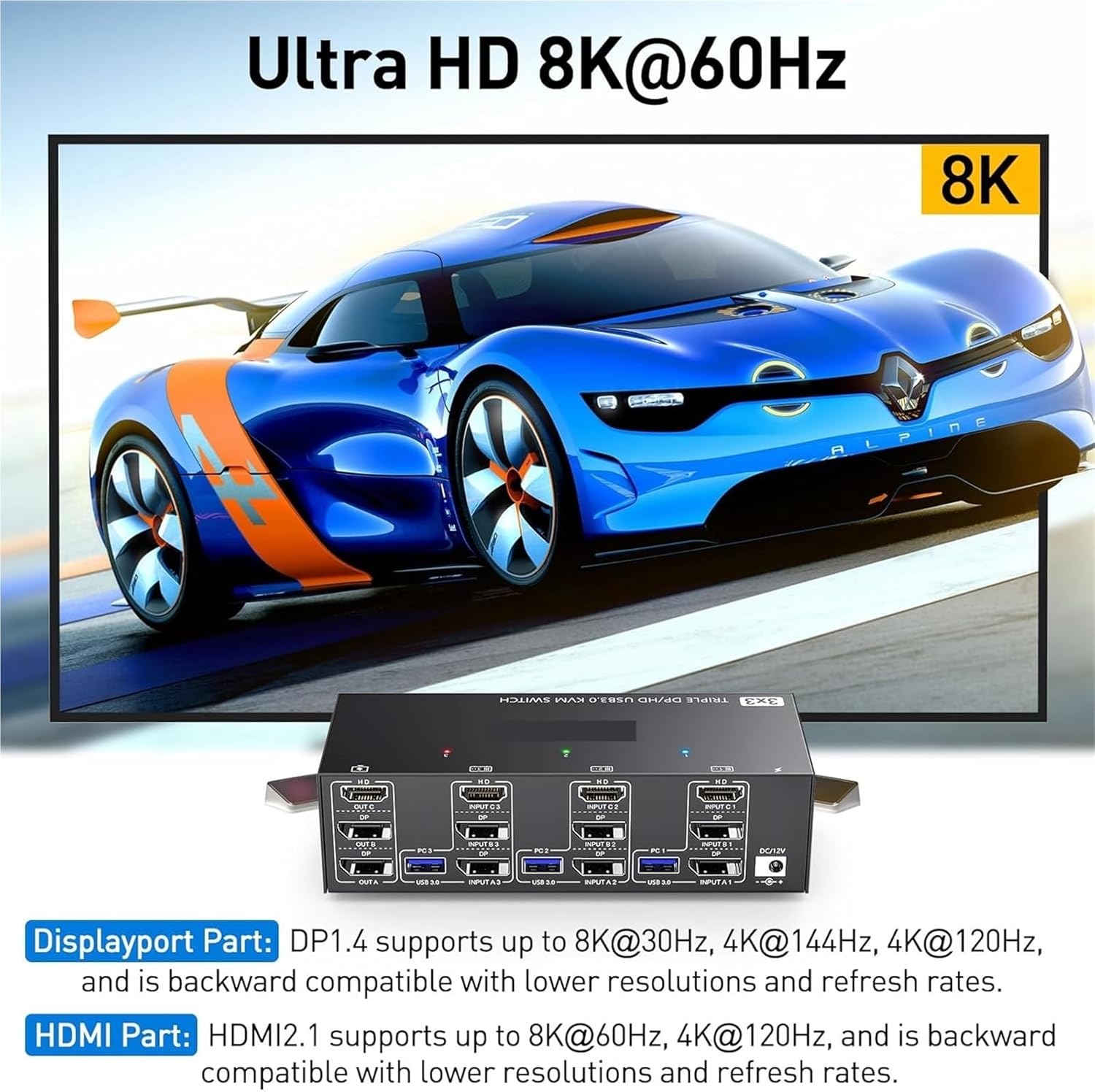
تصوير: Visual representation of Ultra HD 8K@60Hz capability. This image details the supported resolutions and refresh rates for both DisplayPort 1.4 and HDMI 2.1 connections, emphasizing high-quality video output.
8. سار سنڀال
- Keep the KVM switch in a cool, dry place away from direct sunlight.
- Regularly clean the exterior of the device with a soft, dry, lint-free cloth.
- Do not use liquid or aerosol cleaners, as they may contain flammable substances or chemicals that can damage the device.
- پڪ ڪريو ته سڀئي ڪيبل محفوظ طور تي ڳنڍيل آهن ۽ ڪنڪس يا نقصان کان پاڪ آهن.
9. مسئلا حل ڪرڻ
جيڪڏهن توهان کي پنهنجي KVM سوئچ سان مسئلا درپيش اچن ٿا، ته مهرباني ڪري هيٺ ڏنل عام مسئلن ۽ حلن جو حوالو ڏيو:
| مسئلو | ممڪن سبب / حل |
|---|---|
| No display on monitors. |
|
| Keyboard or mouse not working. |
|
| Cannot switch between computers. |
|
| خراب وڊيو معيار يا ٽمٽار. |
|
10. وضاحتون
| خاصيت | تفصيل |
|---|---|
| برانڊ | S25HH0 |
| ماڊل | 303DH US |
| ان پٽ پورٽس | 3 x HDMI, 3 x USB 3.0 |
| ٻاھرين بندرگاھن | 3 x HDMI, 4 x USB 3.0 |
| ويڊيو معيار | HDMI 2.1, DisplayPort 1.4 (backward compatible) |
| Max Resolution (HDMI) | 8K@60Hz، 4K@120Hz |
| Max Resolution (DisplayPort) | 8K@30Hz, 4K@144Hz, 4K@120Hz |
| USB معياري | يو ايس بي 3.0 (5 جي بي پي ايس) |
| ڪنٽرول جو طريقو | Physical Button, Wired Remote |
| آپريٽنگ جلدtage | 12 وولٽ |
| شيءِ جو وزن | 50 گرام |
| سرٽيفڪيشن | سي اي، RoHS |
11. وارنٽي ۽ سپورٽ
هي پراڊڪٽ معياري ٺاهيندڙ جي وارنٽي سان گڏ اچي ٿو. مھرباني ڪري پنھنجي پيڪيج ۾ شامل وارنٽي ڪارڊ ڏسو يا مخصوص وارنٽي شرطن ۽ ضابطن لاءِ پنھنجي پرچون ڪندڙ سان رابطو ڪريو.
For technical support or further assistance, please contact your vendor or the manufacturer's customer service. Contact information can typically be found on the product packaging or the manufacturer's official webسائيٽ.