
1. تعارف
The Modecom Oberon Pro Midi Tower is a computer case designed for users seeking a functional and spacious interior with a modern aesthetic. This manual provides essential information for the proper installation, operation, and maintenance of your computer case, ensuring optimal performance and longevity of your components.
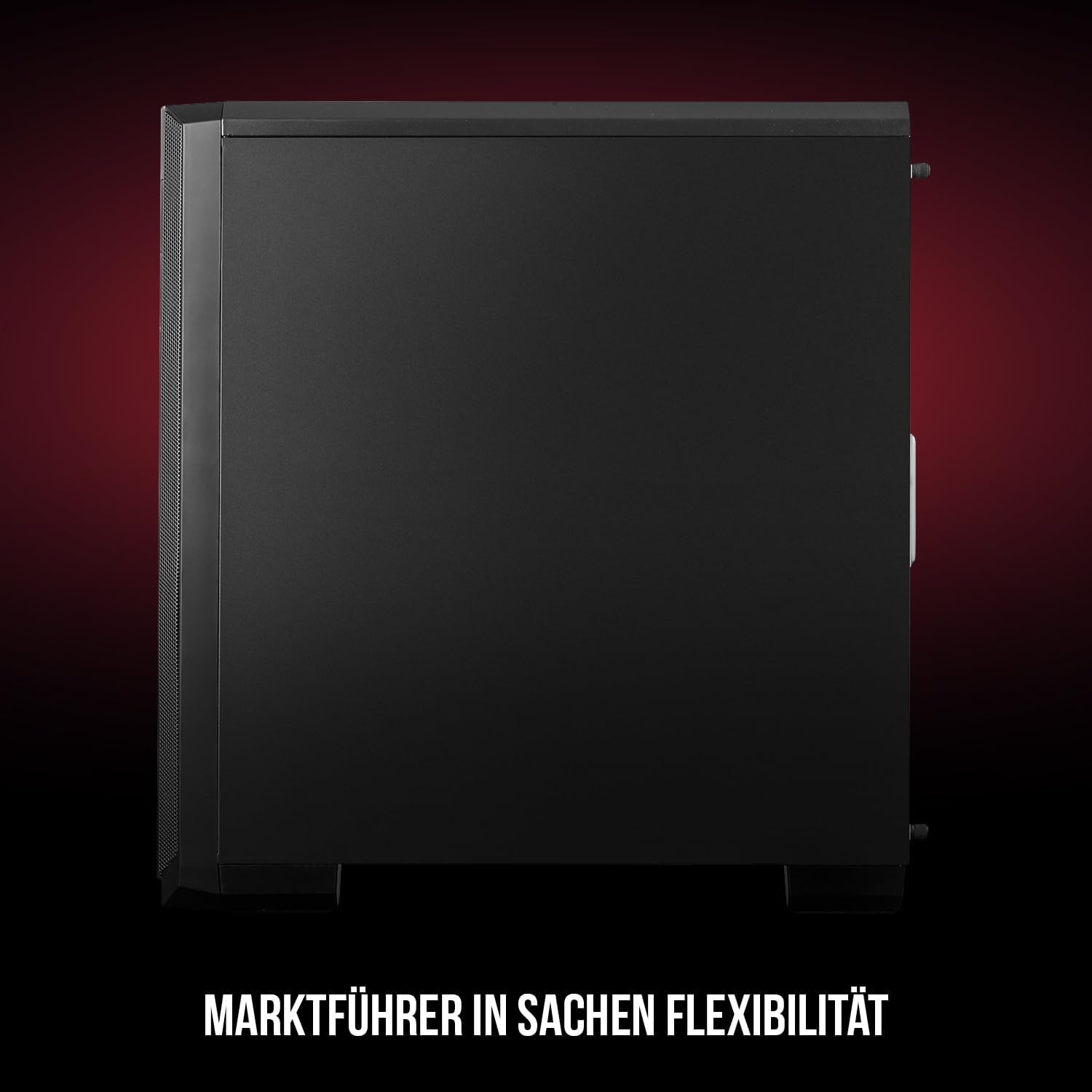
شڪل 1: اڳيان ۽ پاسي view of the Modecom Oberon Pro Midi Tower computer case.
2. حفاظت جي ڄاڻ
- ڪنهن به جزو کي انسٽال ڪرڻ يا هٽائڻ کان اڳ هميشه وال آئوٽليٽ مان بجلي جي فراهمي کي ڊسڪنيڪٽ ڪريو.
- Handle components with care to avoid electrostatic discharge. Consider using an anti-static wrist strap.
- ننڍن حصن ۽ اوزارن کي ٻارن کان پري رکو.
- وڌيڪ گرم ٿيڻ کان بچڻ لاءِ ڪيس جي چوڌاري مناسب وينٽيليشن کي يقيني بڻايو.
- Do not attempt to modify the case structure, as this may void your warranty and pose safety risks.
3. پيڪيج مواد
Verify that all the following items are present in your package:
- Modecom Oberon Pro Midi Tower Computer Case
- Accessory box (screws, standoffs, cable ties)
- استعمال ڪندڙ جو دستياب (ھي دستاويز)
4. اهم خاصيتون
- وسيع اندروني: Designed to accommodate high-end components and facilitate good airflow.
- موثر کولنگ: Includes two pre-mounted 120mm fans (front and rear) to prevent component overheating.
- اوزار کان سواءِ انسٽاليشن: Supports tool-free mounting for SSD/HDD drives and expansion cards.
- Dust Filtration: Features easily dismountable magnetic filters on the top, front, and bottom (under the power supply unit) to keep the interior clean.
- Optimized Cable Management: Provides a system for convenient wiring organization.
- Long PSU Tunnel: Offers a 240mm space for power supplies, simplifying installation and cable arrangement.
5. سيٽ اپ ۽ تنصيب
5.1. ڪيس جي تياري
Before installation, remove the side panels of the case. The Oberon Pro features sound-dampening mats on the side panels to reduce noise.

شڪل 2: اندروني view showing sound-dampening mats on the side panel.
5.2. Motherboard لڳائڻ
Install the necessary standoffs for your motherboard form factor (ATX, Micro ATX, ITX). Carefully place your motherboard into the case, aligning it with the standoffs, and secure it with screws.

Figure 3: Interior layout with pre-installed rear fan and motherboard tray.
5.3. Drive Installation (SSD/HDD)
The Oberon Pro supports tool-free installation for three 2.5" SSDs and two 3.5" HDDs. The 3.5" HDD bays are located in the power supply tunnel at the bottom of the case. 2.5" SSDs can be mounted on both sides of the motherboard tray.

Figure 4: Dedicated bays for HDD and SSD storage devices.
5.4. پاور سپلائي جي تنصيب
The case features a long PSU tunnel (240mm) at the bottom. Install your power supply unit into this tunnel and secure it. This design aids in cable management and airflow.
5.5. Expansion Card Installation (PCI/PCIe)
Install your graphics card or other expansion cards into the PCI/PCIe slots. The case supports tool-free mounting for these cards, allowing for easy installation and removal.
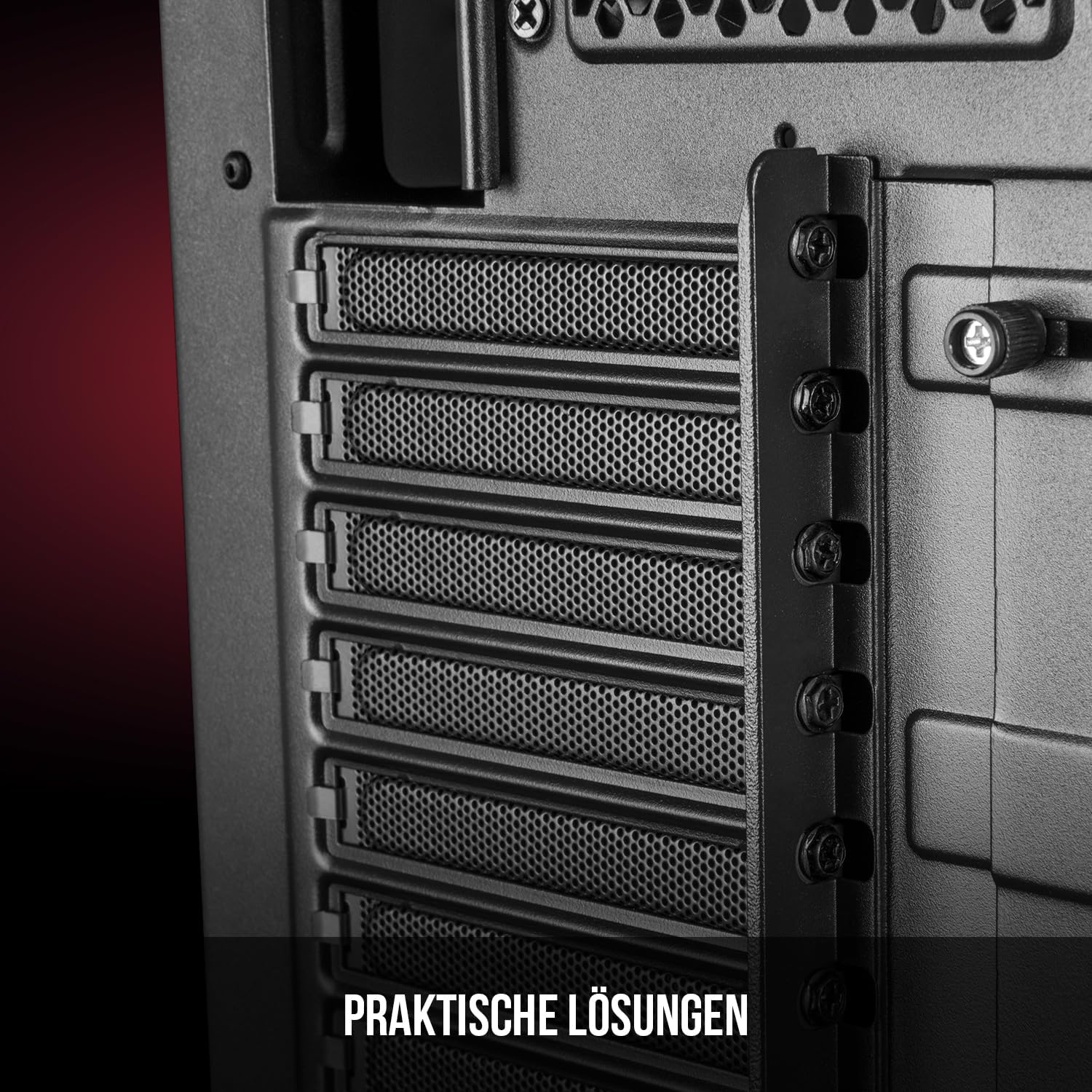
Figure 5: Rear interior view highlighting the expansion card slots.
5.6. ڪيبل جو انتظام
Utilize the provided cable routing options and tie-down points behind the motherboard tray to organize cables. This improves airflow and maintains a tidy interior.
6. کولنگ سسٽم
The Oberon Pro comes with two pre-installed 120mm fans, one at the front and one at the rear, to ensure adequate airflow. The maximum height for a CPU cooler is 163mm, and the maximum length for a video card is 395mm, allowing for compatibility with a wide range of components.
7. سار سنڀال
To maintain optimal performance and prevent dust buildup, regularly clean the dust filters. The magnetic filters on the top, front, and bottom of the case are easily dismountable for cleaning. Use compressed air or a soft brush to remove accumulated dust.
8. مسئلا حل ڪرڻ
- طاقت ناهي: Ensure all power cables are securely connected to the motherboard, power supply, and wall outlet. Check the power button connection to the motherboard.
- گهڻو گرم ٿيڻ: Verify that all fans are spinning correctly and that dust filters are clean. Ensure proper cable management to avoid obstructing airflow.
- فرنٽ پينل پورٽ ڪم نه ڪري رهيا آهن: Check that the front panel connectors (USB, audio) are correctly plugged into the motherboard headers.
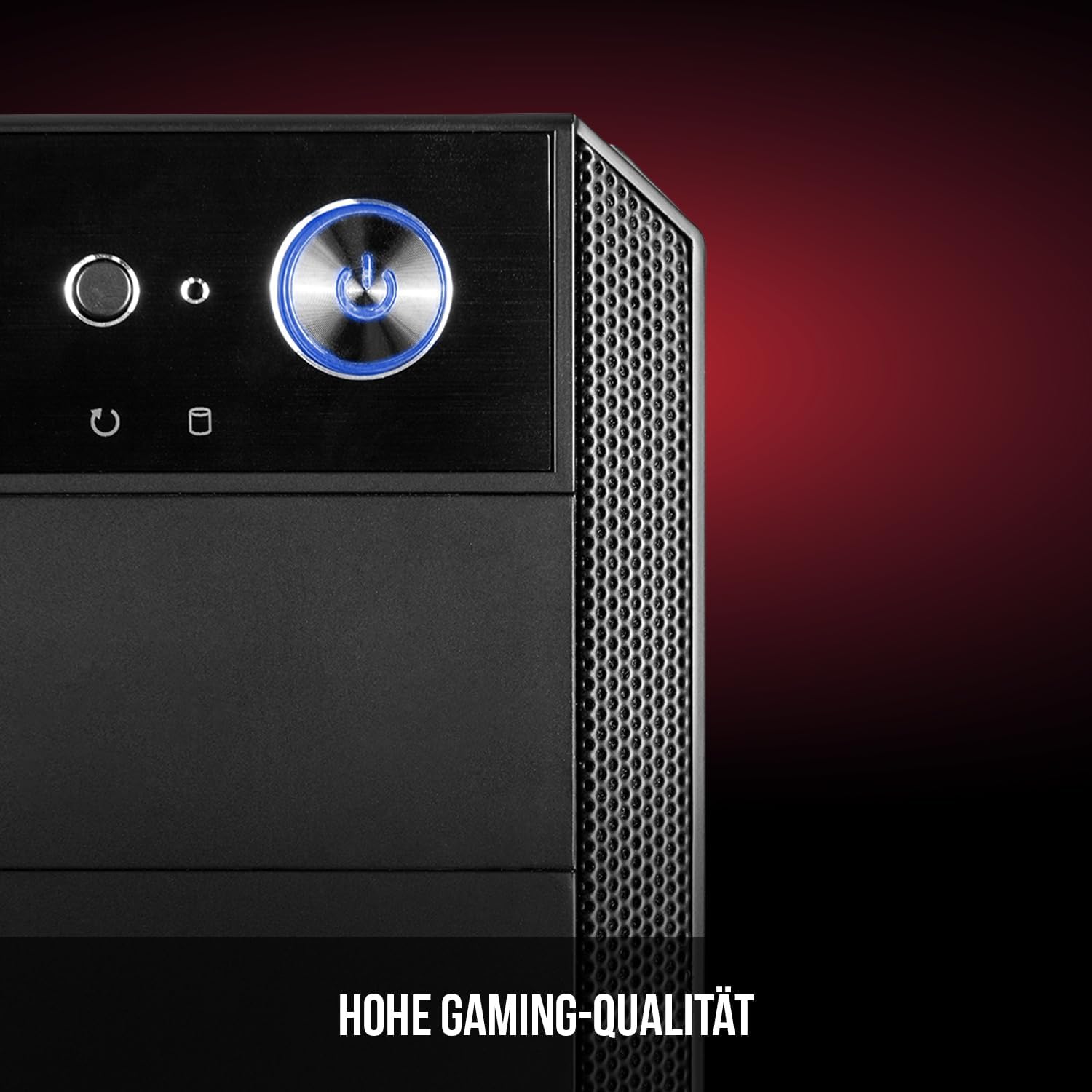
Figure 6: Front panel I/O ports for connectivity.
9. وضاحتون
| خاصيت | تفصيل |
|---|---|
| برانڊ | Modecom |
| ماڊل نالو | Oberon Pro |
| ماڊل نمبر | AT-OBERON-PS-10-000000-0002 |
| رنگ | ڪارو |
| ڪيس جو قسم | ميدي ٽاور |
| Motherboard مطابقت | ATX, Micro ATX, ITX |
| مواد | مصر جو اسٽيل |
| کولڻ جو طريقو | هوا |
| اڳ ۾ نصب ٿيل پرستار | 2 x 120mm (Front, Rear) |
| وڌ ۾ وڌ CPU کولر جي اوچائي | 163 ملي ميٽر |
| وڌ ۾ وڌ GPU ڊگھائي | 395 ملي ميٽر |
| ڊرائيو بيز | 3 x 2.5" SSD, 2 x 3.5" HDD |
| ڪل USB بندرگاهن | 4 |
| خاص خاصيتون | Reset Button, Dust Filter, LED Indicators, Side Window |
| شيءِ جو وزن | 5270 گرام |

Figure 7: Rear exterior view of the computer case.
10. وارنٽي ۽ سپورٽ
For warranty information and technical support, please refer to the official Modecom webسائيٽ تي وڃو يا پنهنجي پرچون ڪندڙ سان رابطو ڪريو. ڪنهن به وارنٽي دعوائن لاءِ خريداري جو ثبوت رکو.