
1. تعارف
This manual provides essential information for the safe and efficient use of your Alienware AW3418DW 34.1-inch Curved Gaming Monitor. This monitor features a WQHD (3440x1440) resolution, a 120Hz refresh rate (overclocked), and NVIDIA G-SYNC technology for an immersive gaming experience. Please read this manual thoroughly before operating the device.
2. حفاظت جي ڄاڻ
- Always disconnect the power cable from the wall outlet before cleaning the monitor.
- باهه يا جھٽڪي جي خطرن کان بچڻ لاءِ مانيٽر کي مينهن يا نمي جي سامهون نه رکو.
- مانيٽر نه کوليو casing. اندر ڪو به استعمال ڪندڙ جي خدمت لائق پرزا نه آهن. سڀني سروسنگ کي قابل سروس اهلڪارن جي حوالي ڪريو.
- مانيٽر کي هڪ مستحڪم، فليٽ مٿاڇري تي رکو ته جيئن ان کي ڪري نه پوي.
- مانيٽر جي چوڌاري مناسب وينٽيليشن کي يقيني بڻايو. وينٽيليشن جي سوراخن کي بند نه ڪريو.
- صرف مانيٽر سان گڏ فراهم ڪيل پاور اڊاپٽر ۽ ڪيبل استعمال ڪريو.
3. پيڪيج مواد
پڪ ڪريو ته سڀئي جزا پيڪيج ۾ موجود آهن:
- Alienware AW3418DW Monitor
- مانيٽر اسٽينڊ (بيس ۽ رائزر)
- پاور ڪيبل
- ڊسپلي پورٽ ڪيبل
- HDMI ڪيبل
- USB 3.0 اپ اسٽريم ڪيبل
- Documentation (Quick Setup Guide, Safety Information)
4. سيٽ اپ
4.1 جسماني سيٽ اپ
Carefully remove the monitor and its components from the packaging. Place the monitor face down on a soft cloth or cushion to prevent scratches.
اسٽينڊ کي ڳنڍڻ
- Attach the stand riser to the monitor panel until it clicks into place.
- Attach the stand base to the stand riser and tighten the captive screw.

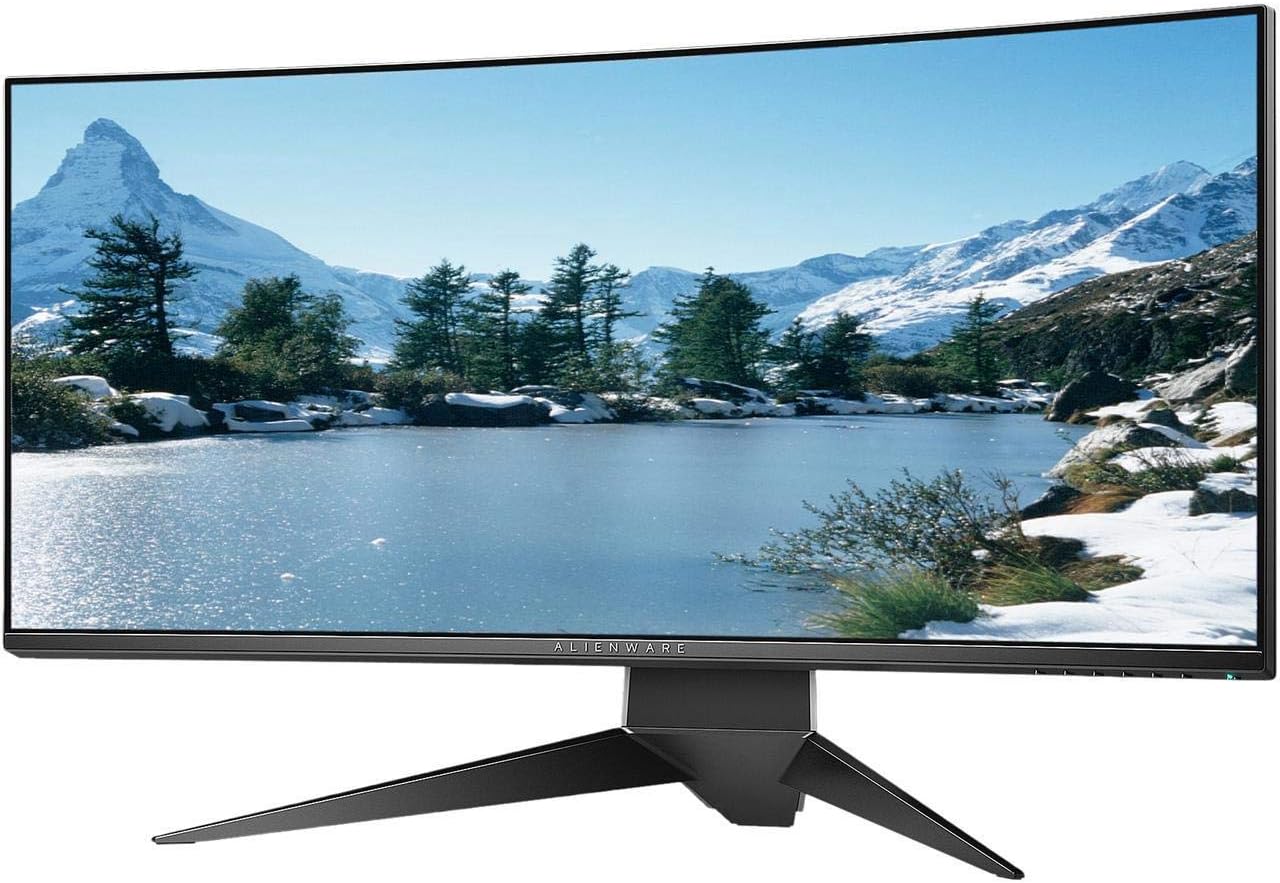
شڪل 4.1: سامهون view of the Alienware AW3418DW monitor with its stand attached.

شڪل 4.2: پاسي view of the Alienware AW3418DW monitor with its stand.
شڪل 4.3: پوئتي view of the Alienware AW3418DW monitor showing the stand and AlienFX lighting.
ويسا چڙهڻ
The monitor supports VESA mounting (100 x 100 mm). Remove the stand riser by pressing the release button and then attach the VESA-compatible mount to the monitor using appropriate screws. Ensure the mount can support the monitor's weight of 26.1 pounds (without stand).

Figure 4.4: Monitor dimensions for VESA mount compatibility.
4.2 ڳنڍيندڙ ڪيبل
ضروري ڪيبل پنهنجي مانيٽر ۽ ڪمپيوٽر سان ڳنڍيو.
- پاور ڪيبل: Connect the power cable to the monitor's power port and then to a wall outlet.
- وڊيو ڪيبل: Connect either the DisplayPort cable or the HDMI cable from your computer's graphics card to the corresponding port on the monitor. For optimal performance, especially for 120Hz refresh rate and G-SYNC, use the DisplayPort connection.
- USB اپ اسٽريم ڪيبل: Connect the USB 3.0 upstream cable from your computer to the monitor's upstream USB port to enable the monitor's USB hub functionality.
- USB ڊائون اسٽريم بندرگاهن: Connect your USB devices (e.g., keyboard, mouse, webcam) to the four USB 3.0 downstream ports on the monitor.
5. آپريٽنگ هدايتون
5.1 پاور آن/آف
Press the power button located on the monitor to turn it on or off. The power LED will indicate the monitor's status.
5.2 آن-اسڪرين ڊسپلي (OSD) نيويگيشن
The On-Screen Display (OSD) menu allows you to adjust various monitor settings. Use the control buttons, typically located on the bottom right or rear of the monitor, to navigate the OSD.
- Press a control button to activate the OSD menu.
- Use the navigation buttons (up/down/left/right) to move through menu options.
- چونڊ جي تصديق ڪرڻ لاءِ منتخب بٽڻ کي دٻايو يا ذيلي مينيو داخل ڪريو.
- پوئين مينيو ڏانهن موٽڻ يا او ايس ڊي مان نڪرڻ لاءِ پوئتي/ٻاهر نڪرڻ وارو بٽڻ استعمال ڪريو.
5.3 ڊسپلي سيٽنگون
بهتر لاءِ ڊسپلي سيٽنگون ترتيب ڏيو viewing and gaming performance.
- قرارداد: Set your computer's display resolution to 3440x1440 for the native WQHD experience.
- ريفريش جي شرح: The monitor supports up to 120Hz refresh rate (overclocked). Ensure your graphics card drivers are updated and the refresh rate is set in your operating system's display settings or graphics control panel.
- NVIDIA G-SYNC: For tear-free and smooth gameplay, enable G-SYNC in your NVIDIA Control Panel. This feature synchronizes the monitor's refresh rate with your GPU's frame rate.
- چمڪ/ برعڪس: Adjust these settings in the OSD menu to suit your environment and preference.
5.4 AlienFX Lighting
Customize the AlienFX lighting zones on your monitor through the OSD menu or Alienware Command Center software (if installed on your PC). You can select colors, effects, and synchronize lighting with other Alienware devices.
5.5 USB Hub Usage
The monitor acts as a USB 3.0 hub, providing convenient access to four downstream USB ports for connecting peripherals. Ensure the USB upstream cable is connected to your computer for this feature to function.
6. سار سنڀال
6.1 مانيٽر جي صفائي
- Always unplug the monitor from the electrical outlet before cleaning.
- استعمال ڪريو نرم، lint-آزاد ڪپڙو روشنيءَ سان ڊيampپاڻي يا غير رگڙيندڙ اسڪرين ڪلينر سان صاف ڪيو وڃي.
- صاف ڪندڙ کي سڌو سنئون اسڪرين تي نه اسپري ڪريو.
- مٽي ۽ داغ هٽائڻ لاءِ اسڪرين کي نرميءَ سان صاف ڪريو.
- ٻاهرين صفائي ڪريو جasing نرم، سڪل ڪپڙي سان.
6.2 اسٽوريج
If storing the monitor for an extended period, disconnect all cables, carefully disassemble the stand (if applicable), and store it in its original packaging in a cool, dry place.
7. مسئلا حل ڪرڻ
جيڪڏهن توهان کي پنهنجي مانيٽر سان مسئلا درپيش اچن ٿا، ته هيٺ ڏنل عام مسئلا حل ڪرڻ واري قدمن جو حوالو ڏيو:
- ڪابه ڊسپلي: Ensure all power and video cables are securely connected. Check if the monitor is powered on and the correct input source is selected in the OSD.
- ٽمٽار/ هڙڪڻ: Verify that your graphics drivers are up to date. Ensure G-SYNC is properly configured in the NVIDIA Control Panel. Check for interference from other electronic devices.
- غلط ريزوليوشن/ريفريش ريٽ: Adjust the display settings in your operating system or graphics control panel to the native resolution (3440x1440) and desired refresh rate (up to 120Hz).
- مردار پکسلز: The Alienware AW3418DW comes with a Premium Panel Guarantee. Refer to the warranty information for details on pixel policy.
- USB بندرگاهن ڪم نه ڪري رهيا آهن: Ensure the USB 3.0 upstream cable is connected from the monitor to your computer.
8. وضاحتون
| خاصيت | تفصيل |
|---|---|
| برانڊ | اجنبي سامان |
| ماڊل نمبر | AW3418 ڊي ڊبليو |
| اسڪرين جي ماپ | 34.1 انچ |
| قرارداد | WQHD (3440 x 1440 Pixels) |
| اسپيڪٽ ريشو | 21:9 |
| ريفريش جي شرح | 120 Hz (Overclocked) |
| جوابي وقت | 4 ملي سيڪنڊ |
| Adaptive Sync ٽيڪنالاجي | NVIDIA G SYNC |
| ڊسپلي جو قسم | LED IPS |
| گھمڻ | 1900 آر |
| روشني | 300 cd/m² |
| مقابلي جي نسبت | 1000:1 |
| Viewزاويه | 178 درجا |
| رابطي | 1x DisplayPort (1.2), 1x HDMI (1.4), 4x USB 3.0 Downstream, 1x USB 3.0 Upstream |
| شيءِ جو وزن | 26.1 Pounds (without stand) |
| چڙهڻ جو قسم | VESA Compatible (100 x 100 mm) |
9. وارنٽي ۽ سپورٽ
Your Alienware AW3418DW monitor is covered by a 3 Years Limited Hardware Warranty ۽ 3 Years Advance Exchange Service، بشمول a Premium Panel Guarantee. The Premium Panel Guarantee ensures a free panel replacement during the limited hardware warranty period even if only one bright pixel is found.
For technical support, warranty claims, or additional information, please visit the official Alienware or Dell support website. You may also find updated drivers and firmware there.
آن لائن سپورٽ: www.dell.com/ سپورٽ