
Введение
This manual provides detailed instructions for the setup, operation, and maintenance of your Oilsky M305 MP3 Player. Please read this manual thoroughly before using the device to ensure optimal performance and longevity.

Изображение: Оверview of the Oilsky M305 MP3 Player's key features.
1. Руководство по установке
1.1 Распаковка и комплектация
Carefully unpack your Oilsky M305 MP3 Player and verify all components are present.

Image: Contents of the Oilsky M305 MP3 Player box.
Пакет должен содержать:
- 1x Музыкальный плеер Oilsky M305
- 1 карта памяти TF на 128 ГБ (предустановлена или приобретается отдельно)
- 1x USB-кабель (для зарядки и передачи данных)
- 1 проводные наушники
- 1x Защитная пленка
- 1x Защитный чехол
- 1x Руководство пользователя
1.2 Зарядка устройства
Before first use, fully charge the device. Connect the provided USB cable to the player's charging port and to a USB power adapter (not included) or a computer's USB port. The charging indicator will show the charging status.
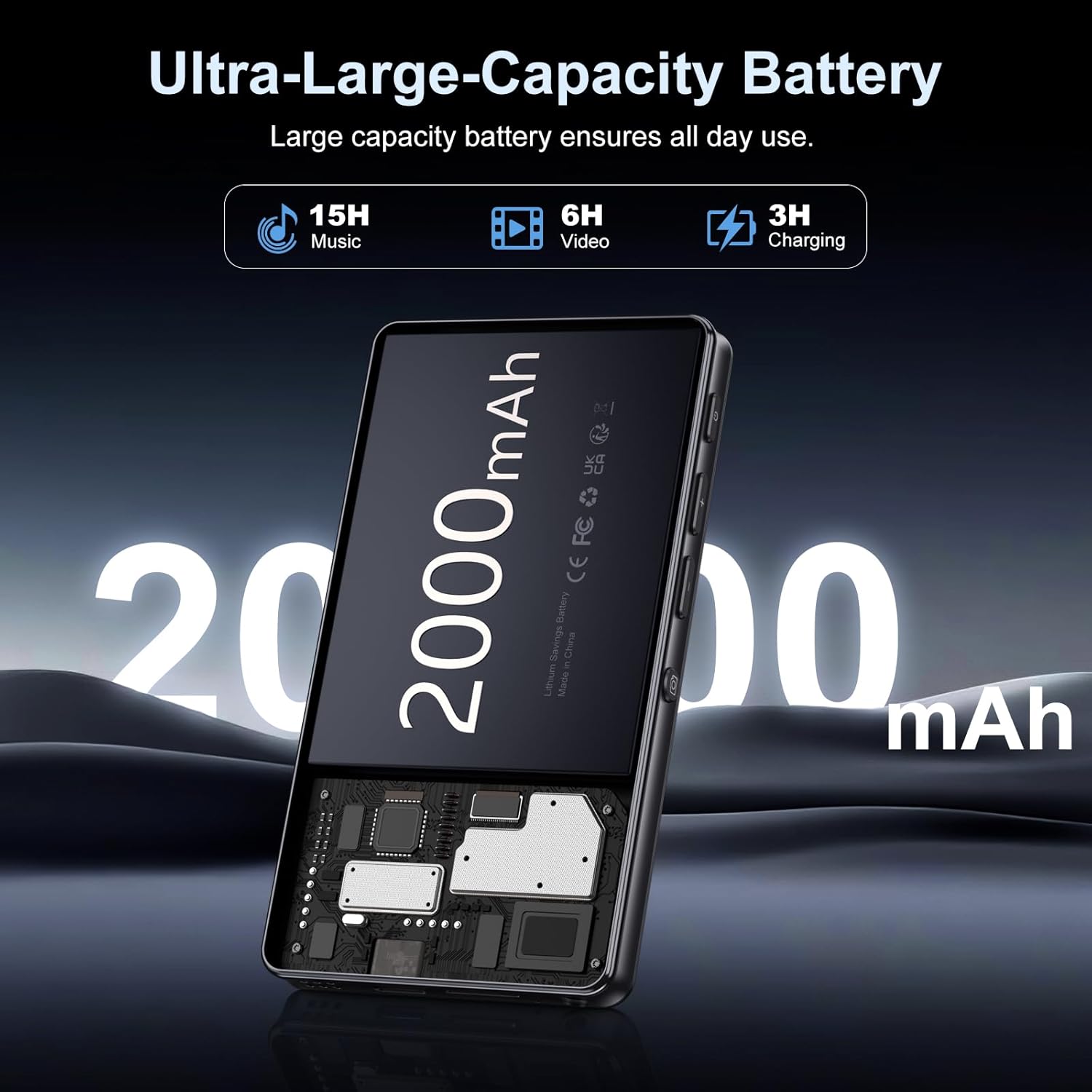
Image: Illustration of the 2000mAh battery and its charging/usage capabilities.
The 2000mAh battery provides approximately 15 hours of music playback and 6 hours of video playback on a full charge, which takes about 3 hours.
1.3 Включение/выключение питания
- Для включения: Нажмите и удерживайте кнопку питания, расположенную сбоку устройства, пока не загорится экран.
- Чтобы выключить: Нажмите и удерживайте кнопку питания, затем выберите «Выключить» из предложенных на экране вариантов.
1.4 Начальная настройка
После первого включения следуйте инструкциям на экране:
- Выберите предпочитаемый язык.
- Подключитесь к сети Wi-Fi для доступа в интернет и загрузки приложений.
- Настройте дату и время.
2. Инструкция по эксплуатации
2.1 Basic Navigation (Touchscreen)
The Oilsky M305 features a 4.02-inch HD touchscreen for intuitive control. Use gestures similar to a smartphone:
- Кран: Чтобы выбрать элемент или открыть приложение.
- Проведите пальцем по экрану: Для прокрутки списков или переключения между экранами.
- Масштабирование с помощью жестов сжатия: In supported applications like image galleries.

Image: The 4.02-inch HD touchscreen in use, displaying video content.
2.2 Воспроизведение музыки
The device supports various music formats including MP3, WAV, APE, FLAC, and AAC. You can play music through the built-in speaker or connected headphones/Bluetooth devices.

Image: Music playback interface showing supported audio formats.
- Доступ к музыке: Open the pre-installed music player app or any downloaded streaming service (e.g., Spotify, Audible).
- Создание плейлистов: Use the music player app to organize your songs into custom playlists.
- Эквалайзер: Adjust audio settings via the built-in equalizer for a personalized listening experience.

Image: Features for music management, including playlist creation and equalizer settings.
2.3 Воспроизведение видео
The device supports various video formats including AVI, MKV, MP4, MPG, and MOV. Videos can be viewed on the 4.02-inch HD screen.

Image: Supported video and music formats for the device.
2.4 Использование камеры
The M305 is equipped with a 13MP rear camera and a 5MP front camera for capturing photos and videos.
- Фотографировать: Откройте приложение «Камера», скомпонуйте кадр и нажмите кнопку спуска затвора.
- Запись видео: В приложении «Камера» переключитесь в режим видеозаписи и нажмите кнопку записи, чтобы начать/остановить запись.

Image: Illustration of the 5MP front and 13MP rear cameras.
2.5 Подключение (Bluetooth и Wi-Fi)
The device features dual-band Wi-Fi for fast internet access and Bluetooth 5.0 for stable wireless connections.
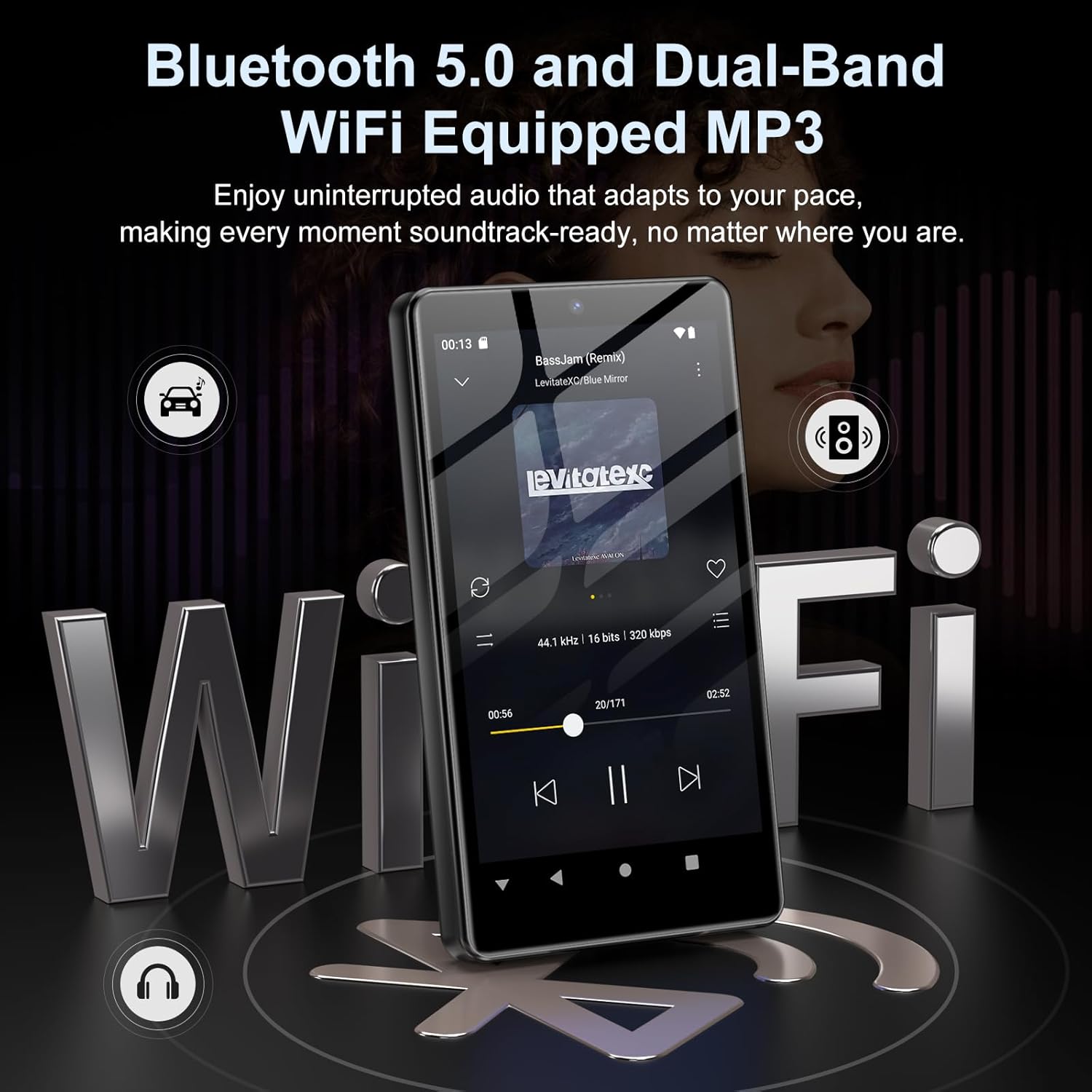
Image: Visual representation of Bluetooth and Wi-Fi connectivity.
- Wi-Fi: Перейдите в раздел «Настройки» > «Сеть и Интернет» > «Wi-Fi», чтобы подключиться к доступным сетям.
- Bluetooth: Go to Settings > Connected devices > Bluetooth to pair with headphones, speakers, or other Bluetooth-enabled devices.
2.6 Управление хранением
The M305 comes with 32GB of internal ROM and includes a 128GB TF card, supporting external storage expansion up to 1TB.

Image: Storage capacity details including internal ROM and TF card expansion.
- Viewing Storage: Navigate to Settings > Storage to see internal and external storage usage.
- Передача Files: Connect the device to a computer using the USB cable to transfer music, videos, and photos.
2.7 Установка приложения (Google Play Store)
Running on Android 13.0, the device allows you to install and uninstall applications from the Google Play Store.
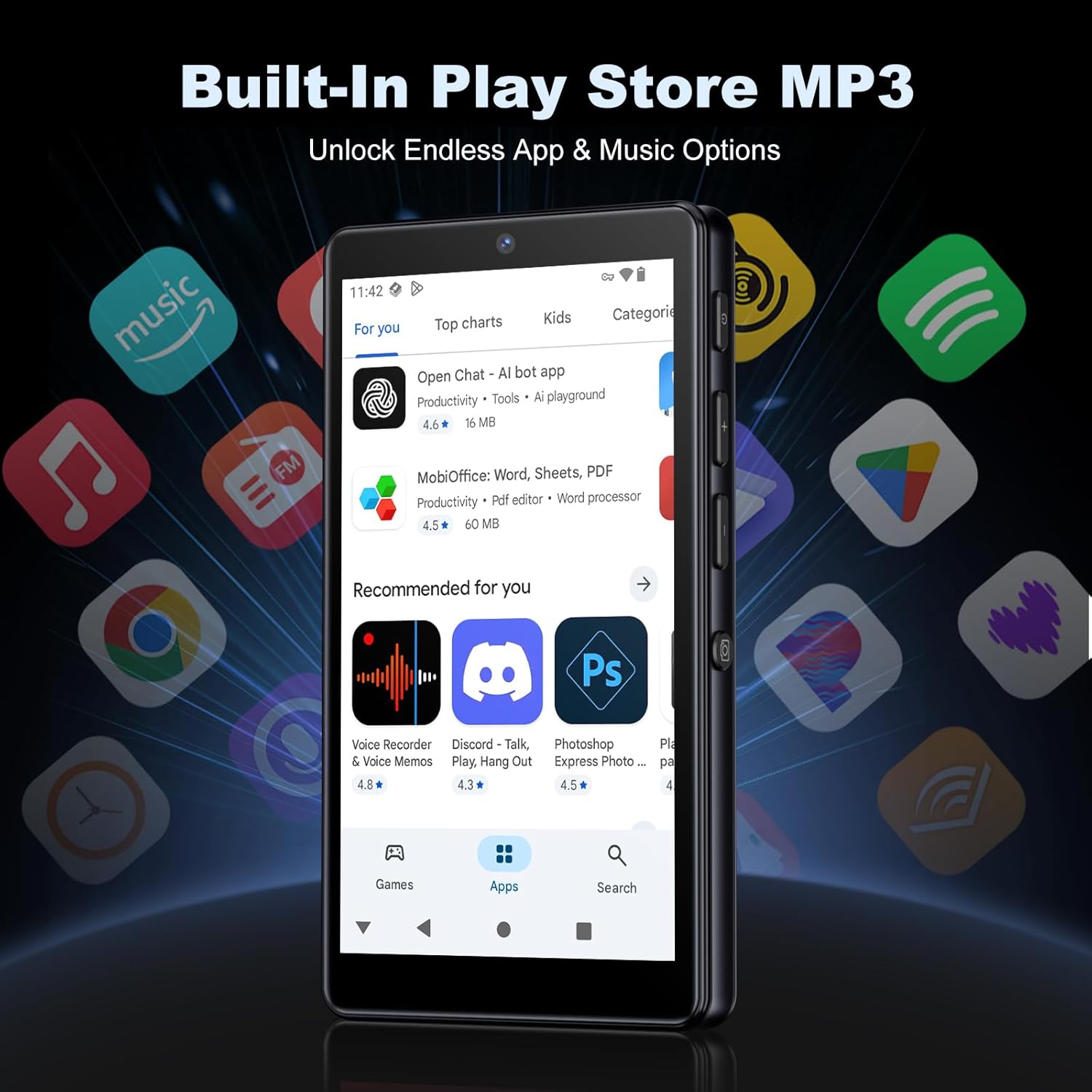
Image: The Google Play Store interface on the device.
- Установка приложений: Open the Play Store app, search for your desired application, and tap 'Install'.
- Удаление приложений: Go to Settings > Apps, select the app, and tap 'Uninstall'.
3. Техническое обслуживание
3.1 Очистка
To clean the device, use a soft, dry, lint-free cloth. Avoid using abrasive cleaners, solvents, or aerosol sprays, which may damage the screen or finish.
3.2 Уход за аккумулятором
- Не подвергайте устройство воздействию экстремальных температур.
- Не допускайте частой полной разрядки аккумулятора.
- Для зарядки используйте только прилагаемый USB-кабель.
3.3 Обновления программного обеспечения
Периодически проверяйте наличие обновлений программного обеспечения, чтобы убедиться, что ваше устройство имеет последние функции и исправления безопасности. Перейдите в Настройки > Система > Обновление системы.
4. Поиск Неисправностей
4.1 Устройство не включается
- Убедитесь, что аккумулятор заряжен. Подключите устройство к зарядному устройству не менее чем на 30 минут.
- Try a forced restart by holding the power button for 10-15 seconds.
4.2 Проблемы с подключением (Wi-Fi/Bluetooth)
- Wi-Fi: Check if the Wi-Fi network is active and you have entered the correct password. Try restarting your router.
- Bluetooth: Ensure the device you are trying to connect to is in pairing mode and within range. Try turning Bluetooth off and on again on both devices.
4.3 Приложения аварийно завершают работу или зависают
- Закройте и снова откройте приложение.
- Clear the app's cache: Settings > Apps > [App Name] > Storage & cache > Clear cache.
- Если проблема не исчезнет, попробуйте удалить и переустановить приложение.
4.4 Плохое качество звука
- Check your earphones or Bluetooth speaker connection.
- Убедитесь, что звук file не поврежден.
- Adjust the equalizer settings in your music player.
5. Технические характеристики
| Особенность | Деталь |
|---|---|
| Бренд | Ойлский |
| Номер модели | М305 |
| Операционная система | Андроид 13.0 |
| Процессор | 8-ядерный процессор MTK |
| БАРАН | 4 ГБ |
| Внутренняя память (ПЗУ) | 32 ГБ |
| Внешнее хранилище | 128GB TF Card included, expandable up to 1TB |
| Размер экрана | 4.02-дюймовый сенсорный HD-экран |
| Задняя камера | 13МП |
| Передняя камера | 5МП |
| Bluetooth | Блютус 5.0 |
| Wi-Fi | Двухдиапазонный Wi-Fi |
| Емкость аккумулятора | 2000 мАч литий-полимерный |
| Время воспроизведения музыки | До 15 часов |
| Время воспроизведения видео | До 6 часов |
| Время зарядки | Приблизительно 3 часов |
| Поддерживаемые аудиоформаты | MP3, WAV, APE, FLAC, AAC и т. д. |
| Поддерживаемые форматы видео | AVI, MKV, MP4, MPG, MOV, etc. |
| Поддерживаемые форматы изображений | JPEG, BMP, GIF, PNG, etc. |
6. Информация о гарантии
The Oilsky M305 MP3 Player comes with a manufacturer's warranty. Please refer to the warranty card included in your package or contact Oilsky customer support for specific terms and conditions. Keep your proof of purchase for warranty claims.
7. Поддержка клиентов
If you encounter any issues not covered in this manual or require further assistance, please contact Oilsky customer support. Contact details can typically be found on the official Oilsky webсайте или в гарантийном талоне.