
Введение
This manual provides essential information for setting up, operating, and maintaining your Roku 32-Inch Select Series 1080p Full HD Smart TV. Designed for a delightful streaming experience, this TV offers excellent picture quality, clear sound, and automatic updates. Please read this manual thoroughly before using your television.
Что в коробке?
Убедитесь, что все компоненты присутствуют в упаковке:
- Roku 32-Inch Select Series 1080p Full HD Smart TV
- Дистанционное управление
- Подставка (2 шт.)
- Винты для подставки (4 штук)
- Силовой кабель
- Руководство пользователя (этот документ)

Image: Contents of the Roku TV box, showing the television, remote control, two stand pieces, and four screws.
Инструкции по установке
1. Крепление подставки под телевизор
- Carefully place your TV face-down on a soft, clean surface to prevent damage to the screen.
- Совместите детали подставки с отверстиями для винтов на нижней части телевизора.
- Secure each stand piece with two screws using a Phillips head screwdriver. Do not overtighten.
2. Подключение питания и устройств
- Подключите кабель питания к разъему питания телевизора, а затем к розетке.
- Connect your external devices (e.g., cable box, gaming console, Blu-ray player) to the available HDMI ports on the back of the TV. This model features 3 HDMI ports.
- For older devices, use the AV input ports (yellow, white, red).
- An optical audio output is available for connecting to soundbars or home theater systems.
- A USB port is provided for media playback.

Изображение: сзади view of the Roku TV displaying HDMI, AV, Antenna, USB, Optical, and Headphone ports.
3. Первоначальное включение и подключение к сети
- Нажмите кнопку питания на пульте дистанционного управления или на телевизоре.
- Следуйте инструкциям на экране, чтобы выбрать язык и подключиться к сети Wi-Fi.
- Activate your Roku account or create a new one. This is required to access streaming channels and features.
Инструкция по эксплуатации
1. Интерфейс Roku OS
The Roku OS provides a simple and intuitive home screen for accessing all your entertainment. Easily navigate between streaming apps, live TV, and connected devices.

Image: The Roku TV home screen with a menu on the left and app icons on the right, including Netflix, Disney+, Apple TV, and Roku Channel.
2. Голосовой пульт дистанционного управления
Your Roku TV comes with a voice remote for convenient control. Use your voice to search for content, launch apps, and control playback.
- Голосовой поиск: Press the voice button and speak your command (e.g., "Find comedies," "Open Netflix").
- Ярлыки приложений: Специальные кнопки обеспечивают быстрый доступ к популярным стриминговым сервисам.
- Регулятор громкости: Регулировка громкости осуществляется с помощью боковых кнопок.
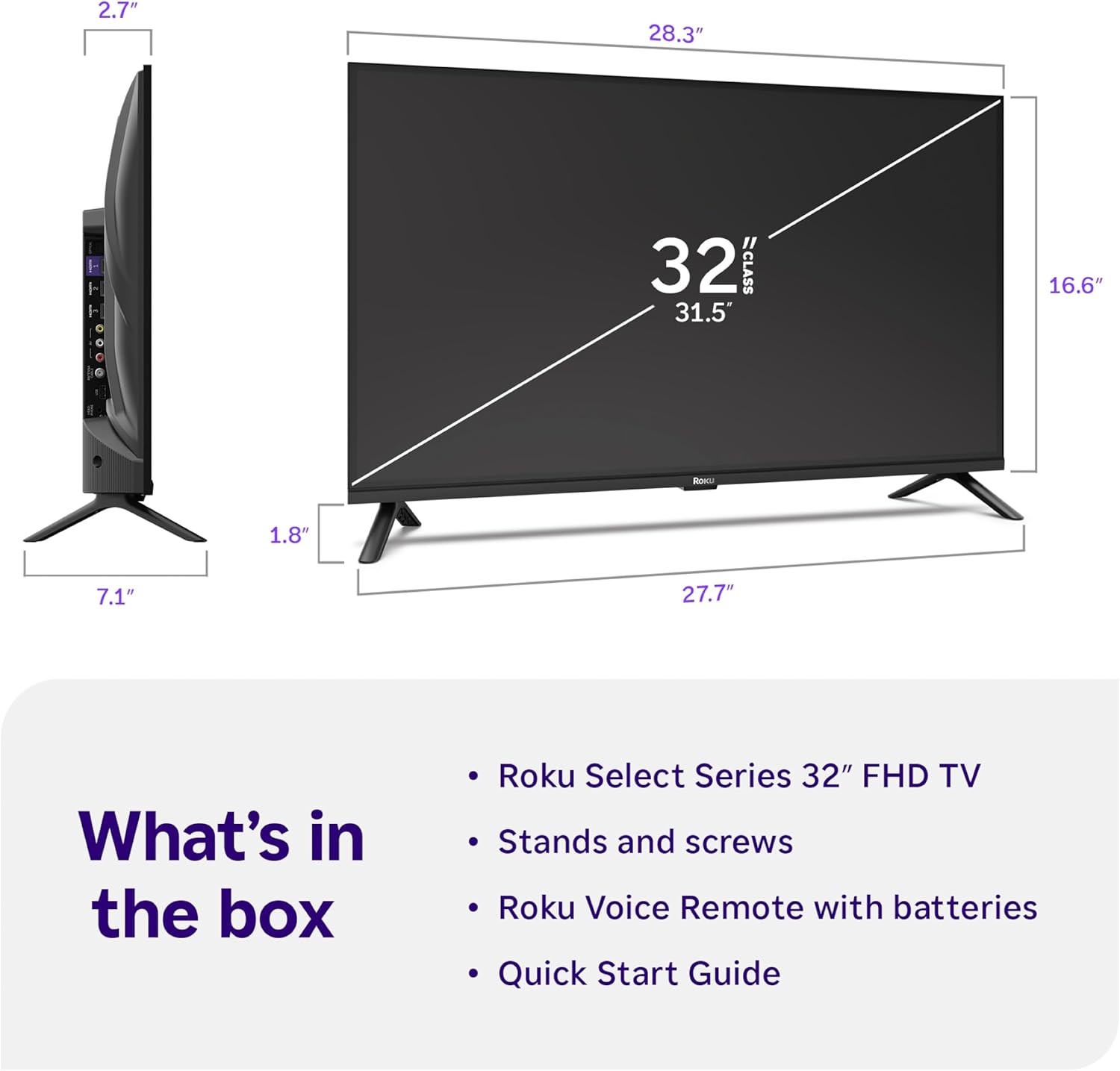
Image: Close-up of the Roku Voice Remote, highlighting buttons for TV power, volume, mute, voice search, instant replay, options, and dedicated app shortcuts.
3. Приложения для потокового вещания и телевидение в прямом эфире
Access thousands of streaming channels, including Netflix, Disney+, Hulu, Prime Video, and Apple TV+. The Roku Channel also offers free live TV and on-demand content.

Image: A vibrant Roku TV home screen displaying a selection of popular streaming applications and recommended shows.
4. Настройки изображения
Оптимизируйте свой viewing experience with various picture settings:
- Roku Smart Picture: Automatically adjusts picture mode for optimal viewинж.
- Режимы изображения: Choose from presets like Movie, Sports, Vivid, Standard, or Low Power.
- Настройка: Adjust brightness, contrast, sharpness, color, and tint for a personalized picture.
5. Настройки звука
Улучшите качество звука:
- Долби Аудио: Enjoy clear speech and louder sound.
- Звуковые режимы: Select from Standard, Dialogue, Movie, Music, or Night mode.
- Режим Bluetooth-наушников: Connect your wireless headphones to listen without disturbing others.

Image: A child wearing wireless headphones while watching the Roku TV, demonstrating the Bluetooth Headphone Mode.
6. Интеграция с умным домом
Your Roku TV is compatible with various smart home ecosystems:
- Голосовое управление: Use Roku Voice, Siri, Alexa, or Google Assistant for hands-free control.
- Apple AirPlay: Effortlessly share videos, photos, and music from your Apple devices.
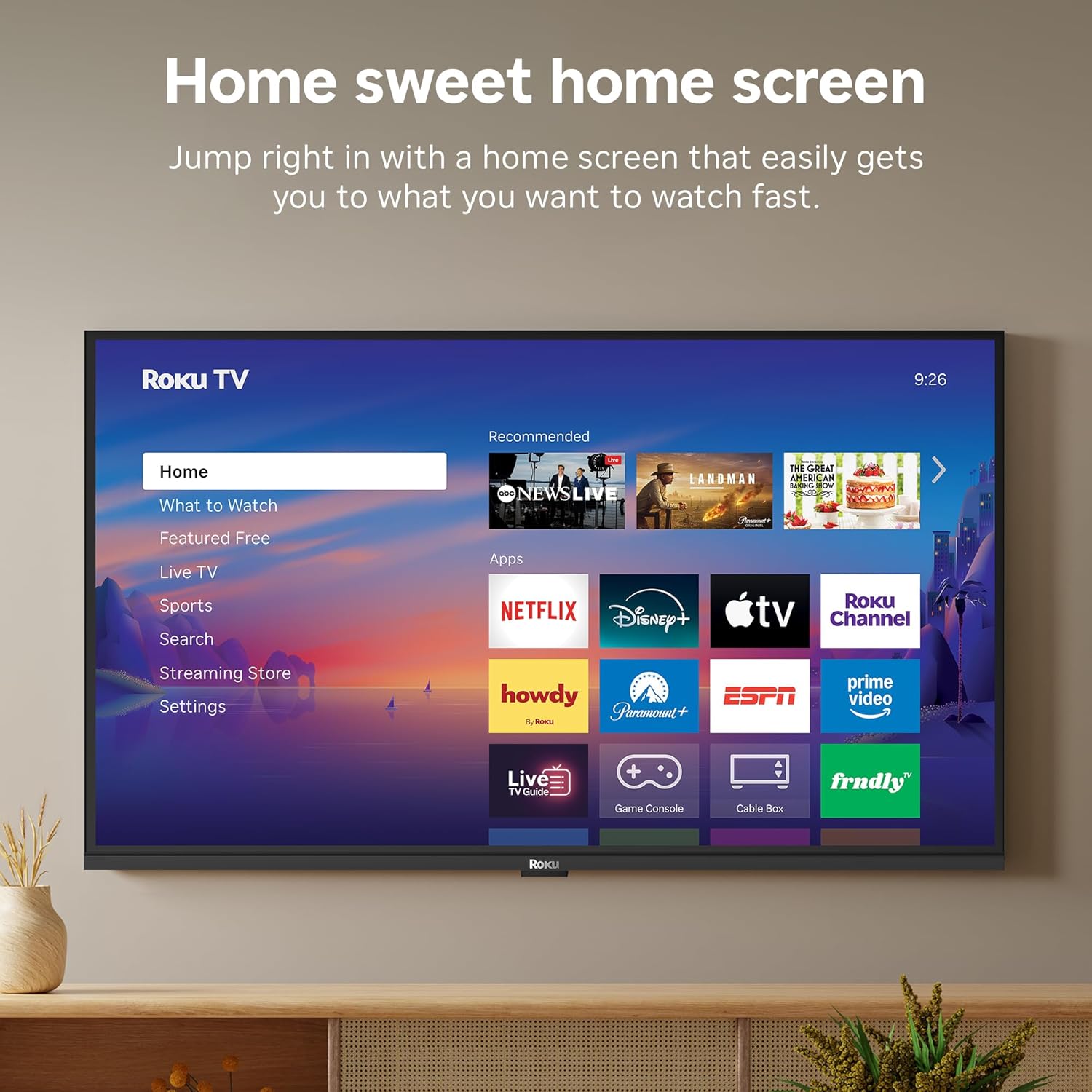
Image: The Roku TV screen displaying smart home compatibility logos for Roku Smart Home, Apple AirPlay, Apple Home, Alexa, and Google Home, with a smart speaker nearby.
7 Родительский контроль
Manage content access with built-in parental controls, including V-Chip technology, to ensure a safe viewсреда для детей.
Официальное видео о продукте
Видео: Оверview of the Roku TV OS, demonstrating its user-friendly interface, app selection, and smart features. This video is provided by Roku, Inc.
Технические характеристики
- Размер экрана:
- 32 дюйма
- Разрешение:
- 1080p Full HD
- Технология отображения:
- ВЕЛ
- Частота обновления:
- 60 Гц
- Особые характеристики:
- Bluetooth Headphone Mode, Dolby Audio, Voice Remote, Roku Smart Picture
- Технологии подключения:
- Bluetooth, Wi-Fi
- Аппаратный интерфейс:
- 3 HDMI Ports, 1 USB Port, S/PDIF (Optical Audio Out)
- Операционная система:
- ОС Roku
- Размеры изделия (Д x Ш x В):
- 7.1"Д x 28.3"Ш x 18.4"В
- Вес товара:
- 7.7 Pounds (with stand)
- Стандарт крепления VESA:
- 200 х 200 мм
- Номер модели:
- 32Р3Е5
- СКП:
- 829610009469
Поиск неисправностей
If you encounter issues with your Roku TV, please refer to the following common solutions:
- Нет питания: Убедитесь, что кабель питания надежно подключен как к телевизору, так и к работающей электрической розетке. Попробуйте другую розетку.
- Нет изображения/звука: Verify that the correct input source is selected on your TV. Check all cable connections (HDMI, AV, etc.) for looseness.
- Удаленно не отвечает: Replace the batteries in your remote control. Ensure there are no obstructions between the remote and the TV.
- Проблемы с сетевым подключением: Restart your Wi-Fi router and modem. Go to the TV's Settings > Network > Check connection to diagnose and reconnect.
- App Not Loading: Restart the app. If the issue persists, try removing and reinstalling the app from the Roku Channel Store.
Для получения более подробной информации по устранению неполадок посетите официальную страницу поддержки Roku. webсайт.
Обслуживание
To ensure the longevity and optimal performance of your Roku TV, follow these maintenance guidelines:
- Очистка экрана: Аккуратно протрите экран мягкой сухой салфеткой из микрофибры. Для удаления стойких загрязнений слегка потрите.ampСмочите ткань водой или специальным средством для чистки экранов, предназначенным для электронных устройств. Не распыляйте жидкость непосредственно на экран.
- Чистка корпуса телевизора: Use a soft, dry cloth to wipe the exterior of the TV. Avoid abrasive cleaners or solvents.
- Вентиляция: Убедитесь, что вентиляционные отверстия телевизора не перекрыты, чтобы предотвратить перегрев. Оставьте вокруг телевизора достаточно места для циркуляции воздуха.
- Обновления программного обеспечения: Your Roku TV automatically receives software updates. Ensure your TV is connected to the internet to receive the latest features and performance improvements.
- Управление энергопотреблением: Отключайте телевизор от розетки во время грозы или когда он остается без присмотра на длительное время.
Гарантия и поддержка
Информация о гарантии
Roku warrants the hardware of this device against defects in materials and workmanship under normal use for a period of one (1) year from the date of purchase ("Warranty Period"). If Roku determines that the device’s hardware is defective during the Warranty Period, Roku’s sole obligation, and your exclusive remedy, will be to either repair or replace the unit with either a new or rebuilt device, at its option. This warranty applies if the device is used in accordance with the provided documentation.
Important information about warranty returns and replacements is available on the Roku support site. You may also return a device for any reason, subject to the terms of the applicable return policy: 1) Within thirty (30) days from the date of purchase from Roku; or 2) within the applicable return period if purchased from an authorized reseller or distributor. Additional details regarding product returns can be found on the Roku support site.
Поддержка клиентов
For further assistance, technical support, or to access the full range of support resources, please visit the official Roku support webСайт. Там вы найдете ответы на часто задаваемые вопросы, руководства по устранению неполадок и контактную информацию службы поддержки клиентов.