
Xbox EP2-29563
Xbox Wireless Controller Storm Breaker Special Edition
Model: EP2-29563
Бренд: Xbox
Введение
The Xbox Wireless Controller Storm Breaker Special Edition is designed to provide an enhanced gaming experience across multiple platforms. This controller features a unique aesthetic with classic grays and blacks, offset with whites, along with textured grips for improved handling. It offers seamless connectivity and customizable controls to optimize your gameplay.
Основные характеристики
- Storm Breaker Special Edition Design: Features a distinctive gray, black, and white pattern.
- Textured Triggers: Provides enhanced grip and control during gameplay.
- Rubberized Grips: Located on the back cases for secure handling.
- Wireless & Bluetooth Connectivity: Easily pairs with Xbox consoles, PCs, and mobile devices.
- Кнопка «Поделиться»: Seamlessly capture and share screenshots and game recordings.
- Настраиваемое сопоставление кнопок: Personalize controls using the Xbox Accessories app.
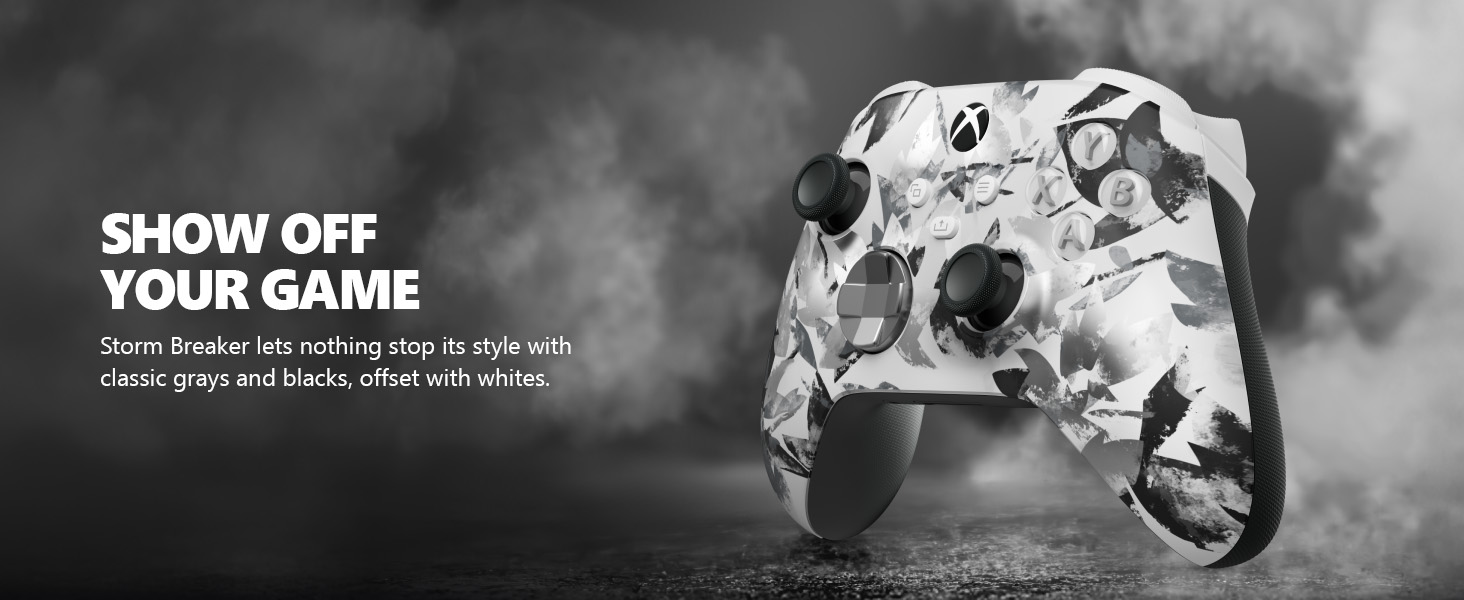
Image: The Xbox Wireless Controller Storm Breaker Special Edition showcasing its distinctive color scheme.
Настраивать
1. Установка аккумулятора
Для работы контроллера требуются две батарейки типа АА (входят в комплект). Для установки:
- Найдите батарейный отсек на задней панели контроллера.
- Press the small tab and lift the battery cover.
- Вставьте две батарейки типа АА, соблюдая полярность (+ и -).
- Закройте крышку батарейного отсека до щелчка.
2. Сопряжение с устройствами
The controller supports both Xbox Wireless and Bluetooth for versatile connectivity.
- For Xbox Console:
- Включите консоль Xbox.
- Press the Xbox button on your controller to turn it on.
- Нажмите и удерживайте кнопку сопряжения (⏚) on the top of the controller until the Xbox button flashes rapidly.
- Press the Pair button on your Xbox console (usually near the USB port or on the front).
- The Xbox button on the controller will become solid when connected.
- For PC (Windows 10/11) via Bluetooth:
- Убедитесь, что на вашем компьютере включен Bluetooth.
- Press the Xbox button on your controller to turn it on.
- Нажмите и удерживайте кнопку сопряжения (⏚) on the top of the controller until the Xbox button flashes rapidly.
- На ПК перейдите в «Настройки» > «Устройства» > «Bluetooth и другие устройства».
- Select "Add Bluetooth or other device" and then "Bluetooth".
- Choose "Xbox Wireless Controller" from the list and follow on-screen prompts.
- Для мобильных устройств (Android/iOS):
- Включите Bluetooth на вашем мобильном устройстве.
- Press the Xbox button on your controller to turn it on.
- Нажмите и удерживайте кнопку сопряжения (⏚) on the top of the controller until the Xbox button flashes rapidly.
- On your mobile device, search for Bluetooth devices and select "Xbox Wireless Controller" to pair.
Видео: Оверview of the Xbox Wireless Controller, demonstrating its physical features and ports, useful for understanding setup.
Управление контроллером
1. Основные элементы управления
- Палочки: Используется для управления движением и камерой.
- Крестовина: Ideal for precise directional input in games and menu navigation.
- Кнопки A, B, X, Y: Primary action buttons for in-game commands.
- Triggers (LT/RT) & Bumpers (LB/RB): Used for various actions like shooting, accelerating, or menu selection.
2. Кнопка «Поделиться»
The dedicated Share button (⤓) allows you to quickly capture and share your gaming moments:
- Press once to take a screenshot.
- Press and hold to record the last 30 seconds of gameplay.
3. Разъем для гарнитуры
A 3.5mm audio jack is located at the bottom of the controller, allowing you to connect compatible headsets for in-game audio and chat.
4. Customization with Xbox Accessories App
Download the Xbox Accessories app on your Xbox console or Windows PC to customize button mapping and create personalized controller profiles.
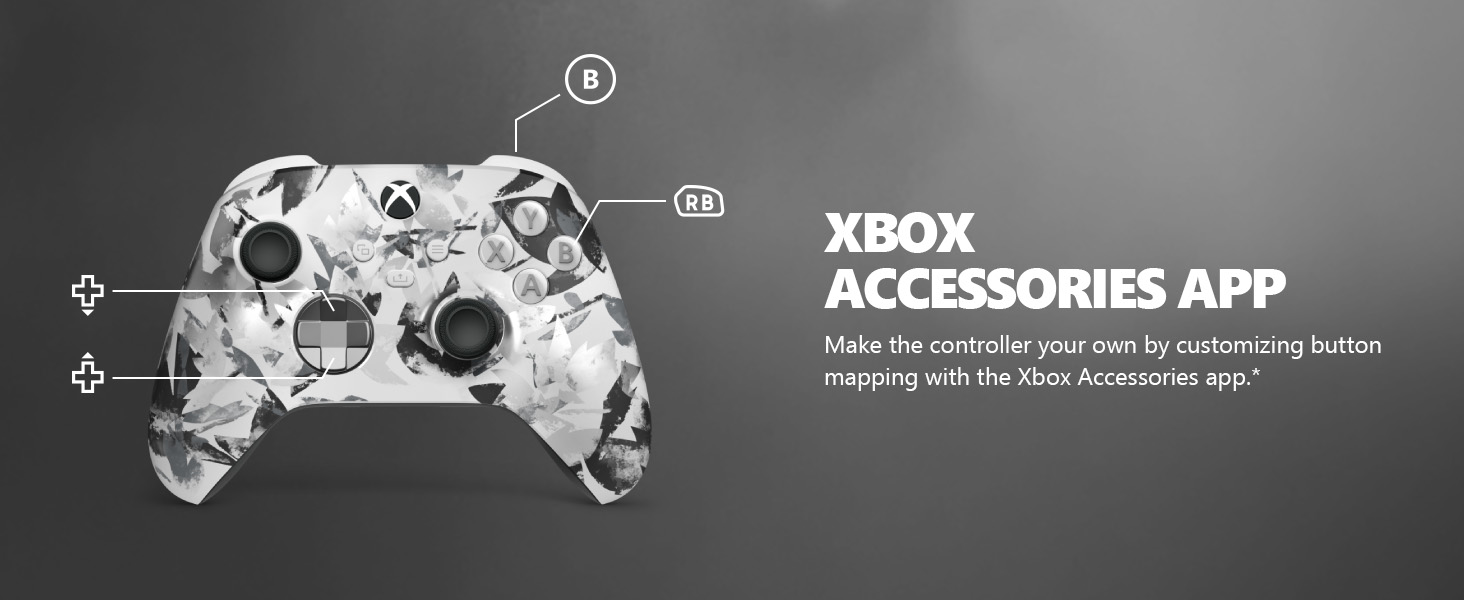
Image: The Share button and an illustration of button mapping customization via the Xbox Accessories app.
Обслуживание
- Уборка: Для очистки контроллера используйте мягкую сухую ткань. Избегайте абразивных чистящих средств или растворителей.
- Уход батареи: Если контроллер не будет использоваться в течение длительного времени, извлеките батарейки, чтобы предотвратить протечку.
- Хранилище: Храните контроллер в прохладном, сухом месте, вдали от прямых солнечных лучей и экстремальных температур.
Поиск неисправностей
- Контроллер не подключается:
- Убедитесь, что батареи правильно установлены и заряжены.
- Повторите процесс сопряжения, как описано в разделе «Настройка».
- Проверьте наличие помех от других беспроводных устройств.
- Update controller firmware via the Xbox Accessories app.
- Кнопки не реагируют:
- Очистите область вокруг кнопок, чтобы удалить весь мусор.
- Test the controller with another device or game to isolate the issue.
- Короткое время работы от батареи:
- Используйте новые, качественные батарейки типа АА.
- Consider using a rechargeable battery pack (sold separately) for extended play.
Технические характеристики
| Особенность | Деталь |
|---|---|
| Номер модели | EP2-29563 |
| Связность | Беспроводная связь Xbox, Bluetooth |
| Совместимость | Xbox Series X|S, Xbox One, Windows 10/11, Android, iOS |
| Источник питания | 2 батарейки типа АА (в комплекте) |
| Аудио порт | 3.5-мм разъем для гарнитуры |
| Размеры | 6.91 x 5.61 x 2.76 дюйма |
| Масса | 14.1 унции |
| Производитель | Майкрософт |
Гарантия и поддержка
For warranty information and technical support, please refer to the documentation included with your product or visit the official Xbox support webСохраните чек о покупке для предъявления гарантийных претензий.
Онлайн поддержка: support.xbox.com
Ask a question about this manual
Ask about setup, troubleshooting, compatibility, parts, safety, or missing instructions. Manuals+ will review the question and use this page’s manual context to help answer it.