
1. Введение
This manual provides essential information for setting up, operating, and maintaining your Thunderobot Storm 17 5060 Gaming Laptop. Please read this guide thoroughly to ensure proper usage and to maximize your product's performance and longevity. Keep this manual for future reference.
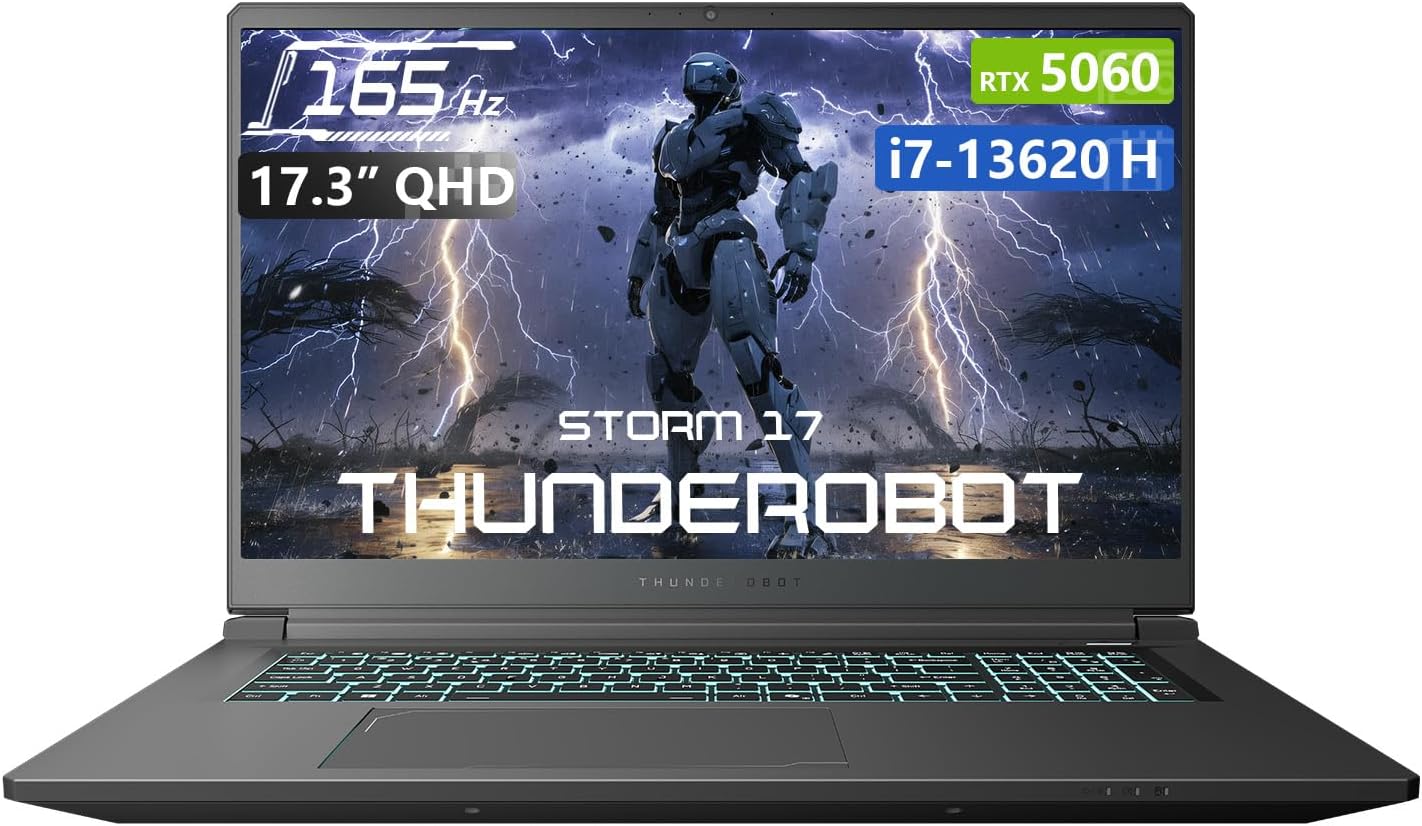
Рисунок 1.1: Передняя часть view of the Thunderobot Storm 17 5060 Gaming Laptop.
2. Продукт закончилсяview
The Thunderobot Storm 17 5060 is a high-performance gaming laptop designed for immersive experiences. It features advanced components and a robust cooling system.
2.1 Основные характеристики
- Отображать: 17.3-inch QHD (2560x1440) display with a 165Hz refresh rate, 100% sRGB color accuracy, and 1000:1 contrast ratio for crisp visuals.
- Процессор: Intel Core i7-13620H processor, featuring 10 cores and 16 threads, with a base frequency of 1.80GHz and a max turbo frequency of up to 4.9GHz.
- Графика: NVIDIA GeForce RTX 5060 dedicated graphics card for high-fidelity gaming and creative tasks.
- Память: 16GB DDR5 RAM, providing fast multitasking capabilities.
- Хранилище: 1TB PCIe M.2 SSD for rapid boot times and ampместо для хранения вещей.
- Система охлаждения: Advanced thermal design with ultra-thin 0.2mm copper fins (245pcs) and dual 12V turbofans (60mm, 164 LCP blades, 19.8CFM) for efficient heat dissipation. Features four omnidirectional outlets and a dual-zone air duct.
- Связь: Multiple ports including 3x USB 3.0 Type-A, 1x USB Type-C, 1x HDMI, 1x RJ-45 Ethernet, and 1x Audio Port. Supports Wi-Fi 6 and Bluetooth.
- Клавиатура: RGB Backlit Keyboard with a full-size numeric keypad.
- Аккумулятор: 53Wh battery with support for 100W PD fast charging.
2.2 Визуальные компоненты

Рисунок 2.1: Производительность по сравнению сview highlighting the RTX 5060 graphics and Intel Core i7-13620H processor capabilities.

Рисунок 2.2: Подробная информация view of the 17.3-inch QHD 165Hz display specifications.
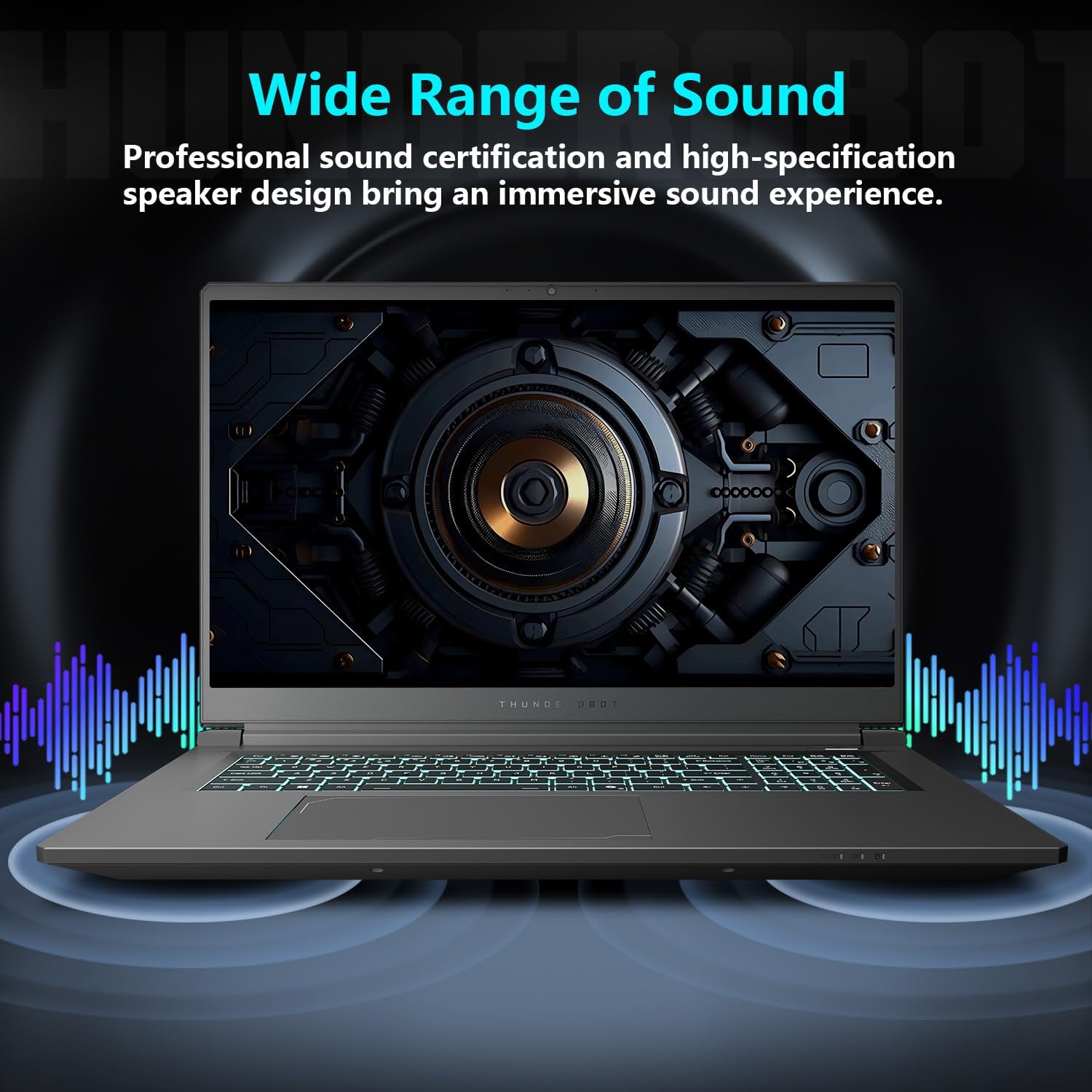
Figure 2.3: Diagram illustrating the various ports and slots on the Thunderobot Storm 17 laptop.

Figure 2.4: Illustration of the Direct-Flow Cooling Technology with pure copper heat pipes, high-speed fans, and four air outlets.
Видео 2.1: Оверview of the THUNDEROBOT Series Display, showcasing visual features and design.
Video 2.2: THUNDEROBOT Gaming Gear showcase, featuring various peripherals and laptops in a gaming setup.
Video 2.3: THUNDEROBOT Storm 17 product highlights, demonstrating key features and design elements.
3. Настройка
3.1 Распаковка и первоначальный осмотр
Carefully remove the laptop and its accessories from the packaging. Verify that all components listed in the "What's in the Box" section are present and undamaged. The box should contain:
- THUNDEROBOT Storm 17 Laptop
- Адаптер питания и кабель
- Руководство пользователя (этот документ)
Если какие-либо товары отсутствуют или повреждены, немедленно свяжитесь со службой поддержки клиентов.
3.2 Подключение адаптера питания
- Подключите кабель питания к адаптеру питания.
- Вставьте адаптер питания в заземленную электрическую розетку.
- Connect the DC-in plug from the adapter to the DC-in port on the laptop. The DC-in port is typically located on the side or rear of the laptop.
It is recommended to fully charge the laptop before its first use.
3.3 Первоначальное включение и настройка Windows
- Откройте крышку ноутбука.
- Press the power button, usually located on the keyboard deck.
- Следуйте инструкциям на экране для завершения настройки Windows 11 Домашняя. Это включает в себя выбор региона, языка, подключение к сети Wi-Fi и создание учётной записи пользователя.
4. Инструкция по эксплуатации
4.1 Управление питанием
- Включение питания: Нажмите кнопку питания.
- Спящий режим: Close the lid or press the power button briefly. You can also select "Sleep" from the Windows Start menu.
- Неисправность: Выберите «Завершение работы» в меню «Пуск» Windows.
- Перезапуск: Выберите «Перезапустить» в меню «Пуск» Windows.
4.2 Клавиатура и сенсорная панель
The laptop features an RGB backlit keyboard and a precision touchpad.
- Управление подсветкой: Используйте Fn + Пробел combination to cycle through different backlight modes or turn it off.
- Цифровая клавиатура: The full-size numeric keypad is integrated for convenient data entry.
- Сенсорная панель: Поддерживаются мультисенсорные жесты для навигации. Для настройки параметров обратитесь к параметрам Windows.

Figure 4.1: The RGB backlit keyboard of the Storm 17 laptop.
4.3 Внешние подключения
Подключайте внешние устройства, используя доступные порты:
- Порты USB типа A: For connecting USB devices like mice, keyboards, and external drives.
- Порт USB Type-C: Для подключения совместимых устройств USB-C.
- Порт HDMI: Подключитесь к внешнему монитору или телевизору для расширения зоны отображения.
- Порт Ethernet RJ-45: Для проводных сетевых подключений.
- Аудио порт: Для подключения наушников или внешних динамиков.
4.4. Беспроводное подключение
- Wi-Fi 6: Connect to wireless networks for internet access. Manage Wi-Fi settings through Windows.
- Bluetooth: Pair with Bluetooth-enabled devices such as headphones, speakers, or game controllers. Manage Bluetooth settings through Windows.
4.5 Control Center Software
The Thunderobot Control Center software allows you to customize various laptop settings for optimal performance and user experience. This includes:
- System Performance Modes: Switch between performance, entertainment, and low-noise modes based on your usage. Note: System mode switching requires the device to be connected to a power source.
- LED Keyboard Customization: Настройте эффекты и цвета RGB-подсветки.
- FlexiCharger: Manage battery charging settings to extend battery lifespan.
- Flexikey: Customize key and mouse functions.

Figure 4.2: Interface of the Thunderobot Control Center software.
5. Техническое обслуживание
5.1 Чистка ноутбука
- Используйте мягкую безворсовую ткань dampДля очистки дисплея используйте воду или специальное средство для чистки экранов.
- For the keyboard and chassis, use a soft cloth. A can of compressed air can help remove dust from between keys and vents.
- Избегайте использования едких химикатов, растворителей и абразивных материалов.
5.2 Уход за аккумулятором
- Избегайте частой полной разрядки аккумулятора.
- Если вы планируете хранить ноутбук длительное время, зарядите аккумулятор примерно до 50-60% и храните его в прохладном, сухом месте.
- Utilize the FlexiCharger feature in the Control Center to optimize battery health.
5.3 Обновления программного обеспечения и драйверов
Регулярно обновляйте операционную систему и драйверы, чтобы обеспечить оптимальную производительность и безопасность.
- Обновления Windows: Перейти к Настройки > Центр обновления Windows для проверки и установки обновлений.
- Обновления драйверов: Visit the official Thunderobot support website for the latest drivers for your Storm 17 model. NVIDIA graphics drivers can also be updated via the GeForce Experience application.
5.4 Терморегулирование
To maintain optimal cooling performance:
- Ensure the laptop's vents are unobstructed. Avoid placing the laptop on soft surfaces like beds or carpets during heavy use.
- Периодически очищайте вентиляционные отверстия от пыли с помощью сжатого воздуха.
- Use the "One-click forced cooling" feature in the Control Center during intensive tasks if needed.
6. Поиск Неисправностей
This section addresses common issues you might encounter with your Thunderobot Storm 17 laptop.
6.1 No Power or Laptop Not Turning On
- Убедитесь, что адаптер питания надежно подключен к ноутбуку и рабочей электрической розетке.
- Проверьте работоспособность розетки, подключив к ней другое устройство.
- Если батарея полностью разряжена, дайте ноутбуку зарядиться в течение как минимум 30 минут, прежде чем пытаться его включить.
6.2 Проблемы с отображением
- Нет изображения на экране: Подключите внешний монитор к порту HDMI, чтобы проверить, не связана ли проблема с внутренним дисплеем ноутбука.
- Мерцающее или искаженное изображение: Обновите драйверы видеокарты. Проверьте подключение кабелей дисплея, если используете внешний монитор.
- Неправильное разрешение или частота обновления: Adjust display settings in Windows (Настройки > Система > Дисплей).
6.3 Проблемы с производительностью
- Низкая производительность: Close unnecessary applications. Check for background processes consuming high CPU/RAM in Task Manager. Ensure the laptop is in a high-performance mode via the Control Center (when plugged in).
- Перегрев: Ensure vents are clear. Use the forced cooling feature. Consider using a laptop cooling pad.
- Game stuttering: Update graphics drivers. Lower in-game graphics settings. Ensure the laptop is using the dedicated RTX 5060 GPU for games.
6.4 Connectivity Issues (Wi-Fi, Bluetooth, USB)
- Wi-Fi не подключается: Restart your router and modem. Check Wi-Fi settings in Windows. Ensure Wi-Fi is enabled.
- Устройство Bluetooth не подключается: Ensure the Bluetooth device is in pairing mode. Check Bluetooth settings in Windows. Restart the laptop.
- USB-устройство не распознано: Попробуйте использовать другой USB-порт. Убедитесь, что установлены драйверы устройства.
For persistent issues, refer to the Thunderobot support webсайт или свяжитесь со службой поддержки клиентов.
7. Технические характеристики
The following table outlines the key technical specifications for the Thunderobot Storm 17 5060 Gaming Laptop:
| Особенность | Деталь |
|---|---|
| Название модели | Шторм 17 |
| Размер экрана | 17.3 дюйма |
| Разрешение экрана | 2560 x 1600 пикселей (QHD) |
| Максимальное разрешение экрана | 2560x1440 |
| Процессор | Intel Core i7-13620H (до 4.9 ГГц) |
| БАРАН | 16 ГБ DDR5 (4800 МГц) |
| Жесткий диск | SSD-накопитель объемом 1 ТБ (4 слота PCIE) |
| Графический сопроцессор | GeForce RTX 5060 (Dedicated) |
| Операционная система | Windows 11 Домашняя |
| Тип беспроводной связи | 802.11ax (Wi-Fi 6) |
| Порты USB 3.0 | 4 (3x Type-A, 1x Type-C) |
| Вес товара | 11 фунта |
| Размеры продукта | 15.59 x 10.86 x 1.05 дюйма |
| Цвет | Серый |
| Специальная характеристика | Цифровая клавиатура |
8. Гарантия и поддержка
8.1 Гарантия на продукт
Every Thunderobot laptop includes a Гарантия 12 месяца from the date of purchase. This warranty covers manufacturing defects and provides expert support, thorough diagnostics, and genuine parts for necessary repairs. Additionally, a Гарантия 90 дней is provided on all warranty replacement parts, ensuring hassle-free repairs. Your complete satisfaction is our commitment.
8.2 Поддержка клиентов
For technical assistance, warranty claims, or general inquiries, please visit the official Thunderobot support webПосетите их сайт или свяжитесь со службой поддержки клиентов. Храните чек о покупке и серийный номер товара под рукой, когда будете обращаться за помощью.
Более подробную информацию и ресурсы поддержки можно найти на сайте Thunderobot Store on Amazon.

Рисунок 8.1: Болееview of Thunderobot's warranty and service commitment.