
Taiahiro Bk6301
Руководство пользователя беспроводного механического игрового комплекта клавиатуры и мыши Taiahiro Bk6301
Model: Bk6301
1. Введение
Thank you for choosing the Taiahiro Bk6301 Wireless Mechanical Gaming Keyboard and Mouse Combo. This manual provides detailed instructions for setting up, operating, and maintaining your new peripheral devices. This combo offers versatile connectivity options including 2.4G wireless, Bluetooth 5.0, and wired USB-C, ensuring compatibility with various devices.
2. Содержимое упаковки
Пожалуйста, проверьте наличие всех предметов в вашей посылке:
- Taiahiro Bk6301 Wireless Mechanical Gaming Keyboard
- Taiahiro Wireless Gaming Mouse
- USB 2.4G Receiver (stored in mouse battery compartment)
- Кабель USB-C — USB-A для зарядки/передачи данных
- Руководство пользователя
- 1 AA Battery (for mouse, may be pre-installed or included separately)

Image 2.1: Contents of the Taiahiro Bk6301 Keyboard and Mouse Combo package, including the keyboard, mouse, USB receiver, and USB-C cable.
3. Продукт закончилсяview
3.1 Функции клавиатуры
- Раскладка 98-клавишная: Compact design with a full numeric keypad.
- Механические синие переключатели: Provide tactile and audible feedback for typing.
- RGB-подсветка: Настраиваемые световые эффекты.
- Adjustable Keyboard Stand: Allows for ergonomic positioning.
- Многорежимное подключение: Supports 2.4G wireless, Bluetooth 5.0, and wired USB-C.
- Аккумуляторная батарея: Built-in 2000mAh battery for wireless operation.
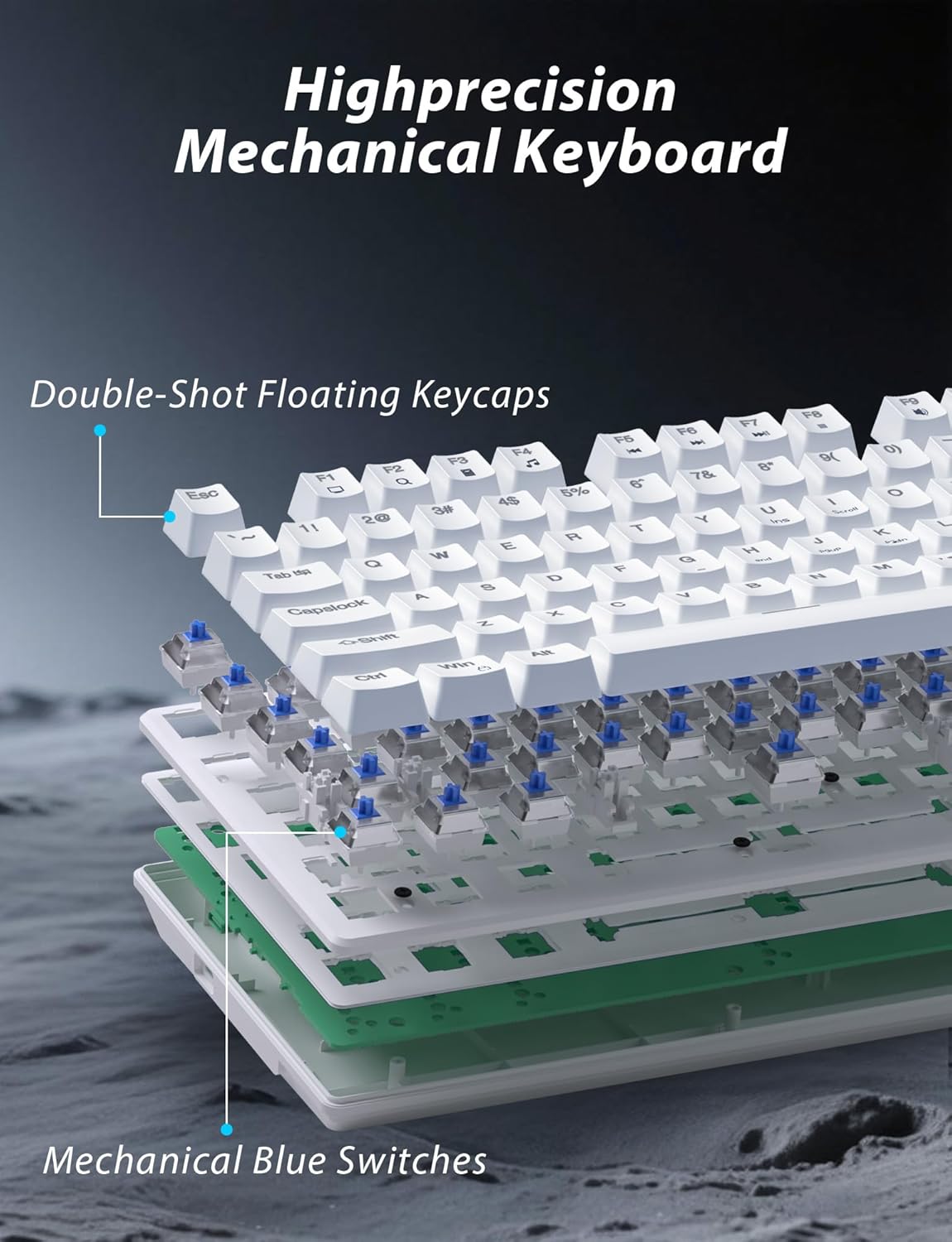
Изображение 3.1: В разобранном виде view illustrating the internal structure of the mechanical keyboard, highlighting the double-shot floating keycaps and mechanical blue switches.

Изображение 3.2: вид сбоку view of the keyboard demonstrating its ergonomic design and adjustable stand for comfortable use.
3.2 Функции мыши
- Эргономичный дизайн: Shaped for comfortable grip.
- Регулируемый DPI: Four levels (800/1600/2400/3200) for precision control.
- Кнопки «Вперед»/«Назад»: Convenient side buttons for navigation.
- Двухрежимное подключение: Supports 2.4G wireless and Bluetooth.
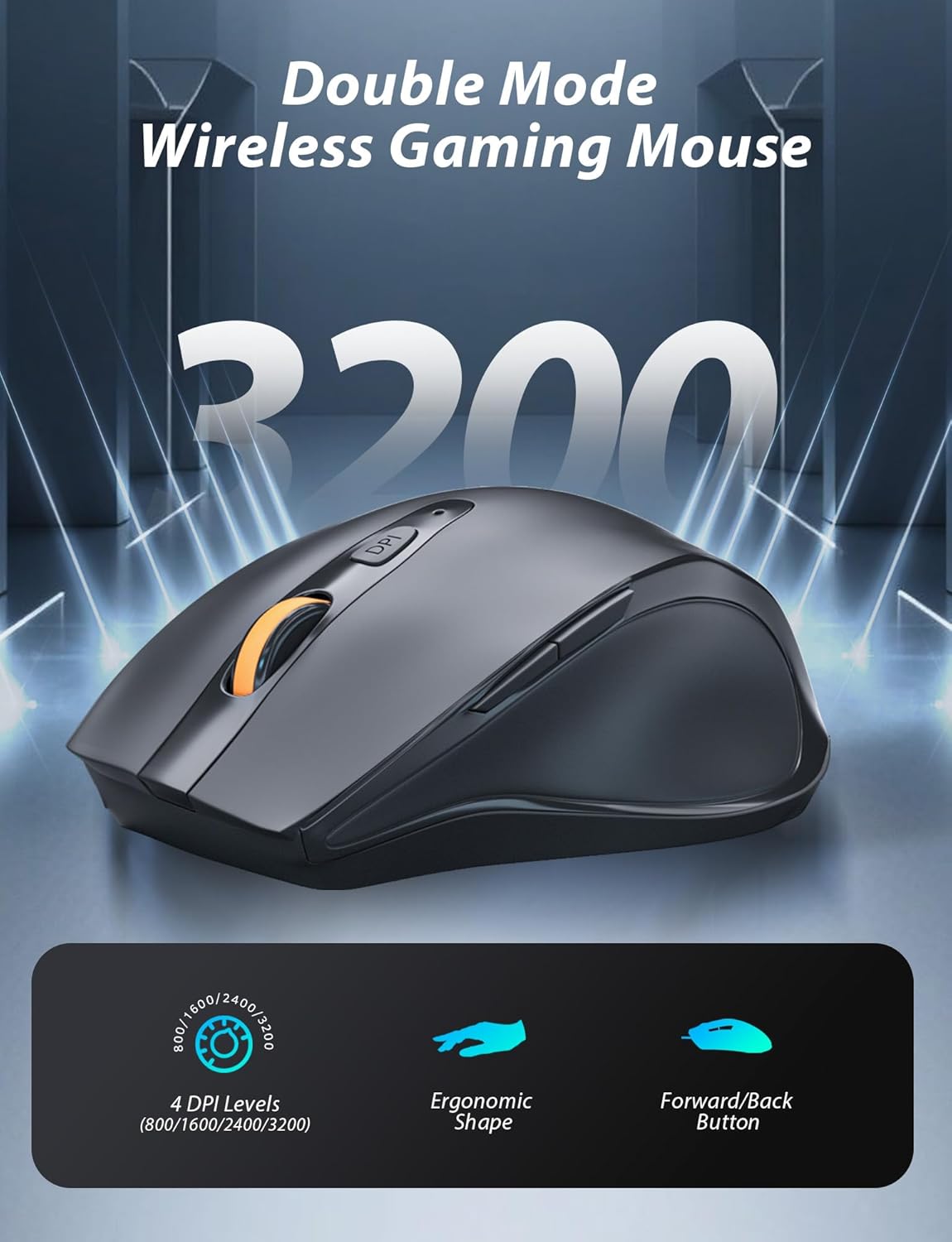
Image 3.3: The wireless gaming mouse, highlighting its ergonomic shape and four adjustable DPI levels.
4. Инструкции по настройке
4.1 Подключение клавиатуры
The keyboard supports three connection modes: 2.4G wireless, Bluetooth, and wired USB-C.

Image 4.1: The keyboard displaying its three connectivity options: Bluetooth, 2.4GHz wireless, and USB-C wired connection.
Беспроводной режим 2.4G:
- Locate the USB 2.4G receiver, typically stored in the mouse's battery compartment.
- Вставьте USB-приемник в свободный USB-порт вашего компьютера.
- On the keyboard, slide the mode switch (usually located on the top edge or bottom) to the '2.4G' position.
- Клавиатура должна автоматически подключиться.
Режим Bluetooth:
- Slide the mode switch on the keyboard to the 'BT' (Bluetooth) position.
- Индикатор на клавиатуре будет мигать, указывая на то, что она находится в режиме сопряжения.
- On your device (computer, laptop, smartphone), open Bluetooth settings and search for new devices.
- Select "Taiahiro Bk6301" or a similar name from the list of available devices to pair.
- После сопряжения индикатор загорится постоянным светом.
Проводной режим USB-C:
- Подключите прилагаемый кабель USB-C к порту USB-C клавиатуры.
- Подключите другой конец (USB-A) к свободному USB-порту на вашем компьютере.
- The keyboard will function as a wired device and will charge simultaneously.
4.2 Подключение мыши
The mouse supports 2.4G wireless and Bluetooth connectivity.

Image 4.2: The underside of the mouse, illustrating the battery compartment for one AA battery and the storage slot for the tiny USB receiver.
Установка аккумулятора:
- Откройте батарейный отсек на нижней стороне мыши.
- Вставьте одну батарейку типа АА, соблюдая правильную полярность.
- Закройте батарейный отсек.
Беспроводной режим 2.4G:
- Ensure the USB 2.4G receiver is plugged into your computer.
- Переведите переключатель режимов на нижней стороне мыши в положение «2.4G».
- Мышь должна автоматически подключиться.
Режим Bluetooth:
- Slide the mode switch on the underside of the mouse to the 'BT' (Bluetooth) position.
- The mouse will enter pairing mode.
- Откройте настройки Bluetooth на вашем устройстве и выполните поиск новых устройств.
- Select "Taiahiro Mouse" or a similar name from the list to pair.
5. Инструкция по эксплуатации
5.1 Функции клавиатуры
Управление подсветкой:
Клавиатура оснащена настраиваемой RGB-подсветкой.
- Изменить режим подсветки: Нажимать Fn + Дом для переключения между 18 различными световыми эффектами.
- Отрегулируйте яркость: Нажимать Fn + ↑ (стрелка вверх) or Fn + ↓ (стрелка вниз) to adjust between 5 brightness levels.
- Отрегулируйте скорость: Нажимать Fn + ← (стрелка влево) or Fn + → (стрелка вправо) to adjust between 5 lighting speed levels.

Image 5.1: Keyboard layout highlighting the function key combinations for controlling backlight modes, brightness, and speed.
Мультимедийные функции:
Доступ к элементам управления мультимедиа осуществляется нажатием кнопки Fn key in combination with the designated F-keys (F1-F12).
- Fn+F1: Медиаплеер
- Fn+F2: Уменьшить громкость
- Fn+F3: Увеличить громкость
- Fn+F4: Немой
- Fn+F5: Останавливаться
- Fn+F6: Предыдущий трек
- Fn+F7: Воспроизведение/Пауза
- Fn+F8: Следующий трек
- Fn+F9: Электронная почта
- Fn+F10: Web Браузер
- Fn+F11: Мой компьютер
- Fn+F12: Калькулятор
5.2 Функции мыши
Настройка DPI:
Нажмите Кнопка DPI (located behind the scroll wheel) to cycle through the four DPI settings: 800, 1600, 2400, and 3200. Each press changes the sensitivity, allowing you to adjust cursor speed to your preference.
6. Техническое обслуживание
6.1 Очистка
- Клавиатура: Use a soft, dry cloth to wipe the surface. For deeper cleaning, use compressed air to remove debris from between keys. Avoid using harsh chemicals or abrasive materials.
- Мышь: Протрите поверхность мыши мягкой, слегка шершавой тканью.amp ткань. Следите за тем, чтобы жидкость не попала во внутренние компоненты.
6.2 Управление аккумулятором
- Клавиатура: The keyboard has a built-in rechargeable battery. Connect the USB-C cable to a power source (e.g., computer USB port, USB wall adapter) to charge. The indicator light will show charging status.
- Мышь: The mouse uses one AA battery. Replace the battery when the mouse performance degrades or it stops responding. Ensure proper polarity when inserting a new battery.
7. Поиск Неисправностей
If you encounter issues with your Taiahiro keyboard and mouse combo, please refer to the following solutions:
| Проблема | Возможное решение |
|---|---|
| Keyboard/Mouse not responding (2.4G) |
|
| Keyboard/Mouse not connecting (Bluetooth) |
|
| Keyboard backlight not working or stuck |
|
| Клавиши не реагируют или нажимаются дважды |
|
8. Технические характеристики
| Особенность | Деталь |
|---|---|
| Номер модели | Бк6301 |
| Связность | Bluetooth 5.0, беспроводная связь 2.4 ГГц, проводное подключение USB-C. |
| Тип клавиатуры | Механическая игровая клавиатура |
| Раскладка клавиш | 98 Keys (with Numeric Keypad) |
| Тип переключателя | Механические синие переключатели |
| Подсветка клавиатуры | RGB (18 modes, 5 brightness, 5 speed levels) |
| Аккумулятор для клавиатуры | 2000 мАч перезаряжаемый |
| Уровни DPI мыши | 800/1600/2400/3200 |
| Аккумулятор для мыши | 1 батарейки типа АА |
| Совместимые устройства | Personal Computer, Laptop, Smartphone |
| Вес товара | 2.72 фунта (комбо) |
| Размеры упаковки | 15 x 5.59 x 3.11 дюйма |
9. Гарантия и поддержка
9.1 Информация о гарантии
Taiahiro products are covered by a limited warranty from the date of purchase. Please refer to the warranty card included in your package or visit the official Taiahiro website for detailed warranty terms and conditions. This warranty typically covers manufacturing defects and material faults under normal use.
9.2 Поддержка клиентов
For technical assistance, troubleshooting, or any questions regarding your Taiahiro Bk6301 combo, please contact our customer support team. You can find contact information on the Taiahiro official website or through your purchase platform. When contacting support, please have your product model number (Bk6301) and purchase details ready.