
1. Введение
This manual provides detailed instructions for the setup, operation, and maintenance of your GIEC G5300 4K Ultra HD Blu Ray Player. Designed for an enhanced home entertainment experience, this player supports true 4K ultra-high-definition picture quality, HDR10, Dolby Vision, BT.2020 color spaces, and Dolby audio decoding for immersive visuals and sound.
2. Информация по технике безопасности
- Обеспечьте надлежащую вентиляцию вокруг игрока, чтобы предотвратить перегрев.
- Не подвергайте устройство воздействию дождя или влаги, чтобы снизить риск возгорания или поражения электрическим током.
- Avoid placing heavy objects on top of the player.
- Не открывайте сasinг; поручайте все работы по обслуживанию квалифицированному персоналу.
- Keep the player away from direct sunlight, heat sources, and strong magnetic fields.
- Используйте только адаптер питания, поставляемый в комплекте с устройством.
3. Содержимое упаковки
Пожалуйста, проверьте, что все перечисленные ниже предметы включены в ваш пакет:
- GIEC G5300 Blu-ray Player (x1)
- HDMI-кабель (x1)
- Пульт дистанционного управления (x1)
- Руководство пользователя (x1)
4. Продукт закончилсяview
4.1 Передняя панель

Рисунок 4.1: Передняя часть view of the GIEC G5300 Blu Ray Player, showing the disc tray, display, USB port, and control buttons (power, play/pause, eject).
- Лоток для дисков: Insert Blu-ray or DVD discs here.
- Панель дисплея: Shows playback status and time.
- Порт USB 3.0: Подключите USB-накопители для воспроизведения мультимедиа.
- Кнопки управления: Power On/Off, Play/Pause, Eject.
4.2 Задняя панель и соединения

Рисунок 4.2: Сзади view of the GIEC G5300 Blu Ray Player, highlighting various input/output ports including LAN, HDMI 2.0, HDMI 1.4, USB 3.0, Coaxial, and Optical outputs.
- Порт локальной сети: For network connection (e.g., firmware updates).
- HDMI 2.0 Output (Video/Audio): Primary HDMI output for 4K video and audio.
- HDMI 1.4 Output (Audio Only): Dedicated HDMI output for audio to an AV receiver.
- USB 3.0 Input: Подключите USB-накопители для воспроизведения мультимедиа.
- Коаксиальный выход: Цифровой аудиовыход.
- Оптический выход: Цифровой аудиовыход.
5. Настройка
5.1 Установка батареи пульта дистанционного управления
Вставьте две батарейки типа ААА (не входят в комплект) в пульт дистанционного управления, соблюдая полярность.
Video 5.1: This video demonstrates how to install batteries into the remote control and connect the Blu-ray player to a TV using an HDMI cable.
5.2 Connecting to a Display Device (TV/Projector)
- Connect one end of the supplied HDMI cable to the HDMI 2.0 Output (Video/Audio) port on the rear of the Blu-ray player.
- Connect the other end of the HDMI cable to an available HDMI input port on your TV or projector.
- For separate audio output, connect another HDMI cable from the HDMI 1.4 Output (Audio Only) port to your AV receiver, or use the Coaxial/Optical outputs.
5.3 Подключение питания
- Connect the power cable to the power input on the rear of the Blu-ray player.
- Другой конец кабеля питания подключите к розетке.
- Turn on your TV/projector and select the correct HDMI input source corresponding to the port you connected the Blu-ray player to.
- Press the Power button on the Blu-ray player or remote control to turn on the unit.
6. Инструкция по эксплуатации
6.1 Воспроизведение диска
- Ensure the player is powered on and connected to your display device.
- Нажмите ИЗВЛЕЧЬ кнопку на передней панели или пульте дистанционного управления, чтобы открыть лоток для дисков.
- Carefully place a Blu-ray or DVD disc onto the tray with the label side facing up.
- Нажмите ИЗВЛЕЧЬ button again to close the tray. The player will automatically begin loading and playing the disc.
- Use the remote control for playback functions such as Play, Pause, Stop, Fast Forward, and Rewind.
6.2 Воспроизведение USB-носителей
The GIEC G5300 supports playback of various media files с USB-накопителя.
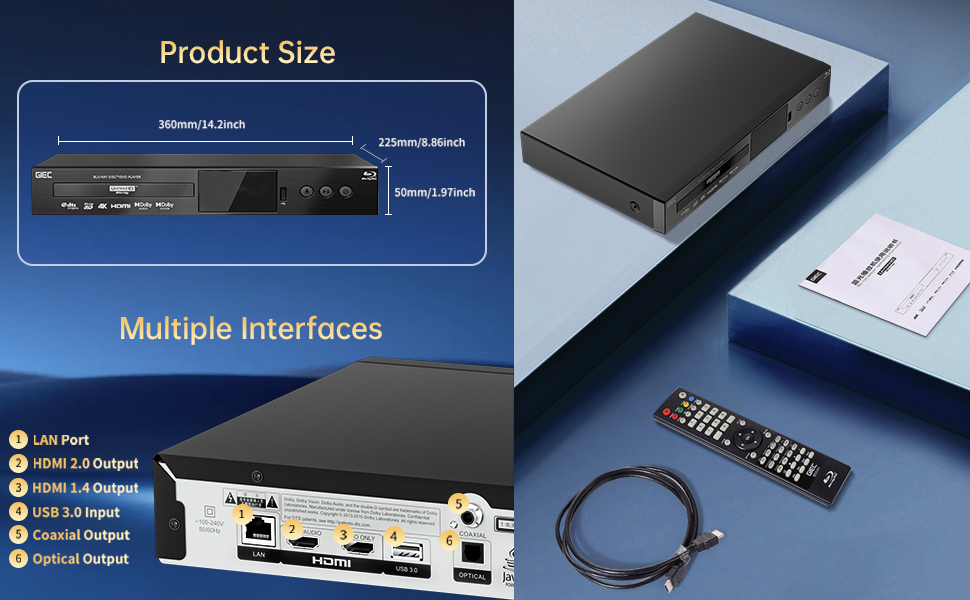
Figure 6.1: Illustration of the multiple disc, video, and audio formats supported by the player.
- Insert your USB storage device into the USB-порт 3.0 on the front or rear panel.
- Navigate to the "Video," "Music," or "Photo" section on the player's main menu using the remote control.
- Выберите желаемый file from the USB device to begin playback.
Поддерживаемые форматы:
- Типы дисков: BD, BD-R, BD-RE, DVD-R/RW, DVD+R/RW, DVD-Video, VCD, CD, CD-R/RW.
- Форматы видео: MPEG-1, MPEG-2, MPEG-4, VC1, H.264, MOV, MKV, AVI, TS.
- Аудио форматы: AAC, APE, CUE, FLAC, OGG, MP3, WAV.
7. Особенности
- 4K Ultra HD Playback: Experience movies and shows in stunning 4K resolution with clearer images and richer colors.
- Поддержка HDR10: Enjoy a wider range of brightness and contrast, revealing more detail in both dark and bright scenes.
- Долби Вижн: Enhances image quality by dynamically adjusting brightness and expanding dynamic range for more detailed and vivid pictures.
- BT.2020 Color Spaces: Provides a broader color gamut than standard 1080p Blu-ray, resulting in purer, more natural, and realistic colors.
- Dolby Sound & DTS Decoding: Supports Dolby audio decoding and DTS effects for an immersive 5.1 stereo surround sound experience.
- 3D Blu-ray Playback: Compatible with 3D Blu-ray discs for an immersive three-dimensional viewing experience (requires a 3D-compatible TV and glasses).
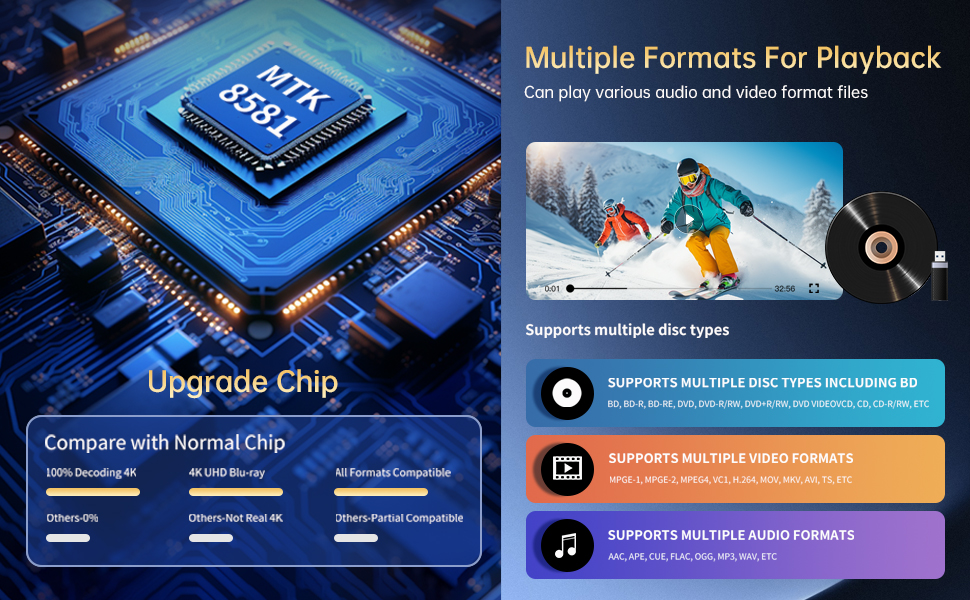
Figure 7.1: Visual comparison illustrating the difference between 8-bit (16.67 million colors) and 10-bit (1.07 billion colors) color depth, highlighting the enhanced detail and delicacy of 10-bit color.

Figure 7.2: The GIEC G5300 Blu Ray Player connected to a TV, showcasing its support for 4K UHD, 3D, HDR, HDR10+, Dolby, and Dolby Vision technologies.
8. Техническое обслуживание
- Уборка: Для чистки корпуса плеера используйте мягкую сухую ткань. Не используйте жидкие или аэрозольные чистящие средства.
- Уход за дисками: Берите диски за края. Протирайте диски мягкой безворсовой тканью, двигаясь от центра к краям.
- Вентиляция: Убедитесь, что вентиляционные отверстия игрока не заблокированы, чтобы предотвратить перегрев.
9. Поиск Неисправностей
If you encounter issues with your Blu-ray player, please refer to the following common solutions:
- Нет питания: Check if the power cable is securely connected to both the player and the power outlet. Ensure the outlet is functional.
- Нет изображения/звука: Verify that the HDMI cable is correctly connected to both the player and the TV/receiver. Ensure the correct HDMI input is selected on your TV/receiver.
- Диск не воспроизводится: Check if the disc is clean and free of scratches. Ensure the disc is inserted correctly with the label side up. The player supports Region A Blu-ray discs and all region DVD discs.
- Пульт дистанционного управления не работает: Check the batteries in the remote control and replace them if necessary. Ensure there are no obstructions between the remote and the player.
10. Технические характеристики
| Особенность | Деталь |
|---|---|
| Название бренда | ГИЭК |
| Название модели | Г5300 |
| Вес товара | 4.18 фунта (1.9 килограмма) |
| Размеры продукта | 14.2 x 8.9 x 2 дюйма |
| Цвет | Черный |
| Тип носителя | Blu-Ray диск, DVD |
| Разрешение | 3840x2160 (4K Ultra HD) |
| Особые возможности | Anti-Shock, Compact, Dust Proof, Multi-Format Playback, Surround Sound, HDR10, Dolby Vision, BT.2020 Color Spaces |
| Тип разъема | HDMI (Dual Outputs), USB 3.0, Coaxial, Optical, LAN |
| Технология связи | HDMI |
11. Гарантия и поддержка
For warranty information or technical support, please refer to the documentation included with your purchase or contact GIEC customer service. Keep your proof of purchase for warranty claims.