
Введение
This manual provides essential information for setting up, operating, maintaining, and troubleshooting your HP 14 inch Laptop. Please read this guide thoroughly to ensure proper use and to maximize the performance and longevity of your device.

Image: An HP 14 inch laptop being used by a person on a kitchen counter, demonstrating its portability and suitability for various environments.
1. Начальная настройка
1.1 Распаковка и первое включение
Carefully remove the laptop and all accessories from the packaging. Ensure all components are present:
- HP 14 inch Laptop
- Адаптер питания
- Документация
Connect the power adapter to the laptop's power port and then to a wall outlet. Press the power button to turn on the laptop. Follow the on-screen instructions to complete the initial Windows 11 setup, including language selection, network connection, and user account creation.
1.2 Подключение периферийных устройств
Ваш ноутбук оснащен различными портами для подключения внешних устройств:

Изображение: сбоку view of the HP 14 inch laptop, highlighting the various ports available for connecting peripherals such as USB devices and external displays.
- USB 3.2 Gen 1 Type-C (5Gbps): Для подключения современных устройств USB-C.
- USB 3.2 Gen 1 Type-A (2x, 5Gbps): Для стандартных USB-устройств, таких как мыши, клавиатуры и внешние накопители.
- HDMI версии 1.4: Для подключения к внешним дисплеям или проекторам.
- Комбинированный разъем для наушников/микрофона: Для устройств ввода/вывода аудиосигнала.
Simply plug the peripheral's cable into the corresponding port on the laptop. Most devices are plug-and-play and will be recognized automatically by Windows 11.
2. Операция
2.1 Основное использование
The laptop features a standard keyboard and a responsive touchpad for navigation. Familiarize yourself with the function keys (Fn) for quick access to settings like volume, brightness, and Wi-Fi.
2.2 Connecting to Networks (Wi-Fi)
Your laptop supports Wi-Fi 6 for fast wireless connectivity. To connect to a Wi-Fi network:
- Нажмите на значок Wi-Fi на панели задач (обычно в правом нижнем углу).
- Выберите нужную сеть из списка.
- При необходимости введите сетевой ключ безопасности (пароль).
- Нажмите «Подключиться».
2.3 Сопряжение устройств Bluetooth
The laptop includes Bluetooth 5.3 for connecting wireless accessories. To pair a Bluetooth device:
- Перейти к Настройки > Bluetooth и устройства.
- Убедитесь, что Bluetooth включен. On.
- Нажмите Добавить устройство и выберите Bluetooth.
- Переведите устройство Bluetooth в режим сопряжения.
- Select your device from the list and follow any on-screen prompts.
2.4 Использование Webкулачок
The integrated 720p HD camera is suitable for video calls and conferences. For privacy, your laptop features a physical privacy shutter. Slide the shutter to cover or uncover the camera lens as needed.
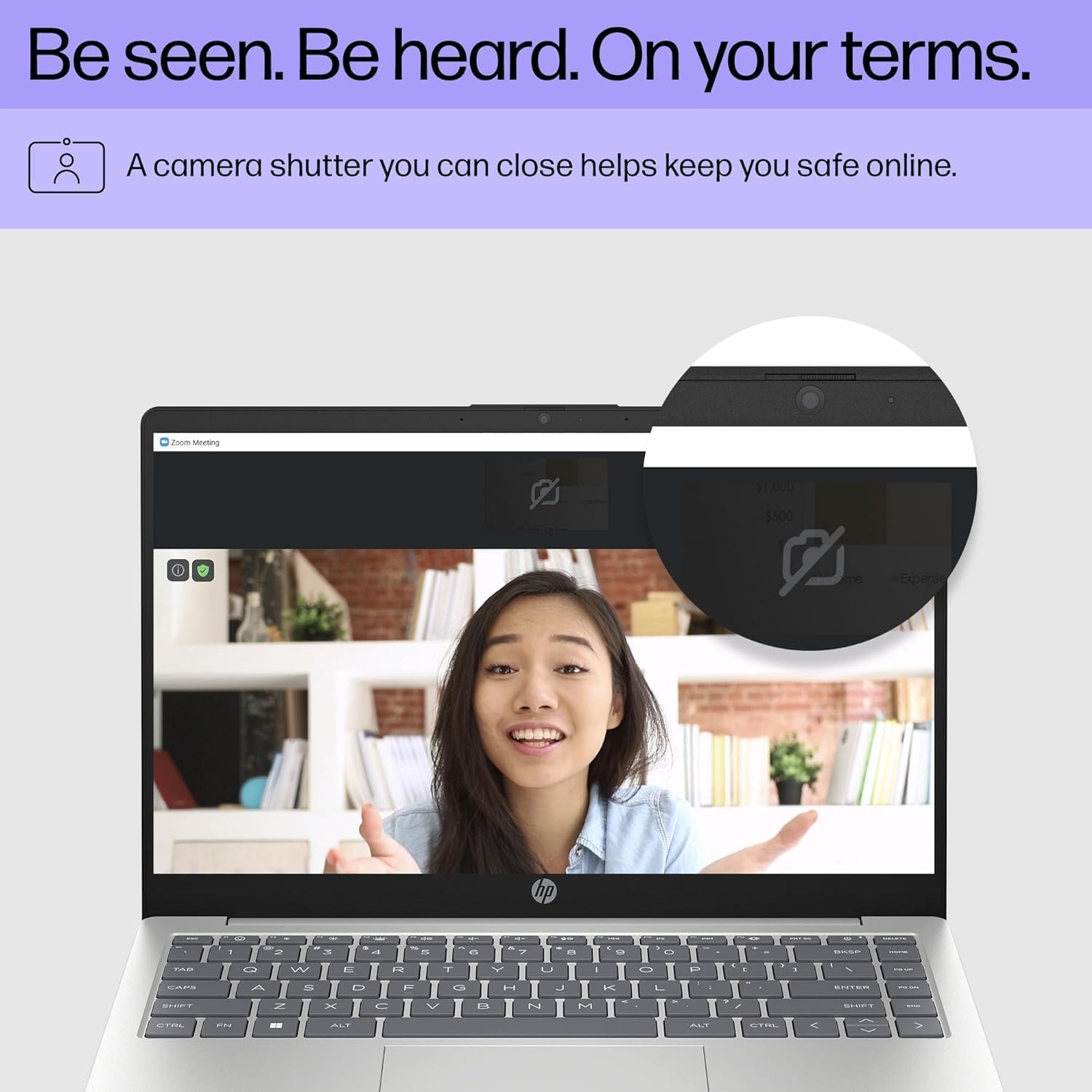
Image: Close-up of the HP laptop's integrated webcam, showing the physical privacy shutter in the open position. This feature allows users to physically block the camera lens for enhanced privacy.
2.5 Управление аккумулятором
The laptop is equipped with a 3-cell 41Wh battery, providing up to 8 hours of non-gaming battery life. To optimize battery longevity:
- Избегайте частой полной разрядки аккумулятора.
- Keep the laptop in a cool, dry environment.
- Отрегулируйте яркость экрана до комфортного уровня.
- Utilize Windows power saving modes when on battery power.

Image: Diagram illustrating the HP laptop's dimensions (14" display, 12.74" W, 8.46" D, 0.70" H) and indicating up to 8 hours of mixed usage battery life. This highlights the laptop's portability and endurance.
3. Техническое обслуживание
3.1 Чистка ноутбука
Регулярная чистка помогает сохранить внешний вид и функциональность вашего ноутбука:
- Экран: Слегка используйте мягкую безворсовую ткань.ampСмочите водой или очистителем для экранов. Избегайте использования агрессивных химикатов.
- Клавиатура и корпус: Используйте мягкую ткань. Для стойких загрязнений используйте слегка мягкую ткань.ampМожно использовать ткань, смоченную слабым мыльным раствором, следя за тем, чтобы жидкость не попала в отверстия.
- Порты: Аккуратно очистите порты от пыли с помощью сжатого воздуха.
3.2 Обновления программного обеспечения
Keep your Windows 11 operating system and drivers updated to ensure optimal performance and security. Windows Update typically handles this automatically, but you can manually check by going to Настройки > Центр обновления Windows.
3.3 Управление хранением и памятью
Your laptop is equipped with a 4TB NVMe M.2 SSD and 64GB DDR4 RAM. While these provide ample capacity, regular management is recommended:
- Периодически удаляйте ненужное. fileи приложения для освобождения места для хранения данных.
- Используйте облачное хранилище для больших объемов данных. files to reduce local drive usage.
- Windows 11 includes tools like Storage Sense (in Settings > System > Storage) to automate cleanup.
4. Устранение распространенных неполадок
4.1 Проблемы с питанием
- Ноутбук не включается: Убедитесь, что адаптер питания надёжно подключён к ноутбуку и к исправной розетке. Попробуйте использовать другую розетку.
- Аккумулятор не заряжается: Verify the power adapter connection. Check for any damage to the adapter or cable.
4.2 Проблемы с отображением
- Нет изображения на экране: If connected to an external monitor, ensure the correct input source is selected on the monitor. Try pressing Фн + Ф4 (or the equivalent display toggle key) to switch display outputs.
- Затемнить экран: Adjust brightness using the function keys (e.g., Fn + F2 / F3) or through Windows display settings.
4.3 Проблемы с подключением (Wi-Fi/Bluetooth)
- Не могу подключиться к Wi-Fi: Ensure Wi-Fi is enabled in Windows settings. Restart your router and the laptop. Check if other devices can connect to the network.
- Устройство Bluetooth не подключается: Ensure the Bluetooth device is in pairing mode and within range. Restart Bluetooth on the laptop and the device.
For more detailed troubleshooting or persistent issues, refer to the HP support webсайт или свяжитесь со службой поддержки клиентов.
5. Технические характеристики
Detailed technical specifications for your HP 14 inch Laptop (Model EP01):

Image: Infographic detailing key specifications of the HP 14 inch laptop, including 13th Gen Intel Core i7-1355U processor, 16GB DDR4-3200 MHz RAM, 1TB PCIe NVMe M.2 SSD, Intel Iris Xe Graphics, Windows 11 Home, and a Full HD IPS anti-glare display.
| Особенность | Спецификация |
|---|---|
| Бренд | HP |
| Название модели | 14 inch Laptop (EP01) |
| Процессор | 13th Generation Intel Core i7-1355U (10 Cores, up to 5.0GHz) |
| Графика | Intel Iris Xe Graphics (интегрированная) |
| Память (ОЗУ) | 64GB DDR4 3200 MHz SDRAM (Upgraded from 16GB) |
| Хранилище | 4TB NVMe M.2 SSD (Upgraded from 1TB) |
| Отображать | 14" FHD (1920 x 1080) IPS Anti-Glare, 300 nits, 45% NTSC, 60Hz |
| Операционная система | Windows 11 Домашняя |
| Связность | Wi-Fi 6 (2x2), Bluetooth 5.3 |
| Порты | 1x USB 3.2 Gen 1 Type-C, 2x USB 3.2 Gen 1 Type-A, 1x HDMI v1.4, 1x Headphone/Microphone Combo Jack |
| Камера | Камера HD 720p с защитной шторкой |
| Аудио | Двойные динамики |
| Аккумулятор | 3 элемента, 41 Вт·ч (до 8 часов работы без игр) |
| Размеры (Д x Ш x В) | 12.74 x 8.46 x 0.70 дюйма |
| Масса | 5.13 фунта |
| Цвет | Натуральное серебро |
| СКП | 194850841057 |
6. Гарантия и поддержка
6.1 Гарантия на продукт
Your HP laptop comes with a standard manufacturer's warranty. For specific details regarding coverage, duration, and terms, please refer to the warranty documentation included with your product or visit the official HP support webГарантия, как правило, распространяется на дефекты материалов и изготовления при нормальной эксплуатации.
6.2 Поддержка клиентов
For technical assistance, service, or further inquiries, please contact HP Customer Support:
- Онлайн поддержка: Посещать support.hp.com для драйверов, руководств и руководств по устранению неисправностей.
- Поддержка по телефону: Refer to the contact information provided in your product's documentation for regional phone numbers.
When contacting support, please have your laptop's serial number and model number (EP01) ready.