
1. Введение
The Canon PIXMA TS3750i is a compact, affordable, and user-friendly multifunction inkjet printer designed for home and small office use. It offers versatile functionalities including printing, copying, and scanning. This printer supports wireless connectivity, enabling convenient operation from various devices, and features borderless photo printing. It is also compatible with the PIXMA Print Plan for automated ink delivery.
2. Информация по технике безопасности
Please read all safety instructions before using the printer to ensure safe and proper operation. Keep this manual for future reference.
- Do not place the printer in unstable locations.
- Берегите принтер от воды и влаги.
- Используйте только шнур питания, входящий в комплект поставки принтера.
- Do not attempt to disassemble or modify the printer.
- Перед чисткой или если принтер не будет использоваться в течение длительного времени, отключите его от розетки.
3. Содержимое упаковки
Убедитесь, что в комплект поставки входят все следующие предметы:
- Принтер Canon PIXMA TS3750i
- Inkjet Cartridges (initial set)
- Силовой кабель
- Setup CD-ROM (for Windows only)
- Инструкции и другие документы
4. Настройка
4.1 Распаковка и размещение
- Извлеките принтер из упаковки и удалите все защитные ленты и упаковочные материалы.
- Установите принтер на устойчивую, ровную поверхность, обеспечив достаточное пространство вокруг него для вентиляции и работы.
4.2 Подключение питания
- Connect the supplied power cable to the printer's power input.
- Другой конец кабеля питания подключите к розетке.
- Нажмите кнопку питания, чтобы включить принтер.
4.3 Установка чернильного картриджа
- Open the printer's top cover to access the cartridge holder.
- Remove the protective tape from the ink cartridges.
- Insert the color and black ink cartridges into their respective slots until they click into place.
- Закройте верхнюю крышку.
4.4 Загрузка бумаги
- Open the paper support and pull out the paper output tray.
- Load paper (e.g., A4, photo paper) into the rear paper tray, ensuring it is aligned with the paper guides.
- Отрегулируйте направляющие для бумаги по ширине листа.
4.5 Программное обеспечение и настройка беспроводной сети
For initial setup and to enable wireless printing, follow these steps:
- Для ПК: Insert the Setup CD-ROM (Windows only) and follow the on-screen instructions to install drivers and software.
- For PC/Mac/Mobile: Посетите Canon website for your region and download the latest drivers and the Canon PRINT Inkjet/SELPHY app.
- Follow the instructions within the software or app to connect the printer to your Wi-Fi network. The printer supports one-touch wireless connectivity for easier setup.
- For mobile devices, ensure your device is connected to the same Wi-Fi network as the printer.
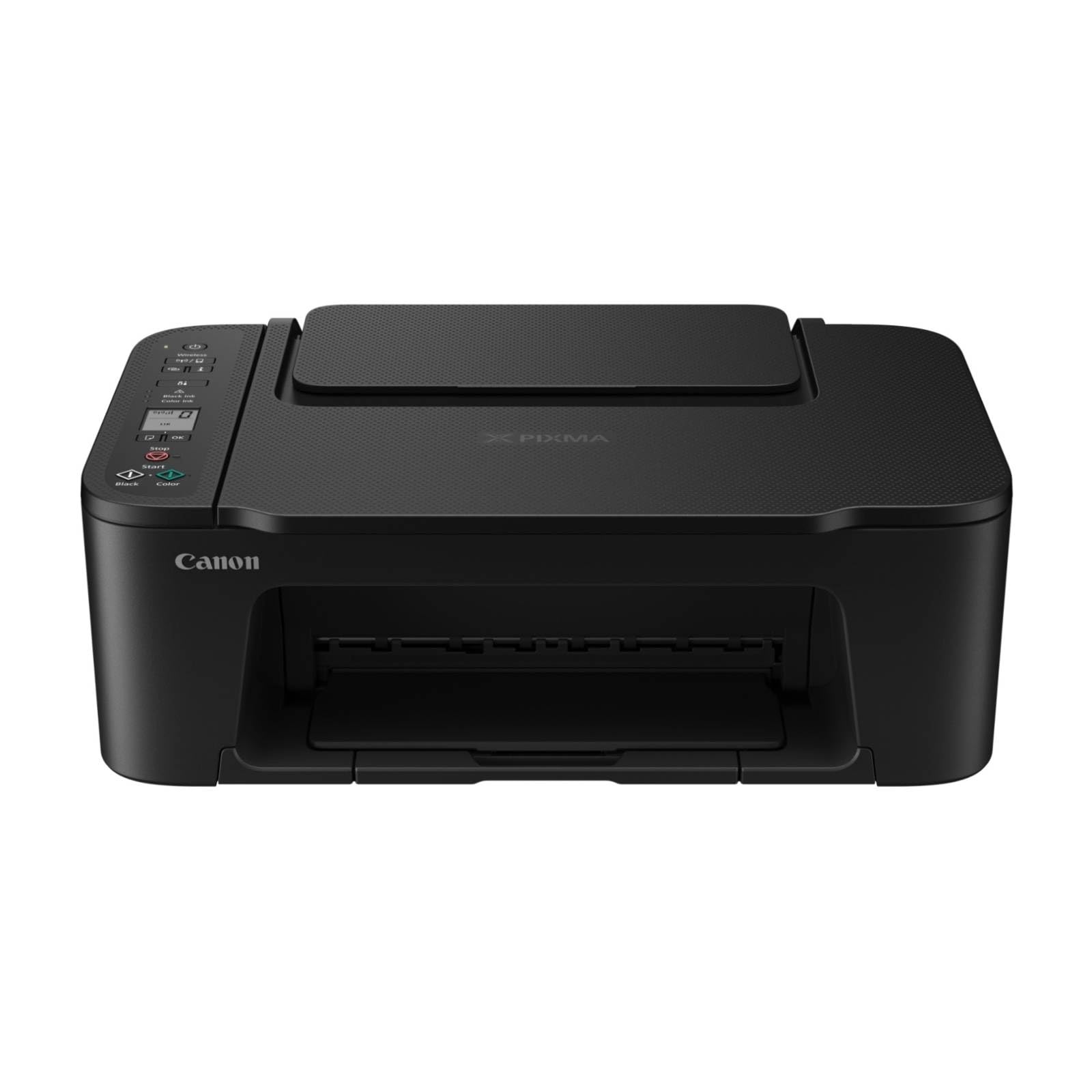
Рисунок 1: Передняя часть view of the Canon PIXMA TS3750i printer, showing its compact design and control panel.
5. Инструкция по эксплуатации
5.1 Печать документов и фотографий
- Убедитесь, что принтер включен и подключен к вашему устройству (через Wi-Fi или USB).
- Load the appropriate paper type and size into the rear paper tray.
- Откройте документ или фотографию, которую хотите распечатать, на своем компьютере или мобильном устройстве.
- Выберите вариант печати из вашего приложения.
- In the print dialog, select the Canon PIXMA TS3750i as your printer. Adjust settings such as paper size, media type, print quality, and borderless printing (for photos up to 12.7 x 18 cm).
- Нажмите «Печать».
5.2 Копирование документов
- Поднимите крышку сканера.
- Place the document face-down on the scanner glass, aligning it with the alignment mark.
- Осторожно закройте крышку сканера.
- On the printer's control panel, press the Black button for a monochrome copy or the Color button for a color copy.
- To make multiple copies (up to 20), press the desired copy button repeatedly for the number of copies needed.
5.3 Сканирование документов и фотографий
- Ensure the printer is connected to your computer or mobile device.
- Положите документ или фотографию на стекло сканера лицевой стороной вниз.
- On your computer, open the scanning software (e.g., Canon IJ Scan Utility) or on your mobile device, open the Canon PRINT Inkjet/SELPHY app.
- Select the scan option and adjust settings such as document type, resolution, and destination folder.
- Начните сканирование. Отсканированное изображение будет сохранено в указанном вами месте.
5.4 Мобильная печать и сканирование
The Canon PIXMA TS3750i supports printing and scanning directly from smartphones and tablets using the Canon PRINT Inkjet/SELPHY app or Apple AirPrint. Ensure your mobile device and printer are connected to the same Wi-Fi network.
- Canon PRINT Inkjet/SELPHY App: Download and install the app from your device's app store. Use the app to select photos or documents for printing, or to initiate scans directly to your mobile device.
- Apple AirPrint: For iOS devices, you can print directly from AirPrint-enabled applications without installing additional drivers. Select the print option from the app and choose your PIXMA TS3750i printer.
- Wi-Fi PictBridge: Connect directly to compatible cameras for photo printing.
6. Техническое обслуживание
6.1 Чистка принтера
- Экстерьер: Протрите внешнюю поверхность принтера мягкой тряпкой.ampИспользуйте безворсовую ткань. Не используйте абразивные чистящие средства или растворители.
- Стекло сканера: Аккуратно протрите стекло сканера мягкой безворсовой тканью, смоченной небольшим количеством средства для чистки стекол. Убедитесь, что на поверхности не осталось следов.
- Печатающая головка: If print quality declines (e.g., streaks, faded colors), perform a print head cleaning from the printer's utility software on your computer or through the Canon PRINT Inkjet/SELPHY app.
6.2 Замена чернильных картриджей
- When an ink cartridge is low or empty, a message will appear on the printer's display or in the software.
- Open the printer's top cover. The cartridge holder will move to the replacement position.
- Нажмите на пустой картридж, чтобы освободить его, затем вытяните его.
- Unpack the new Canon genuine ink cartridge and remove the protective tape.
- Insert the new cartridge into the correct slot until it clicks firmly into place.
- Close the top cover. The printer will perform an initialization process.
6.3 Устранение замятий бумаги
- If a paper jam occurs, an error message will appear.
- Выключите принтер и отсоедините шнур питания.
- Carefully open the printer covers (top cover, rear cover if applicable) to locate the jammed paper.
- Gently pull the jammed paper out in the direction of the paper path. Avoid tearing the paper.
- Ensure all torn pieces of paper are removed.
- Закройте все крышки, подключите шнур питания и включите принтер.
7. Поиск Неисправностей
Refer to the following common issues and their solutions. For more detailed troubleshooting, consult the Canon support webсайт.
- Printer is not turning on: Убедитесь, что кабель питания надежно подключен к принтеру и рабочей электрической розетке.
- Cannot print:
- Check if the printer is powered on and connected to your device (Wi-Fi or USB).
- Verify that ink cartridges are installed correctly and have sufficient ink.
- Ensure paper is loaded correctly in the paper tray.
- Restart your computer/mobile device and the printer.
- Check printer drivers and software for updates.
- Плохое качество печати:
- Perform a print head cleaning and nozzle check from the printer utility.
- Ensure you are using genuine Canon ink cartridges.
- Check print settings for appropriate paper type and print quality.
- Проблемы с беспроводным подключением:
- Ensure the printer and your device are on the same Wi-Fi network.
- Restart your wireless router, printer, and device.
- Re-run the wireless setup process.
- Check for any firewall settings blocking communication.
- Замятие бумаги: Follow the instructions in Section 6.3 to clear any jammed paper.
8. Технические характеристики
| Название модели | PIXMA TS3750i |
| Технология печати | Струйный |
| Функции | Печать, копирование, сканирование |
| Технология связи | USB, Wi-Fi |
| Максимальная скорость печати (монохромная) | 7.7 частей на миллион |
| Максимальная скорость печати (цветная) | 4 частей на миллион |
| Вывод на принтер | Цвет |
| Двусторонняя печать | Да |
| Максимальный размер носителя | A4 |
| Поддержка размеров листов | A4, A5, B5, Custom (Width 89 mm - 215.9 mm, Length 127 mm - 676 mm) |
| Максимальная входная емкость | 60 листов |
| Тип сканера | Платформа |
| Max Copies per Run | 20 |
| Совместимые устройства | Ноутбуки, ПК, смартфоны, планшеты |
| Особые возможности | Borderless printing, Lightweight, Auto Power On, Display screen |
| Размеры продукта (Д x Ш x В) | 32.7 х 43.5 х 14.5 см |
| Вес продукта | 4.19 кг |
| Потребляемая мощность | 9 Вт |
9. Гарантия и поддержка
This Canon PIXMA TS3750i printer comes with a standard manufacturer's warranty. Please refer to the warranty card included in your package for specific terms and conditions, including warranty period and coverage details.
For technical support, product registration, driver downloads, and additional troubleshooting resources, please visit the official Canon support website for your region. You can also find contact information for customer service there.
- Онлайн поддержка: www.canon.com/support (Please replace with your regional Canon support link)
- Регистрация продукта: Registering your product helps Canon provide you with better service and support.


