
1. Введение
This manual provides detailed instructions for the installation, operation, and maintenance of your Hikity Android 15 Car Stereo. Please read this manual thoroughly before using the product to ensure proper function and to prevent damage.
2. Совместимость
This car stereo is designed for direct compatibility with Honda Odyssey models manufactured between 2005 and 2010 (US version, Left-Hand Drive). Ensure your vehicle's dashboard matches the compatible configuration shown below.

Image: Compatibility check for Honda Odyssey 2005-2010. The top image shows the Hikity stereo installed. The bottom left image shows a compatible original radio (green check), and the bottom right shows an incompatible original radio (red cross).
3. Содержимое упаковки
Убедитесь, что все перечисленные ниже предметы включены в ваш пакет:
- Hikity Android Stereo Unit for Honda Odyssey
- Двойной силовой кабель
- RCA кабель
- GPS-антенна
- Резервная камера AHD
- Внешний микрофон
- Входной кабель задней камеры
- Двойной USB-кабель
- Инструмент для установки

Изображение: Содержимое упаковки изделия, включая основной блок, различные кабели и аксессуары.
4. Особенности продукта
- Операционная система: Андроид 15
- Процессор: 8-ядерный
- Память: 6 ГБ ОЗУ + 128 ГБ ПЗУ
- Отображать: 10.1-inch HD IPS Touchscreen (1280x720 resolution), supports 1080P video playback
- Связь: Wireless Carplay, Android Auto, 5G WiFi, Bluetooth 5.0, Mirror Link (Android/iOS)
- Аудио: Built-in DSP (Digital Signal Processor), 32-band Equalizer (EQ), FM/RDS Radio
- Навигация: Built-in GPS with support for online and offline maps
- Контроль: Steering Wheel Control (SWC) compatibility, Voice Control
- Поддержка камеры: AHD Backup Camera input (camera included)
- Многозадачность: Three Split Screen functionality
5. Руководство по установке
Installation of the car stereo requires basic automotive knowledge. If you are unsure about any steps, it is recommended to seek professional installation.
5.1 Общие этапы установки
- Отключить аккумулятор: Перед началом работы отсоедините отрицательную клемму аккумулятора вашего автомобиля, чтобы избежать короткого замыкания.
- Удалить оригинальное радио: Carefully remove the trim panels and screws securing your factory radio. Disconnect all wiring harnesses and antenna cables from the original unit.
- Подключите жгут проводов: Подключите прилагаемый жгут проводов к штатному жгуту проводов автомобиля. Убедитесь, что все соединения надежно закреплены.
- Подключите аксессуары: Connect the GPS antenna, USB cables, external microphone, and AHD backup camera (if installing) to the corresponding ports on the new stereo unit.
- Установите новый блок: Secure the Hikity car stereo into the dashboard opening.
- Подсоедините батарею: Подсоедините обратно отрицательную клемму аккумулятора вашего автомобиля.
- Тестовая функциональность: Power on the unit and test all functions (radio, audio, touch screen, steering wheel controls, camera, etc.) before reassembling the dashboard trim.
- Соберите приборную панель: После проверки всех функций соберите обратно декоративные панели приборной панели.
5.2. Схема подключения
Refer to the diagram below for detailed port connections on the rear of the unit and the wiring harness connections.

Image: Port details and wiring connections for the Hikity car stereo. Labels indicate Power Cable, RCA Input/Output, USB Cable, Reversing Camera Input, GPS Antenna, and Radio Antenna.
6. Начальная настройка
After successful installation and powering on the unit for the first time, follow these steps:
- Выбор языка: Выберите предпочитаемый системный язык.
- Дата и время: Установите правильную дату и время или включите автоматическую синхронизацию через GPS/сеть.
- Wi-Fi-соединение: Connect to an available Wi-Fi network (e.g., your phone's hotspot) to enable online features, app downloads, and system updates.
- Калибровка GPS: Ensure the GPS antenna is properly positioned for optimal signal reception.
7. Инструкция по эксплуатации
7.1. Беспроводной CarPlay и Android Auto
Connect your smartphone via Bluetooth or USB to access Carplay (for iOS) or Android Auto (for Android). This allows for navigation, music, calls, and messaging directly from the stereo display.
- Убедитесь, что Bluetooth включен на вашем телефоне и автомобильной магнитоле.
- Pair your phone with the stereo.
- Launch the Carplay or Android Auto application on the stereo.
- Use voice commands like 'Hey Siri' or 'OK Google' for hands-free operation.

Image: Wireless Carplay and Android Auto functionality, demonstrating smartphone integration with the car stereo.
7.2. GPS-навигация
The unit features built-in GPS for navigation. You can use pre-installed offline maps or download online navigation applications via Wi-Fi.
- Доступ к навигационным приложениям осуществляется из главного меню.
- Input your destination for turn-by-turn directions.
- Online maps provide real-time traffic information (requires Wi-Fi connection).

Image: GPS Navigation in use, alongside icons representing Wi-Fi connectivity, FM/RDS radio, and Bluetooth 5.0.
7.3. Подключение к Wi-Fi
Connect the stereo to a Wi-Fi hotspot (e.g., from your smartphone) to access the internet, download apps, and stream content.
- Перейдите в Настройки > Сеть и Интернет > Wi-Fi.
- Выберите нужную сеть и введите пароль.
7.4. Bluetooth 5.0
The built-in Bluetooth 5.0 module enables hands-free calling and wireless audio streaming from your smartphone.
- Включите Bluetooth как на стереосистеме, так и на телефоне.
- Искать Включите стереосистему и выберите свой телефон.
- Подтвердите код сопряжения.
- После подключения вы сможете совершать/принимать звонки и воспроизводить музыку по беспроводной связи.
7.5. FM/RDS радио
Access local radio stations with the integrated FM/RDS tuner. RDS (Radio Data System) provides additional information like station name and song title where available.
- Откройте приложение «Радио».
- Воспользуйтесь функцией сканирования, чтобы найти доступные станции.
- Сохраните ваши любимые станции в качестве предустановок.
7.6. DSP и 32-полосный эквалайзер
The Digital Signal Processor (DSP) and 32-band Equalizer allow for precise audio customization to enhance your listening experience and reduce noise.
- Access the DSP/EQ settings from the audio menu.
- Adjust frequency bands, balance, fader, and other audio parameters.
- Select from various preset sound modes or create custom profiles.
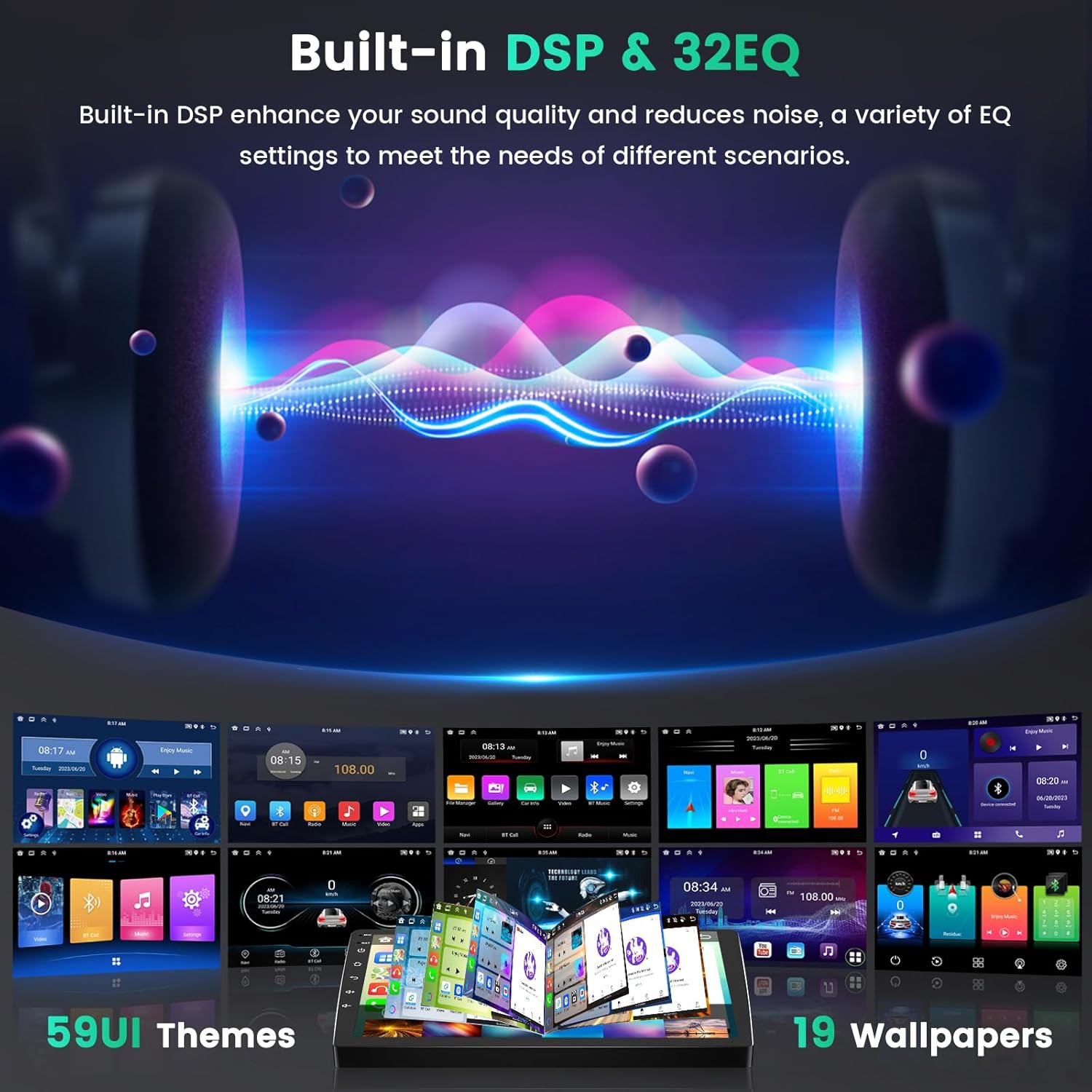
Image: Built-in DSP and 32-band EQ interface, demonstrating audio adjustment capabilities and various UI themes.
7.7. Функция зеркальной ссылки
Mirror Link allows you to display your smartphone's screen directly on the car stereo. This function supports both Android and iOS devices, though some specific phone models (e.g., Huawei, Samsung) may not be fully compatible.
- Подключите телефон через USB или Wi-Fi.
- Откройте приложение Mirror Link на магнитоле.
- Для установки соединения следуйте инструкциям на экране.
7.8. Управление рулевым колесом (SWC)
The stereo supports learning your vehicle's existing steering wheel controls, allowing you to manage audio and other functions without taking your hands off the wheel.
- Перейдите в Настройки > Управление с помощью рулевого колеса.
- Follow the on-screen instructions to program each button (e.g., press 'Volume+' on the screen, then press the Volume Up button on your steering wheel).
- Save the settings once all buttons are programmed.

Image: Steering Wheel Control (SWC) interface, illustrating how to program vehicle steering wheel buttons to control the stereo.
7.9. AHD Задний View Камера
Входящая в комплект камера заднего вида AHD обеспечивает четкое изображение. view of the area behind your vehicle when reversing, enhancing safety. The stereo automatically displays the camera feed when the vehicle is in reverse gear.
- Ensure the camera is properly installed and connected to the 'Reversing Camera Input' port on the stereo.
- Изображение с камеры автоматически появляется при переключении на передачу заднего хода.
7.10. Голосовое управление
Utilize voice commands for various functions, such as playing music, opening navigation, or making calls, by saying 'Hey Siri' or 'OK Google' (when connected to Carplay/Android Auto).
- Activate voice control through the dedicated button or by saying the wake phrase.
- Speak clearly into the external microphone.
7.11. Разделенный экран
Функция разделения экрана позволяет одновременно запускать на дисплее два приложения, например, навигацию и воспроизведение музыки.
- Long-press the recent apps button or drag an app to one side of the screen to activate split-screen mode.
- Select a second app to occupy the other half of the screen.
8. Техническое обслуживание
Для обеспечения долговечности и оптимальной работы вашей автомобильной стереосистемы следуйте этим рекомендациям по техническому обслуживанию:
- Очистка экрана: Используйте мягкую, безворсовую ткань, слегкаampСмочите экран водой или специальным средством для чистки экранов, предназначенным для электроники. Избегайте использования агрессивных химикатов и абразивных материалов.
- Обновления программного обеспечения: Periodically check for system software updates via the settings menu (requires Wi-Fi connection). Updates can improve performance and add new features.
- Избегайте экстремальных температур: Do not expose the unit to prolonged direct sunlight or extreme cold, as this can affect performance and display life.
- Кабельные соединения: Периодически проверяйте все кабельные соединения, чтобы убедиться в их надежности и отсутствии повреждений.
9. Поиск Неисправностей
Если у вас возникли проблемы с автомобильной магнитолой Hikity, воспользуйтесь следующими распространенными шагами по устранению неполадок:
| Проблема | Возможное решение |
|---|---|
| Нет питания | Check power cable connections. Ensure the vehicle's fuse for the radio is not blown. Verify battery connection. |
| Нет звука | Check speaker wire connections. Ensure volume is not muted or set to zero. Verify audio settings (balance/fader). |
| Потеря сигнала GPS | Убедитесь, что антенна GPS установлена правильно и имеет чистое покрытие. view с неба. При необходимости переместите антенну. |
| Проблемы с Bluetooth-соединением | Убедитесь, что Bluetooth включен на обоих устройствах. Удалите предыдущие сопряжения и выполните сопряжение заново. Перезагрузите оба устройства. |
| Управление на руле не работает | Re-program the SWC buttons in the settings menu. Ensure the SWC wires are correctly connected. |
| Сенсорный экран не отвечает | Перезагрузите устройство. Если проблема не исчезнет, может потребоваться сброс до заводских настроек (обратите внимание: при этом будут удалены все пользовательские данные). |
Если эти действия не помогли решить проблему, обратитесь в службу поддержки клиентов для получения дополнительной помощи.
10. Технические характеристики
| Особенность | Деталь |
|---|---|
| Вес товара | 3.67 фунта |
| Размеры продукта | 14.76 x 7.28 x 3.15 дюйма |
| Размер дисплея | 10.1 дюйма |
| Разрешение дисплея | 1280 х 720 |
| Операционная система | Андроид 15 |
| Процессор | 8-ядерный |
| БАРАН | 6 ГБ |
| ПЗУ | 128 ГБ |
| Технология связи | Bluetooth, USB, Wi-Fi |
| Версия Bluetooth | 5.0 |
| Особые возможности | Wireless Carplay, Android Auto, Mirror Link, 5G WiFi, GPS Navigation, SWC, FM/RDS, EQ/DSP, Reversing Camera, Microphone, Split Screen |
| Режим аудиовыхода | Стерео |
| Тип крепления | Крепление на приборную панель |
11. Гарантия и поддержка
Hikity provides the following support for this product:
- Гарантия возврата денег: 30-дневный
- Гарантия на замену: 2-Years
- Техническая поддержка: Life-Time
For installation or usage issues, please contact the Hikity Flagship Store via the product page on Amazon or email us at hikityoffice@163.com. Мы постараемся ответить в течение 24 часов.