
1. Введение
This manual provides detailed instructions for the MIUCDA B1053 Foldable Bluetooth Keyboard with Touchpad. Please read this manual carefully before using the product to ensure proper operation and to maximize your user experience. This portable keyboard is designed for convenience and compatibility across multiple operating systems and devices.
2. Содержимое упаковки
Проверьте комплектацию на наличие следующих предметов:
- MIUCDA B1053 Foldable Bluetooth Keyboard with Touchpad
- Зарядный кабель USB-C
- Руководство пользователя (этот документ)
3. Продукт закончилсяview
The MIUCDA B1053 is a compact, foldable Bluetooth keyboard featuring a built-in touchpad. It supports connection to up to three devices simultaneously and is compatible with Windows, Android, iOS, and Mac operating systems.

Figure 1: MIUCDA B1053 Foldable Bluetooth Keyboard (folded).
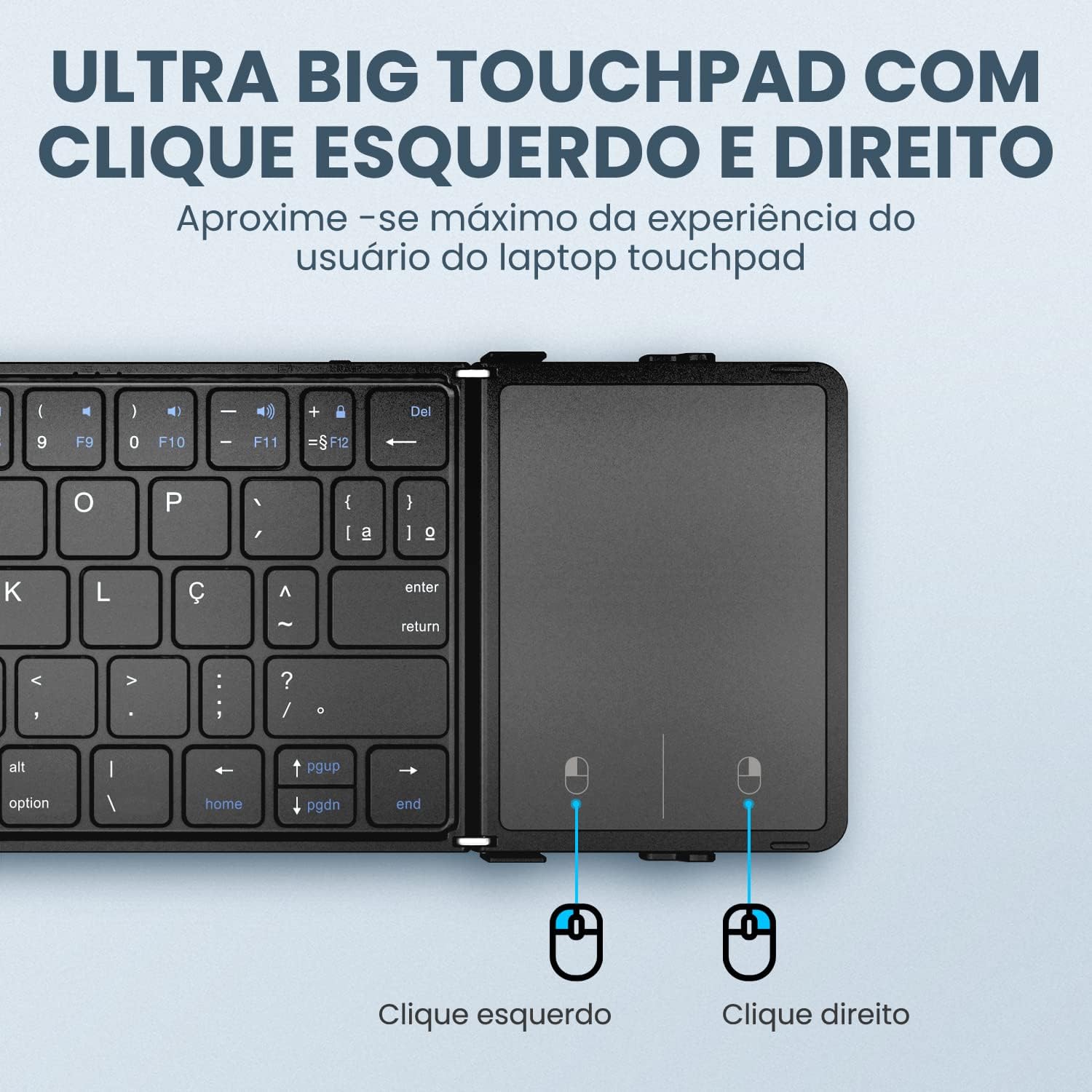
Figure 2: MIUCDA B1053 Foldable Bluetooth Keyboard (unfolded).

Figure 3: Durable and stable hinge mechanism for the foldable design.

Figure 4: Durable and Elegant Leather Cover - Fashionable and sophisticated appearance with a comfortable feel.

Figure 5: Triple Foldable Keyboard - Good input experience and mini portable size, easily stored for travel.
4. Настройка и подключение
4.1 Зарядка клавиатуры
Before initial use, fully charge the keyboard. Connect the provided USB-C charging cable to the keyboard's charging port and to a USB power source. The LED indicator will show charging status.

Figure 6: USB-C charging port and 210mAh rechargeable lithium battery. The keyboard features a 210mAh high-capacity rechargeable lithium battery, offering long standby time and environmental friendliness.
4.2 Сопряжение по Bluetooth
- Разложите клавиатуру, чтобы включить ее.
- Нажмите и удерживайте Fn + Tab keys simultaneously for 3 seconds. The Bluetooth indicator light will flash rapidly, indicating that the keyboard is in pairing mode.
- On your device (tablet, phone, laptop), go to Bluetooth settings and search for available devices.
- Select "MIUCDA B1053" (or similar name) from the list of found devices.
- Follow any on-screen prompts to complete the pairing process. The indicator light will stop flashing once successfully paired.

Figure 7: Easy Pairing - Press and hold Fn + Tab for 3 seconds until the indicator flashes rapidly to enter Bluetooth pairing status.
4.3 Подключение нескольких устройств
The keyboard can connect to up to three Bluetooth devices simultaneously. To switch between connected devices:
- Pair your first device using Fн + А.
- Pair your second device using Фн + С.
- Pair your third device using Фн + Д.
- To switch between devices, simply press Fн + А, Фн + С, или Фн + Д соответствующее требуемому устройству.
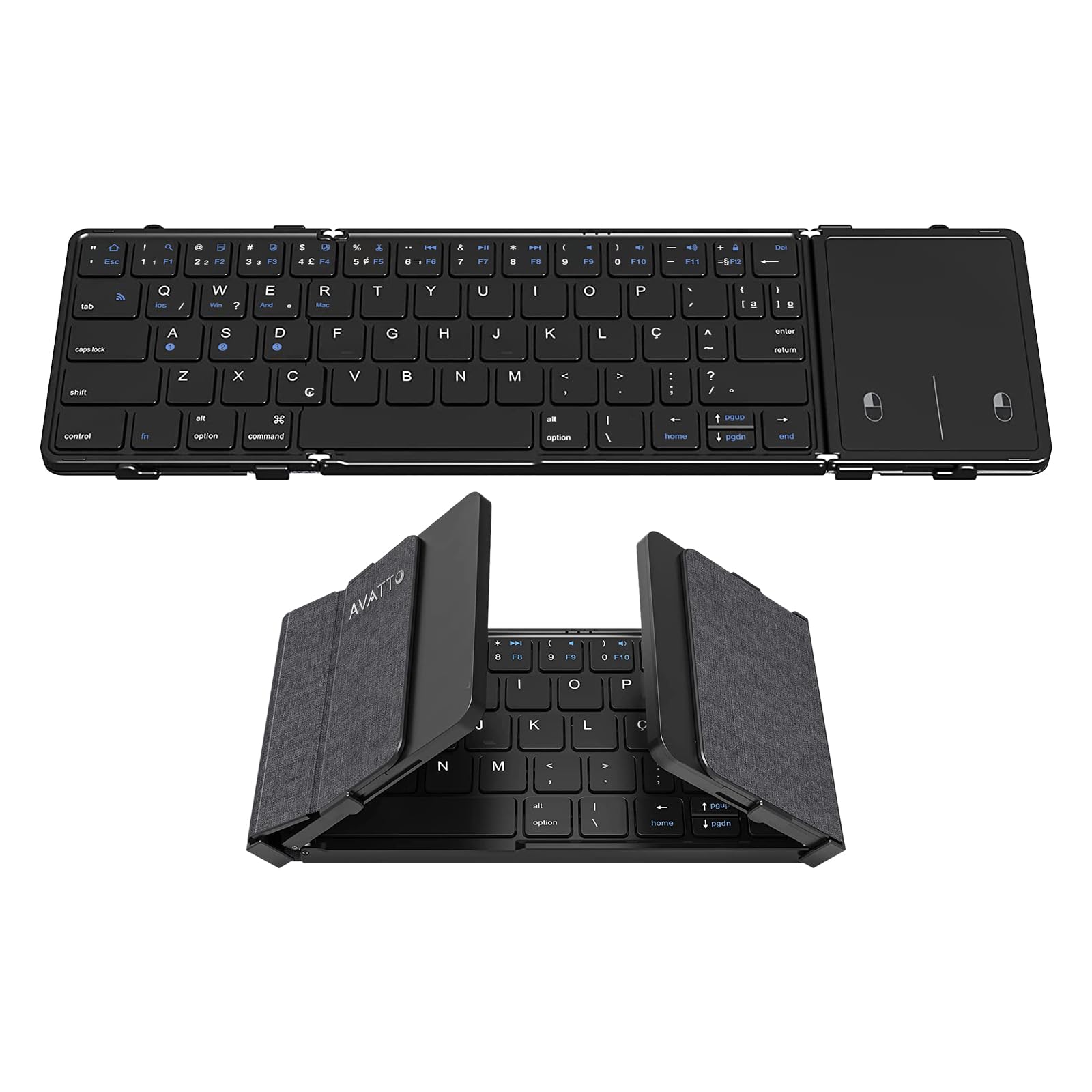
Figure 8: 3 Bluetooth Channels - Connect up to 3 Bluetooth devices simultaneously and switch between them.
5. Инструкция по эксплуатации
5.1 Использование клавиатуры
The keyboard features a standard 64-key ABNT layout with a scissor-key structure for a smooth and responsive typing experience. The keys are designed for quiet operation, allowing you to focus on your work without disturbance.

Figure 9: Comfortable and Quiet Keys - Quiet, responsive, and smooth typing experience.
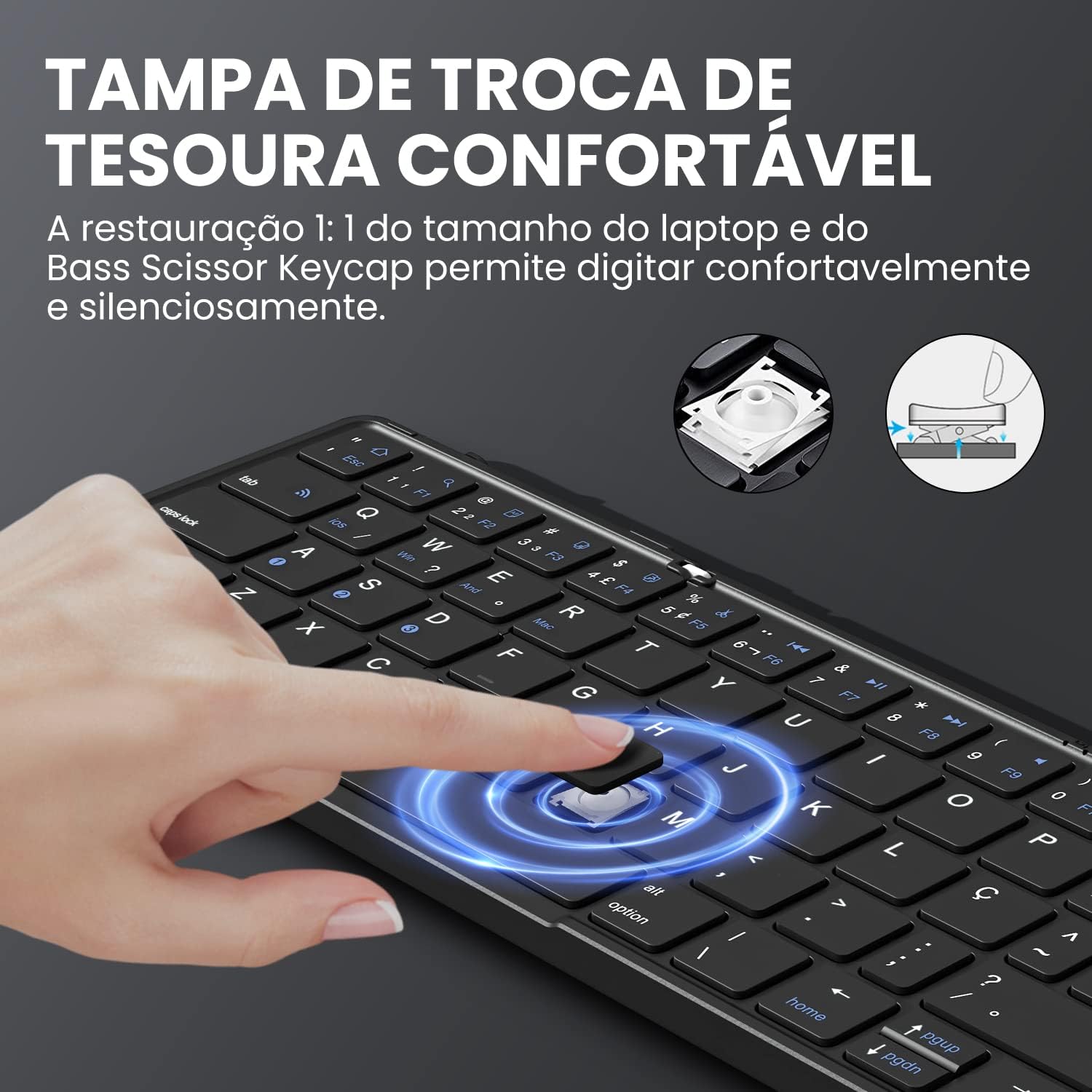
Figure 10: Comfortable Scissor-Switch Keycap - The 1:1 restoration of laptop key size and bass scissor keycap allows for comfortable and silent typing.
5.2 Использование тачпада
The integrated touchpad provides a laptop-like experience with 1:1 sizing. It supports standard left and right click functions.
- Щелчок левой кнопкой мыши: Tap with one finger or press the left button on the touchpad.
- Щелкните правой кнопкой мыши: Tap with two fingers or press the right button on the touchpad.
- Прокрутка: Для прокрутки вверх или вниз используйте два пальца.
Figure 11: Ultra Big Touchpad with Left and Right Click - Maximizes the user experience similar to a laptop touchpad.
5.3 Совместимость системы
Клавиатура совместима с широким спектром операционных систем:
- Окна
- андроид
- iOS
- Мак

Figure 12: AVATTO Full-Size Foldable Bluetooth Keyboard - Compatible with Windows, Mac/iOS, and Android.
6. Maintenance and Power Management
6.1 Срок службы аккумулятора и зарядка
The keyboard is equipped with a 210mAh rechargeable lithium battery, offering extended standby time. To ensure optimal battery life, charge the keyboard regularly using the provided USB-C cable.
6.2 Smart Power Saving
To conserve energy, the keyboard will automatically enter smart sleep mode after 10 minutes of inactivity. To wake it up, simply press any key.
7. Поиск Неисправностей
- Клавиатура не подключается:
- Убедитесь, что клавиатура заряжена.
- Убедитесь, что на вашем устройстве включен Bluetooth.
- Re-enter pairing mode by holding Fn + Tab for 3 seconds and try pairing again.
- Check if the keyboard is already connected to another device (use Fn + A/S/D to switch).
- Сенсорная панель не реагирует:
- Ensure the keyboard is powered on and connected via Bluetooth.
- Проверьте поверхность сенсорной панели на наличие каких-либо физических препятствий.
- Клавиши не отвечают:
- Ensure the keyboard is charged and connected.
- Restart the keyboard by folding and unfolding it.
If you encounter any issues not covered here, please refer to the electronic version of the manual or contact customer support for assistance. We aim to respond within 24 hours.
8. Технические характеристики
| Бренд | МИУКДА |
| Модель | Б1053 |
| Технология связи | Блютус 5.1 |
| Совместимые устройства | Notebook, Tablet, Phone (iOS, Windows, Android, Mac) |
| Описание клавиатуры | Compact, Foldable, 64-key ABNT layout |
| Особые возможности | Bluetooth, Mac Compatible, Mini, Portable, Wireless, Touchpad, Quiet Keys |
| Количество ключей | 64 |
| Источник питания | Battery Powered (210mAh rechargeable lithium battery) |
| Материал | Акрилонитрилбутадиенстирол (АБС) |
9. Гарантия и поддержка
For any questions or issues regarding your MIUCDA B1053 keyboard, please contact our customer support. We are committed to assisting you and will respond to inquiries within 24 hours. Please refer to your purchase documentation for specific warranty details.