
Rii RK900 Pro
Rii Wired Gaming Keyboard and Mouse Combo User Manual
Model: RK900 Pro
1. Продукт закончилсяview
The Rii Wired Gaming Keyboard and Mouse Combo (Model: RK900 Pro) offers a comprehensive solution for both gaming and office use. This combo features a full-size keyboard with a mechanical feel and vibrant LED rainbow backlighting, paired with an RGB gaming mouse offering adjustable DPI settings. Designed for ergonomic comfort, it provides a responsive and satisfying user experience.

Figure 1: Rii Wired Gaming Keyboard and Mouse Combo (RK900 Pro)
2. Особенности
- Wired Mechanical Feel Keyboard: Provides a satisfying tactile feedback similar to mechanical keyboards, ideal for both typing and gaming.
- LED Rainbow Backlight: Features gorgeous multi-color mixing with 3 adjustable brightness levels and 2 switching modes for enhanced visibility and aesthetics, especially in low-light conditions.
- Игровая мышь с RGB-подсветкой: Equipped with colorful backlighting that automatically cycles through 7 colors. Offers 4 adjustable DPI settings (1000-1600-2000-2400) for precise cursor control.
- Эргономичный и комфортный дизайн: Both keyboard and mouse are designed for extended use, reducing hand fatigue. The mouse features an ergonomic shape for a comfortable grip.
- Специальные мультимедийные клавиши: Convenient keys for controlling volume and music directly from the keyboard.
- Широкая совместимость: Supports Windows 8, 7, Vista, XP, Me, NT, PC, Laptop, Google Android TV Box, HTPC, IPTV, Smart TV, Mac OS, Chrome OS, and Raspberry Pi (all versions).
- Подключи и работай: No additional drivers or software installation required.
3. Содержимое упаковки
Пожалуйста, внимательно проверьте упаковку, чтобы убедиться в наличии всех предметов и их хорошем состоянии.
- Rii Gaming Keyboard
- Rii Gaming Mouse
- Руководство пользователя (этот документ)
4. Инструкции по настройке
The Rii Gaming Keyboard and Mouse Combo is designed for simple plug-and-play operation, requiring no complex driver installations.
- Подключите клавиатуру: Locate an available USB port on your computer or compatible device. Insert the USB connector of the Rii Gaming Keyboard firmly into the USB port.
- Подключите мышь: Locate another available USB port on your computer or compatible device. Insert the USB connector of the Rii Gaming Mouse firmly into the USB port.
- Распознавание системы: Your operating system (Windows, Mac OS, Chrome OS, Android TV Box, etc.) should automatically detect and install the necessary generic drivers. This process usually takes a few seconds.
- Готов к использованию: Once recognized, the keyboard and mouse are ready for immediate use.

Figure 2: Connecting the Rii Keyboard and Mouse to your system.
5. Инструкция по эксплуатации
5.1 Функции клавиатуры
- LED Rainbow Backlight Control:
- Регулировка яркости: Нажимать Fn + PgВверх для повышения яркости, и Фн + ПгДн to decrease brightness. There are 3 adjustable brightness levels.
- Режимы переключения: Нажимать Фн + * (asterisk key) to cycle through 2 different lighting modes.
- Включение / выключение света: Press the dedicated light bulb icon key (usually near the top right) to turn the backlight on or off.
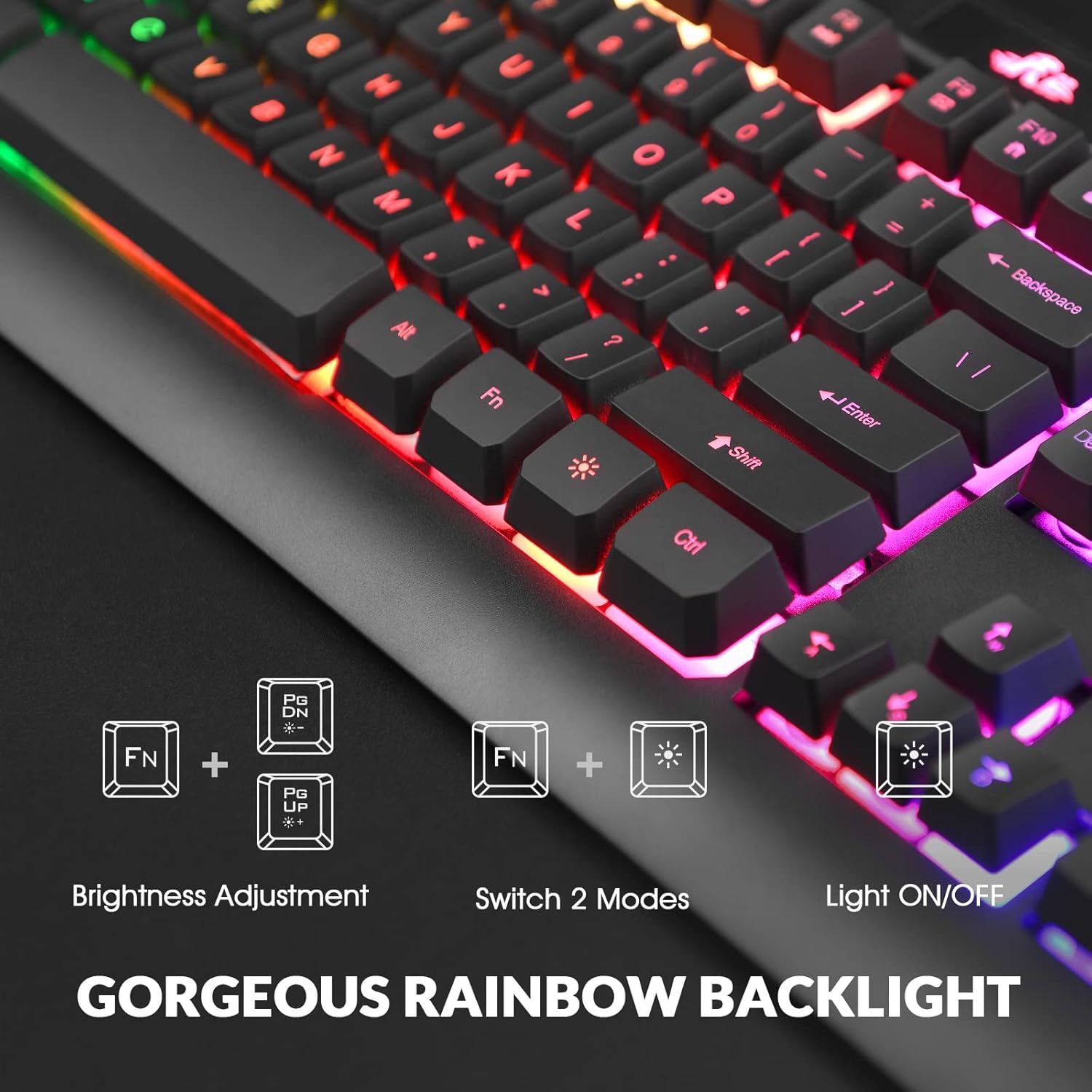
Figure 3: Keyboard backlight brightness and mode controls.
- WASD and Arrow Key Switching: For certain games or applications, you can switch the functionality of the WASD keys with the Arrow keys. Press Fn + W для переключения этой функции.

Figure 4: Switching WASD and Arrow key functions.
- Мультимедийные клавиши: Используйте Fn key in combination with the F1-F12 keys for quick access to multimedia controls:
- Fn+F1: Медиаплеер
- Fn+F2: Уменьшить громкость
- Fn+F3: Увеличить громкость
- Fn+F4: Немой
- Fn+F5: Останавливаться
- Fn+F6: Предыдущий трек
- Fn+F7: Воспроизведение/Пауза
- Fn+F8: Следующий трек
- Fn+F9: Электронная почта
- Fn+F10: Домашняя страница
- Fn+F11: Экран блокировки
- Fn+F12: Калькулятор

Figure 5: Multimedia key descriptions for the keyboard.
5.2 Функции мыши
- Настройка DPI: The mouse features a dedicated DPI button (usually located behind the scroll wheel) to cycle through 4 adjustable DPI settings: 1000, 1600, 2000, and 2400. Press the button to change sensitivity on the fly.
- RGB-подсветка: The mouse's colorful backlight automatically changes colors during operation, providing an aesthetic appeal.
- Кнопки «Вперед/Назад»: Эти кнопки, расположенные сбоку мыши, позволяют быстро перемещаться по экрану. web браузеры или другие приложения.
- Эргономичный дизайн: The mouse is shaped to fit comfortably in your hand, ensuring a long and comfortable grip during extended use.

Figure 6: Rii Gaming Mouse features, including DPI adjustment and ergonomic design.
6. Техническое обслуживание
To ensure the longevity and optimal performance of your Rii Gaming Keyboard and Mouse Combo, follow these simple maintenance guidelines:
- Уборка: Regularly wipe down the keyboard and mouse with a soft, dry, or slightly damp cloth. Avoid using harsh chemicals, abrasive cleaners, or excessive moisture, as these can damage the components.
- Удаление пыли: Используйте сжатый воздух для удаления пыли и мусора между клавишами клавиатуры и вокруг датчика мыши.
- Избегайте разливов: Keep liquids away from the devices to prevent damage from spills.
- Хранилище: При длительном неиспользовании храните устройство в прохладном, сухом месте, вдали от прямых солнечных лучей и экстремальных температур.
7. Поиск Неисправностей
If you encounter any issues with your Rii Gaming Keyboard and Mouse Combo, please refer to the following common troubleshooting steps:
| Проблема | Возможная причина | Решение |
|---|---|---|
| Клавиатура/мышь не отвечают. | Loose USB connection, incorrect USB port, system driver issue. |
|
| Keyboard backlight turns off unexpectedly. | Temporary software glitch, power saving mode. |
|
| Курсор мыши хаотичен или движется неплавно. | Загрязненный оптический датчик, неподходящая поверхность, неправильная настройка DPI. |
|
If the issue persists after trying these steps, please contact Rii customer support for further assistance.
8. Технические характеристики
| Атрибут | Деталь |
|---|---|
| Бренд | Rii |
| Модель | RK900 Pro |
| Технология связи | Проводной USB |
| Описание клавиатуры | Gaming, Mechanical Feel, Full Size, LED Backlit |
| Настройки DPI мыши | 1000-1600-2000-2400 DPI (регулируемое значение) |
| Совместимые устройства | Personal Computer (Windows 8/7/Vista/XP/Me/NT, Mac OS, Chrome OS, Raspberry Pi), Laptop, Google Android TV Box, HTPC, IPTV, Smart TV |
| Размеры упаковки | 17.56 x 10.79 x 1.97 дюйма |
| Вес товара | 2.83 фунта |
| Дата первой доступности | 3 февраля 2023 г. |

Figure 7: Approximate dimensions of the Rii Keyboard and Mouse.
9. Гарантия и поддержка
Rii is committed to providing quality service to every customer. Your Rii Gaming Keyboard and Mouse Combo comes with a friendly guarantee. For any product-related inquiries, technical support, or warranty claims, please refer to the contact information provided with your purchase or visit the official Rii webсайт.
Мы ценим ваше удовлетворение и готовы вам помочь.
Ask a question about this manual
Ask about setup, troubleshooting, compatibility, parts, safety, or missing instructions. Manuals+ will review the question and use this page’s manual context to help answer it.