Lenovo ThinkVision P24q-30 24-inch WQHD LED Monitor User Manual
Model: P24q-30
Введение
This manual provides detailed instructions for setting up, operating, maintaining, and troubleshooting your Lenovo ThinkVision P24q-30 24-inch WQHD LED Monitor. Please read this manual thoroughly before using your monitor to ensure proper and safe operation.
Что в коробке?
Проверьте наличие всех предметов в упаковке:
ThinkVision P24q-30 Widescreen LED Monitor
DP Cable (DisplayPort Cable)
Кабель USB типа A — типа B
Силовой кабель
Документация (Краткое руководство пользователя, Информация по технике безопасности)
Настраивать
1. Сборка подставки для монитора
Carefully remove the monitor and stand components from the packaging. Attach the stand base to the stand column, then attach the assembled stand to the back of the monitor. Ensure all connections are secure.
Изображение: Спереди view of the Lenovo ThinkVision P24q-30 monitor, showing the display and the attached stand.
2. Соединительные кабели
Connect the necessary cables to the monitor and your computer. The monitor supports DisplayPort and HDMI for video input, and USB for the integrated hub.
Видеокабель: Connect one end of the provided DisplayPort (DP) cable to the DP port on your computer and the other end to the DP input on the monitor. Alternatively, use an HDMI cable if your computer supports it.
USB-кабель для подключения к источнику сигнала: Connect the USB Type-A end of the provided USB cable to your computer and the USB Type-B end to the upstream USB port on the monitor. This enables the monitor's USB hub.
Силовой кабель: Подключите кабель питания к разъему питания монитора, а затем к заземленной электрической розетке.
Изображение: сзади view of the monitor, highlighting the input ports for DisplayPort, HDMI, USB, and power connection.
3. Первоначальное включение
Press the power button on the monitor to turn it on. Ensure your computer is also powered on. The monitor should automatically detect the input signal. If not, you may need to select the input source using the monitor's OSD (On-Screen Display) menu.
Работа с монитором
1. Включение/выключение питания
Press the power button, usually located on the front or side of the monitor, to turn the display on or off.
2. Adjusting Display Settings (OSD Menu)
The monitor features an On-Screen Display (OSD) menu for adjusting various settings. The physical menu buttons are located on the back-right of the monitor. Use these buttons to navigate and select options.
Контраст яркости: Отрегулируйте общую яркость и разницу между светлыми и темными областями.
Настройки цвета: Modify color temperature, gamma, and color space (sRGB). The monitor features factory calibrated color accuracy and HDR10 support.
Выбор входа: Переключение между входами DisplayPort и HDMI вручную.
Улучшение качества изображения: Utilize features like Eye Comfort Technology, Natural Low Blue Light, and Flicker-Free to reduce eye strain.
Разрешение: The native resolution is 2560 x 1440 (WQHD). Ensure your computer's display settings match this for optimal clarity.
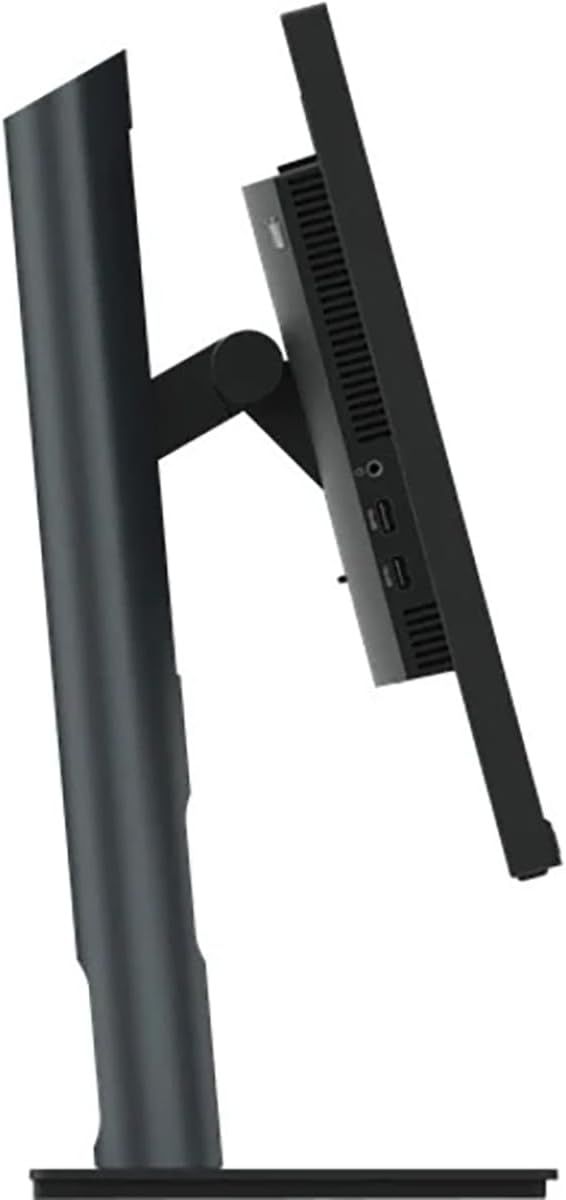
Изображение: сбоку view of the monitor, illustrating its thin profile and the stand's connection point, where OSD buttons are typically located on the rear.
3. Регулировка подставки монитора
Подставка для монитора позволяет выполнять эргономичные регулировки:
Регулировка высоты: Gently push or pull the monitor up or down to your desired viewвысота.
Регулировка наклона: Tilt the monitor screen forward or backward to find the optimal viewугол наклона.
Регулировка поворота: Поверните монитор влево или вправо на его основании.
Изображение: сбоку view demonstrating the monitor's tilt capability on its stand.
4. Using the USB Hub
With the USB upstream cable connected to your computer, the monitor's integrated USB hub becomes active. You can connect up to 4 USB devices (e.g., keyboard, mouse, USB drive) to the downstream USB ports on the monitor.
Обслуживание
Правильное обслуживание гарантирует долговечность и оптимальную производительность вашего монитора.
Очистка экрана: Аккуратно протрите экран мягкой тканью без ворса. Для удаления стойких загрязнений слегка потрите.ampПротрите ткань водой или неабразивным чистящим средством, безопасным для монитора. Не распыляйте жидкость непосредственно на экран.
Очистка Casing: Используйте мягкую сухую ткань, чтобы протереть монитор.asinг. Избегайте использования сильных моющих средств или абразивных чистящих средств.
Вентиляция: Во избежание перегрева убедитесь, что вентиляционные отверстия на мониторе не заблокированы.
Выключение: Всегда выключайте монитор, если он не используется в течение длительного времени.
Поиск неисправностей
Если у вас возникли проблемы с монитором, выполните следующие общие действия по устранению неполадок:
Проблема
Возможное решение
Нет изображения на экране
Убедитесь, что кабель питания надежно подключен к монитору и розетке.
Verify the video cable (DP or HDMI) is firmly connected to both the monitor and your computer.
Проверьте, включен ли монитор.
Выберите правильный источник входного сигнала с помощью экранного меню.
Image is dim or washed out
Отрегулируйте параметры яркости и контрастности с помощью экранного меню.
Ensure the monitor's display resolution is set to its native 2560 x 1440 in your computer's display settings.
Check color settings in the OSD menu.
Мерцающее или нестабильное изображение
Убедитесь, что видеокабель надежно подключен.
Попробуйте другой видеокабель.
Убедитесь, что в настройках дисплея вашего компьютера частота обновления установлена на 60 Гц.
Не работают порты USB
Ensure the USB Type-A to Type-B upstream cable is connected from the monitor to your computer.
Check if the computer's USB drivers are up to date.
Технические характеристики
Особенность
Деталь
Бренд
Леново
Номер модели
P24q-30
Размер экрана
23.8 дюйма
Разрешение
QHD Wide 1440p (2560 x 1440 Pixels)
Соотношение сторон
16:9
Тип дисплея
LED, In-plane Switching (IPS) Technology
Частота обновления
60 Гц
Время отклика
4 миллисекунды
Яркость
300 Нит
Коэффициент контрастности
3,000,000:1
Viewугол наклона
178 градусов
Цветовая гамма
99% sRGB
Связность
1x HDMI, 1x DisplayPort, 5x USB (1 upstream, 4 downstream)
Особые возможности
Eye Comfort Technology, Natural Low Blue Light, Flicker-Free, Height Adjustment, Tilt Adjustment, Swivel Adjustment, HDR10 Support, Factory Calibrated Color Accuracy, USB Hub
Потребляемая мощность
25 Вт
Размеры товара (Д x Ш x В)
1.8"Д x 21.2"Ш x 12.7"В
Вес товара
18 фунта
Информация о гарантии
The Lenovo ThinkVision P24q-30 monitor comes with a Гарантия производителя 3 год. For detailed terms and conditions, please refer to the warranty documentation included with your product or visit the official Lenovo support webсайт.
Поддерживать
Для получения дополнительной помощи, технической поддержки или по вопросам обслуживания обращайтесь в службу поддержки клиентов Lenovo. Контактную информацию и дополнительные ресурсы можно найти на официальном сайте Lenovo. webсайт.
Ask about setup, troubleshooting, compatibility, parts, safety, or missing instructions. Manuals+ will review the question and use this page’s manual context to help answer it.