
Niyama BT-801
Руководство пользователя беспроводного термопринтера Niyama BT-801 с Bluetooth
Модель: БТ-801
1. Введение
The Niyama BT-801 is a portable, wireless thermal printer designed for efficient label and receipt printing. It features Bluetooth and USB connectivity, making it compatible with Android, iOS, and various desktop operating systems. Its compact size and battery backup make it ideal for mobile and on-the-go printing needs.
2. Содержимое упаковки
Пожалуйста, убедитесь, что все перечисленные ниже предметы включены в ваш пакет:
- Niyama BT-801 Thermal Printer
- Адаптер питания
- Кабель USB типа-C
- Руководство пользователя (этот документ)
- Рулон термобумаги
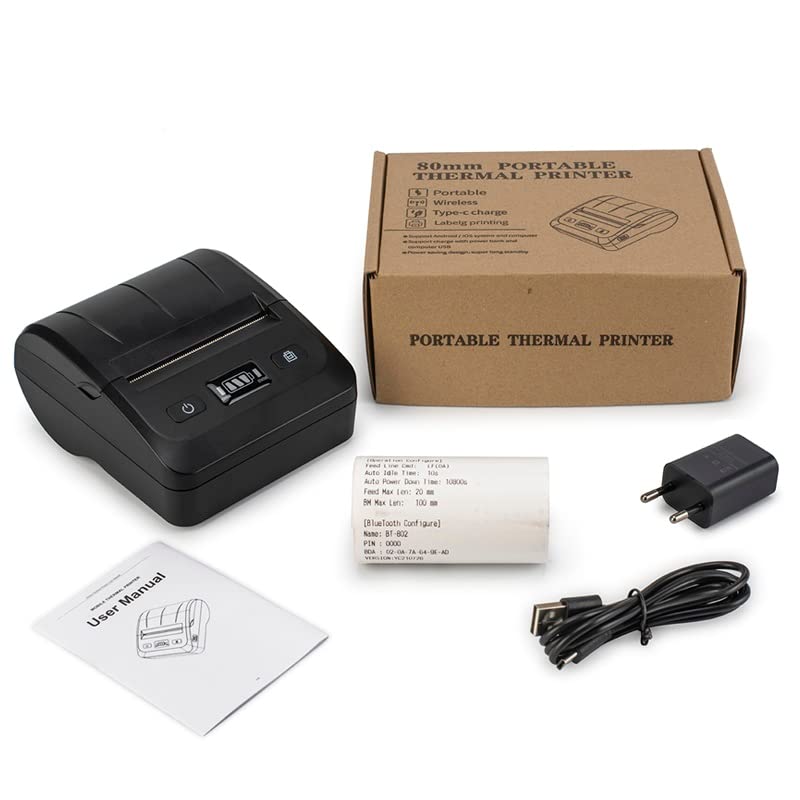
Figure 2.1: Contents of the Niyama BT-801 package, including the printer, power adapter, USB cable, user manual, and a thermal paper roll.
3. Особенности продукта
- Беспроводное подключение: Supports Bluetooth BT3.4/BLE4.0 for seamless connection with Android and iOS devices.
- Проводное подключение: USB interface for connection to computers and other devices.
- Термальная печать: Utilizes thermal line printing technology, eliminating the need for ink cartridges or ribbons.
- Высокоскоростной: Prints at a speed of up to 90mm/s.
- Портативная конструкция: Lightweight (400 grams) and compact, making it easy to carry.
- Длительный срок службы батареи: Equipped with a 2000mAh/7.4V rechargeable lithium battery for extended use.
- Прочная печатающая головка: Print head life cycle of up to 50 kilometers.
- Широкая совместимость: Supports ESC/POS printing commands and comes with DLL, SDK, and App demo for development.

Figure 3.1: The Niyama BT-801 Wireless Bluetooth Thermal Printer, showcasinг его компактный дизайн и кнопки управления.
4. Руководство по установке
4.1 Зарядка аккумулятора
Before initial use, fully charge the printer's battery. Connect the provided power adaptor to the printer's charging port and plug it into a power outlet. The charging time is approximately 3 hours. The battery status indicator on the printer will show charging progress.
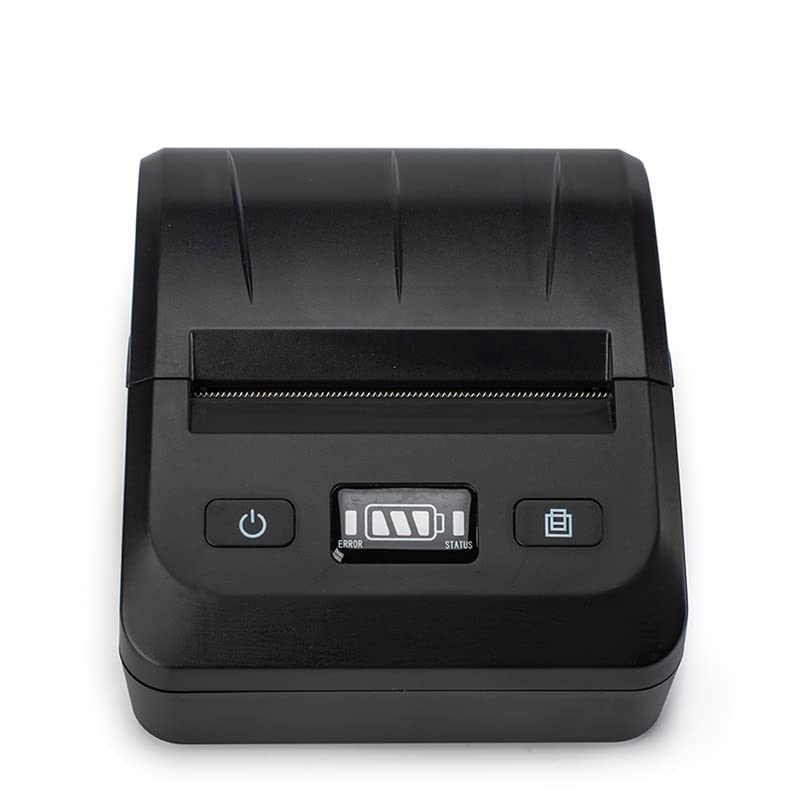
Figure 4.1: Front panel of the printer with power, error, and battery status indicators.
4.2 Загрузка термобумаги
- Аккуратно откройте крышку отсека для бумаги в верхней части принтера.
- Insert the thermal paper roll into the compartment, ensuring the printing side of the paper faces the print head. The paper should feed smoothly from the bottom of the roll.
- Вытяните небольшой отрезок бумаги за пределы печатающей головки.
- Close the paper compartment cover firmly until it clicks into place. Ensure the paper protrudes slightly from the paper exit slot.
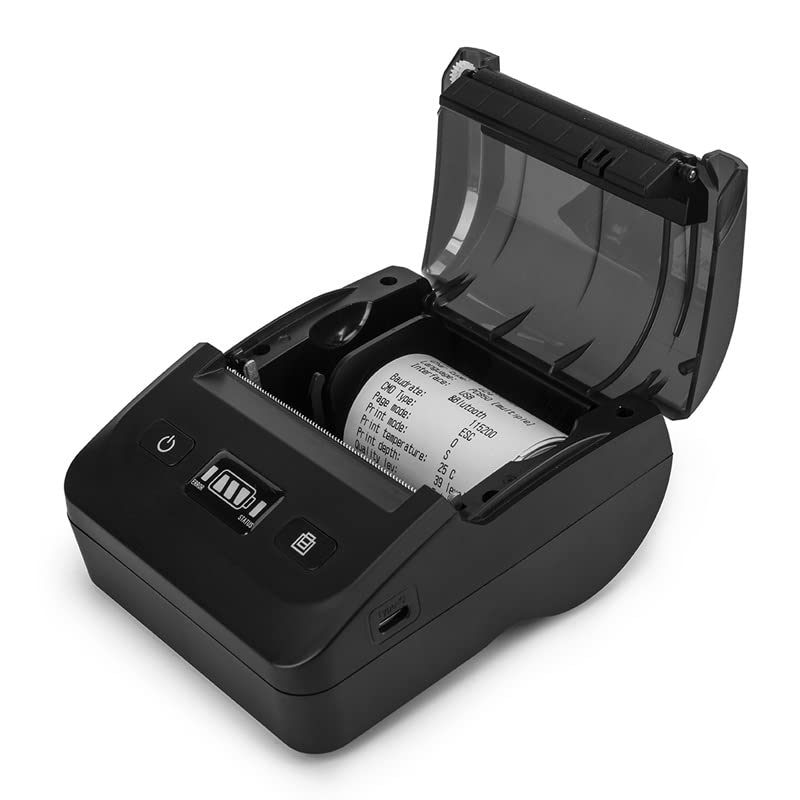
Figure 4.2: The printer with the paper compartment open, showing how to insert the thermal paper roll.
4.3 Connecting via Bluetooth (Android/iOS)
The Niyama BT-801 printer connects wirelessly via Bluetooth. Пожалуйста, обрати внимание: This product requires software development skills to integrate with Android and iOS applications. A Programming Guide, DLL, SDK, and App demo are provided to assist with customer application development.
- Убедитесь, что принтер включен.
- Включите Bluetooth на вашем устройстве Android или iOS.
- Искать available Bluetooth devices. The printer will typically appear as "BT-801" or a similar name.
- Select the printer to pair. If prompted for a PIN, enter "0000" (default).
- Once paired, your custom application can send print commands to the printer.
4.4 Connecting via USB (Windows/Linux)
For wired connection to a computer:
- Connect one end of the provided Type-C USB cable to the printer's USB port and the other end to your computer's USB port.
- The printer should be recognized by your operating system (Win9X, WinME, Win2000, WinNT, WinXP, WinVista, Win7, Win8, Linux).
- Install the necessary printer drivers if not automatically detected. Refer to the SDK for driver installation instructions.
5. Инструкция по эксплуатации
The Niyama BT-801 printer operates by receiving ESC/POS print commands from a connected device. Printing functionality is primarily driven by the software application you develop or integrate with the printer.
- Ensure the printer is powered on and has sufficient paper and battery charge.
- Verify that the printer is successfully paired via Bluetooth or connected via USB to your device.
- From your custom application, send the desired print data and commands (e.g., text, images, barcodes) to the printer.
- The printer will process the commands and print the content onto the thermal paper.
- Tear off the printed receipt or label along the serrated edge.
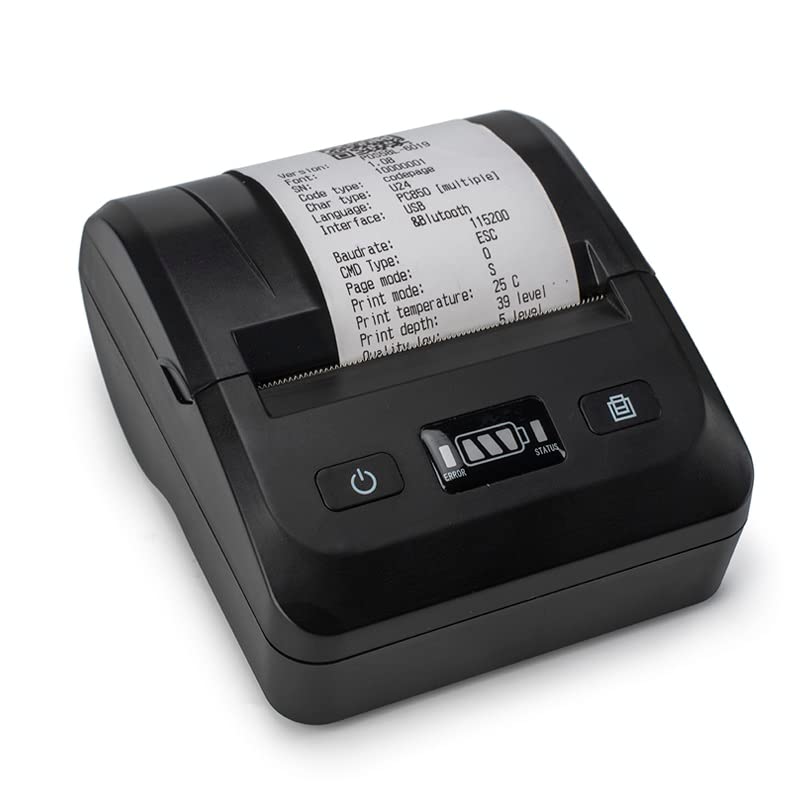
Figure 5.1: The Niyama BT-801 printer in operation, demonstrating its ability to print detailed receipts.
6. Техническое обслуживание
- Уборка: Regularly clean the exterior of the printer with a soft, dry cloth. For the print head, use a lint-free cloth lightly dampened with isopropyl alcohol. Ensure the printer is off and disconnected from power before cleaning. Allow to dry completely before use.
- Хранение бумаги: Store thermal paper in a cool, dry place away from direct sunlight and heat to preserve its print quality and longevity.
- Уход батареи: To prolong battery life, avoid fully discharging the battery frequently. If storing the printer for an extended period, charge the battery to about 50% and recharge every few months.
- Срок службы печатающей головки: The print head has a life cycle of approximately 50 kilometers. Proper use and maintenance will help achieve this lifespan.
7. Поиск Неисправностей
If you encounter issues with your Niyama BT-801 printer, please refer to the following common troubleshooting steps:
- Принтер не включается:
- Ensure the battery is charged. Connect the power adaptor and try again.
- Убедитесь, что кнопка питания нажата плотно.
- Нет вывода на печать:
- Check if thermal paper is loaded correctly and that the paper compartment cover is closed.
- Ensure the printer is connected via Bluetooth or USB and that the connection is stable.
- Verify that your application is sending correct ESC/POS commands and data.
- Check the printer's error indicator (refer to Figure 4.1). If an error is indicated, consult your application's logs or the SDK documentation for specific error codes.
- Проблемы с подключением Bluetooth:
- Ensure the printer is within range of your device.
- Включите и выключите Bluetooth на принтере и на вашем устройстве.
- Забудьте об устройстве в настройках Bluetooth и попробуйте подключиться снова.
- Confirm that your application is correctly handling the Bluetooth communication and pairing process, as software development is required for integration.
- Плохое качество печати:
- Убедитесь, что вы используете высококачественную термобумагу.
- Очистите печатающую головку, как описано в разделе «Техническое обслуживание».
- Check the print density settings within your application, if adjustable.
For advanced troubleshooting or specific integration issues, please refer to the provided SDK and Programming Guide, or contact Niyama customer support.
8. Технические характеристики
| Особенность | Спецификация |
|---|---|
| Метод печати | Термальная Линия Печати |
| Ширина печати | 70 мм |
| Плотность печати | 384 точки/строка |
| Скорость печати | 90мм/с |
| Интерфейс | USB + Bluetooth (BT3.4/BLE4.0) |
| Ширина бумаги | 80 мм |
| Диаметр рулона | 80 мм |
| Толщина бумаги | 0.06-0.08мм |
| Команда печати | ESC/POS |
| Размер персонажа | 24*24 точки |
| Тип штрих-кода | КОД39, КОД128 |
| Входной буфер | 25 Кбайт |
| Вход адаптера питания | 220 В переменного тока |
| Выход адаптера питания | DC9V/2A |
| Литиевая батарея | 2000 мАч/7.4 В |
| Время зарядки | 3 часа |
| Температура рабочей среды | -10°С ~ 50°С |
| Влажность рабочей среды | 20%~85% |
| Температура среды хранения | -20°С ~ 70°С |
| Влажность среды хранения | 5% ~ 95% |
| Механические свойства | 50KM (Print Head Life) |
| Совместимость с операционными системами | Android, iOS, Win9X, WinME, Win2000, WinNT, WinXP, WinVista, Win7, Win8, Linux |
| Вес товара | 400 грамм |
9. Гарантия и поддержка
The Niyama BT-801 Wireless Bluetooth Thermal Printer comes with a Гарантия 1 год с даты покупки. Данная гарантия распространяется на производственные дефекты и неисправности при нормальном использовании.
For warranty claims, technical support, or further assistance with software integration, please contact Niyama customer support. Keep your purchase receipt as proof of purchase.
Важное примечание: As stated previously, this product requires software development skills for integration with Android and iOS applications. Niyama provides DLL, SDK, and App demo resources to aid in this development. Support for custom application development beyond the provided resources may be limited.
Ask a question about this manual
Ask about setup, troubleshooting, compatibility, parts, safety, or missing instructions. Manuals+ will review the question and use this page’s manual context to help answer it.