
1. Введение
This manual provides detailed instructions for the VIXLW USB Video Capture Card, Model VHS-Digital-Konverter-USB2.0-VC116. This versatile device allows you to convert analog video and audio from various sources such as VHS tapes, VCRs, Mini DV camcorders, Hi8 cameras, and DVD players into digital formats on your PC or Mac. Preserve your cherished memories and old media by digitizing them for modern playback and sharing.

Image: The VIXLW USB Video Capture Card, showing the USB connector, the main unit, and the attached RCA (yellow, white, red) and S-Video connectors.

Image: A laptop displaying video content, connected to an external video player via the VIXLW AV to USB converter, illustrating its primary function of digitizing old video tapes.
2. Информация по технике безопасности
- Держите устройство подальше от воды и высокой влажности.
- Не подвергайте устройство воздействию экстремальных температур.
- Не пытайтесь разбирать или модифицировать устройство. Это приведет к аннулированию гарантии.
- Use only with compatible USB 2.0 ports.
- Обеспечьте надлежащую вентиляцию вокруг устройства во время работы.
3. Что в коробке
Your VIXLW USB Video Capture Card package should contain the following items:
- VIXLW USB Video Capture Card (with integrated RCA and S-Video cables)
- Руководство по установке
4. Настройка
Follow these steps to set up your VIXLW USB Video Capture Card:
- Подключиться к компьютеру: Plug the USB connector of the capture card into an available USB 2.0 port on your PC or Mac. The device is plug-and-play, and drivers should install automatically.
- Connect to Video Source: Connect your analog video source (e.g., VCR, camcorder, DVD player) to the capture card using the appropriate cables.
- For RCA (Composite Video): Connect the yellow plug to the video output (yellow) of your source device, and the white and red plugs to the audio left (white) and audio right (red) outputs respectively.
- For S-Video: Connect the S-Video plug to the S-Video output of your source device. You will still need to connect the white and red RCA plugs for audio.

Image: The VIXLW USB Video Capture Card connected to the side of a laptop, with its RCA and S-Video cables extending outwards.

Image: The VIXLW USB Video Capture Card connected to a laptop, with icons highlighting its features: USB 2.0, Plug and Play, Video Input RCA/S-Video, PAL/NTSC compatibility, Windows 10 support, and Mac 10.7 above compatibility.

Image: A diagram illustrating how to connect a video source (like a DVD player) to a laptop using the VIXLW capture card, showing both CVBS (RCA) and S-Video input options.

Image: A flow diagram showing various analog video sources (DV, security camera, DVD player, VHS) connecting to the VIXLW capture card, which then connects to a desktop or laptop computer.
Видеоруководство по установке
Video: A comprehensive guide demonstrating the physical connection of the VIXLW USB Video Capture Card to a computer and an analog source, followed by a walkthrough of software setup and recording processes on both Windows and Mac operating systems.
5. Инструкция по эксплуатации
Once the hardware is connected, you will need software to capture and process the video. The VIXLW USB Video Capture Card is compatible with various third-party software.
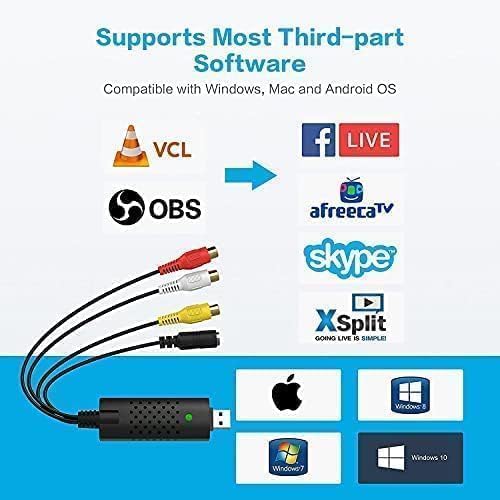
Image: A chart showing the VIXLW USB Video Capture Card's compatibility with various third-party software like VLC, OBS, AfreecaTV, Skype, and XSplit, and operating systems including Windows (7, 8, 10) and Mac OS.
5.1. For Windows Users (OBS Studio & PotPlayer)
For Windows, popular free software options include OBS Studio and PotPlayer. You can find download links in the full user manual.
Использование OBS Studio:
- Download and open OBS Studio.
- In the 'Sources' section, click the '+' icon and select 'Video Capture Device'.
- Select 'AV TO USB2.0' as the device.
- Configure video and audio settings (e.g., resolution, audio device 'USB2.0 MIC').
- Click 'Start Recording' to begin capturing your video.

Image: A four-panel guide demonstrating the steps to set up and record video using the VIXLW capture card with OBS Studio on a Windows computer, including adding a video capture device, selecting the correct device, configuring settings, and starting recording.
Using PotPlayer:
- Download and open PotPlayer.
- Go to 'Open' > 'Device Settings' (or press Alt+D).
- In the 'Webcam' tab, select 'AV TO USB2.0' as the video capture device and 'USB2.0 MIC' as the audio capture device.
- Click 'Open device' to preview видео.
- To record, go to 'Video' > 'Video Recording' > 'Record Video'.
- Set your desired storage location and filename, then click 'Start' to begin recording.

Image: A screenshot of the PotPlayer software interface, specifically showing the 'Capture' tab with options for recording video from a connected device.

Image: A screenshot of the PotPlayer software interface, showing the 'Edit' tab with various video editing tools and effects.

Image: A screenshot of the PotPlayer software interface, displaying the 'Burn' tab with options for creating and burning DVDs from captured video content.
5.2. For Mac Users (QuickTime Player)
Mac users can utilize the built-in QuickTime Player for video capture:
- Open QuickTime Player.
- Перейти к 'File' > 'New Movie Recording'.
- In the recording window, click the small arrow next to the record button to select your video device ('AV TO USB2.0') and audio device ('USB 2.0 MIC').
- Click the record button to start capturing your video.

Image: A three-panel guide illustrating the process of using the VIXLW capture card with QuickTime Player on Mac OS X, showing how to open a new movie recording, select the 'AV TO USB2.0' video device and 'USB 2.0 MIC' audio device, and initiate recording.
6. Техническое обслуживание
To ensure the longevity and optimal performance of your VIXLW USB Video Capture Card:
- Регулярно протирайте устройство мягкой сухой тканью. Не используйте жидкие чистящие средства или аэрозоли.
- Храните устройство в прохладном сухом месте, когда оно не используется.
- Avoid bending or kinking the cables excessively.
7. Поиск Неисправностей
If you encounter issues with your VIXLW USB Video Capture Card, please refer to the following common problems and solutions:
| Проблема | Возможная причина | Решение |
|---|---|---|
| Нет видеосигнала / Черный экран | Incorrect cable connection, incorrect software selection, driver issue. | Ensure all RCA/S-Video cables are securely connected. Verify the capture device is selected correctly in your software (e.g., 'AV TO USB2.0'). Check Device Manager (Windows) or System Information (Mac) for proper driver installation. |
| No audio during capture | Incorrect audio device selected in software. | In your capture software, ensure 'USB 2.0 MIC' or similar is selected as the audio input device. Check volume levels on both the source device and your computer. |
| Poor video quality / Lagging video | Incorrect software settings, computer performance, source quality. | Adjust resolution and frame rate settings in your capture software. Ensure your computer meets the minimum system requirements. The output quality is dependent on the original analog source quality. |
| Устройство не распознано компьютером | Проблема с USB-портом, конфликт драйверов. | Try a different USB port. Restart your computer. Check Device Manager (Windows) or System Information (Mac) for any error indicators next to the device. |
8. Технические характеристики
Key technical specifications for the VIXLW USB Video Capture Card:
- Бренд: VIXLW
- Ряд: Устройство видеозахвата
- Номер модели товара: VHS-Digital-Konverter-USB2.0-VC116
- Совместимость с операционными системами: Windows, Mac OS X 10.7 and above
- Вес товара: 3.17 унции
- Размеры продукта: 3.5 x 0.98 x 0.59 дюйма
- Цвет: Черный
- Аппаратный интерфейс: USB 2.0 типа A
- Разрешение видеозахвата: 720p (Max)
- Рекомендуемое применение: Video Recording, Digitizing VHS/VCR/DVD/Camcorder content
- Поддерживаемые форматы видео: DVD+/-R/RW, DVD+/-VR, DVD-Video
- Стандарты видео: NTSC, PAL

Изображение: Подробный view of the VIXLW USB Video Capture Card with its dimensions labeled: 3.5 inches (length), 0.98 inches (width), and 0.59 inches (height).
9. Гарантия и поддержка
VIXLW products are designed for reliability and performance. For warranty information and technical support, please refer to the contact details provided with your product packaging or visit the official VIXLW webсайт. Сохраните чек о покупке на случай гарантийных претензий.