
Введение
This manual provides essential information for setting up, operating, maintaining, and troubleshooting your Lenovo ThinkPad T470 laptop. Please read this guide thoroughly to ensure proper use and longevity of your device.
The Lenovo ThinkPad T470 is a 14-inch business laptop featuring an Intel Core i7-7600U processor, 8 GB RAM, and a 256 GB SSD, running Windows 10 Pro. This particular unit is a renewed product, professionally inspected and tested to function like new.
1. Настройка
1.1 Распаковка и первоначальный осмотр
Carefully remove all components from the packaging. The box should contain the Lenovo ThinkPad T470 laptop and an AC adapter.

Image: Lenovo ThinkPad T470 laptop, open and viewed from an angle, displaying a desktop screen.
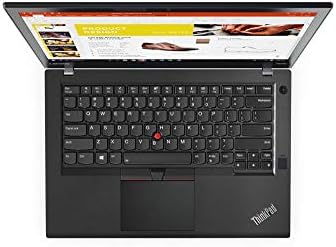
Image: AC power adapter for the Lenovo ThinkPad T470 laptop.
1.2 Подключение адаптера питания
- Connect the AC adapter cable to the power port on your laptop.
- Plug the AC adapter into a functional electrical outlet.
- Дайте аккумулятору заряжаться не менее 30 минут перед первым использованием или пока индикатор аккумулятора не покажет достаточный уровень заряда.
1.3 Первоначальное включение питания
- Откройте крышку ноутбука.
- Нажмите кнопку питания, которая обычно расположена над клавиатурой или сбоку.
- Follow the on-screen instructions to complete the Windows 10 Pro setup process. This may include setting up user accounts, network connections, and basic preferences.

Image: Lenovo ThinkPad T470 laptop displaying the Windows 10 desktop.
1.4 Подключение периферийных устройств
Your ThinkPad T470 supports various external devices:
- USB-устройства: Connect USB devices such as external drives, mice, or keyboards to the available USB ports.
- Ethernet: Для проводного подключения к сети подключите кабель Ethernet к порту LAN.
- Bluetooth: Enable Bluetooth in Windows settings to pair with Bluetooth-enabled devices like headphones or speakers.
- Внешний дисплей: Use the HDMI or DisplayPort outputs to connect to an external monitor.

Изображение: сбоку view of the Lenovo ThinkPad T470 laptop showing various ports.
2. Инструкция по эксплуатации
2.1 Включение и выключение
- Включение питания: Нажмите кнопку питания.
- Неисправность: Нажмите кнопку «Пуск» Windows, затем выберите «Питание» > «Выключение».
- Перезапуск: Нажмите кнопку «Пуск» Windows, затем выберите «Питание» > «Перезагрузить».
- Спать: Close the laptop lid or click the Windows Start button, then select Power > Sleep.
2.2 Клавиатура и сенсорная панель
The ThinkPad T470 features a Chiclet-style keyboard and a touchpad for navigation.

Изображение: сверху вниз view of the Lenovo ThinkPad T470 laptop keyboard and touchpad.
- Клавиатура: Standard QWERTY layout. Use function keys (Fn) in combination with F1-F12 for special features like volume control, brightness adjustment, and wireless toggling.
- Сенсорная панель: Supports multi-touch gestures. Use it to move the cursor, click, scroll, and zoom. The TrackPoint (red dot in the center of the keyboard) can also be used for precise cursor control with its dedicated buttons below the spacebar.
2.3 Настройки дисплея
- Яркость: Adjust screen brightness using the dedicated function keys (usually F5 and F6) or through Windows Display settings.
- Разрешение: The native resolution is 1366 x 768 pixels, with a maximum display resolution of 1920x1080. You can change the display resolution in Windows Display settings.
2.4 Связь
- Wi-Fi: Подключитесь к беспроводным сетям через настройки Wi-Fi в Windows.
- Bluetooth: Pair Bluetooth devices through the Bluetooth & other devices settings.
- Ethernet: Provides a stable wired network connection up to 1000 Mbps.
3. Техническое обслуживание
3.1 Чистка ноутбука
- Экран: Используйте мягкую, безворсовую ткань, слегкаampСмочите водой или очистителем для экранов. Избегайте использования агрессивных химикатов.
- Клавиатура и корпус: Для протирки поверхностей используйте мягкую ткань. Баллончик со сжатым воздухом поможет удалить пыль между клавишами.
- Перед чисткой всегда выключайте ноутбук и отключайте его от сети.
3.2 Уход за аккумулятором
- Чтобы продлить срок службы аккумулятора, избегайте его частой полной разрядки.
- Если вы не используете ноутбук в течение длительного времени, храните его в прохладном, сухом месте.
- The laptop has a Lithium-Battery Energy Content of 45 Watt Hours.
3.3 Обновления программного обеспечения
Регулярно обновляйте операционную систему Windows и драйверы для обеспечения оптимальной производительности и безопасности. Проверить наличие обновлений можно через Центр обновления Windows в меню «Параметры».
4. Поиск Неисправностей
В этом разделе рассматриваются распространенные проблемы, с которыми вы можете столкнуться.
4.1 Проблемы с питанием
- Ноутбук не включается: Убедитесь, что адаптер переменного тока надежно подключен и розетка исправна. Проверьте, достаточно ли заряжена батарея.
- Аккумулятор не заряжается: Verify the AC adapter and cable are not damaged. Try a different power outlet.
4.2 Проблемы с отображением
- Нет дисплея: Connect an external monitor to check if the issue is with the laptop's internal screen. Restart the laptop.
- Затемнить экран: Adjust brightness using function keys or Windows settings.
4.3 Проблемы с подключением
- Wi-Fi не подключается: Убедитесь, что Wi-Fi включен в настройках Windows. Перезагрузите маршрутизатор и ноутбук.
- Устройство Bluetooth не подключается: Ensure the device is in pairing mode and within range. Check Bluetooth settings on the laptop.
4.4 Общая производительность
- Низкая производительность: Close unnecessary applications. Check for malware. Ensure sufficient free disk space.
- Система зависает: Perform a hard shutdown by holding the power button for several seconds. Restart the laptop.
5. Технические характеристики
Below are the key technical specifications for the Lenovo ThinkPad T470 laptop:
| Особенность | Деталь |
|---|---|
| Бренд | Леново |
| Название модели | 20HD0057US |
| Размер экрана | 14 дюйма |
| Модель ЦП | Core i7-7600U (7th Gen) |
| Скорость процессора | 2.8 ГГц |
| Установленный размер оперативной памяти | 8 ГБ |
| Максимальный размер оперативной памяти | 32 ГБ |
| Размер жесткого диска | SSD-накопитель 256 ГБ |
| Операционная система | Windows 10 Профессиональная |
| Описание видеокарты | Интегрированный |
| Собственное разрешение | 1366 x 768 пикселей |
| Максимальное разрешение дисплея | 1920x1080 |
| Технология связи | Ethernet, USB, Wireless, Bluetooth |
| Общее количество портов USB | 2 |
| Ethernet-порты | 1 (1000 Мбит/с) |
| Видеовыход | HDMI, DisplayPort |
| Вес товара | 5 фунта |
| Lithium-Battery Energy Content | 45 Вт · ч |
| СКП | 786513207630 |
6. Гарантия и поддержка
6.1 Информация о гарантии
This renewed Lenovo ThinkPad T470 laptop comes with a 90-дневная ограниченная гарантия. Please refer to your purchase documentation for specific terms and conditions regarding returns, replacements, or refunds under the Amazon Renewed Guarantee.
6.2 Поддержка клиентов
For further assistance, technical support, or warranty claims, please contact the seller or refer to the official Lenovo support webсайт для получения общей информации о продукте и драйверах.