
Введение
This manual provides essential instructions for the safe and efficient use of your Epson EcoTank L3150 multifunction printer. Please read this manual thoroughly before using the product and keep it for future reference. The Epson EcoTank L3150 is designed for home use, offering print, scan, and copy functionalities with integrated ink tanks and Wi-Fi Direct connectivity.
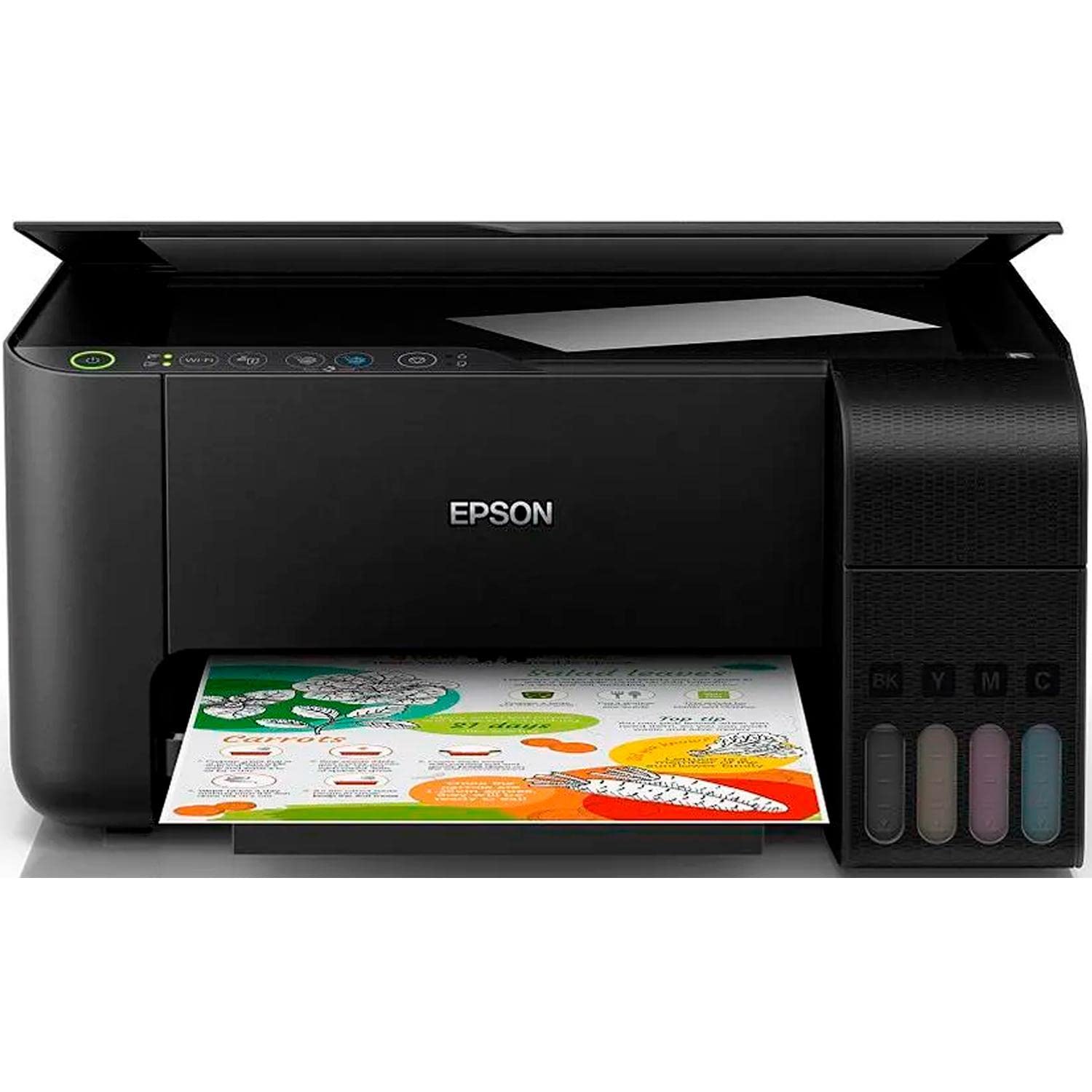
Image: The Epson EcoTank L3150 printer in operation, showing a document being printed from the output tray.
1. Настройка
1.1 Распаковка и размещение
- Осторожно извлеките принтер и все принадлежности из упаковки.
- Снимите с принтера все защитные ленты и материалы.
- Установите принтер на ровную, устойчивую поверхность, оставив вокруг него достаточно места для вентиляции и работы.
1.2 Заполнение чернильниц
The EcoTank L3150 uses integrated ink tanks. Follow these steps to fill them:
- Откройте крышку отсека для чернил на боковой стороне принтера.
- Open the cap for each color tank (Black, Yellow, Magenta, Cyan).
- Uncap the corresponding ink bottle and insert it into the correct tank. The bottles are designed to prevent incorrect filling.
- Дайте чернилам стечь в резервуар. Не сжимайте бутылку.
- Когда бак будет заполнен, извлеките баллон и плотно закройте крышку бака.
- Повторите для всех цветов.
- Закройте крышку блока чернильниц.
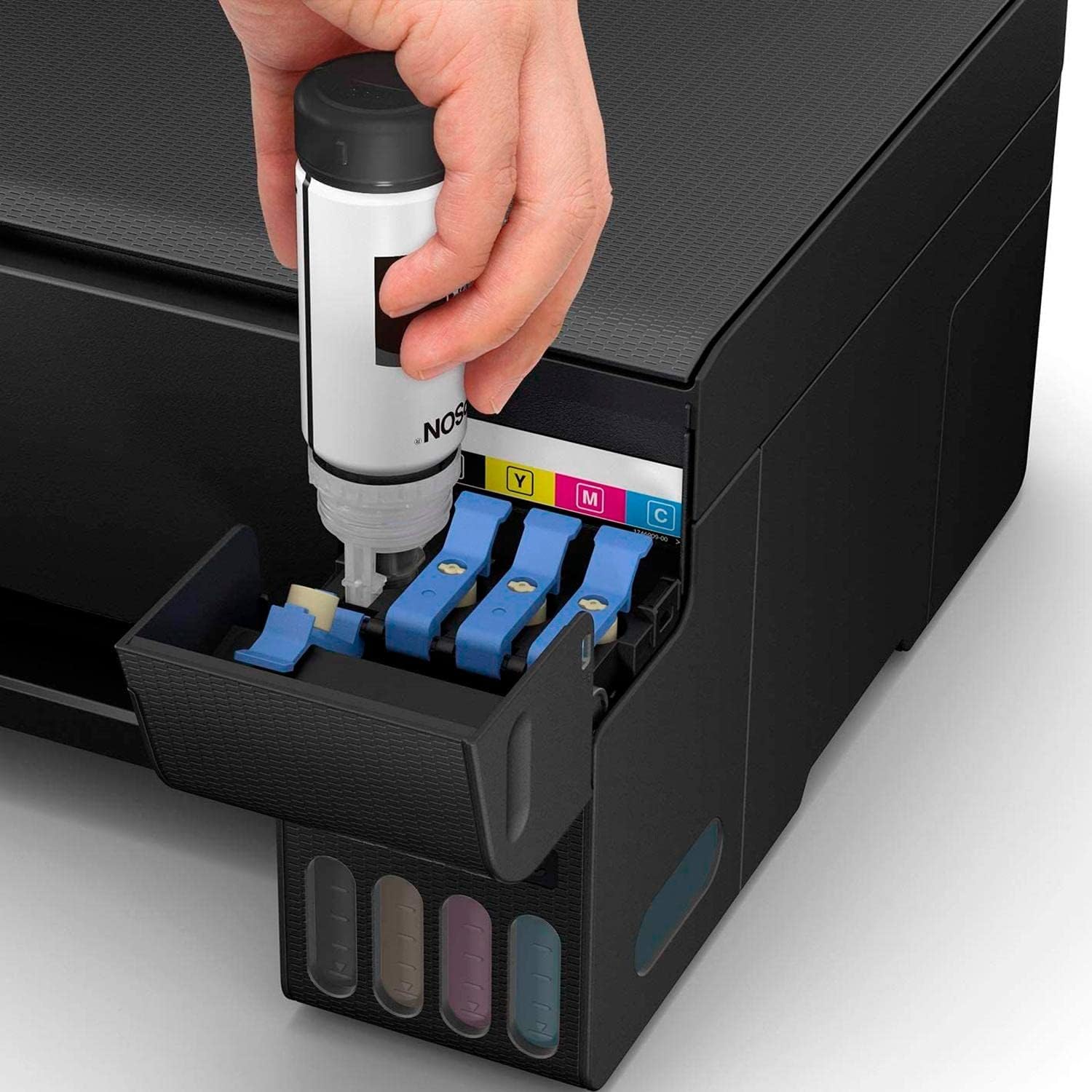
Изображение: подробное view of the ink refilling process for the Epson EcoTank L3150.
Важный: After filling, you will need to initialize the ink system. Refer to the on-screen instructions during software installation for this process. This typically takes about 10-15 minutes.
1.3 Подключение питания
- Подключите шнур питания к разъему питания принтера, а затем к розетке.
- Нажмите кнопку питания, чтобы включить принтер.
1.4 Установка программного обеспечения
Insert the provided installation CD into your computer's CD/DVD drive or download the latest drivers and software from the official Epson support website. Follow the on-screen instructions to install the printer drivers and utilities. This process includes setting up the ink levels and cleaning the print heads.
1.5 Wi-Fi Direct Setup
To connect your printer directly to a mobile device or computer without a router:
- Press the Wi-Fi Direct button on the printer's control panel.
- On your mobile device or computer, go to Wi-Fi settings and select the printer's Wi-Fi Direct network (e.g., "DIRECT-xx-EpsonL3150").
- Enter the password displayed on the printer's control panel or printed on the network status sheet.
For standard Wi-Fi network connection, follow the instructions provided by the Epson software installer.
2. Инструкция по эксплуатации
2.1 Загрузка бумаги
- Откройте держатель бумаги и вытяните удлинитель.
- Переместите направляющие для краев бумаги по ширине листа.
- Вставляйте бумагу стороной с изображением вверх в задний лоток подачи бумаги.
- Расположите направляющие по краю бумаги.

Image: The Epson EcoTank L3150 with paper loaded, ready for printing.
2.2 Печать с компьютера
- Откройте документ или изображение, которое хотите распечатать.
- Выбирать Печать from the application's File меню.
- Choose your Epson L3150 printer.
- При необходимости отрегулируйте параметры печати (размер бумаги, тип, качество, цвет/оттенки серого).
- Нажмите Печать.
2.3 Печать с мобильного устройства (приложение Epson iPrint)
Download the Epson iPrint app from your device's app store. Connect your mobile device to the same Wi-Fi network as your printer or use Wi-Fi Direct. The app allows you to print documents and photos, scan directly to your device, and monitor printer status.
2.4 Сканирование документов
- Поднимите крышку сканера.
- Поместите документ лицевой стороной вниз на стекло сканера, совместив его с угловой меткой.
- Осторожно закройте крышку сканера.
- On your computer, open the Epson Scan software or use the Epson iPrint app on your mobile device.
- Select scan settings (document type, resolution, destination).
- Нажмите Сканировать.
2.5 Копирование документов
- Place the document on the scanner glass as described in section 2.4.
- На панели управления принтера нажмите кнопку Цветная копия кнопку для цветной копии или Черно-белая копия кнопка для монохромной копии.
- Чтобы сделать несколько копий, нажмите кнопку несколько раз, чтобы получить желаемое количество копий.
2.6 Remote Printing (Epson Email Print)
During setup, you can register your printer for Epson Email Print, which assigns a unique email address to your printer. You can then print documents by sending them as attachments to this email address from any location with internet access.
3. Техническое обслуживание
3.1 Проверка уровня чернил
The Epson EcoTank L3150 features visible ink tanks on the front, allowing you to visually monitor ink levels. Ensure ink levels do not fall below the minimum line to prevent air from entering the ink system.

Изображение: Спереди view of the Epson EcoTank L3150, highlighting the transparent ink tanks.
3.2 Заправка чернильниц
When an ink tank is low, refill it using genuine Epson ink bottles. Refer to section 1.2 for detailed instructions on filling ink tanks. After refilling, you may need to reset the ink levels through the printer software.
3.3 Очистка печатающей головки
If print quality declines (e.g., missing lines, faded prints), perform a print head cleaning. This can be done through the Epson printer utility software on your computer. Follow the on-screen prompts.
3.4 Проверка сопла
To check if the print head nozzles are clogged, perform a nozzle check. This prints a pattern that reveals any missing segments. If segments are missing, perform a print head cleaning. This function is also available through the Epson printer utility software.
4. Поиск Неисправностей
4.1 Принтер не отвечает
- Ensure the printer is powered on and connected to the computer via USB or the correct Wi-Fi network.
- Check for any error messages on the printer's control panel or your computer screen.
- Перезагрузите принтер и компьютер.
- Убедитесь, что в диалоговом окне печати вашего приложения выбран правильный принтер.
4.2 Плохое качество печати
- Check ink levels and refill any low tanks (see section 3.1).
- Perform a nozzle check and print head cleaning (see sections 3.3 and 3.4).
- Убедитесь, что вы используете оригинальные чернила Epson.
- Убедитесь, что настройка типа бумаги в драйвере принтера соответствует загруженной бумаге.
4.3 Замятие бумаги
- Выключите принтер и отсоедините шнур питания.
- Carefully remove any jammed paper from the paper feed slot or output tray.
- Open the printer cover and remove any paper fragments from inside.
- Закройте все крышки, подключите шнур питания и включите принтер.
- Убедитесь, что бумага загружена правильно, не имеет складок и не имеет заломов.urlред.
4.4 Проблемы с подключением Wi-Fi
- Ensure your printer is within range of your Wi-Fi router.
- Перезагрузите маршрутизатор, принтер и компьютер/мобильное устройство.
- Re-run the Wi-Fi setup utility from the Epson software.
- For Wi-Fi Direct, ensure you are connected to the printer's direct network and have entered the correct password.
5. Технические характеристики
| Особенность | Деталь |
|---|---|
| Бренд | Эпсон |
| Название модели | L3150 (IMPEPS3310) |
| Технологии | Струйный |
| Функции | Print, Scan, Copy (Multifunction) |
| Связность | Wi-Fi, Wi-Fi Direct |
| Максимальная скорость печати (цветная) | 5 страниц в минуту |
| Максимальная скорость печати (монохромная) | 20 страниц в минуту |
| Максимальное разрешение печати | 5760 x 1440 точек на дюйм |
| Разрешение сканера | 1200 точек на дюйм |
| Макс. размер бумаги | А4, Письмо |
| Duplex Printing/Scanning | Yes (Manual duplex for printing, software-assisted duplex scanning) |
| Вес продукта | 5.6 Килограмма |
| Тип чернил | EcoTank (Refillable Ink Tanks) |
6. Информация о гарантии
The Epson EcoTank L3150 printer comes with a warranty provided directly by the manufacturer, Epson. For specific terms, conditions, and duration of your warranty, please refer to the warranty card included with your product or visit the official Epson support webСайт для вашего региона. Сохраните чек о покупке для предъявления гарантийных претензий.
7. Поддержка клиентов
For further assistance, technical support, driver downloads, or to find service centers, please visit the official Epson support website. You can typically find comprehensive FAQs, troubleshooting guides, and contact information for customer service there.
Официальный представитель Epson Webсайт: www.epson.com/support