
1. Введение
This manual provides essential instructions for the setup, operation, maintenance, and troubleshooting of your IBM Lenovo Preferred Pro USB Wired Keyboard and Mouse Set. Please read this manual thoroughly before using the product to ensure proper functionality and longevity.
2. Продукт закончилсяview
The IBM Lenovo Preferred Pro USB Wired Keyboard and Mouse Set offers a reliable input solution for your computer. The keyboard features a standard layout with a numeric keypad, while the mouse is a 2-button optical mouse with a scroll wheel. Both devices connect via a standard USB interface, providing plug-and-play compatibility with most operating systems.

Рисунок 2.1: Вверху view of the IBM Lenovo Preferred Pro USB Wired Keyboard.
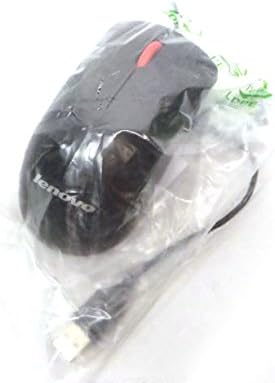
Рисунок 2.2: Вверху view of the Lenovo USB 2-Button Optical Mouse.
Основные характеристики:
- USB Wired Connectivity: Ensures a stable and reliable connection.
- Plug-and-Play: No additional drivers typically required for basic functionality.
- Standard Keyboard Layout: Full-size keyboard with numeric keypad.
- Optical Mouse: Precise tracking with a scroll wheel for easy navigation.
3. Настройка
Follow these steps to connect your keyboard and mouse to your computer.
- Распакуйте устройства: Аккуратно извлеките клавиатуру и мышь из упаковки.
- Identify USB Connectors: Locate the USB connectors at the end of the keyboard and mouse cables.
- Подключиться к компьютеру: Insert the USB connector of the keyboard into an available USB port on your computer. Repeat this step for the mouse.
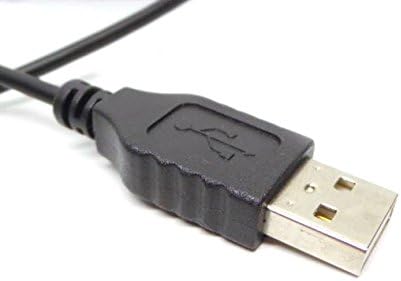
Figure 3.1: Close-up of a standard USB Type-A connector, used for connecting the keyboard and mouse.
Your computer should automatically detect and install the necessary drivers for the keyboard and mouse. No additional software installation is typically required for basic functionality.
4. Инструкция по эксплуатации
4.1 Использование клавиатуры
- Печатание: Для ввода текста используйте буквенно-цифровые клавиши.
- Функциональные клавиши (F1–F12): Эти клавиши выполняют различные функции в зависимости от приложения или операционной системы.
- Цифровая клавиатура: Use the dedicated numeric keypad for efficient data entry. Ensure the "Num Lock" indicator light is on.
- Специальные клавиши: Utilize keys like "Print Screen", "Scroll Lock", "Pause/Break", "Insert", "Home", "Page Up", "Delete", "End", and "Page Down" for their respective functions.
4.2 Использование мыши
- Движение: Move the mouse across a flat surface to control the cursor on the screen.
- Щелчок левой кнопкой мыши: Нажмите левую кнопку, чтобы выбрать элементы, открыть ссылки или активировать функции.
- Щелкните правой кнопкой мыши: Нажмите правую кнопку мыши, чтобы открыть контекстное меню.
- Колесо прокрутки: Прокручивайте колесо прокрутки вверх или вниз для навигации по документам или web страниц. Колесо прокрутки также может выполнять функцию средней кнопки.
5. Техническое обслуживание
Proper care and maintenance will extend the life of your keyboard and mouse.
- Уборка:
- Disconnect devices from the computer before cleaning.
- Используйте мягкий, damp cloth with a mild cleaning solution (e.g., water or isopropyl alcohol) to wipe surfaces.
- Avoid excessive moisture, especially near keycaps and optical sensors.
- Use compressed air to remove dust and debris from between keyboard keys.
- Хранилище: Store the devices in a clean, dry environment away from extreme temperatures and direct sunlight.
- Избегайте разливов: Во избежание повреждений не допускайте попадания жидкости на клавиатуру и мышь.
6. Поиск Неисправностей
If you encounter issues with your keyboard or mouse, refer to the following common problems and solutions:
| Проблема | Возможная причина | Решение |
|---|---|---|
| Клавиатура/мышь не отвечает | Ненадежное USB-соединение, неисправный USB-порт, проблема с драйвером. |
|
| Клавиши не работают или набираются неправильно. | Debris under keys, software conflict, keyboard settings. |
|
| Курсор мыши двигается хаотично или неподвижно. | Dirty optical sensor, unsuitable surface, software issue. |
|
If the problem persists after trying these solutions, contact customer support or your reseller for further assistance.
7. Технические характеристики
| Особенность | Деталь |
|---|---|
| Keyboard Model Numbers | 54Y9400, 41A5289, SK-8825, KB1021 |
| Mouse Model Numbers | 45J4888, 25011476, 45J4889, M-U0025-O |
| Бренд | IBM / Леново |
| Цвет | Черный |
| Технология связи | Проводной USB |
| Тип клавиатуры | Preferred Pro USB Wired Keyboard |
| Тип мыши | 2-Button Black Red Scroll Wheel Optical Mouse |
| Размеры упаковки | 22 x 10.2 x 4.7 дюйма (приблизительно) |
| Вес товара | 1 фунт (приблизительно) |
| Производитель | Леново |
8. Гарантия и поддержка
For warranty information, please refer to the documentation provided at the time of purchase or contact your reseller. IBM and Lenovo products typically come with a standard manufacturer's warranty.
For technical support or further inquiries, please contact the product's manufacturer or the authorized reseller from whom you purchased the item. Keep your purchase receipt and product model numbers handy for faster service.