
1. Введение
Welcome to the user manual for your Logitech M705 Marathon Wireless Mouse. This document provides essential information for setting up, operating, and maintaining your device, ensuring optimal performance and longevity. The M705 mouse is designed for comfort and efficiency, featuring a long battery life and customizable controls for enhanced productivity.
2. Продукт закончилсяview
Основные характеристики
- Увеличенный срок службы батареи: Enjoy up to 3 years of battery life, reducing the need for frequent replacements.
- Эргономичный дизайн: Sculpted to fit the natural curve of your right hand, providing comfort during prolonged use.
- Сверхбыстрая прокрутка: Navigate through long documents and web pages with a single spin of the scroll wheel, or switch to click-to-click scrolling for precision.
- Программируемые кнопки: Five customizable buttons, including forward/back thumb buttons, allow for personalized shortcuts and enhanced control.
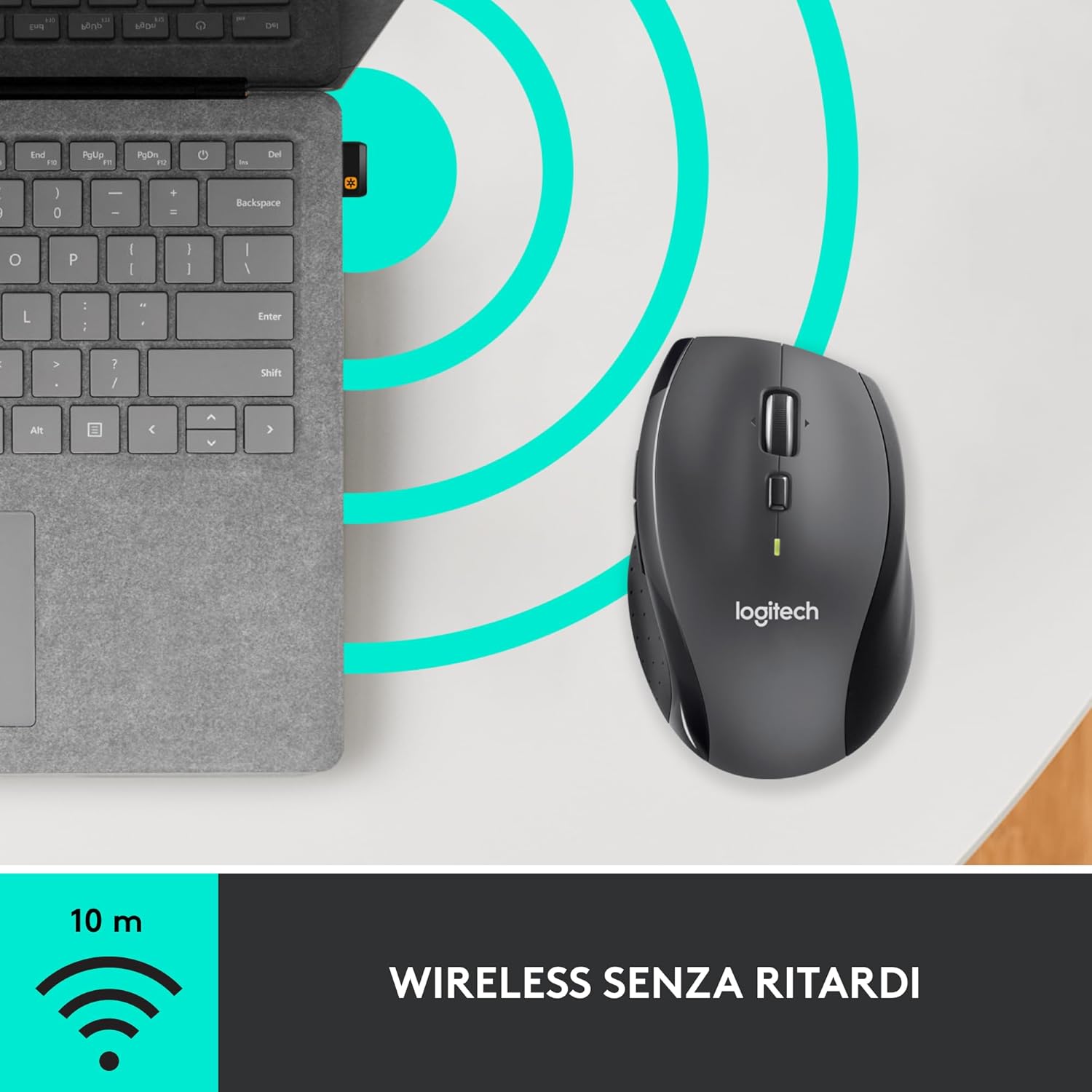
- Объединяющий приемник: A small USB Unifying receiver connects up to six compatible Logitech devices, freeing up USB ports.
- Широкая совместимость: Compatible with Windows, macOS, Chrome OS, and Linux operating systems.
Содержимое упаковки
The Logitech M705 Marathon Wireless Mouse package typically includes:
- Беспроводная мышь Logitech M705
- USB-приемник Logitech Unifying
- 2 AA Alkaline Batteries (may vary by region/packaging)

3. Инструкции по настройке
3.1. Установка батарей
- Turn the mouse over and locate the battery compartment cover on the underside.
- Press the release button or slide the cover to open the compartment.
- Вставьте две батарейки типа АА, соблюдая полярность (+/-).
- Установите на место крышку батарейного отсека.

3.2. Connecting the USB Unifying Receiver
- Locate the small USB Unifying receiver. It may be stored inside the battery compartment of the mouse.
- Подключите USB-приемник к свободному USB-порту на вашем компьютере.
- Включите мышь с помощью переключателя включения/выключения, расположенного на нижней стороне.
- Your computer should automatically detect the mouse. If not, visit the Logitech support webсайт для установки драйверов.
4. Инструкция по эксплуатации
4.1. Основные функции мыши
The M705 mouse features standard left and right-click buttons, a scroll wheel, and additional programmable buttons.

4.2. Сверхбыстрая прокрутка
Колесо прокрутки предлагает два режима:
- Сверхбыстрый режим: Press the button directly below the scroll wheel to unlock it for smooth, rapid scrolling through long documents or web страниц.
- Режим «клик за кликом»: Press the button again to engage precise, stepped scrolling, ideal for navigating lists or image galleries.

4.3. Программируемые кнопки
The M705 features five programmable buttons, including two thumb buttons and tilt-scroll functionality. These can be customized using the Logitech Options software.

5.Настройка
To unlock the full potential of your M705 mouse, download and install the Logitech Options software from the official Logitech webСайт. Это программное обеспечение позволяет:
- Assign custom functions to the five programmable buttons.
- Отрегулируйте скорость отслеживания (DPI).
- Configure application-specific settings.
- Проверить состояние батареи.

6. Техническое обслуживание
6.1. Уборка
Для чистки мыши используйте мягкую безворсовую ткань. Для удаления стойких загрязнений слегка протрите мышь.ampen the cloth with water. Avoid using harsh chemicals or abrasive materials, as these can damage the mouse surface or internal components.
6.2. Замена батареи
When the battery indicator light on your mouse begins to flash or if performance degrades, it's time to replace the batteries. Follow the steps in Section 3.1 to replace the two AA batteries. Dispose of old batteries responsibly according to local regulations.
7. Поиск Неисправностей
7.1. Мышь не отвечает
- Убедитесь, что мышь включена.
- Проверьте уровень заряда батарей и при необходимости замените их.
- Verify the USB Unifying receiver is securely plugged into a working USB port.
- Чтобы локализовать проблему, попробуйте подключить ресивер к другому USB-порту или другому компьютеру.
- Если вы используете USB-концентратор, попробуйте подключить его напрямую к компьютеру.
7.2 Хаотичное движение курсора
- Очистите оптический датчик на нижней стороне мыши.
- Ensure you are using the mouse on a suitable surface. Highly reflective or transparent surfaces may cause tracking issues. A mouse pad is recommended.
- Check for interference from other wireless devices. Move the mouse closer to the USB receiver.
7.3. Unifying Receiver Issues
If the mouse loses connection or you need to pair it with a new receiver, download the Logitech Unifying Software from the Logitech support website. This software guides you through the pairing process.
8. Технические характеристики
| Особенность | Деталь |
|---|---|
| Бренд | Логитек |
| Название модели | М705 |
| Номер модели | 910-001949 |
| Технология связи | Wireless (2.4 GHz USB Unifying Receiver) |
| Технология обнаружения движения | Лазер |
| Разрешение движения | 1000 DPI (up to 3200 DPI maximum resolution) |
| Количество кнопок | 5 программируемых кнопок |
| Источник питания | Battery (2 x AA Alkaline) |
| Средний срок службы батареи | До 3 лет |
| Дальность беспроводной связи | До 10 метров |
| Форм-фактор | Right-hand ergonomic |
| Размеры (Д x Ш x В) | 20 x 13 x 12 см (размеры упаковки товара) |
| Масса | 136 грамм |
| Совместимые операционные системы | Windows 7, 8, 10; macOS 10.11 or later; Chrome OS; Linux |
9. Гарантия и поддержка
Подробную информацию о гарантии и технической поддержке можно получить на официальном сайте Logitech. webПосетите сайт или свяжитесь со службой поддержки клиентов Logitech. Сохраните чек о покупке для предъявления гарантийных претензий.