
1. Configurare
This section guides you through the initial setup of your CHUWI CoreBook X laptop.
1.1 Despachetare și pornire inițială
- Scoateți cu grijă laptopul și toate accesoriile din ambalaj.
- Connect the provided USB-C power adapter to the laptop's USB-C port (PD Charging/USB 2.0) and then to a power outlet.
- Open the laptop lid. The laptop may power on automatically or you may need to press the power button located on the keyboard.
- Urmați instrucțiunile de pe ecran pentru a finaliza configurarea inițială a Windows 11 Pro, inclusiv selectarea limbii, conexiunea la rețea și crearea contului de utilizator.
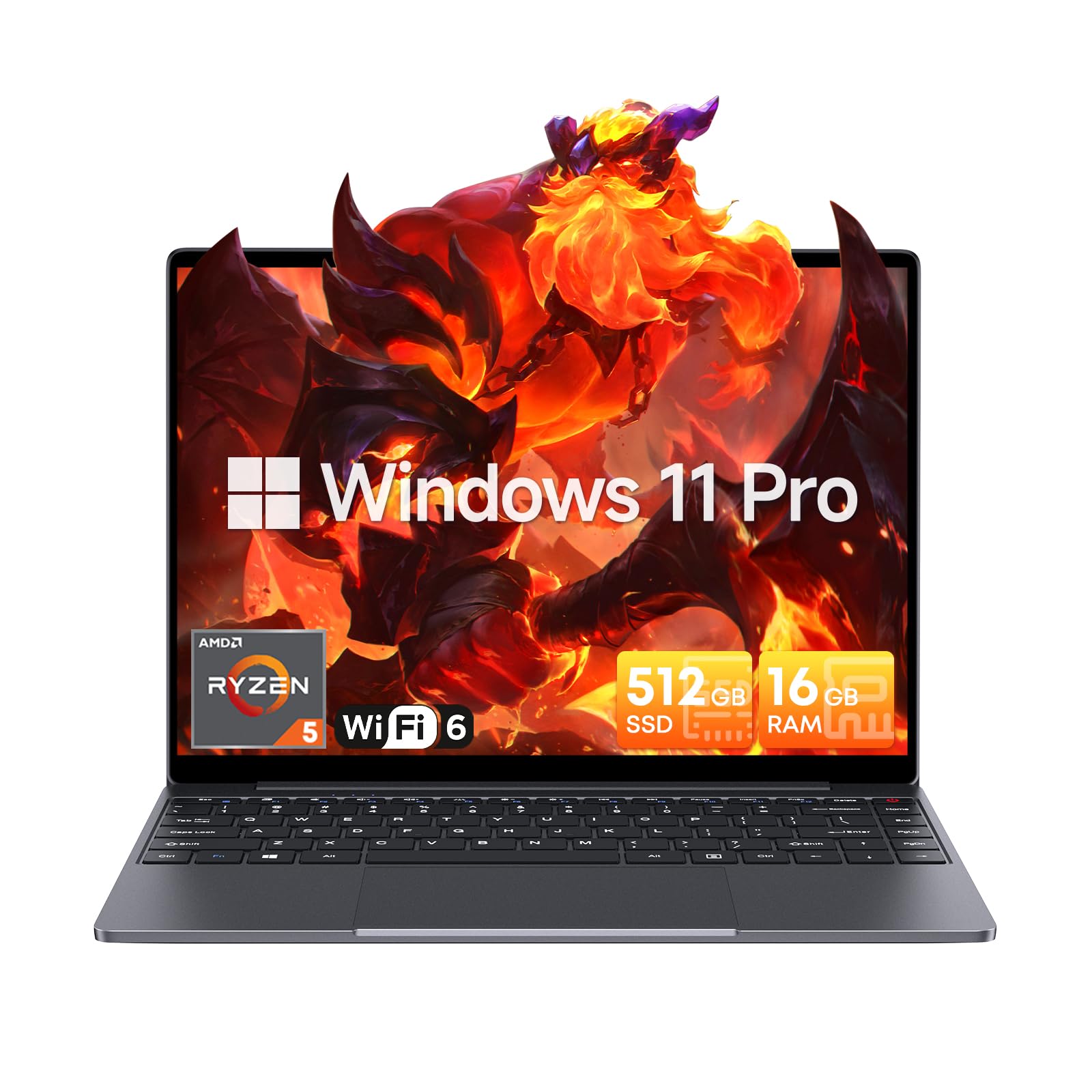
Image: The CHUWI CoreBook X laptop open on a desk, ready for use.
1.2 Conectarea perifericelor
- Dispozitive USB: Connect USB mice, keyboards, or external storage devices to the available USB 3.0 ports.
- Afișaj extern: Use the HDMI 1.4 port or the full-featured USB Type-C port to connect an external monitor.
- Dispozitive audio: Conectați căștile sau difuzoarele externe la mufa audio de 3.5 mm.
- Card TF: Insert a TF card into the TF card slot for additional storage.

Imagine: Detaliată view of the laptop's ports, including TF Card Slot, 3.5mm Headphone Jack, USB 3.0 Port, Lock Slot, USB Type-C (PD Charging/USB 2.0), HDMI 1.4, and Full-featured USB Type-C Port.
1.3 Conexiune la rețea și Bluetooth
- Wi-Fi 6: Pentru a vă conecta la o rețea wireless, faceți clic pe pictograma Wi-Fi din bara de activități, selectați rețeaua și introduceți parola.
- Bluetooth 5.2: To pair Bluetooth devices, go to Windows Settings > Bluetooth & devices, turn on Bluetooth, and select your device to pair.
2. Operare
This section covers the basic operation of your CHUWI CoreBook X laptop.
2.1 Gestionarea energiei
- Pornire: Apăsați butonul de pornire.
- Modul de somn: Închideți capacul sau selectați „Repaus” din meniul Start.
- Închidere: Select "Shut down" from the Start menu.
- Repornire: Select "Restart" from the Start menu.
2.2 Tastatură și touchpad
- The laptop features a full-sized backlit keyboard with white illumination. Use the function keys (Fn) in combination with other keys for shortcuts like adjusting brightness, volume, or toggling the backlight.
- The large touchpad supports multi-touch gestures for navigation. Refer to Windows settings for customizing touchpad gestures.

Imagine: Un prim-plan view of the laptop's backlit keyboard and large touchpad, highlighting its navigation features.
2.3 Afișaj și sunet
- The 14-inch IPS display offers a 2160*1440 resolution. Adjust display settings (brightness, resolution, scaling) through Windows Display Settings.
- The laptop is equipped with stereo speakers. Volume can be controlled via the keyboard function keys or the Windows sound settings.
- An HD webcam is integrated for video conferencing.

Image: The laptop's 14-inch 2K IPS display showcasing vibrant colors and a comparison of 3:2 and 16:9 aspect ratios.
2.4 Video pesteview
Video: An official product video demonstrating various features and usage scenarios of the CHUWI CoreBook X laptop, including its performance, display, and connectivity options.
3. Întreținere
Întreținerea corectă asigură longevitatea și performanța optimă a laptopului tău.
3.1 Curățare
- Folosiți o lavetă moale, fără scame, pentru a curăța ecranul. Pentru petele persistente,ampCurățați ușor laveta cu apă sau cu un produs de curățare sigur pentru ecran.
- Wipe the chassis and keyboard with a soft, dry cloth. Avoid using harsh chemicals or abrasive materials.
- Periodically use compressed air to clear dust from the vents to maintain efficient cooling.
3.2 Îngrijirea bateriei
- Avoid fully discharging the battery frequently. Charge the laptop when the battery level is low.
- Store the laptop in a cool, dry place if not used for extended periods, with the battery charged to around 50-70%.
- Use only the original or certified compatible USB-C PD charger.
3.3 Upgrade-uri de stocare și memorie
The laptop supports RAM and SSD upgrades.
- The 16GB DDR4 RAM can be expanded up to 64GB via 2 SODIMM slots.
- The 512GB PCIe SSD can be expanded up to 2TB using the M.2 2280 PCIe slot.
- A convenient detachable bottom cover allows for easier access to upgrade components without removing the entire back panel.

Image: The underside of the laptop with the detachable cover removed, revealing the dual-channel SO-DIMM slot for RAM upgrades.
4. Depanare
Această secțiune oferă soluții pentru problemele comune pe care le-ați putea întâmpina.
4.1 Probleme comune și soluții
- Laptopul nu pornește:
- Asigurați-vă că adaptorul de alimentare este conectat corect atât la laptop, cât și la o priză funcțională.
- Verificați că priza este funcțională.
- Încercați să țineți apăsat butonul de pornire timp de 10-15 secunde pentru a efectua o resetare completă.
- Probleme de afișare (fără imagine, pâlpâire):
- Reglați luminozitatea ecranului folosind tastele funcționale.
- Dacă este conectat un monitor extern, încercați să îl deconectați.
- Reporniți laptopul.
- Probleme de conectivitate Wi-Fi sau Bluetooth:
- Asigurați-vă că Wi-Fi/Bluetooth este activat în setările Windows.
- Reporniți routerul/modemul pentru problemele Wi-Fi.
- Remove and re-pair Bluetooth devices.
- Update network and Bluetooth drivers through Device Manager.
- Performanță lentă:
- Închideți aplicațiile inutile care rulează în fundal.
- Verificați dacă există actualizări Windows și actualizări de drivere.
- Asigurați-vă că există suficient spațiu liber pe SSD.
- Run a malware scan.
If you encounter issues not covered here or require further assistance, please refer to the Support section.
5. Specificații
Detailed technical specifications for the CHUWI CoreBook X laptop.

Image: An illustration of the AMD Ryzen 5 processor, highlighting its core count, threads, and clock speed.
| Caracteristică | Caietul de sarcini |
|---|---|
| Numele modelului | Corebook X |
| Procesor | AMD Ryzen 5 (6 Cores, 12 Threads, up to 4.3 GHz) |
| Grafică | AMD Radeon Graphics (1800MHz, Max 2GB Memory) |
| RAM | 16GB DDR4 (Expandable up to 64GB via 2 SODIMM slots) |
| Depozitare | 512GB PCIe SSD (Expandable up to 2TB via M.2 2280 PCIe slot) |
| Afişa | 14-inch IPS, 2160*1440 Resolution, 100% sRGB Color Gamut |
| Sistem de operare | Windows 11 Pro |
| Conectivitate | Wi-Fi 6 (802.11ax), Bluetooth 5.2 |
| Porturi | USB Type-C (PD Charging/USB 2.0), USB 3.0, HDMI 1.4, Full-featured USB Type-C, 3.5mm Audio Jack, TF Card Slot, Lock Slot |
| Baterie | 46.2Wh Lithium-Ion Battery, 65W USB-C PD Fast Charging |
| Tastatura | Full-sized Backlit Keyboard with White Illumination |
| Touchpad | Large Touchpad, Multi-touch |
| Webcam | HD Webcam |
| Dimensiuni | 12.2"L x 9"W x 0.67"Th (17mm thin) |
| Greutate | 2.2 lire (1.4 kg) |
6. Garantie
The CHUWI CoreBook X laptop comes with a Garanție de 1 an de la producător.
This warranty covers defects in materials and workmanship under normal use. It does not cover damage caused by accidents, misuse, unauthorized repairs, or modifications. Please retain your proof of purchase for warranty claims.
7. Suport
For technical assistance, warranty claims, or further inquiries, please contact CHUWI customer support.
- Suport producător: Visit the official CHUWI website pentru resurse de asistență, întrebări frecvente și informații de contact.
- Asistență pentru vânzători: If purchased through a retailer, you may also contact the seller for assistance.