
Introducere
This manual provides detailed instructions for the installation, operation, and maintenance of your Fuluku 4+64GB Android 15 Car Stereo. This unit is specifically designed for Jeep Wrangler (4 Doors) models manufactured between 2007 and 2010. Please read this manual thoroughly before using the product to ensure proper function and safety.
Informații de siguranță
Always prioritize safety during installation and operation. Improper installation can lead to vehicle damage or personal injury. Consult a professional if you are unsure about any steps. Do not operate the device in a way that distracts you from driving. Keep the volume at a safe level to hear external traffic sounds.
Configurare și instalare
1. Compatibilitatea produsului
This car stereo is compatible with Jeep Wrangler (4 Doors) models from 2007 to 2010. Verify your vehicle's center console matches the provided installation images before proceeding.

Image: Comparison of a Jeep Wrangler dashboard before and after the Fuluku car stereo installation, showing the integrated display.
2. Componente incluse
Pachetul include următoarele articole:
- Android Car Radio Unit
- Antena GPS
- AHD spate View Camera foto
- Microfon
- Cablu de alimentare
- Cablu USB
- Cablu de intrare pentru cameră
- RCA prin cablu
- Manual de utilizare
- Decodor Canbus (dacă este cazul pentru modelul vehiculului dumneavoastră)
- Instrument de instalare

Image: Diagram illustrating the dimensions of the car stereo unit and a visual representation of all included accessories such as cables, camera, and tools.
3. Conectarea cablajului
The unit features a plug-and-play wiring harness for simplified installation. Connect the provided cables as follows:
- Cablu de alimentare: Conectați la sursa de alimentare a vehiculului.
- Cablu RCA: For audio/video output and input connections.
- Cablu USB: For data transfer and device charging.
- Intrare cameră: Conectați cablul AHD din spate View Camera foto.
- Antena GPS: Montați într-o locație cu cer senin view pentru recepția optimă a semnalului.
- Antena radio: Connect for FM/RDS reception.
- Microfon: Connect for hands-free calling and voice commands.
- Decodor Canbus: Connect if your vehicle requires it for steering wheel controls or other integrated functions.

Image: Detailed diagram illustrating the connection points for the power cable, RCA cable, USB cable, camera input, GPS antenna, and Canbus decoder to the car stereo unit.
Instrucțiuni de operare
1. Android System and In-cell Touch Screen
The car stereo operates on the Android 15 system with 4GB RAM and 64GB ROM, providing a responsive user experience. The 9-inch In-cell touch screen integrates touch and display layers, offering improved clarity and responsiveness.

Image: Visual explanation of the In-cell screen technology, highlighting its thinner design, better color accuracy, higher contrast, 178-degree viewing angles, and improved brightness compared to On-cell screens.
2. CarPlay wireless și Android Auto
Connect your iPhone or Android device wirelessly via Bluetooth to access CarPlay or Android Auto. This allows for seamless integration of navigation, music, and communication apps directly on the car stereo display.
- Conexiune wireless: Pair your smartphone via Bluetooth for automatic connection.
- MirrorLink: Supports screen mirroring via WiFi or USB cable for displaying your phone's screen on the stereo.

Image: Screenshots showing the user interface for Wireless CarPlay and Android Auto, displaying various compatible applications like navigation, music players, and messaging apps.
3. Navigație GPS
The unit supports both online and offline GPS navigation. Utilize pre-installed maps or download your preferred navigation applications. Real-time traffic updates are available with an internet connection.
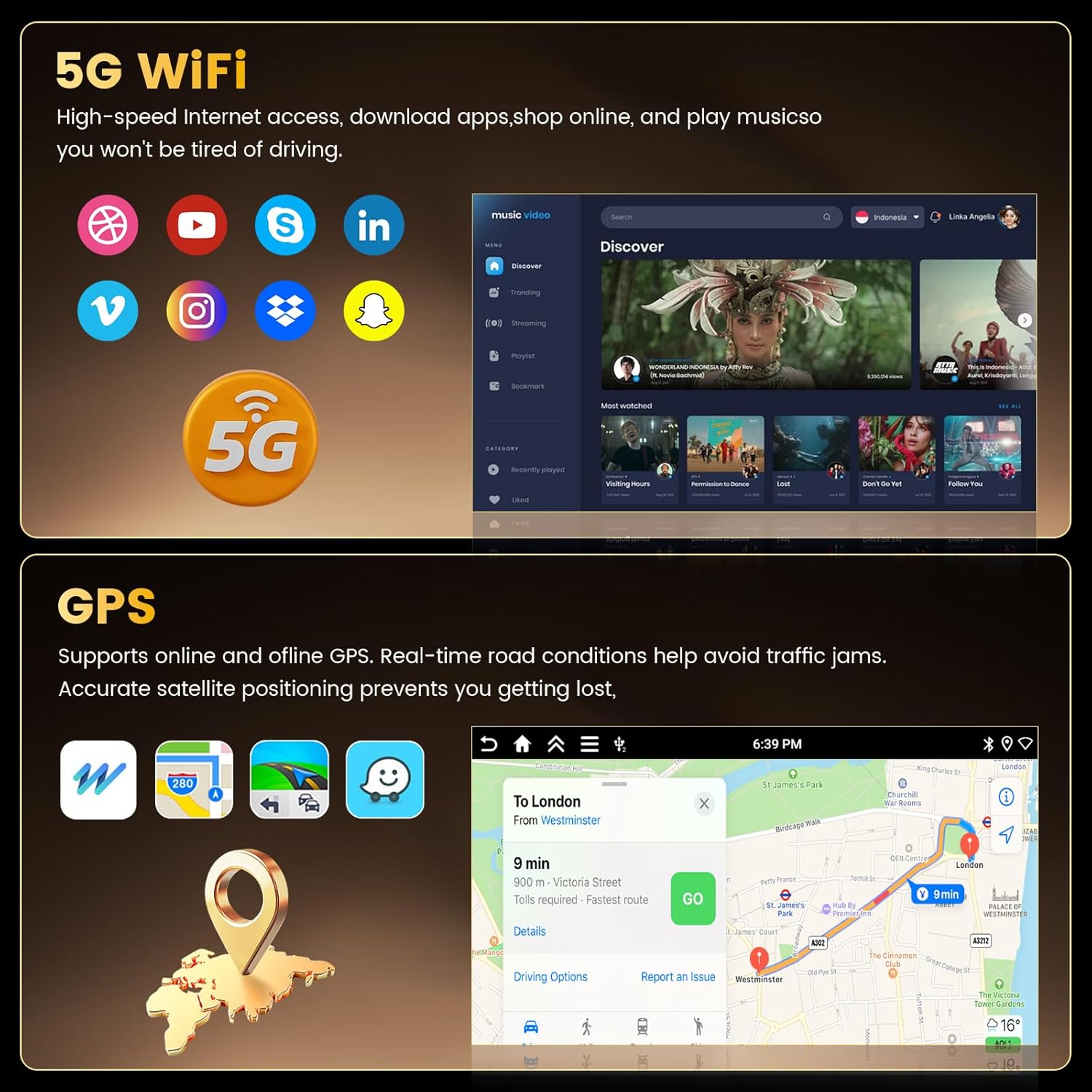
Image: Display of the GPS navigation interface showing a route map and the 5G WiFi connectivity icon, alongside various app icons.
4. Conectivitate WiFi 5G
Access high-speed internet by connecting to a WiFi hotspot. This enables app downloads, online music streaming, and real-time data for navigation.
5. Funcționalitate Bluetooth
The built-in Bluetooth module allows for hands-free calling and wireless audio streaming from your smartphone. This enhances safety by minimizing distractions while driving.

Image: Screenshots demonstrating the Bluetooth pairing interface, the graphic equalizer (EQ) settings, and the FM/RDS radio display with station frequencies.
6. Setări sunet EQ
Customize your audio experience with the integrated professional-grade equalizer. Adjust bass, midrange, and treble frequencies to achieve desired sound quality, reducing noise and distortion.
7. Radio FM/RDS
The high-quality FM/RDS radio receiver provides access to local radio stations. RDS (Radio Data System) displays station information, such as song titles or traffic updates, where available.
8. Controlul volanului (SWC)
Control essential functions like volume adjustment, track skipping, and mode switching directly from your vehicle's steering wheel buttons. This feature requires proper connection via the Canbus decoder (if applicable).

Image: A split image showing the AHD backup camera view with parking guidelines and the on-screen interface for programming steering wheel controls.
9. Cameră video AHD pentru marșarier
When the vehicle is shifted into reverse, the car stereo automatically displays the feed from the included AHD rear view cameră, oferind o imagine clară view din spatele vehiculului pentru o parcare și manevrare mai sigură.
10. Funcționalitatea ecranului împărțit
The split-screen feature allows you to run two applications simultaneously on the display, such as navigation and music playback, for convenient multitasking.

Image: Screenshots demonstrating various user interface themes and the split-screen mode, showing two applications running side-by-side.
11. Multiple UI Themes
Personalize the appearance of your car stereo with a selection of multiple user interface themes.
Întreţinere
Pentru a asigura longevitatea și performanța optimă a sistemului stereo auto, urmați aceste instrucțiuni de întreținere:
- curatenie: Folosiți o cârpă moale și uscată pentru a curăța ecranul și unitatea. Evitați substanțele de curățare abrazive sau solvenții.
- Actualizări de software: Periodically check for and install available software updates to improve performance and add new features.
- Conditii de mediu: Evitați expunerea unității la temperaturi extreme, la lumina directă a soarelui pentru perioade lungi de timp sau la umiditate excesivă.
Depanare
If you encounter issues with your Fuluku car stereo, refer to the following common problems and solutions:
| Problemă | Cauza posibila | Soluţie |
|---|---|---|
| Unitatea nu pornește. | Conexiune de alimentare slăbită, siguranță arsă, problemă cu bateria vehiculului. | Verificați conexiunile cablului de alimentare. Verificați siguranțele vehiculului. Asigurați-vă că bateria vehiculului este încărcată. |
| Niciun sunet de la difuzoare. | Volume too low, mute activated, incorrect wiring, speaker issues. | Increase volume. Check if mute is active. Verify speaker wiring. Test with different audio sources. |
| Semnal GPS pierdut sau inexact. | GPS antenna obstruction, poor mounting location, software issue. | Asigurați-vă că antena GPS are o distanță clară view of the sky. Relocate antenna if necessary. Restart the unit. |
| Wireless CarPlay/Android Auto disconnects frequently. | Bluetooth interference, outdated phone OS, app issues, weak signal. | Ensure no other Bluetooth devices are interfering. Update phone's operating system. Restart phone and stereo. Try a different USB cable for MirrorLink if wireless is unstable. |
| Camera video pentru marșarier nu afișează. | Conexiune slăbită a camerei, cablare incorectă, funcționare defectuoasă a camerei. | Check camera input cable connection. Verify reverse trigger wire is correctly connected. |
| Comenzile de pe volan nu funcționează. | Canbus not connected, incorrect wiring, SWC learning not performed. | Ensure Canbus decoder is correctly installed. Perform SWC learning procedure in settings. |
Specificații
| Caracteristică | Detaliu |
|---|---|
| Marca | Fuluku |
| Numele modelului | A7579A4291H6MI2 |
| Sistem de operare | Android 15 |
| Capacitate de stocare a memoriei | 64 GB (ROM) |
| RAM | 4 GB |
| Dimensiunea ecranului | 9 inchi |
| Tip de afișare | LCD In-cell Capacitive Touch Screen |
| Tehnologia de conectivitate | Bluetooth, Ethernet, USB, Wi-Fi (5G) |
| Caracteristici speciale | Wireless CarPlay, Android Auto, GPS Navigation, WiFi, Bluetooth, EQ, FM RDS, AHD Backup Camera, SWC |
| Sistem de navigație prin satelit acceptat | GPS |
| Tip hartă | America de Nord, la nivel mondial |
| Intrare interfață umană | Microfon, ecran tactil |
| Metoda de control | App, Remote (if applicable), Touch, Voice |
| Dispozitive compatibile | Amplifier, Camera, Smartphone, Speaker |
| Greutatea articolului | 2.53 kilograme |
Informații despre garanție
This Fuluku car stereo is covered by a 2 an garanție de producător. For warranty claims or details, please contact customer support.
Asistență pentru clienți
For technical assistance, troubleshooting, or warranty inquiries, please contact Fuluku customer support:
E-mail: fulukusupports@126.com
Customer support typically provides a quick reply within 24 hours.

Image: Fuluku customer support details, including email address and service commitments like 24-hour reply, 60-day return policy, 365-day replacement, and lifetime technical support.