
Introducere
Thank you for choosing the Phomemo M221 Bluetooth Thermal Label Printer. This manual provides essential information for the safe and efficient operation of your device. Please read it thoroughly before use and retain it for future reference. The Phomemo M221 is designed for fast, clear, and smart label printing, supporting various label types and applications for small businesses, home, and school use.
Informații de siguranță
Pentru a asigura o funcționare sigură și a preveni deteriorarea, respectați următoarele precauții:
- Do not disassemble, repair, or modify the printer.
- Nu expuneți imprimanta la apă, umiditate și lumina directă a soarelui.
- Use only Phomemo-approved power adapters and accessories.
- Evitați să atingeți capul de imprimare imediat după imprimare, deoarece acesta poate fi fierbinte.
- Store the printer and labels in a cool, dry place.
Conținutul pachetului
Verificați dacă toate articolele sunt prezente în colet:
- Imprimanta de etichete Phomemo M221
- Cablu de încărcare USB de tip C
- 1 roll of 40 x 30 mm thermal labels
- 1 roll of 50 x 80 mm thermal labels
- 1 roll of 70 x 80 mm thermal labels
- Geanta portabila de transport
- Manual de utilizare (acest document)
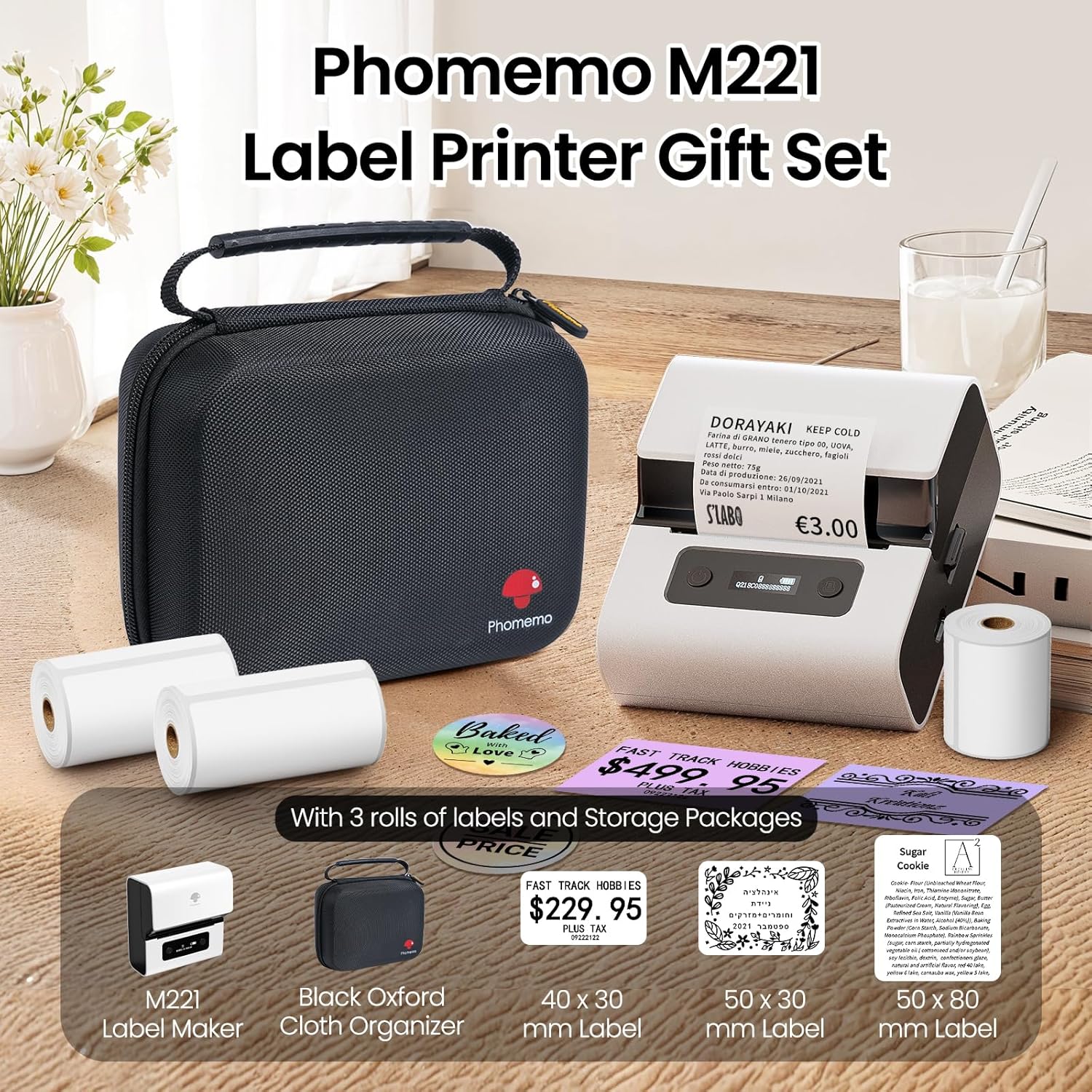
Image: Phomemo M221 Label Printer Gift Set, showing the printer, a black carrying case, and three rolls of white thermal labels.
Produs terminatview
The Phomemo M221 is a compact and efficient thermal label printer. Key features include:
- Tehnologie de imprimare termică: Nu este necesară cerneală sau toner.
- Compatibilitate largă a etichetelor: Supports labels from 20mm to 80mm (0.78" to 3.14") wide, including rectangular, round, transparent, and colored types.
- Conectivitate: Bluetooth for iOS/Android smartphones and tablets, USB for Windows PCs.
- Baterie de mare capacitate: 2200 mAh battery with Type-C fast charging.
- Fast and Quiet Operation: Prints at 50 mm/s with reduced noise.
- Design ușor de utilizat: Easy label loading and automatic gap detection.

Image: Phomemo M221 Label Maker Set, illustrating its features such as no ink requirement, large battery capacity, Bluetooth wireless printing, and its suitability as a gift.
Înființat
1. Încărcarea imprimantei
Before first use, fully charge the Phomemo M221 printer.
- Conectați cablul USB Type-C furnizat la portul de încărcare al imprimantei.
- Conectați celălalt capăt al cablului la un adaptor de alimentare USB de 5V (nu este inclus) sau la portul USB al unui computer.
- The indicator light will show charging status. A full charge typically takes several hours. The 2200 mAh battery supports extended use.
2. Încărcarea etichetelor
The M221 features an integrated label fixing structure for easy loading.
- Deschideți capacul imprimantei.
- Insert the label roll into the compartment, ensuring the printing side faces upwards and the labels feed smoothly.
- Adjust the side guide plates to secure the label roll in place.
- Close the printer cover. The printer will automatically detect and calibrate the label gap.
3. Conectarea la dispozitivul dvs
The Phomemo M221 supports both Bluetooth and USB connections.
Bluetooth Connection (Smartphones/Tablets)
- Ensure Bluetooth is enabled on your iOS or Android device.
- Download and install the "Print Master" application from your device's app store.
- Open the "Print Master" app and follow the on-screen instructions to search for and connect to your M221 printer.

Image: Phomemo M221 printer demonstrating Bluetooth wireless connection with a tablet and a smartphone.
USB Connection (Windows PC)
- Connect the USB Type-C cable from the printer to an available USB port on your Windows PC.
- Download and install the "Labelife" software and printer drivers from the official Phomemo website-ul.
- Follow the software installation prompts. Once installed, you can select the M221 as your printer.

Image: Phomemo M221 printer connected to a laptop using a USB cable, indicating wired connectivity.
Instrucțiuni de operare
1. Basic Printing with "Print Master" App (Mobile)
- Ensure your M221 printer is connected via Bluetooth to your mobile device.
- Open the "Print Master" app.
- Select a template or create a new label design. The app offers various templates for text, images, barcodes, QR codes, and more.
- Customize your label content.
- Tap the print icon. Confirm print settings such as quantity.
- The printer will begin printing your labels.
2. Printing with "Labelife" Software (PC)
- Ensure your M221 printer is connected via USB to your Windows PC.
- Open the "Labelife" software.
- Design your label using the software's features, including text, images, barcodes, and QR codes.
- Mergi la "File" > "Print" or click the print icon.
- Select the Phomemo M221 from the list of available printers and adjust any necessary print settings.
- Faceți clic pe „Imprimare” pentru a începe imprimarea.
3. Batch Printing
Both "Print Master" and "Labelife" support batch printing for efficiency.
- In the print dialogue, specify the desired number of copies.
- The printer will automatically print multiple labels consecutively.

Image: Phomemo M221 printer demonstrating its versatility with examples of address labels, price tags, ingredient labels, and gift tags.

Image: Phomemo M221 printer showcasing its compatibility with over 50 types of thermal labels, including various shapes and designs.
Întreţinere
1. Curățarea capului de imprimare
Regular cleaning of the print head ensures optimal print quality.
- Opriți imprimanta și deconectați cablul de alimentare.
- Deschideți capacul imprimantei.
- Ștergeți ușor capul de imprimare cu un bețișor de bumbacampterminat cu alcool izopropilic.
- Lăsați capul de imprimare să se usuce complet înainte de a închide capacul și a porni imprimanta.
2. Depozitare
Store the printer in a clean, dry environment, away from extreme temperatures and direct sunlight. When not in use for extended periods, ensure the printer is fully charged and then powered off.

Image: A man holding the Phomemo M221 printer's carrying case, illustrating its portable design.
Depanare
Printer Does Not Turn On or Charge
- Verificați conexiunea la alimentare: Ensure the USB Type-C cable is securely connected to both the printer and a working power source (5V adapter or PC USB port).
- Verificați adaptorul de alimentare: Use a reliable 5V USB power adapter.
- Durata încărcării: Allow sufficient time for charging. The battery indicator should show charging status.
No Printing or Blank Output
- Check Label Orientation: Ensure the thermal labels are loaded correctly with the printing side facing upwards.
- Tip etichetă: Confirm you are using thermal labels. The M221 does not use ink.
- Curățenia capului de imprimare: A dirty print head can cause blank lines or poor print quality. Refer to the Maintenance section for cleaning instructions.
- Alinierea etichetelor: Ensure the label roll is properly seated and aligned by the side guide plates to prevent misalignment errors.
Probleme de conexiune Bluetooth
- Imprimantă pornită: Ensure the printer is powered on and within Bluetooth range of your device.
- Bluetooth activat: Verify Bluetooth is active on your smartphone or tablet.
- Conexiune la aplicație: Connect through the "Print Master" app, not directly through your device's Bluetooth settings.
- Reporniți dispozitivele: Try restarting both the printer and your mobile device.
Calitate slabă a imprimării
- Curățenia capului de imprimare: Curățați capul de imprimare conform descrierii din secțiunea Întreținere.
- Calitatea etichetei: Use high-quality thermal labels.
- Setări densitate imprimare: Adjust print density settings within the "Print Master" app or "Labelife" software if available.
Specificații
| Caracteristică | Detaliu |
|---|---|
| Numărul de model | M221 |
| Marca | Phomemo |
| Tehnologia de conectivitate | Bluetooth, USB tip C |
| Tehnologia de imprimare | Termic |
| Ieșire imprimată | Monocrom |
| Viteză maximă de imprimare (monocrom) | 15.0 pages per minute (50 mm/s) |
| Rezoluție maximă de imprimare (monocrom) | 203 dpi |
| Lățimea etichetei acceptată | 20mm - 80mm (0.78" - 3.14") |
| Baterie | 2200 mAh (1 D - included) |
| Greutatea articolului | 820 grame |
| Dimensiuni produs (L x l x H) | 12.9 x 6.7 x 11.9 centimetri |
| Control Device Type | Smartphone/PC |
| Tip media | Etichete |
Garanție și suport
Pentru informații despre garanție și asistență tehnică, vă rugăm să consultați site-ul oficial Phomemo. website-ul web sau contactați direct serviciul lor de asistență pentru clienți. Păstrați bonul fiscal ca dovadă a achiziției.
Resurse online: Vizitați Magazinul Phomemo pe Amazon for product updates and FAQs.