
Introducere
This manual provides detailed instructions for the setup, operation, and maintenance of your Port Designs Bluetooth Wireless Mouse (Model 910201). This mouse is designed for professional performance, offering dual connectivity (2.4GHz and Bluetooth), silent clicks, and adjustable DPI settings for various tasks. It features a sleek gray design with a metal finish and is powered by a USB-C rechargeable battery.
Produs terminatview
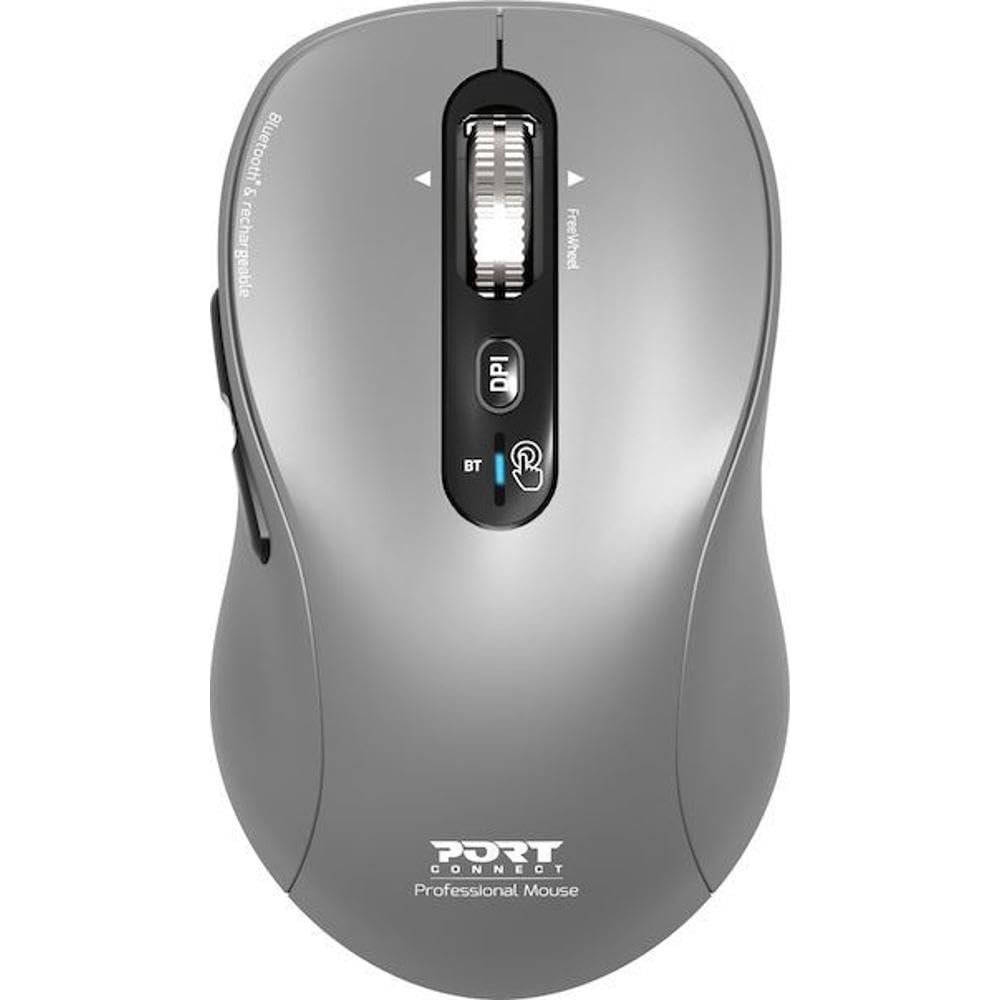
Image: The Port Designs Bluetooth Wireless Mouse in gray. It features a scroll wheel, DPI button, and connectivity indicator on the top, along with side buttons. A USB-C charging port is visible at the front.
The mouse is equipped with six buttons, including the left and right click buttons, a scroll wheel with FreeWheel functionality, a DPI adjustment button, and two side buttons. It supports both 2.4GHz wireless and Bluetooth connectivity, allowing connection to up to three devices.
Înființat
- Despachetarea: Scoateți cu grijă mouse-ul din ambalaj. Asigurați-vă că toate componentele sunt prezente.
- Încărcarea mouse-ului: The mouse is powered by a USB-C rechargeable battery. Connect the included USB-C cable to the charging port on the front of the mouse and to a USB power source. The LED indicator will show charging status. A full charge is recommended before first use.
- Conectarea prin Bluetooth:
- Porniți mouse-ul.
- Press and hold the Bluetooth pairing button (often located on the bottom or near the DPI button) until the LED indicator flashes, indicating pairing mode.
- On your device (computer, tablet), go to Bluetooth settings and search for new devices.
- Select "Port Designs Mouse" or a similar name from the list of available devices to pair.
- The LED indicator will become solid when successfully paired.
- Connecting via 2.4GHz Wireless:
- Locate the USB receiver (if included, typically stored in a compartment on the mouse's underside).
- Conectați receptorul USB la un port USB disponibil de pe computer.
- Turn on the mouse. It should automatically connect to the receiver.
- Împerecherea cu mai multe dispozitive: The mouse can connect to up to three devices simultaneously. Use the connectivity switch or button (often near the DPI button) to cycle between the 2.4GHz connection and two separate Bluetooth connections (BT1, BT2).
Operarea mouse-ului
- Pornire/Oprire: Use the power switch on the underside of the mouse to turn it on or off.
- Ajustare DPI: Press the DPI button (located near the scroll wheel) to cycle through sensitivity settings: 1000, 1600, 2400, and 3200 DPI. Choose the setting that best suits your task and preference.
- Clicuri silențioase: The mouse features silent click technology, providing a quiet working environment.
- FreeWheel Scrolling: The scroll wheel offers FreeWheel functionality for smooth and precise navigation through documents and web pagini.
- Butoane laterale: The two side buttons typically function as 'Forward' and 'Backward' for web răsfoirea și file navigation. Their functionality may vary depending on the operating system or specific application.
- Dispozitive de comutare: If you have paired the mouse with multiple devices, use the dedicated connectivity button/switch to quickly switch between the connected devices (e.g., 2.4GHz, BT1, BT2).
Întreţinere
- curatenie: Folosiți o cârpă moale și uscată pentru a curăța mouse-ul. Pentru murdăria persistentă, ștergeți ușor.ampClătiți cârpa cu apă. Evitați utilizarea substanțelor chimice dure sau a materialelor abrazive.
- Îngrijirea bateriei: Pentru a prelungi durata de viață a bateriei, evitați descărcarea completă frecventă a mouse-ului. Încărcați mouse-ul când apare indicatorul de baterie descărcată. Depozitați mouse-ul într-un loc răcoros și uscat atunci când nu îl utilizați pentru perioade lungi de timp.
- Depozitare: When transporting or storing the mouse, ensure it is turned off to conserve battery and prevent accidental activation.
Depanare
- Mouse-ul nu răspunde:
- Asigurați-vă că mouse-ul este pornit.
- Verificați nivelul bateriei și încărcați dacă este necesar.
- For 2.4GHz connection, ensure the USB receiver is securely plugged in.
- For Bluetooth connection, ensure Bluetooth is enabled on your device and the mouse is properly paired. Try re-pairing if necessary.
- Încercați să conectați dispozitivul la un alt port USB sau la un alt dispozitiv pentru a exclude problemele legate de port/dispozitiv.
- Mișcarea cursorului este neregulată sau lentă:
- Curățați senzorul optic de pe partea inferioară a mouse-ului.
- Asigurați-vă că utilizați mouse-ul pe o suprafață adecvată (nereflectorizantă, opacă).
- Adjust the DPI setting using the DPI button to a higher sensitivity.
- Cannot switch between devices:
- Ensure all desired devices are properly paired or connected.
- Press the device switching button firmly to cycle through connections.
Specificații
| Caracteristică | Detaliu |
|---|---|
| Marca | Proiecte de port |
| Numărul de model | 910201 |
| Culoare | Gri |
| Conectivitate | 2.4GHz Wireless, Bluetooth (connects up to 3 devices) |
| Numărul de butoane | 6 |
| Setări DPI | 1000, 1600, 2400, 3200 |
| Derulare | FreeWheel Roller |
| Baterie | USB-C reîncărcabil |
| Greutatea articolului | 0.16 kilograme |
Garanție și suport
For warranty information or technical support, please refer to the documentation included with your purchase or visit the official Port Designs website. De asemenea, puteți contacta serviciul clienți prin intermediul comerciantului de unde a fost achiziționat produsul.