
1. Introducere
The S25HH0 303DH US KVM Switch allows you to control up to three computers using a single set of keyboard, mouse, and three monitors. This device supports high-resolution video output and USB 3.0 peripheral sharing, enhancing productivity in multi-computer environments.
Please read this manual thoroughly before installation and operation to ensure proper use and to maximize the performance of your KVM switch.
2. Informații de siguranță
- Ensure the KVM switch is placed on a stable, flat surface.
- Nu expuneți dispozitivul la apă, umezeală sau temperaturi extreme.
- Folosiți doar adaptorul de alimentare furnizat. Utilizarea unui adaptor incorect poate deteriora dispozitivul și anula garanția.
- Evitați blocarea orificiilor de ventilație pentru a preveni supraîncălzirea.
- Nu încercați să deschideți sau să reparați dispozitivul singur. Apelați la personal calificat pentru toate lucrările de service.
- Disconnect power before cleaning. Clean the device with a soft, dry cloth.
3. Conținutul pachetului
Vă rugăm să verificați conținutul coletului la primire. Dacă lipsesc sau sunt deteriorate articolele, contactați furnizorul.
- S25HH0 303DH US Triple Monitor KVM Switch
- Adaptor de alimentare
- Comutator de la distanță cu fir
- USB 3.0 Cables (Quantity may vary based on package)
- HDMI Cables (Quantity may vary based on package)
- Manual de utilizare (Acest document)
4. Produs terminatview
The KVM switch features multiple ports for connecting your computers, monitors, and USB peripherals. Familiarize yourself with the port layout before proceeding with installation.

Imagine: Fata si spate view of the S25HH0 303DH US KVM Switch. This image illustrates the various input and output ports, including HDMI, USB 3.0, and the power input, along with the physical switch buttons for PC selection.
Panoul frontal
- PC Selection Buttons: Used to manually switch between connected computers.
- Porturi USB: 3.0 For connecting keyboard, mouse, and other USB 3.0 peripherals.
- Indicatoare LED: Show which computer is currently selected.
Panoul din spate
- HDMI Input Ports (PC1, PC2, PC3): Conectați-l la ieșirea HDMI a computerelor.
- USB 3.0 Input Ports (PC1, PC2, PC3): Connect to the USB 3.0 ports of your computers.
- HDMI Output Ports (Monitor 1, Monitor 2, Monitor 3): Connect to your monitors.
- Intrare de alimentare DC 12V: Conectați adaptorul de alimentare furnizat.
- Remote Switch Port: Connect the wired remote control for switching.
5. Instrucțiuni de configurare
Urmați acești pași pentru a conecta switch-ul KVM:
- Opriți dispozitivele: Asigurați-vă că toate computerele și monitoarele sunt oprite înainte de a face orice conexiune.
- Conectați monitoare: Connect your three monitors to the HDMI Output ports (Monitor 1, Monitor 2, Monitor 3) on the KVM switch using HDMI cables.
- Connect Computers (PC1):
- Connect the HDMI output from your first computer to the HDMI Input (PC1) on the KVM switch.
- Connect a USB 3.0 cable from your first computer's USB 3.0 port to the USB 3.0 Input (PC1) on the KVM switch.
- Connect Computers (PC2 & PC3): Repeat step 3 for your second and third computers, connecting them to the respective HDMI Input (PC2/PC3) and USB 3.0 Input (PC2/PC3) ports.
- Conectați periferice: Connect your keyboard, mouse, and any other USB 3.0 peripherals to the USB 3.0 ports on the front panel of the KVM switch.
- Conectarea telecomenzii cu fir (opțional): If desired, connect the wired remote switch to the dedicated port on the KVM switch.
- Pornire: Connect the provided 12V power adapter to the DC 12V input on the KVM switch, then plug it into a power outlet.
- Pornirea dispozitivelor: Power on your monitors, then power on your computers.

Imagine: Connection diagram illustrating how two PCs share four USB 3.0 devices and multiple monitors through the KVM switch. This highlights the USB 3.0 ports for peripherals like keyboards, mice, and printers.
6. Instrucțiuni de utilizare
6.1 Comutarea între computere
Puteți comuta între computerele conectate folosind două metode:
- Physical Button Switch: Press the corresponding PC selection button (PC1, PC2, or PC3) on the front panel of the KVM switch. The LED indicator will light up for the selected computer.
- Wired Remote Switch: Use the wired remote control to switch between computers. Press the button on the remote to cycle through the connected PCs.
Imagine: Two switching methods for the KVM switch: the physical buttons on the device and the external wired remote control. This illustrates the flexibility in controlling which computer is active.
6.2 Display Modes (Extend Mode / Copy Mode)
After connecting correctly, you can choose your desired display mode:
- Presa "Windows + P" pe tastatura ta.
- A pop-up window will appear, allowing you to select between display modes such as Extinde or Duplicate (Copy).

Imagine: Comparison of Extend Mode and Copy Mode. In Extend Mode, each monitor displays unique content, expanding the desktop. In Copy Mode, all three monitors display the same content, duplicating the desktop.
6.3 USB 3.0 Device Sharing
The KVM switch allows up to four USB 3.0 devices to be shared between the connected computers. When you switch to a different computer, the connected USB peripherals (keyboard, mouse, USB drives, etc.) will automatically switch to that computer.
USB 3.0 offers a faster transfer rate of 5Gbps compared to USB 2.0's 480Mbps, ensuring efficient data transfer for your peripherals.
7. Display Resolution and Refresh Rate
The KVM switch supports high-resolution video outputs, ensuring a clear and smooth visual experience.
- DisplayPort (DP1.4) Support: Up to 8K@30Hz, 4K@144Hz, 4K@120Hz. Backward compatible with lower resolutions and refresh rates.
- HDMI (HDMI2.1) Support: Up to 8K@60Hz, 4K@120Hz. Backward compatible with lower resolutions and refresh rates.
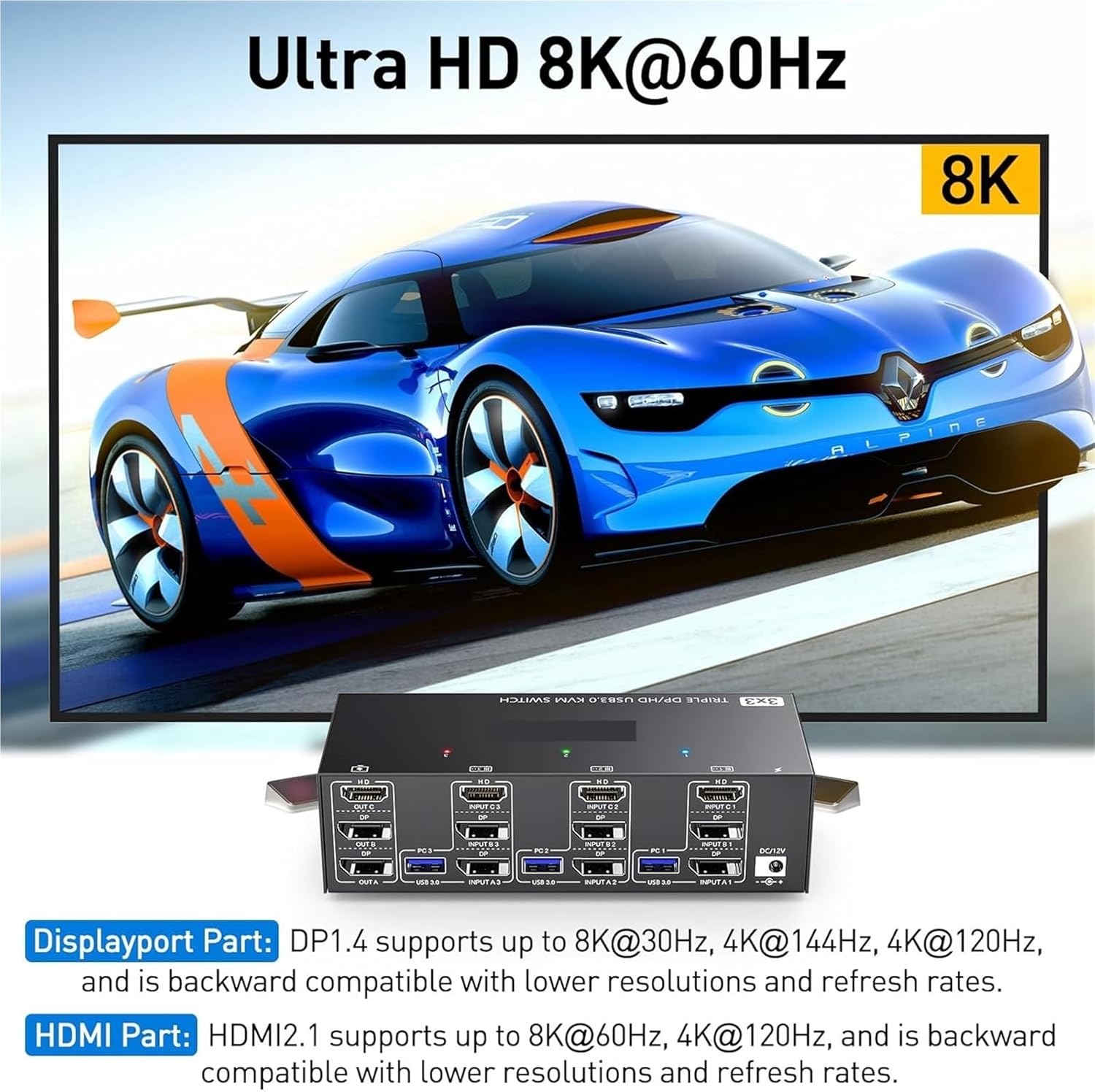
Imagine: Visual representation of Ultra HD 8K@60Hz capability. This image details the supported resolutions and refresh rates for both DisplayPort 1.4 and HDMI 2.1 connections, emphasizing high-quality video output.
8. Întreținere
- Keep the KVM switch in a cool, dry place away from direct sunlight.
- Regularly clean the exterior of the device with a soft, dry, lint-free cloth.
- Do not use liquid or aerosol cleaners, as they may contain flammable substances or chemicals that can damage the device.
- Ensure all cables are securely connected and free from kinks or damage.
9. Depanare
Dacă întâmpinați probleme cu switch-ul KVM, vă rugăm să consultați următoarele probleme și soluții comune:
| Problemă | Cauză/Soluție posibilă |
|---|---|
| Nicio afișare pe monitoare. |
|
| Keyboard or mouse not working. |
|
| Cannot switch between computers. |
|
| Calitate video slabă sau pâlpâire. |
|
10. Specificații
| Caracteristică | Caietul de sarcini |
|---|---|
| Marca | S25HH0 |
| Model | 303DH US |
| Porturi de intrare | 3 x HDMI, 3 x USB 3.0 |
| Porturi de ieșire | 3 x HDMI, 4 x USB 3.0 |
| Standard video | HDMI 2.1, DisplayPort 1.4 (backward compatible) |
| Max Resolution (HDMI) | 8K@60Hz, 4K@120Hz |
| Max Resolution (DisplayPort) | 8K@30Hz, 4K@144Hz, 4K@120Hz |
| USB standard | USB 3.0 (5 Gbps) |
| Metoda de control | Physical Button, Wired Remote |
| Vol. De operaretage | 12 volți |
| Greutatea articolului | 50 grame |
| Certificari | CE, RoHS |
11. Garanție și asistență
This product comes with a standard manufacturer's warranty. Please refer to the warranty card included in your package or contact your retailer for specific warranty terms and conditions.
For technical support or further assistance, please contact your vendor or the manufacturer's customer service. Contact information can typically be found on the product packaging or the manufacturer's official website-ul.