
WUAWE WAB160-60-7S
Manual de utilizare pentru monitorul portabil WUAWE de 16 inci
Model: WAB160-60-7S
Brand: WUAWE
Introducere
Thank you for choosing the WUAWE 16-inch Portable Monitor. This ultra-thin, high-resolution display is designed to enhance your productivity and entertainment on the go. With its 1920x1200P resolution, 60Hz refresh rate, USB-C and HDMI connectivity, and built-in speakers, it offers a versatile solution for extending your laptop screen, gaming, or mobile device display. This manual provides detailed instructions to help you set up, operate, and maintain your new portable monitor.

Image: WUAWE 16-inch Portable Monitor connected to a laptop, highlighting its 1200P resolution, 16:10 aspect ratio, and IPS screen.
Informații de siguranță
- Do not expose the monitor to rain or moisture to prevent fire or electric shock hazards.
- Nu expuneți monitorul la lumina directă a soarelui, la surse de căldură sau la temperaturi extreme.
- Evitați să așezați obiecte grele pe monitor sau pe cablurile acestuia.
- Folosiți doar adaptorul de alimentare și cablurile furnizate sau recomandate de producător.
- Nu încercați să dezasamblați sau să reparați monitorul singur. Apelați la personal calificat pentru orice service.
- Clean the monitor with a soft, dry cloth. Avoid using liquid cleaners or aerosol sprays.
Conținutul pachetului
Vă rugăm să verificați conținutul coletului pentru a vă asigura că toate articolele sunt prezente:
- 1 x 16" 1200P Portable Monitor with Built-in Stand
- 1 x 1.5M USB-C to USB-C Cable (Full-Featured)
- 1 x 1.5M Mini-HDMI to HDMI Cable (Display Only)
- 1 x 1.5M USB-C to USB-A Cable
- 1 x Manual de utilizare

Image: Contents of the WUAWE Portable Monitor package, including the monitor, various cables, and the user manual.
Produs terminatview
Familiarize yourself with the ports and controls of your WUAWE portable monitor:

Imagine: Detaliată view of the WUAWE Portable Monitor's ports and controls, including USB-C, Mini HDMI, audio output, and control buttons.
Porturi și butoane:
- Type-C Full Function Ports (x2): For power supply and video signal transmission (requires Thunderbolt 3.0 or USB 3.1 Type C DP ALT-MODE).
- Port mini HDMI: For video signal input.
- Ieșire audio de 3.5 mm: Pentru conectarea căștilor sau a difuzoarelor externe.
- Power / Back Button: To power on/off the monitor and navigate back in menus.
- Menu (Scroll Wheel): To access and navigate the On-Screen Display (OSD) menu and adjust settings.
- Boxe încorporate: Pentru ieșire audio.
Suport integrat:
The monitor features a pull-out kickstand on the back, allowing for stable positioning in both landscape and portrait modes. This provides flexibility for various viewing angles and applications.

Image: Comparison highlighting the stability and flexibility of the WUAWE monitor's integrated kickstand versus a typical cover stand.
Înființat
Pornire:
Connect the monitor to a power source using the provided USB-C to USB-C cable and a compatible power adapter (not always included, check package contents). The monitor will power on automatically or can be turned on using the Power button.
Conectarea la dispozitive:
The WUAWE portable monitor offers versatile connectivity options:
- USB-C to USB-C Connection (Single Cable Solution):
For devices with a full-featured USB-C port (supporting DisplayPort Alternate Mode and power delivery), use the included USB-C to USB-C cable. This single cable can transmit both video signal and power to the monitor.
Note: Ensure your device's USB-C port supports Thunderbolt 3.0 or USB 3.1 Type C DP ALT-MODE for full functionality. USB 2.0/1.0 ports do not support video output.
- Mini HDMI to HDMI Connection (Video Only) + USB-C for Power:
For devices that lack a full-featured USB-C port (e.g., older laptops, PCs, gaming consoles), use the included Mini-HDMI to HDMI cable for video transmission. Additionally, connect the monitor to a power source using the USB-C to USB-A cable and a power adapter (or a USB-A port on your device).

Image: Illustration of the two primary connection methods for the WUAWE Portable Monitor: single USB-C cable and Mini HDMI with USB-C power.

Image: Guide to checking device compatibility for Type-C 3.0 (with video output) and HDMI 2.0 connections.
Utilizarea monitorului
Moduri de afișare:
The monitor supports multiple display modes to suit your needs:
- Mod extins: Extinde desktopul pe ambele ecrane, oferind mai mult spațiu de lucru.
- Mod duplicat: Mirrors your primary screen's content onto the portable monitor.
- Mod al doilea ecran: Folosește doar monitorul portabil ca afișaj.
- Modul portret: Permite utilizarea monitorului pe verticală, ideal pentru codare, redactare de documente viewing, or social media.

Image: Visual representation of the different display modes: Extended, Duplicated, and Second Screen.

Image: The monitor's flexibility to switch between portrait and optional landscape modes using its built-in kickstand.
Meniul de afișare pe ecran (OSD):
Use the Menu (scroll wheel) button to access the OSD menu and adjust various settings:
- Luminozitate/Contrast: Reglați nivelurile de luminozitate și contrast ale afișajului.
- Volum: Control the audio output from the built-in speakers or 3.5mm jack.
- Setări de culoare: Modificați temperatura culorii, nuanța și saturația.
- Sursa de intrare: Manually select between USB-C and Mini HDMI inputs.
- Modul HDR: Enable or disable High Dynamic Range for enhanced visual experience (Note: SDR generally provides better results for this monitor).
- FreeSync: Enable FreeSync for smoother gaming by reducing screen tearing and stuttering.
- Lumină albastră scăzută: Activate to reduce eye strain during prolonged use.

Image: Demonstrating HDR mode for gaming, emphasizing richer visual layers and 100% sRGB color gamut.

Image: FreeSync technology in action, reducing screen tearing and stuttering for a smoother gaming experience.
Scenarii de utilizare:
- Business & Productivity: Ideal for meetings, presentations, and extending laptop screens for multitasking.
- Jocuri: Connect to PS5/PS4, Nintendo Switch, Xbox, or other consoles for an immersive gaming experience.
- Munca creativa: Use for graphic design, video editing, or other applications requiring additional screen real estate.
- Voiaj: Its slim and lightweight design makes it perfect for work or entertainment on business trips or vacations.

Image: The portable monitor facilitating screen sharing and collaboration in a business environment.
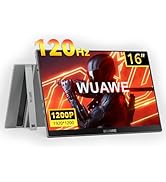
Image: The portable monitor set up for gaming with a PS5 and Nintendo Switch, demonstrating its compatibility with various consoles.
Întreţinere
- Curățarea ecranului: Ștergeți ușor ecranul cu o lavetă moale, fără scame. Pentru petele persistente, ștergeți ușorampCurățați laveta cu apă sau cu o soluție de curățare specifică ecranului. Nu pulverizați lichid direct pe ecran.
- Curățarea corpului: Folosiți o lavetă moale și uscată pentru a curăța exteriorul monitorului.
- Depozitare: When not in use, store the monitor in a cool, dry place, away from direct sunlight and extreme temperatures.
- Manipulare: Manevrați întotdeauna monitorul de margini. Evitați să aplicați presiune pe ecran.
Depanare
| Problemă | Cauza posibila | Soluţie |
|---|---|---|
| Fără afișaj/mesaj „Fără semnal” | Incorrect input source selected; Cable not properly connected; Device not outputting video; Insufficient power. | Check cable connections (USB-C, HDMI). Ensure your device's USB-C port supports DP Alt Mode. Select the correct input source via the OSD menu. Ensure the monitor is receiving sufficient power. Restart your connected device. |
| Screen flickering/Unstable display | Loose cable connection; Power fluctuations; HDR mode issues. | Ensure cables are securely connected. Try a different power outlet or adapter. If using HDR, try disabling it in the OSD menu or on your device, as SDR often provides a more stable image. |
| Nu se aude sunet din difuzoare/mufa pentru căști | Volum prea mic; Dezactivat; Ieșire audio incorectă selectată pe dispozitiv. | Increase volume via the OSD menu or your connected device. Check if the monitor or device is muted. Ensure the monitor is selected as the audio output device on your computer/console. |
| Monitorul nu pornește | No power; Faulty power cable/adapter. | Verify power connection. Try a different power outlet. Ensure the power button is pressed. |
| Image is washed out or colors are incorrect | Incorrect color settings; HDR mode enabled. | Adjust color settings in the OSD menu. If HDR is enabled, try disabling it, as some users report better color accuracy in SDR mode. |
If you encounter issues such as screen flickering, pixel holes, or other quality concerns, please contact customer service through the Amazon platform for effective solutions.
Specificații
| Caracteristică | Detaliu |
|---|---|
| Dimensiunea ecranului | 16 inchi |
| Rezoluţie | 1920 x 1200P (WUXGA) |
| Raportul de aspect | 16:10 |
| Rata de reîmprospătare | 60 Hz |
| Luminozitate | 300 cd/m² |
| Raport de contrast | 1200:1 |
| Viewunghiul ing | 178° (IPS Panel) |
| Conectivitate | 2 x USB Type-C (Full Function), 1 x Mini-HDMI, 1 x 3.5mm Audio Out |
| Greutatea articolului | 1.58 lire sterline |
| Dimensiunile produsului | 0.36 x 9.4 x 13.9 inci |
| Producător | WUAWE |
| Numărul de model | WAB160-60-7S |

Image: Key display specifications of the WUAWE Portable Monitor, including resolution, brightness, contrast, and viewunghiuri de ing.
Garanție și suport
Your WUAWE portable monitor comes with a 2-year warranty. For any product-related inquiries, technical support, or warranty claims, please contact WUAWE customer service. You can typically reach support through the Amazon platform where the product was purchased.
WUAWE offers 24/7 customer service to assist you with any questions or issues you may have.
For more information and support, you may visit the official WUAWE Store on Amazon: WUAWE Amazon Store
Ask a question about this manual
Ask about setup, troubleshooting, compatibility, parts, safety, or missing instructions. Manuals+ will review the question and use this page’s manual context to help answer it.