
1. Introducere
The FULLJA 11-inch WiFi Digital Photo Frame (Model 117-S) is designed to display your cherished photos and videos with a stunning 2K FHD IPS touch screen. This device allows for easy sharing of media via a dedicated smartphone app or email, offering 32GB of internal storage and free unlimited cloud storage. Beyond displaying memories, it includes features such as a slideshow function, music playback, motion sensor, weather updates, clock, and calendar.
2. Ce se află în cutie
- 1 x FULLJA 11-inch WiFi Digital Photo Frame (Model 117-S)
- 1 x adaptor de alimentare
- 1 x Table Stand
- 1 x Manual de utilizare
3. Configurare
3.1 Pornirea inițială
- Connect the provided power adapter to the frame's power port.
- Conectați adaptorul la o priză. Rama se va porni automat.
- Follow the on-screen instructions to select your language and time zone.
3.2 Conexiune Wi-Fi
- On the frame's touch screen, navigate to Setări.
- Selecta Wifi and choose your preferred 2.4G or 5.0G network.
- Introduceți parola Wi-Fi și atingeți Conectați-vă.

Figure 1: The digital photo frame displaying app sharing capabilities and Wi-Fi connectivity.
3.3 Descărcarea aplicației și asocierea
- Descărcați gratuit VPhoto smartphone app from the App Store (iOS) or Google Play Store (Android).
- Open the VPhoto app and create an account or log in.
- On your digital photo frame, navigate to Setări > Managementul utilizatorilor to find your unique frame ID or QR code.
- In the VPhoto app, select Adăugați dispozitiv and enter the frame ID or scan the QR code to pair your smartphone with the frame.

Figure 2: The VPhoto app download page on a smartphone, essential for remote photo and video sharing.
4. Instrucțiuni de utilizare
4.1 Sharing Photos and Videos
- Via VPhoto App: Open the VPhoto app, select the photos or videos you wish to share, and send them directly to your paired frame. You can send up to 50 items at once.
- Prin e-mail: The frame has a unique email address. Send photos and videos to this address, and they will appear on your frame.
- Via USB/TF Card: Insert a USB drive or TF (Micro SD) card into the designated port on the frame to directly upload media.

Figure 3: Various methods for uploading media to the digital photo frame, including app, email, and direct storage connections.
4.2 Slideshow Function
The frame automatically plays a slideshow of your uploaded photos and videos. You can customize slideshow settings such as interval, transition effects, and display mode (full screen, fit to screen) through the Setări meniu.
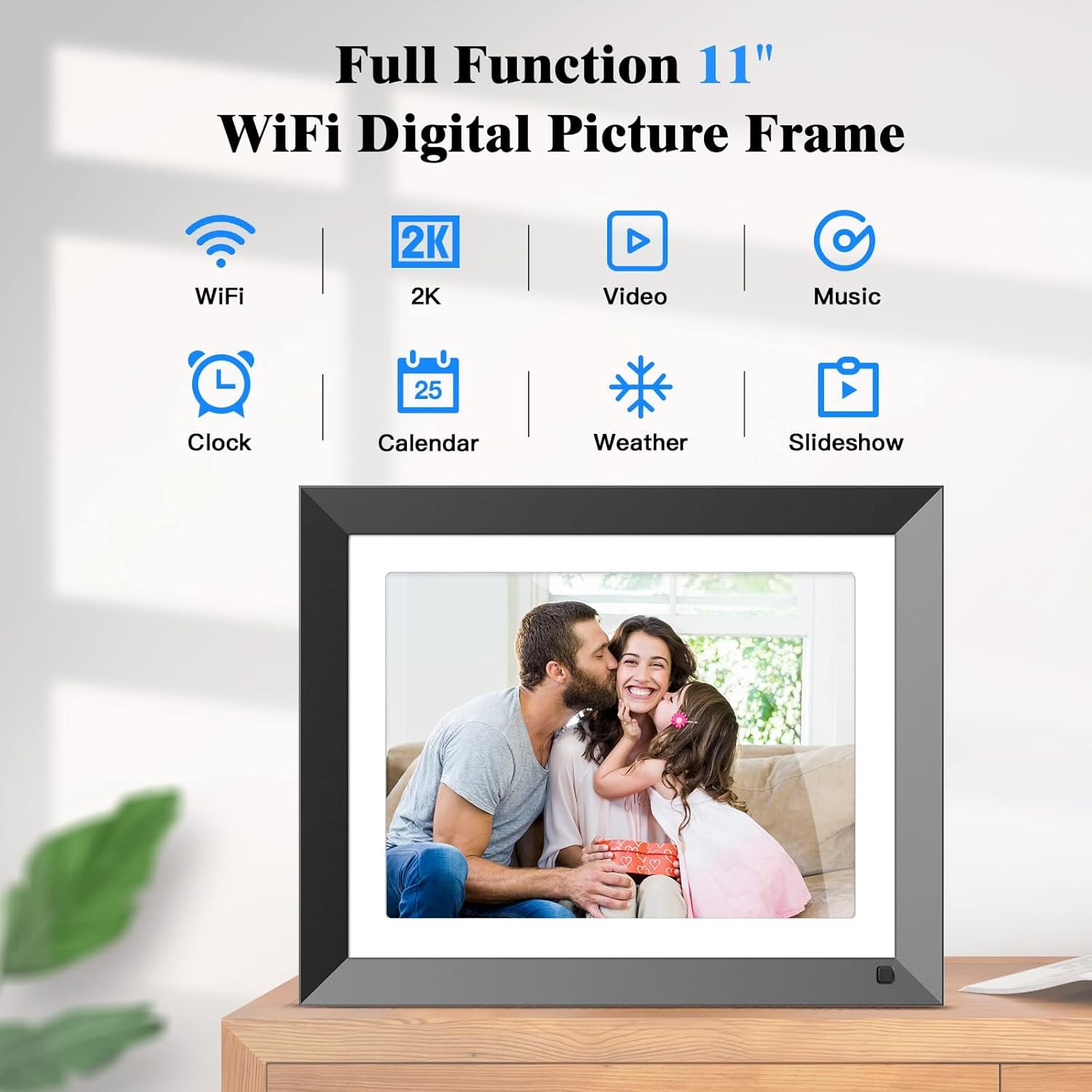
Figure 4: The main interface of the digital photo frame, highlighting its diverse functions like slideshow, video, and music playback.
4.3 Redarea muzicii
The frame supports background music playback during slideshows. Upload your music files via SD card or USB drive. Access music settings from the main menu to manage your audio library.
4.4 Clock, Calendar, and Weather
The frame can display the current time, date, and weather forecast. These features are accessible from the main interface. Ensure your frame is connected to Wi-Fi for accurate weather updates.

Figure 5: Icons representing the clock, calendar, weather, and image display functions on the digital photo frame.
4.5 Senzor de mișcare
The integrated motion sensor helps conserve energy by automatically turning the screen on when motion is detected and off when the area is clear for a set period. This feature can be enabled or disabled in the Setări de sistem.

Figure 6: The digital photo frame's energy-saving motion sensor feature, illustrating its activation upon detecting movement.
5. Depozitare
The FULLJA digital photo frame comes with 32GB of built-in memory, capable of storing over 12,000 photos. It also supports external storage via a TF (Micro SD) card slot (up to 32GB) and a USB port for connecting USB drives, providing flexible options for expanding your media library.

Figure 7: The digital photo frame showcasing its built-in 32GB storage, capable of holding a large number of photos.

Figure 8: The digital photo frame illustrating its compatibility with SD cards and USB drives for expanded storage.
6. Montare și amplasare
The frame can be placed on any flat surface using the included table stand. It supports both landscape and portrait orientations. Additionally, the frame can be wall-mounted for a more permanent display solution. Ensure proper wall-mounting hardware is used (not included) and follow the instructions in the Quick Start Guide for secure installation.
7. Specificații
| Caracteristică | Detaliu |
|---|---|
| Dimensiunea ecranului | 11 inchi |
| Rezoluţie | 2176 x 1600 pixels (2K FHD IPS) |
| Stocare internă | 32 GB |
| Stocare externă | TF Card (Max 32GB), USB Drive |
| Conectivitate | WiFi (2.4G + 5.0G) |
| Dispozitive compatibile | iPhone, Android (via VPhoto App) |
| Dimensiuni | 9.84 x 12.2 x 0.99 inci |
| Greutatea articolului | 3.03 lire sterline |
| Numărul de model | 117-S |
8. Depanare
- Rama nu pornește: Asigurați-vă că adaptorul de alimentare este conectat corect atât la cadru, cât și la o priză funcțională.
- Nu se poate conecta la Wi-Fi: Verify your Wi-Fi password is correct. Ensure the frame is within range of your Wi-Fi router. The frame supports both 2.4G and 5.0G networks. Try restarting your router and the frame.
- Fotografiile nu apar pe ramă:
- Check if the frame is connected to Wi-Fi.
- Confirm that the VPhoto app is correctly paired with your frame using the frame ID.
- Ensure photos/videos sent via email are from an authorized sender and the email address is correct.
- For USB/TF card, ensure the files are in a supported format (e.g., JPEG for photos, MP4 for videos) and the storage device is properly inserted.
- Screen display issues (e.g., images cut off): Adjust the display mode in Setări album to "Fit to screen" or "Full screen fixed" to optimize how images are shown.
- Senzorul de mișcare nu funcționează: Check the motion sensor settings in Setări de sistem to ensure it is enabled. Ensure there are no obstructions blocking the sensor.
9. Întreținere
- curatenie: Folosiți o lavetă moale și uscată pentru a curăța ecranul și rama. Evitați utilizarea de produse de curățare abrazive sau spray-uri direct pe ecran.
- Actualizări de software: Periodically check for firmware updates through the frame's settings to ensure optimal performance and access to new features.
- Managementul stocării: În mod regulat review and delete unwanted photos or videos to free up internal storage space, especially if not utilizing cloud storage.
10. Garanție și asistență
For warranty information and technical support, please refer to the warranty card included in your product packaging or visit the official FULLJA website. You can also contact customer service through the VPhoto app's support section.