
1. Introducere
This manual provides essential information for the proper installation, configuration, and operation of your Teltonika RUT951 4G LTE Router. The RUT951 is a robust industrial cellular router designed for professional applications, offering reliable internet connectivity via 4G LTE, Wi-Fi, and Ethernet. It features dual-SIM support for network redundancy and is powered by RutOS, providing advanced customization and security features.
2. Produs terminatview
2.1 Caracteristici cheie
- Dual-SIM 4G LTE cellular connectivity for reliable network access.
- Integrated Wi-Fi (802.11b/g/n) for local wireless networking.
- Four Ethernet interfaces (3x LAN, 1x WAN) for wired connections.
- Powered by RutOS for advanced customization, automation, and security.
- Robust design suitable for various IoT and industrial scenarios.
2.2 Conținutul pachetului
The standard package for the Teltonika RUT951 router typically includes:
- Teltonika RUT951 Router Unit
- Adaptor de alimentare
- 2 x Mobile Antennas (SMA)
- 2 x Wi-Fi Antennas (RP-SMA)
- Cablu Ethernet
- Ghid de pornire rapidă
2.3 Aspectul routerului
Familiarize yourself with the router's ports, indicators, and slots.
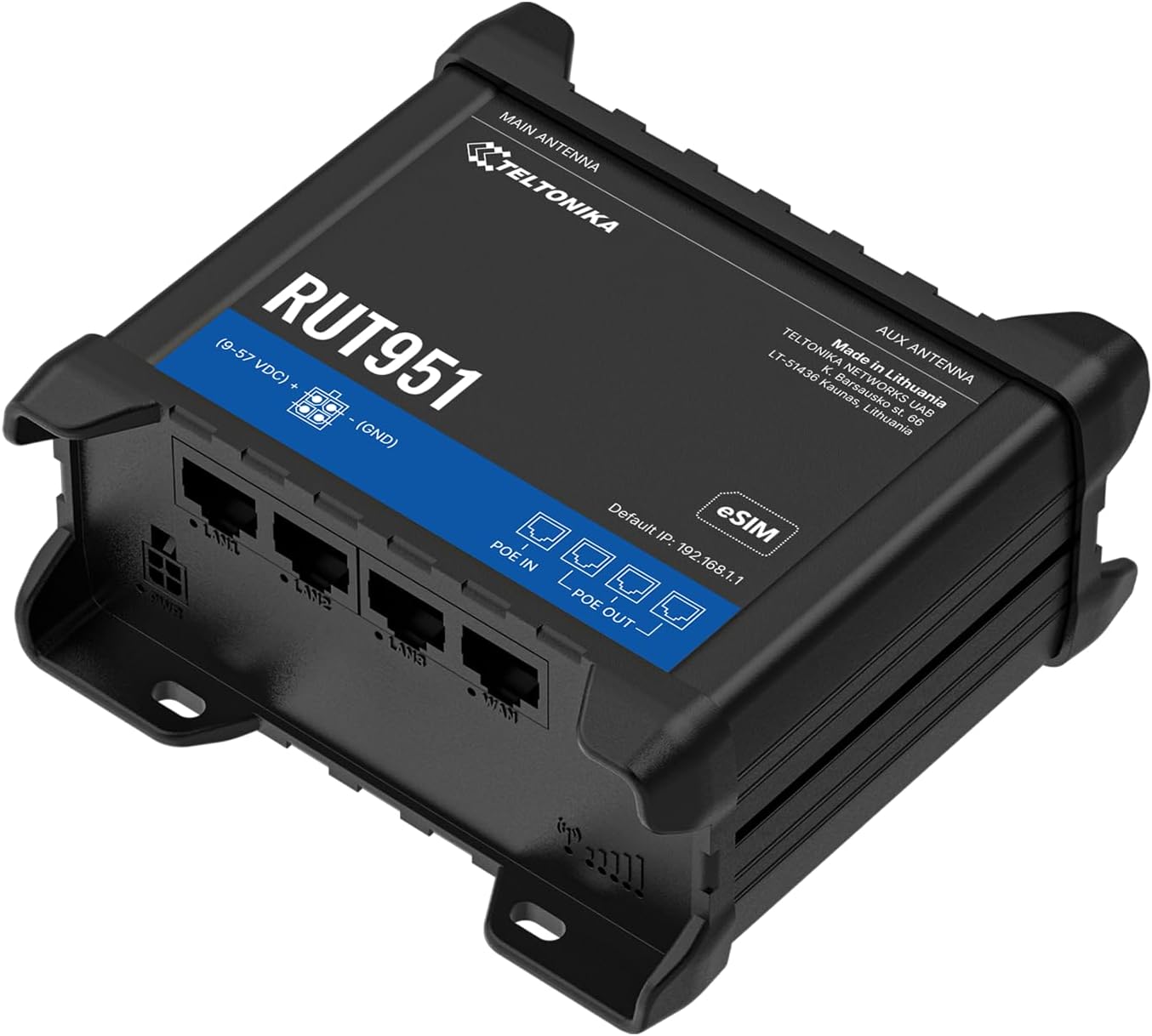
Figura 1: Faţă view of the Teltonika RUT951 router, showing the model name and general design.

Figura 2: Detailed diagram illustrating the various ports and indicators on the Teltonika RUT951 router, including mobile and Wi-Fi antenna connectors, SIM slots, Ethernet ports, power socket, and LED indicators.
- Mobile AUX Antenna Connector (SMA female): For secondary mobile antenna.
- Mobile MAIN Antenna Connector (SMA female): For primary mobile antenna.
- SIM1 / SIM2 Slots: Pentru introducerea cartelelor SIM celulare.
- Butonul de resetare: To restore factory settings or reboot.
- Wi-Fi Antenna Connectors (RP-SMA female): For Wi-Fi antennas.
- Priză de alimentare: Pentru conectarea adaptorului de alimentare.
- Porturi LAN Ethernet: Pentru conectarea dispozitivelor din rețeaua locală.
- Port Ethernet WAN: For connecting to an external network (e.g., fiber modem).
- LED-uri pentru puterea semnalului mobil: Indicate cellular signal strength.
- Mobile Connection Status LED: Indicates cellular connection status.
- LED-uri LAN: Indicate activity on LAN ports.
- LED WAN: Indicates activity on the WAN port.
3. Instrucțiuni de configurare
3.1 Instalarea cartelei SIM
- Locate the SIM card slots (SIM1 and SIM2) on the top panel of the router.
- Using a SIM ejector tool or a paperclip, gently press the small button next to the SIM slot to open it.
- Insert your activated Mini-SIM card(s) into the slot(s) with the gold contacts facing down and the notched corner oriented correctly.
- Push the SIM tray back into the router until it clicks into place.

Figura 3: Top view of the RUT951, highlighting the SIM card slots and antenna connectors.
3.2 Conectarea antenei
- Screw the two mobile antennas onto the SMA connectors labeled 'MOBILE' (MAIN and AUX) on the top panel.
- Screw the two Wi-Fi antennas onto the RP-SMA connectors labeled 'WIFI' on the top panel.
- Ensure all antennas are securely tightened for optimal signal reception.
3.3 Conexiune la alimentare
- Connect the provided power adapter to the power socket on the router.
- Conectați celălalt capăt al adaptorului de alimentare la o priză adecvată.
- The router will power on automatically. Observe the power LED indicator.

Figura 4: Fund view of the RUT951, showing the Ethernet ports and power input.
3.4 Conexiune Ethernet
To connect a device directly to the router:
- Connect one end of an Ethernet cable to any of the LAN ports (LAN1, LAN2, LAN3) on the router.
- Connect the other end of the Ethernet cable to your computer or network device.
- If you are using the router as a WAN gateway, connect your external modem (e.g., fiber modem) to the WAN port.
4. Instrucțiuni de utilizare
4.1 Initial Access to WebUI
- Ensure your computer is connected to the router via Ethernet or Wi-Fi. The default Wi-Fi SSID and password can be found on the router's label.
- Deschide a web browser și introduceți adresa IP implicită: 192.168.1.1
- Vi se vor solicita datele de autentificare. Numele de utilizator implicit este admin. The default password is also admin (or as specified on the router's label).
- Upon first login, you will be guided through a setup wizard to change the default password and configure basic settings.
4.2 Configurarea rețelei
After initial login, you can configure various network settings through the WebUI:
- Setări WAN: Configure your cellular (4G LTE) connection, including APN settings, or set up the Ethernet WAN port.
- Setări LAN: Manage the local network IP address range and DHCP server.
- Setări Wi-Fi: Change Wi-Fi SSID, password, security protocols, and channel settings.
- SIM dual: Configure failover or load balancing between the two SIM cards for continuous connectivity.
- VPN: Set up various VPN protocols for secure remote access.
5. Întreținere
5.1 de actualizări de firmware
Regularly updating the router's firmware is crucial for security, performance, and new features. Firmware updates can be performed via the WebUI under the 'System' or 'Firmware' section. Always download firmware from the official Teltonika Networks website-ul.
5.2 Resetare din fabrică
Dacă întâmpinați probleme persistente sau uitați datele de conectare, puteți efectua o resetare la setările din fabrică:
- With the router powered on, locate the RESET button (refer to Figure 2).
- Press and hold the RESET button for approximately 10 seconds until all LEDs flash.
- Eliberați butonul. Routerul se va reporni cu setările implicite din fabrică.
6. Depanare
- Fără conexiune internet:
- Check SIM card insertion and activation.
- Verificați setările APN în WebUI.
- Ensure mobile antennas are securely connected.
- Verificați LED-urile de putere a semnalului celular.
- Wi-Fi-ul nu funcționează:
- Asigurați-vă că Wi-Fi este activat în WebUI.
- Verificați conexiunile antenei Wi-Fi.
- Verify Wi-Fi SSID and password.
- Nu se poate accesa WebUI:
- Ensure your device is connected to the router (Ethernet or Wi-Fi).
- Verificați setările IP ale computerului (ar trebui să fie configurate să obțină IP-ul automat).
- Încearcă să golești memoria cache a browserului sau să folosești un alt browser.
- Perform a factory reset if you suspect incorrect IP configuration or forgotten password.
7. Specificații
| Caracteristică | Caietul de sarcini |
|---|---|
| Marca | Teltonica |
| Numele modelului | RUT951 |
| Tehnologia de conectivitate | Wi-Fi, 4G LTE, 3G, 2G |
| Comunicare wireless standard | 802.11b, 802.11g, 802.11n |
| Clasa de bandă de frecvență | Dual-Band |
| Numărul de porturi | 4 (3x LAN, 1x WAN) |
| Lățime de bandă a portului LAN | 100 Mbps |
| Rata de transfer de date | 150 Megabits Per Second (Max Upstream) |
| Sistem de operare | RutOS |
| Greutatea articolului | 287 grame |
| Voltage | 30 volți |
| Protocol de securitate | WPS (and others via RutOS) |
| Acoperire | Dual SIM network redundancy |
8. Informații de siguranță
- Utilizați numai adaptorul de alimentare furnizat împreună cu dispozitivul.
- Nu expuneți dispozitivul la apă, umezeală sau temperaturi extreme.
- Evitați plasarea dispozitivului în apropierea surselor de căldură sau în lumina directă a soarelui.
- Asigurați o ventilație adecvată pentru a preveni supraîncălzirea.
- Do not attempt to open or modify the device. This will void the warranty.
- Dispose of the device and its accessories responsibly according to local regulations.
9. Garanție și asistență
The Teltonika RUT951 router comes with a standard manufacturer's warranty. For detailed warranty terms and conditions, please refer to the documentation included with your product or visit the official Teltonika Networks website. For technical support, firmware downloads, and additional resources, please visit the Teltonika Networks support portal or contact your vendor.