
Introducere
This manual provides essential information for setting up, operating, maintaining, and troubleshooting your CUPEISI 7-inch Android 14 Tablet. Please read this guide thoroughly to ensure proper use and to maximize your tablet's performance and longevity.
Ce este în cutie
Verificați dacă toate articolele sunt prezente la despachetare:
- CUPEISI 7-inch Android 14 Tablet
- Cablu tip C
- Manual de utilizare (acest document)
Produs terminatview
The CUPEISI Q2S tablet features a 7-inch HD IPS display, powered by a 1.6GHz Quad-core processor and running Android 14. It includes 8GB RAM (4GB physical + 4GB virtual) and 32GB internal storage, expandable up to 1TB via microSD card. The tablet is equipped with dual cameras and supports Wi-Fi and Bluetooth connectivity.
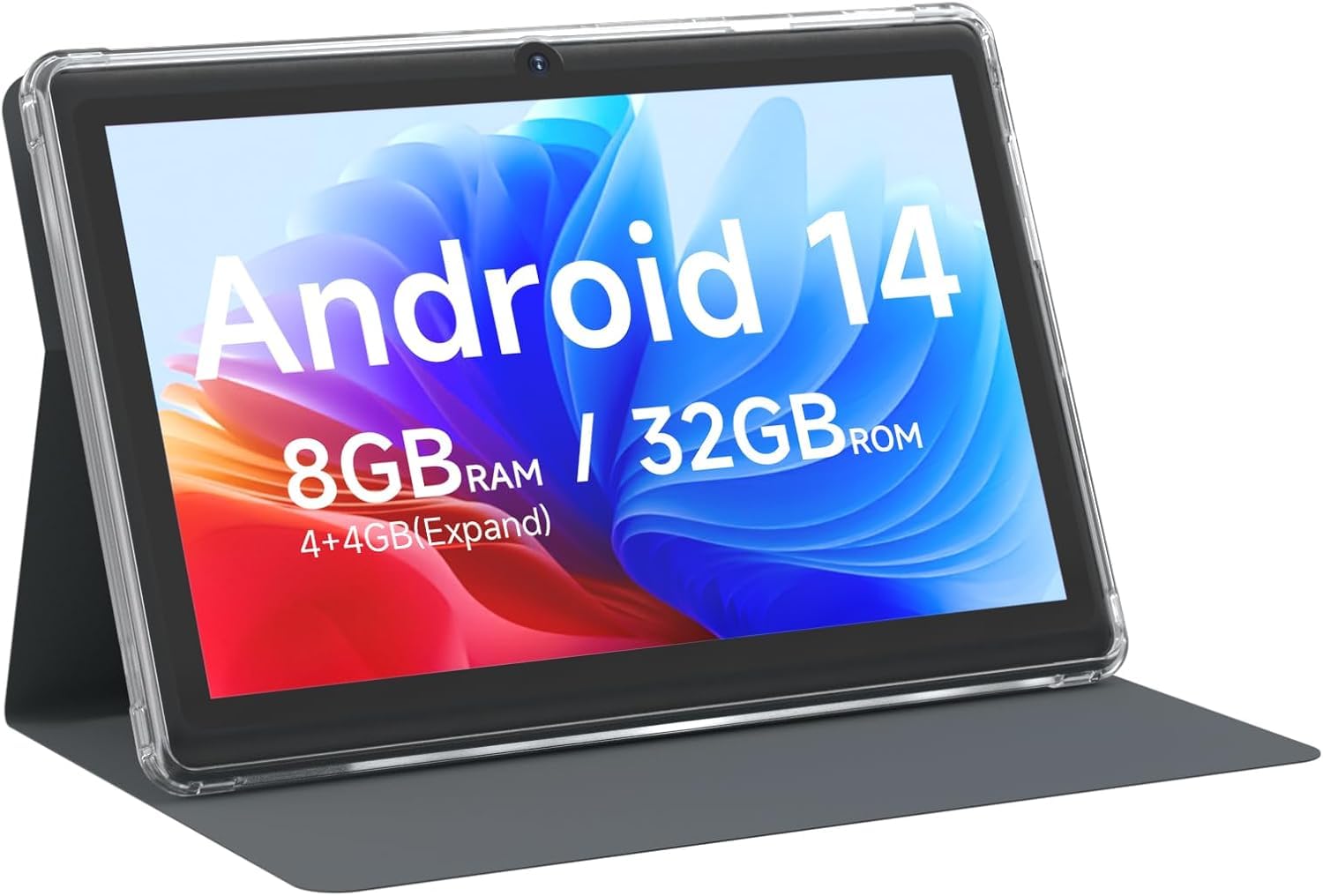
CUPEISI 7-inch Android 14 Tablet, front view.

Pesteview of CUPEISI 7-inch Android 14 Tablet features including OS, CPU, RAM, ROM, Screen, Camera, Battery, and WiFi.
Înființat
1. Încărcarea tabletei
Before first use, fully charge the tablet. Connect the provided Type-C cable to the tablet's charging port and the other end to a compatible USB power adapter (not included) or a computer's USB port. The battery indicator on the screen will show charging status.
2. Pornire și configurare inițială
- Țineți apăsat butonul de alimentare până când ecranul se aprinde.
- Follow the on-screen prompts to select your language, region, and other initial settings.
3. Conectarea la Wi-Fi
- Du-te la Setări > Rețea și internet > Wifi.
- Comutare Wi-Fi On.
- Selectați rețeaua Wi-Fi dorită din listă.
- Introduceți parola de rețea dacă vi se solicită, apoi atingeți Conectați-vă.
4. Configurarea contului Google
A Google account is required to download apps from Google Play Store and access Google services. You can sign in with an existing account or create a new one during the initial setup or later via Setări > Conturi.
Utilizarea tabletei
1. Navigare și gesturi de bază
- Robinet: Selectați un element sau deschideți o aplicație.
- Beţivan: Derulați prin ecrane sau liste.
- Ciupire: Măriți sau micșorați imaginile și web pagini.
- Apasare prelungită: Accesați meniurile contextuale sau mutați pictogramele.
2. Gestionarea aplicațiilor

Tablet screen showing various application icons, illustrating the 8GB RAM and 32GB ROM storage capacity.
- Instalați aplicații: Open the Google Play Store app, search for your desired app, and tap Instala.
- Dezinstalați aplicațiile: Long-press an app icon on the home screen or app drawer, then drag it to the Dezinstalează option, or go to Setări > Aplicații > selectați aplicația > Dezinstalează.
3. Managementul stocării
The tablet has 32GB of internal storage. You can expand this by inserting a microSD card (up to 1TB) into the designated slot. To manage storage, go to Setări > Depozitare.
4. Utilizarea camerei
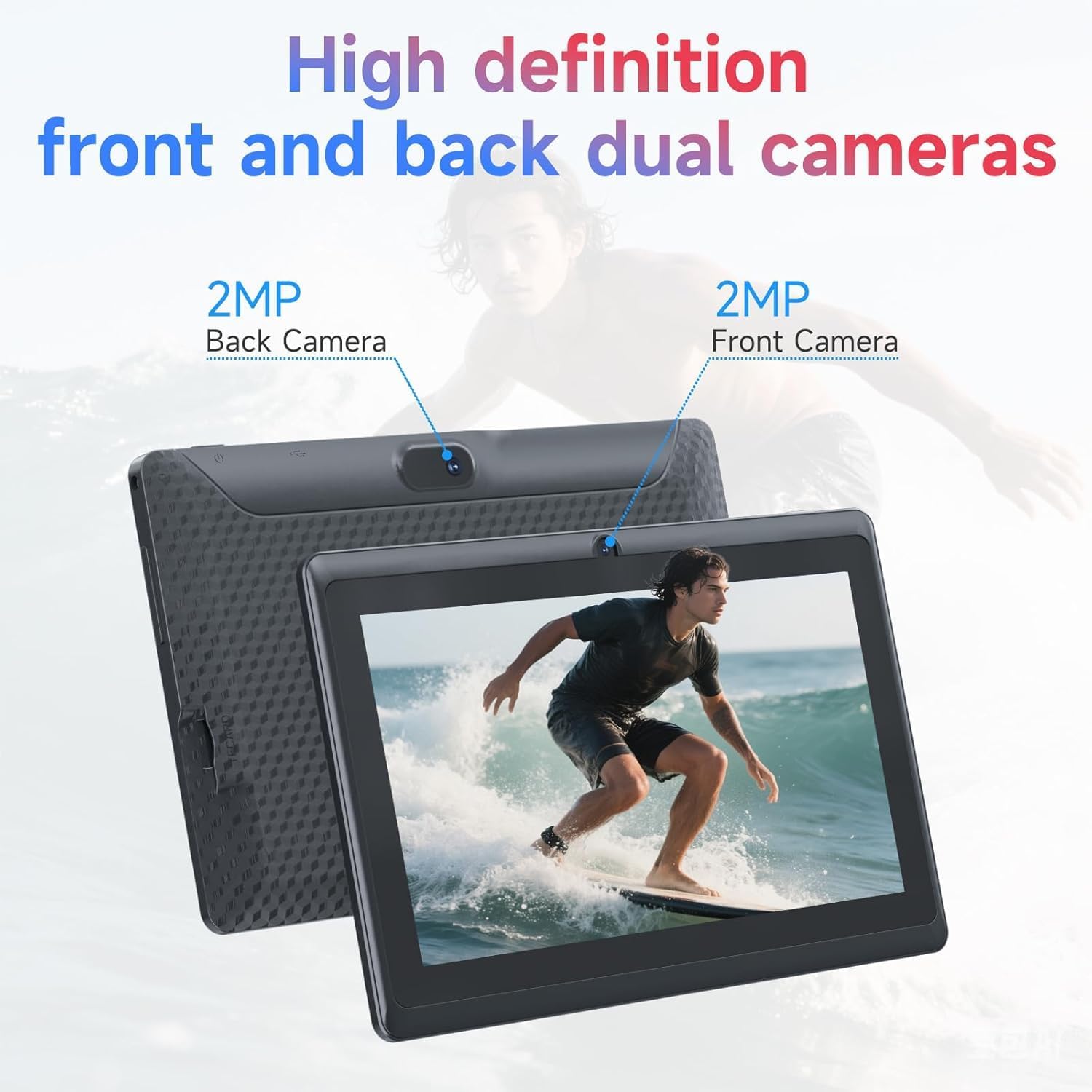
Illustration of the tablet's dual cameras, featuring a 5MP front camera and an 8MP rear camera.
The tablet features a 5MP front camera and an 8MP rear camera. Open the Camera foto app to take photos or record videos. Tap the camera icon to switch between front and rear cameras.
5. Connectivity (Bluetooth)
Pentru a conecta dispozitive Bluetooth:
- Du-te la Setări > Dispozitive conectate > Bluetooth.
- Comutați Bluetooth On.
- Selecta Asociați un dispozitiv nou și alegeți dispozitivul din listă.
6. Mod de protecție a ochilor

The 7-inch IPS HD screen of the tablet displaying a colorful image, highlighting its 1024x600 resolution.
The tablet's display is designed to reduce blue light emission for eye comfort. You can enable or adjust eye protection settings in Setări > Afişa.

A user engaged in a video conference on the tablet, demonstrating its suitability for work and study.
Întreţinere
1. Curățare și îngrijire
- Folosiți o lavetă moale, fără scame, pentru a curăța ecranul și corpul tabletei.
- Evitați utilizarea substanțelor chimice dure sau a materialelor abrazive.
- A se păstra tableta departe de temperaturi extreme, lumina directă a soarelui și umiditate.

An image depicting the tablet's drop protection feature, showing it withstands impacts.
2. Actualizări software
Verificați și instalați periodic actualizări de software pentru a asigura performanță și securitate optime. Accesați Setări > Sistem > Actualizare de sistem.
3. Optimizarea bateriei
- To prolong battery life, reduce screen brightness, disable Wi-Fi/Bluetooth when not in use, and close background apps.
- Evitați descărcarea completă frecventă a bateriei.
Depanare
| Emisiune | Soluție posibilă |
|---|---|
| Tableta nu pornește | Ensure the tablet is charged. Connect to a power source and wait a few minutes before attempting to power on again. |
| Probleme de conexiune Wi-Fi | Check if Wi-Fi is enabled in settings. Restart your router and the tablet. Ensure you have entered the correct password. |
| Performanță lentă | Close unnecessary background applications. Clear cache from apps in Settings > Apps. Consider performing a factory reset if issues persist (back up data first). |
| Aplicațiile se blochează sau se blochează | Update the app to the latest version. Clear the app's cache and data in Settings > Apps. Reinstall the app. |
Specificații
| Marca | CUPEISI |
| Numărul de model | Q2S |
| Sistem de operare | Android 14 |
| Procesor | 1.6 GHz Quad-core (ARM Cortex) |
| RAM | 8 GB (4GB fixed + 4GB virtual) |
| Stocare internă | 32 GB |
| Stocare extensibilă | Până la 1 TB prin card microSD |
| Dimensiunea ecranului | 7 inchi |
| Rezoluția afișajului | 1024 x 600 Pixels IPS HD |
| Cameră frontală | 5 MP |
| Camera spate | 8 MP |
| Capacitatea bateriei | 3000 mAh |
| Durata medie a bateriei | 6 de ore |
| Conectivitate | Wi-Fi (802.11g), Bluetooth |
| Interfață | USB tip C |
| Dimensiuni (L x l x G) | 7.5 cm x 4.3 cm x 0.3 cm |
| Greutatea articolului | 0.38 kilograme |
Informații despre garanție
The CUPEISI Q2S Tablet comes with a 1-year limited warranty from the date of purchase. This warranty covers manufacturing defects and workmanship under normal use. It does not cover damage caused by misuse, accidents, unauthorized modifications, or external factors. Please retain your proof of purchase for warranty claims.
Asistență pentru clienți
For further assistance, technical support, or warranty inquiries, please refer to the contact information provided with your product packaging or visit the official CUPEISI website. When contacting support, please have your tablet model number (Q2S) and proof of purchase ready.