
1. Introducere
The Emerson CKS1521 SmartSet Bluetooth Dual Alarm Clock Radio is designed to provide convenient timekeeping, alarm functions, and audio playback. It features an orange LED display, Bluetooth connectivity, FM radio, and a USB charging port.
Caracteristici cheie:
- SmartSet Auto Time Setting System: Automatically sets year, month, day, and time, including Daylight Saving adjustments.
- Bluetooth 5.1 Wireless Connectivity: Seamlessly pair smartphones and tablets for audio streaming.
- Bold 1.4” Orange LED Display with Dimmer: Offers three brightness levels and one auto-dim mode for optimal visibility.
- Dual Alarm with Custom Modes: Set two independent alarms with options for weekday, weekend, or daily schedules, and choose between radio or buzzer wake-up.
- Port de încărcare USB: Conveniently charge mobile phones or other devices (5V/1.5A output).
- Intrare AUX: Connect external audio devices for expanded listening options.
- Radio FM: Digital tuner with 20 station memory presets.
- 2-Level Orange Night Light: Provides subtle ambient lighting.
2. Configurare
2.1 Despachetarea și plasarea
Carefully remove the unit from its packaging. Place the clock radio on a stable, flat surface, away from direct sunlight, heat sources, or excessive dust and moisture.
2.2 Conexiune la alimentare
Plug the AC power cord into a standard wall outlet. The SmartSet system will automatically set the correct time, date, and year upon initial power-up. Ensure the backup battery (if applicable, typically pre-installed or user-installable) is in place to preserve settings during power outages.
2.3 Initial Time and Date Setting (if needed)
While the SmartSet feature automatically sets the time, you may need to adjust the time zone or manually set the time if the automatic setting is incorrect for your region.
- Țineți apăsat butonul SET Ceas buton. Afișajul va clipi.
- Utilizați TUNE +/- Apăsați butoanele pentru a regla ora. SET Ceas pentru a confirma.
- Utilizați TUNE +/- Apăsați butoanele pentru a regla minutul. SET Ceas pentru a confirma.
- Continue to follow the prompts to set the year, month, and day using the TUNE +/- buttons and confirming with SET Ceas.
For time zone adjustment, press and hold the SOMMN/FUS ORAR butonul și folosiți TUNE +/- pentru a vă selecta fusul orar.
3. Instrucțiuni de utilizare
3.1 Luminozitate afișaj (Dimmer)
The display has multiple brightness levels. Press the DIMMER button repeatedly to cycle through the brightness settings (Bright, Dim, Invisible, Auto-Dim).
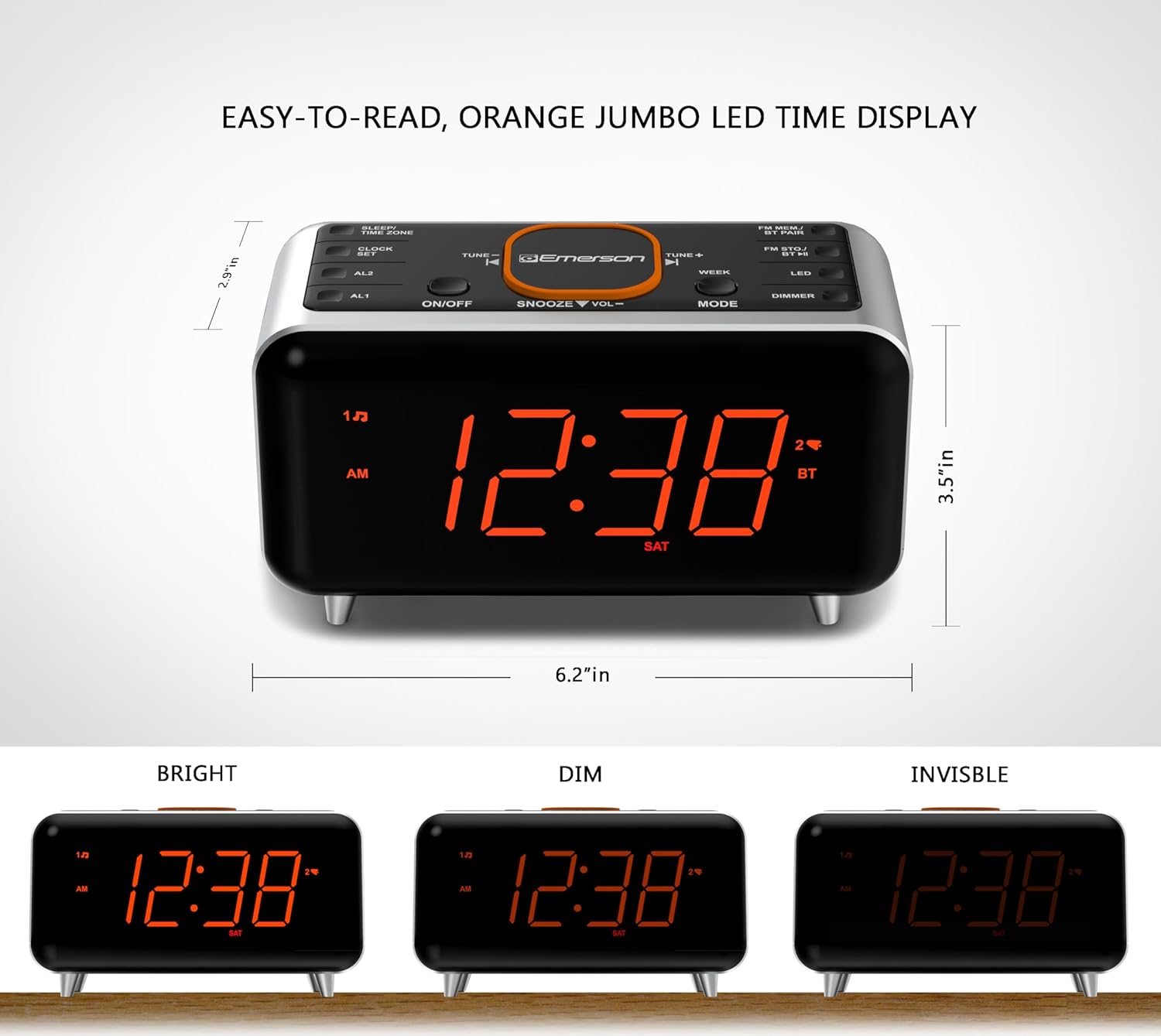
Image: The display showing different brightness levels (Bright, Dim, Invisible).
3.2 Setarea alarmelor
The unit features dual alarms (AL1 and AL2).
- Apăsați și mențineți apăsat SETARE AL1 or SETARE AL2Ora alarmei va clipi.
- Utilizare TUNE +/- to adjust the alarm hour, then press the respective AL SET butonul pentru a confirma.
- Utilizare TUNE +/- to adjust the alarm minute, then press the respective AL SET butonul pentru a confirma.
- Selectați sursa alarmei (Buzzer sau Radio FM) folosind TUNE +/-, then press the respective AL SET butonul pentru a confirma.
- Choose the alarm mode (Everyday, Weekday, or Weekend) using SĂPTĂMÂNĂ button, then press the respective AL SET butonul pentru a confirma.
To activate or deactivate an alarm, press the SETARE AL1 or SETARE AL2 button briefly. An alarm icon will appear on the display when active.
3.3 Funcționarea radioului FM
- Apăsați tasta ON/OFF butonul pentru a porni radioul.
- Apăsați tasta SURSĂ butonul pentru a selecta modul FM.
- Utilizare TUNE +/- to manually tune to a station, or press and hold TUNE +/- for auto-scan.
- To save a preset: Tune to the desired station, then press and hold FM STO./BT II. Utilizare TUNE +/- pentru a selecta un număr presetat (P01-P20), apoi apăsați FM STO./BT II din nou pentru a salva.
- To recall a preset: Press FM MEM./BT PAIR în mod repetat pentru a parcurge posturile salvate.
3.4 Împerechere și redare Bluetooth
- Apăsați tasta ON/OFF pentru a porni unitatea.
- Apăsați tasta SURSĂ button to select Bluetooth (BT) mode. The BT icon will flash on the display.
- On your Bluetooth-enabled device, search for "Emerson CKS1521" and select it to pair.
- Once paired, the BT icon will stop flashing and remain solid. You can now stream audio from your device.
- Utilizați VOL +/- buttons on the clock radio or your connected device to adjust the volume.

Image: The Emerson CKS1521 clock radio displaying time with a smartphone connected via Bluetooth, indicating audio streaming capability.
3.5 Încărcare USB
Connect your mobile device's USB charging cable to the USB port on the back of the clock radio. The port provides 5V/1.5A output for charging.
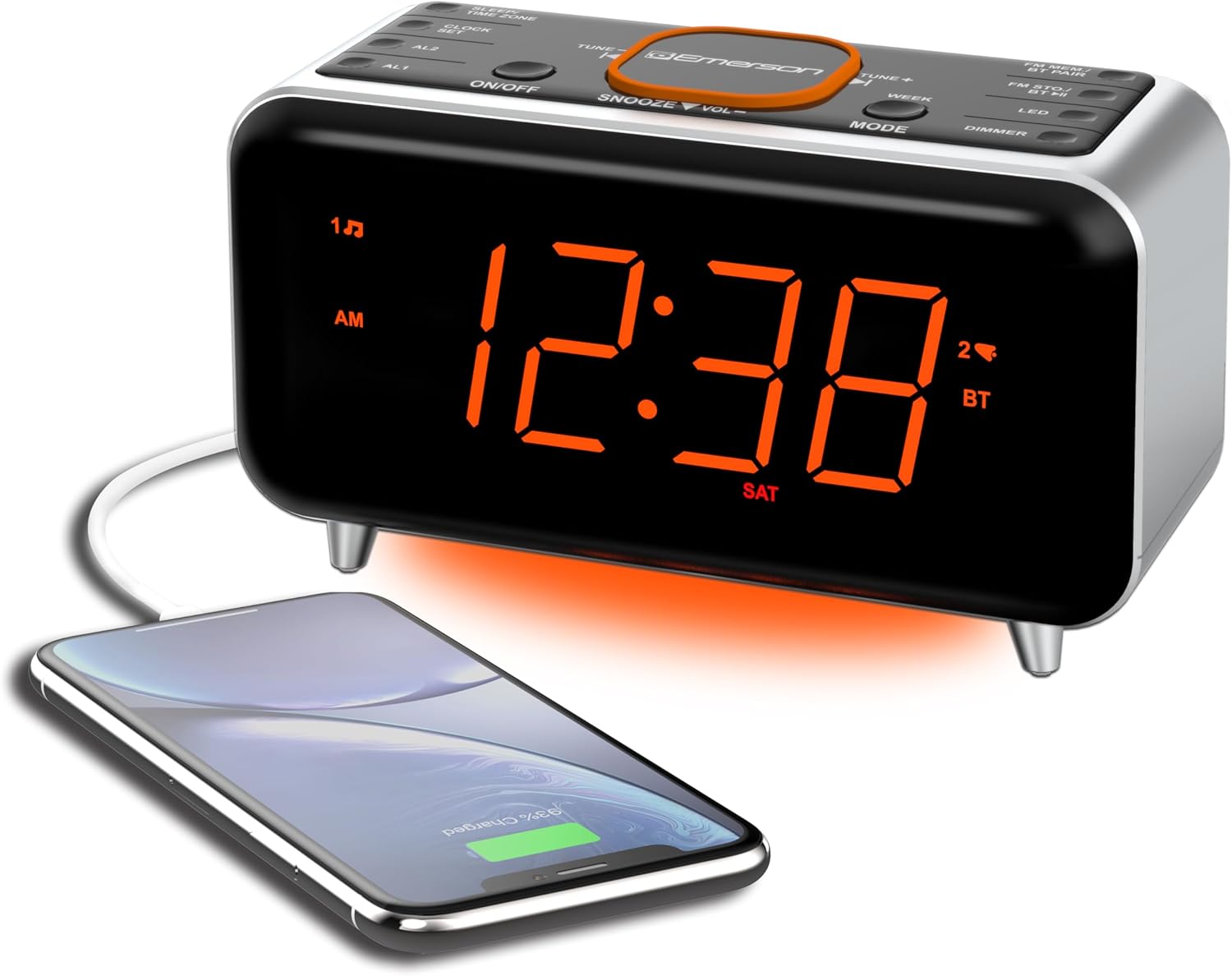
Image: The Emerson CKS1521 clock radio with a smartphone connected and charging via the integrated USB port.
3.6 Intrare AUX
Connect an external audio device (e.g., MP3 player) to the AUX IN jack on the back of the unit using a 3.5mm audio cable. Press the SURSĂ pentru a selecta modul AUX.
3.7 Lumină de noapte
The unit features a 2-level orange night light located at the base. Press the LED button to cycle through the night light brightness levels.

Image: The Emerson CKS1521 clock radio in a dark room, highlighting the orange LED display and accent light, demonstrating the night light feature.
4. Întreținere
4.1 Curățare
To clean the unit, use a soft, dry cloth. Do not use abrasive cleaners, waxes, or solvents as these may damage the surface. Avoid spraying liquids directly onto the unit.
4.2 Battery Replacement (Backup Battery)
The unit uses a backup battery (type not specified in provided data, typically CR2032 or similar) to maintain time and alarm settings during power outages. If settings are lost during a power interruption, replace the backup battery. Refer to the battery compartment for specific battery type and replacement instructions.
5. Depanare
| Problemă | Cauza posibila | Soluţie |
|---|---|---|
| Afișajul este gol sau întunecat. | Unit is unplugged, power outage, dimmer setting too low. | Ensure power cord is securely plugged in. Check household circuit breaker. Press DIMMER buton pentru a regla luminozitatea. |
| Timpul este incorect. | Time zone incorrect, SmartSet not activated, or backup battery depleted. | Adjust time zone using SOMMN/FUS ORAR button. Manually set time if necessary. Replace backup battery. |
| Alarma nu sună. | Alarm not activated, volume too low, or incorrect alarm mode. | Ensure alarm icon is displayed. Increase volume. Check alarm mode (Everyday, Weekday, Weekend). |
| Nu se poate conecta dispozitivul Bluetooth. | Unit not in BT mode, device too far, or previously paired device connected. | Presa SURSĂ to select BT mode. Ensure device is within 10M range. Disconnect from other BT devices. Try resetting both devices. |
| USB charging causes display issues. | Potential power fluctuation or specific device incompatibility. | Try a different USB cable or device. If the issue persists, avoid using the USB charging port if display stability is critical. |
| Recepție radio FM slabă. | Antena nu este extinsă sau semnalul în zonă este slab. | Extindeți complet antena FM cu fir. Repoziționați unitatea pentru o recepție mai bună. |
6. Specificații
| Caracteristică | Detaliu |
|---|---|
| Dimensiunile produsului | 8.25 cm L x 3.38 cm l x 4 cm Î |
| Greutatea articolului | 1.05 lire sterline |
| Numărul de model | CKS1521 |
| Tehnologia de conectivitate | Bluetooth 5.1 |
| Tehnologia de afișare | LED (portocaliu) |
| Tehnologie Tuner | FM |
| Sursa de alimentare | Electric cu fir |
| Ieșire USB | 5V/1.5A |
| Componente incluse | Clock, Owners Manual |
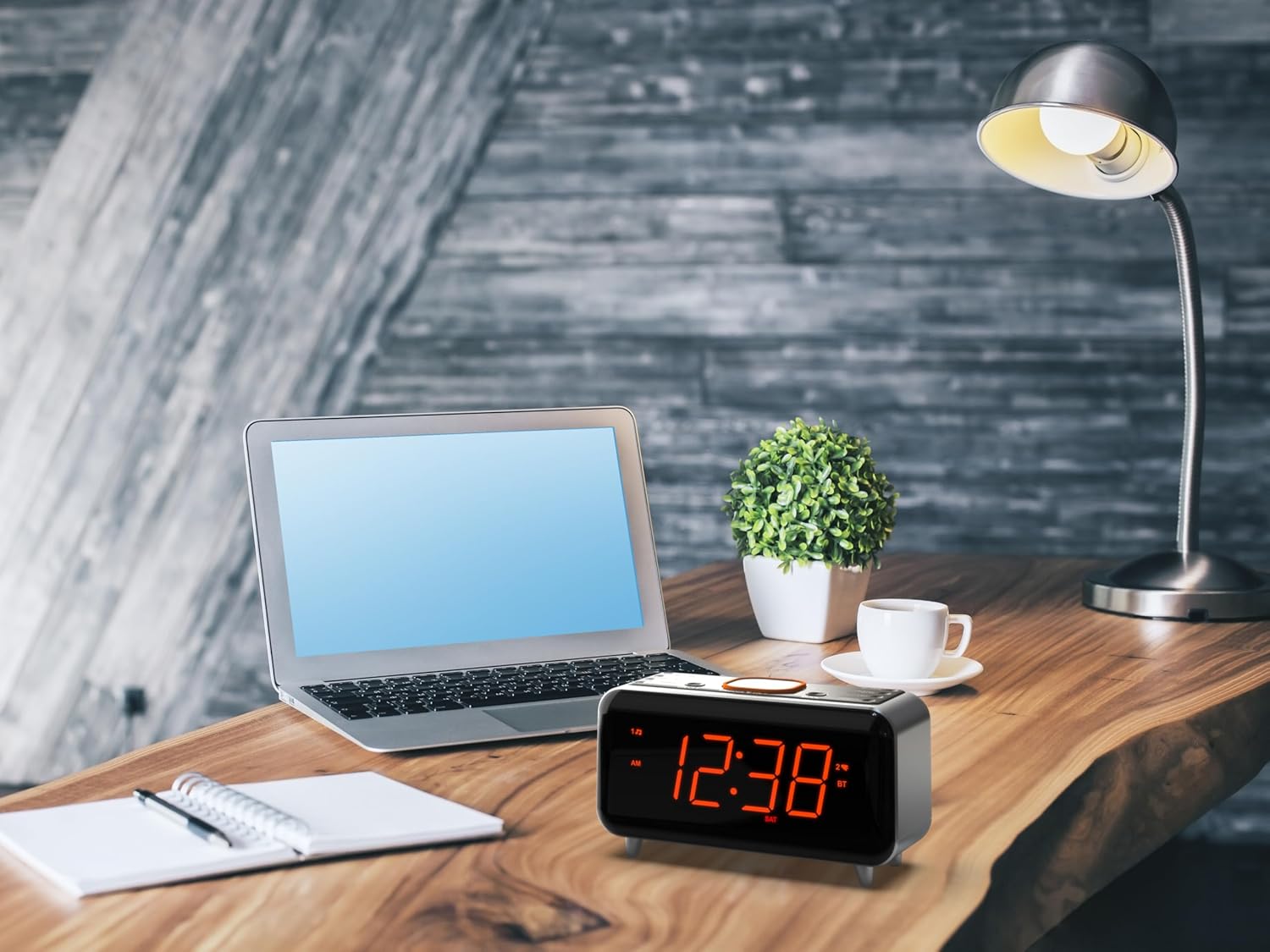
Image: Diagram showing the dimensions of the Emerson CKS1521 clock radio (6.2" x 2.9" x 3.5").
7. Garanție și asistență
This Emerson product is covered by a standard manufacturer's warranty. Please refer to the warranty card included in your product packaging for specific terms and conditions, including warranty period and coverage details.
For technical support, troubleshooting assistance, or warranty claims, please contact Emerson customer service. Contact information can typically be found on the manufacturer's website-ul sau în ambalajul produsului.
Resurse online: For additional support and frequently asked questions, visit the official Emerson website: www.emersonradio.com